
Insert and Copy
Location on ribbon: Tab DVD Addin → Group Cells and Rows → the ▾ arrow of Insert Rows
Command ID: btnInsertCopyBelow
What it does
Replicates a row template to many places in a table: for every target row it inserts exactly as many blank rows as the source block has, then copies the template into them. Use it when a repeating block has to follow each item — three "Material / Labour / Equipment" rows under every work item in a cost estimate, or a "Subtotal" row after each group in a bill of quantities. Shortcut: Alt+C.
How to use
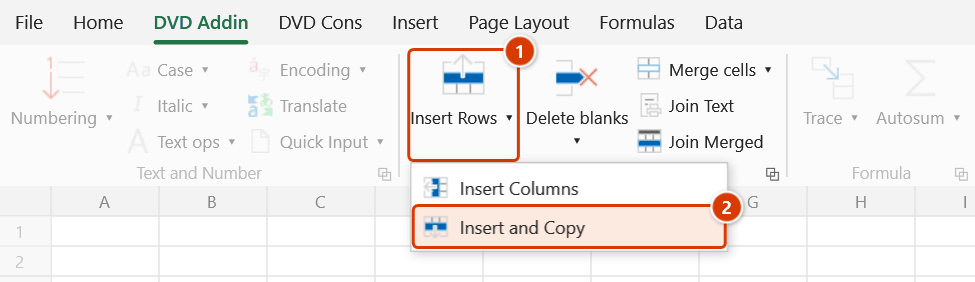
- Click Insert and Copy in tab DVD Addin → group Cells and Rows → the ▾ arrow of Insert Rows (or press Alt+C).
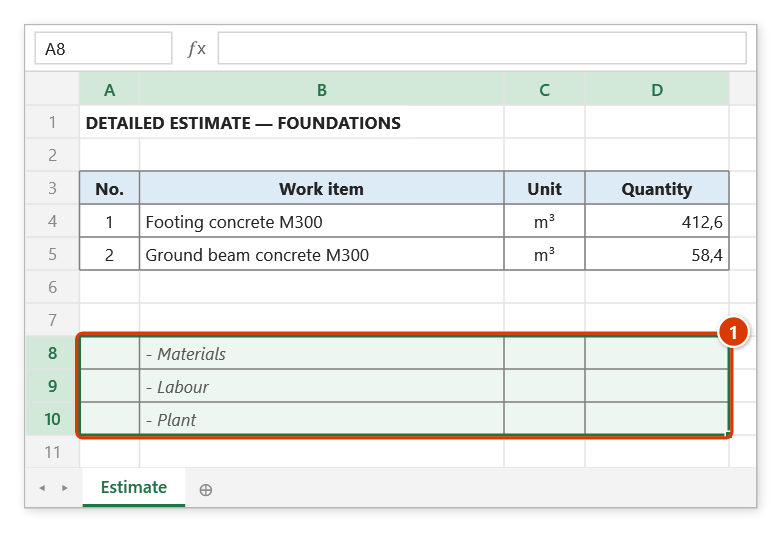
- The first prompt appears: "Select source area" (one or more rows). Drag-select the template block on the sheet and click OK.
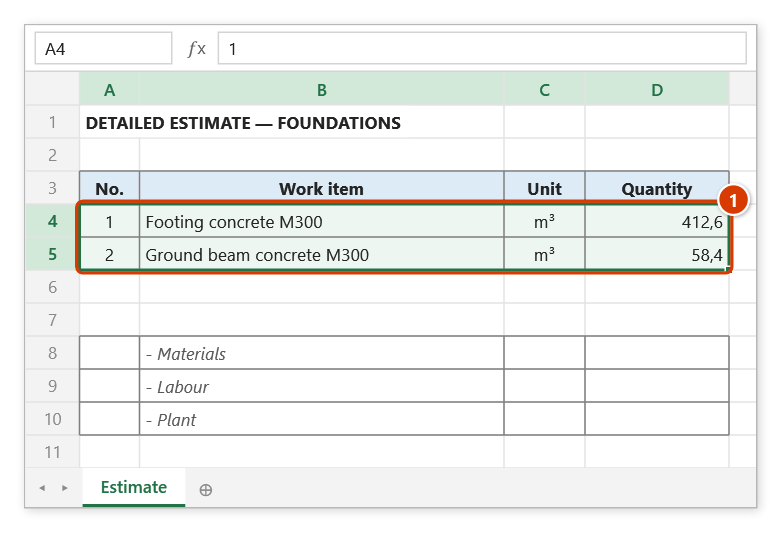
- The second prompt: "Select target areas (Ctrl-click for multiple)". Select the rows below which the template should be inserted; hold Ctrl to pick several separate areas, then click OK.
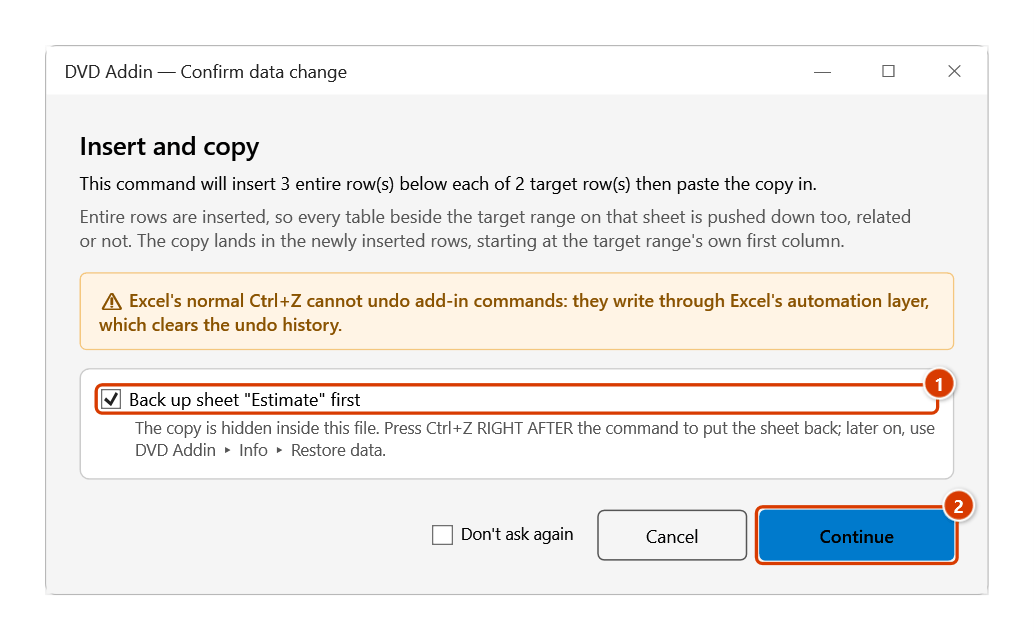
- The Confirm data change window states how many rows will be inserted. Keep Back up sheet … first ticked so Ctrl+Z right after the command puts the sheet back, then click Continue.
- The add-in works bottom-up so earlier positions do not shift: for each target row it inserts the blank rows and copies the source block into them.
- Press ESC while it runs to stop early — everything processed so far is kept.
- Clicking Cancel on any prompt exits without changing anything.
Video tutorial
Narrated in Vietnamese, with Vietnamese subtitles. Chèn dòng, Chèn cột, Chèn và Sao chép · 6 min 12 s · 10 cases · Download the video · Practice workbook for the video
Commands in this video: Insert Rows · Insert and Copy · Insert Columns
Chapters (15)
- Giới thiệu
- Mở lệnh
- Cửa sổ Chèn dòng / cột
- 1 · Chèn nhiều dòng
- 2 · Chèn nhiều cột
- 3 · Chọn nhiều dòng, nhiều vùng
- 4 · Dòng tổng cộng
- 5 · Bảng có ô gộp
- 6 · Chèn và Sao chép
- 7 · Chọn lệch cột – hoàn tác
- 8 · Mẫu ở sheet riêng
- 9 · Danh sách đang lọc
- 10 · Khi lệnh không chạy
- Mẹo
- Kết thúc
Illustrated walkthrough
Practice
Download this command's sample workbook — the data matches the pictures below (sheet Estimate), so you can follow each step right away.
Step 1. On the ribbon, open the DVD Addin tab → Cells and Rows group → open Insert Rows → choose Insert and Copy (or press Alt+C).
Step 2. The first range box asks Select source area: drag over the template rows — here A8:D10 with Materials / Labour / Plant (1) — then click OK.
Step 3. The second box asks Select target areas: select the rows that should get the template right below them — here A4:D5, each row gets one block (1) — then click OK. The copy is pasted starting at the target's first column.
Step 4. The confirmation box states how many rows will be inserted. Keep Back up sheet ticked (1) so Ctrl+Z can undo right after, then click Continue (2).
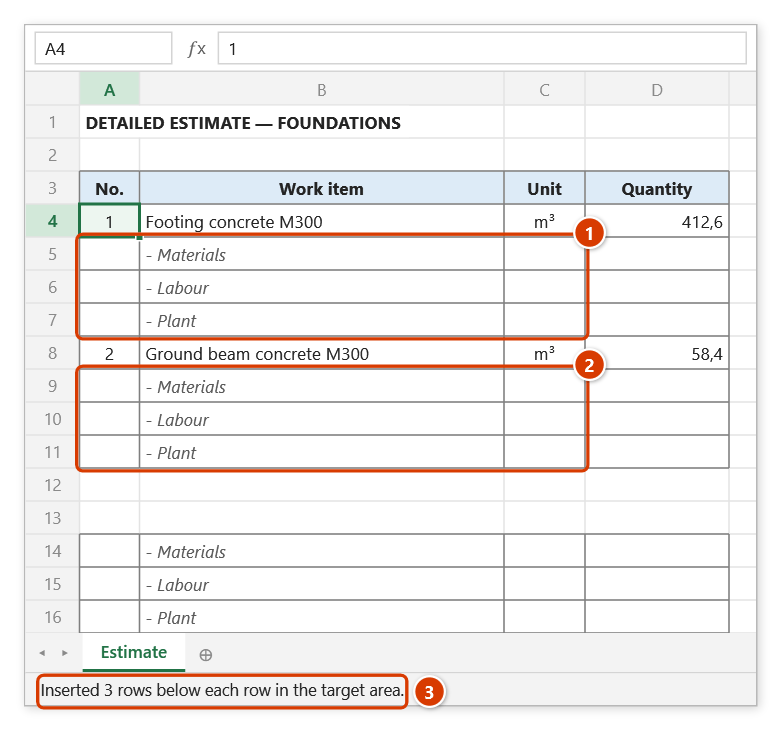
Step 5. Each work item now has the 3 template rows right below it, with formatting and formulas kept (1) (2); the template itself is pushed down to rows 14–16. The status bar reports the result (3).
Example
A detailed cost estimate has work-item rows at rows 10, 25 and 40. You have prepared a three-row template at A100:H102 containing Material, Labour and Equipment with their formulas.
Press Alt+C → select source A100:H102 → select targets: click row 10, Ctrl-click row 25, Ctrl-click row 40 → OK → Continue. Each work item now has exactly three cost rows beneath it with the template's formatting and formulas intact, and everything below shifts down.
Notes
- Source rows are copied without the clipboard — whatever you had copied (including a Ctrl+C range in Excel) stays there; relative formulas still shift as with a paste.
- The block is copied as-is (values, formulas, formatting); relative references adjust to the new position.
- Keep the source block outside the area being shifted (for example at the bottom of the sheet), otherwise its own position can move while the command runs.
- Excel's normal Ctrl+Z cannot undo this command; if you kept Back up sheet ticked in the confirmation window, press Ctrl+Z right after the command to put the sheet back (later on, use Restore data).
- While running, the add-in turns off events and screen updating for speed; a briefly frozen screen is normal.
- If the target selection spans several consecutive rows, each of those rows gets its own copy of the template — select only the rows you really need.
- The range picker does not lock Excel: while it is open you can scroll, switch sheets or switch workbooks to pick the range there. Click OK or press Enter on the sheet when done; Cancel or Esc to stop.
Related
- Insert Rows — insert a number of blank rows without copying anything.
- Insert Columns — widen the table instead.
- Delete blanks — clean up surplus rows if you over-inserted.
- Merge rows — finish the layout once the table has all its rows.