
Delete blanks
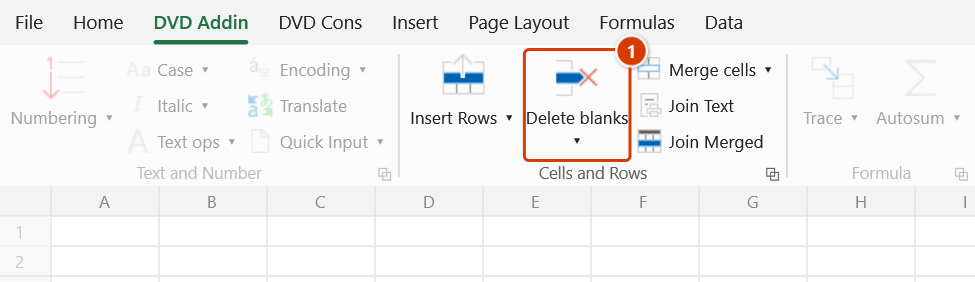
Location on ribbon: Tab DVD Addin → Group Cells and Rows
Command ID: btnDeleteBlankRows
What it does
Removes every completely empty row inside a range you point at, compacting the table into one continuous block. It earns its keep on data exported from estimating or planning software, or converted from PDF to Excel, where scattered blank rows break AutoFilter, PivotTables and formula-based numbering.
How to use
- Click Delete blanks in tab DVD Addin → group Cells and Rows.
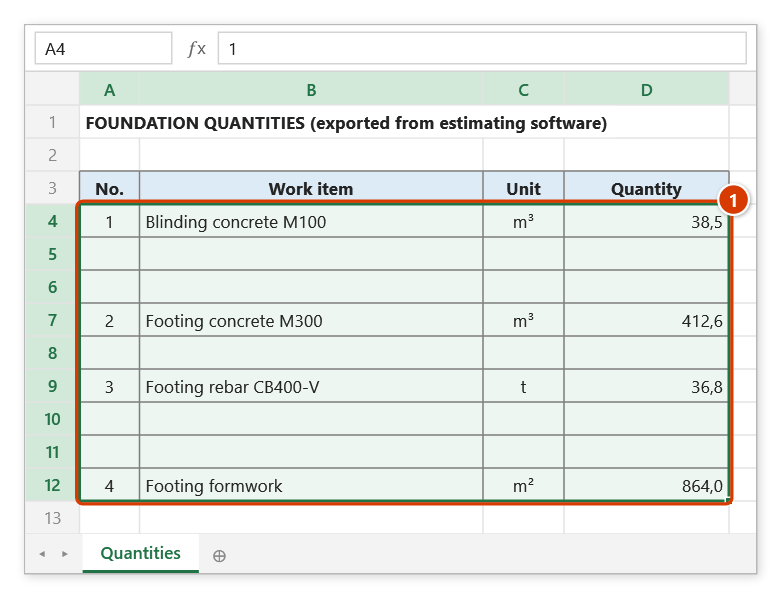
- A range prompt appears: "Select data range to delete blank rows". Drag-select the range on the sheet (Ctrl-click works for several areas) and click OK. Cancel exits without changes.
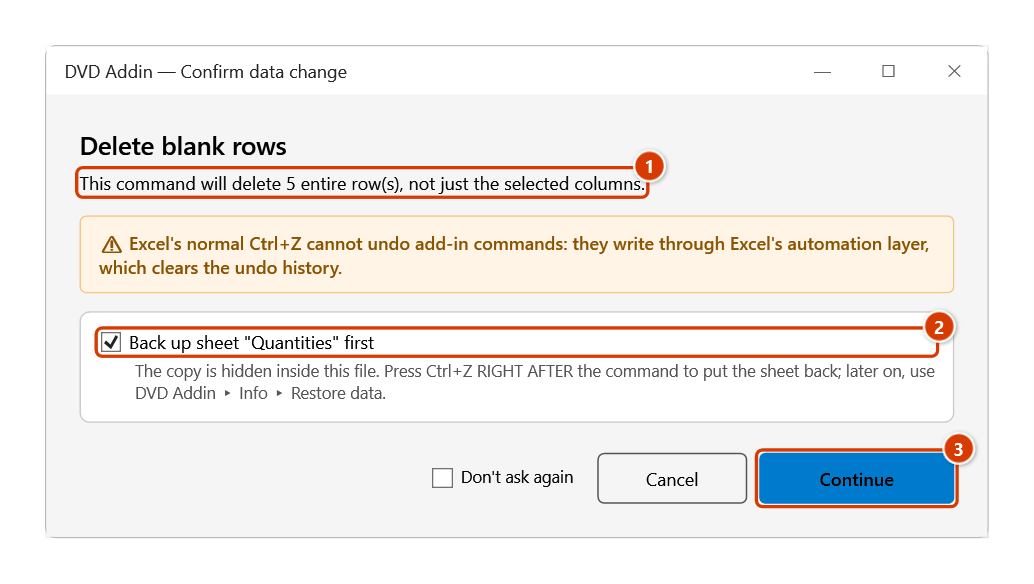
- The Confirm data change window shows how many rows will be deleted (entire sheet rows, not just the selected columns). Keep the backup ticked and click Continue.
- The add-in scans each row in the range, collects the ones where no cell holds any data, then deletes them bottom-up so positions stay valid.
- Press ESC while it runs to stop early — the rows already deleted stay deleted.
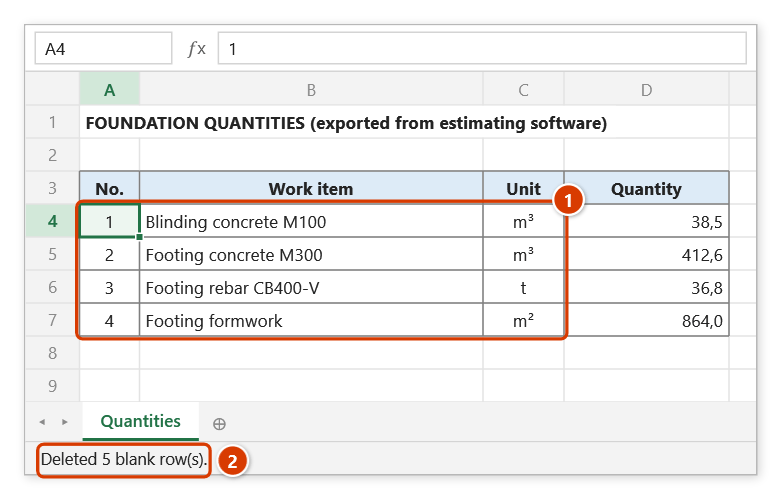
- When it finishes, the status bar reports the count, for example
Deleted 37 blank row(s).— plus how many hidden rows were kept, if any.
Video tutorial
Narrated in Vietnamese, with Vietnamese subtitles. Xoá dòng trống, dòng ẩn, format, Name lỗi, Cell Style · 6 min 22 s · 14 cases · Download the video · Practice workbook for the video
Commands in this video: Delete blanks · Strip junk styles · Delete error Defined Names · Delete hidden rows · Delete unused formats
Chapters (18)
- Giới thiệu
- Mở lệnh
- 1 · Bảng xuất từ dự toán
- 2 · Cột công thức kéo dài
- 3 · Ghi chú ngoài vùng chọn
- 4 · Dòng trống đang ẩn
- 5 · Ô gộp nhiều dòng
- 6 · Chọn cả cột
- 7 · Xoá dòng ẩn: bảng đã lọc
- 8 · Xoá dòng ẩn: nhóm thu gọn
- 9 · Xoá format không dùng
- 10 · Ô lạc làm dọn hụt
- 11 · Xoá Defined Names lỗi
- 12 · Xoá Cell Style ngoại lai
- 13 · Ghi đè và hoàn tác
- 14 · Sheet khoá, lệnh không chạy
- Mẹo
- Kết thúc
Illustrated walkthrough
Practice
Download this command's sample workbook — the data matches the pictures below (sheet Quantities), so you can follow each step right away.
Step 1. On the ribbon, open the DVD Addin tab → Cells and Rows group → click Delete blanks.
Step 2. The range box asks Select data range to delete blank rows: drag over the table, here A4:D12 (1), then click OK. Every row of the range with no data at all will be deleted.
Step 3. The confirmation box shows how many rows will go — the command deletes entire rows of the sheet, not just the selected columns (1). Keep the backup ticked (2) and click Continue (3).
Step 4. The table closes up into one block (1); the status bar reports how many rows were deleted (2). Hidden rows are kept by default (change this in Preferences ▸ Cells and Rows).
Example
A bill of quantities exported from estimating software separates each section with two blank rows, so 320 real rows spread over 480 and the formula-driven numbering keeps breaking.
| Before | After |
|---|---|
| 1 – Blinding concrete | 1 – Blinding concrete |
| (blank) | 2 – Foundation concrete M250 |
| (blank) | 3 – Foundation reinforcement |
| 2 – Foundation concrete M250 | |
| (blank) | |
| 3 – Foundation reinforcement |
Select A5:H484, run the command, and 320 continuous rows remain, ready to filter and renumber.
Notes
- By default the add-in skips rows that are currently hidden (by AutoFilter or grouping), on the "what you see is what stays" principle; change this in Preferences ▸ Cells and Rows ▸ "Skip currently-hidden rows in Delete blank rows".
- Only fully empty rows go. A row holding a space, an empty string
""returned by a formula, or anything Excel counts as content is left alone. - The add-in asks for confirmation before deleting. Ctrl+Z right after the command puts the sheet back as it was (thanks to the backup); see Restore data.
- The command deletes entire sheet rows, not just the part inside your selection; another table sitting to the right on the same rows will lose data too.
- Very large ranges take time because each row is a separate delete call — use ESC if you need to stop.
- The range picker does not lock Excel: while it is open you can scroll, switch sheets or switch workbooks to pick the range there. Click OK or press Enter on the sheet when done; Cancel or Esc to stop.
Related
- Delete hidden rows — remove hidden rows instead of preserving them.
- Hide empty rows — hide blank rows without deleting, when you only need a clean printout.
- Insert and Copy — the opposite operation, adding template rows.
- Delete unused formats — clear leftover formatting once the table is compacted.