
Delete hidden rows
Location on ribbon: Tab DVD Addin → Group Cells and Rows → the ▾ arrow of Delete blanks
Command ID: btnDeleteHiddenRows
What it does
Permanently removes the rows that are currently hidden inside a range you point at, instead of just unhiding them. It is the quick way to "freeze" a filtered table: once AutoFilter or manual hiding has left only the part you want to issue, this command drops the rest for good — useful when splitting one section's quantities into its own file, or producing an extract that contains only the accepted work items.
How to use
- Hide (or filter and hide) the rows you do not want to keep.
- Click Delete hidden rows in tab DVD Addin → group Cells and Rows → the ▾ arrow of Delete blanks.
- A range prompt appears: "Select range to delete hidden rows". Select the range and click OK; Cancel exits without changes.
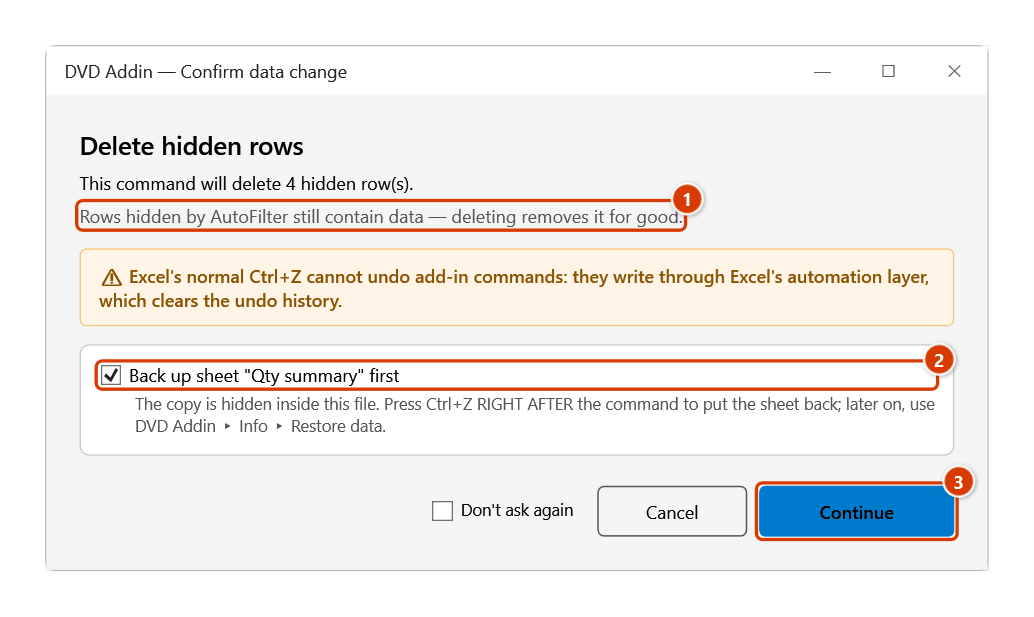
- The Confirm data change window shows how many hidden rows will be deleted and reminds you that filtered-out rows still hold data. Keep the backup ticked and click Continue.
- The add-in scans each row in the range, collects the hidden ones and deletes them bottom-up.
- Press ESC while it runs to stop early — the rows already deleted stay deleted.
- The status bar reports the result, for example
Deleted 154 hidden row(s).
Video tutorial
Narrated in Vietnamese, with Vietnamese subtitles. Xoá dòng trống, dòng ẩn, format, Name lỗi, Cell Style · 6 min 22 s · 14 cases · Download the video · Practice workbook for the video
Commands in this video: Delete blanks · Strip junk styles · Delete error Defined Names · Delete hidden rows · Delete unused formats
Chapters (18)
- Giới thiệu
- Mở lệnh
- 1 · Bảng xuất từ dự toán
- 2 · Cột công thức kéo dài
- 3 · Ghi chú ngoài vùng chọn
- 4 · Dòng trống đang ẩn
- 5 · Ô gộp nhiều dòng
- 6 · Chọn cả cột
- 7 · Xoá dòng ẩn: bảng đã lọc
- 8 · Xoá dòng ẩn: nhóm thu gọn
- 9 · Xoá format không dùng
- 10 · Ô lạc làm dọn hụt
- 11 · Xoá Defined Names lỗi
- 12 · Xoá Cell Style ngoại lai
- 13 · Ghi đè và hoàn tác
- 14 · Sheet khoá, lệnh không chạy
- Mẹo
- Kết thúc
Illustrated walkthrough
Practice
Download this command's sample workbook — the data matches the pictures below (sheet Qty summary), so you can follow each step right away.
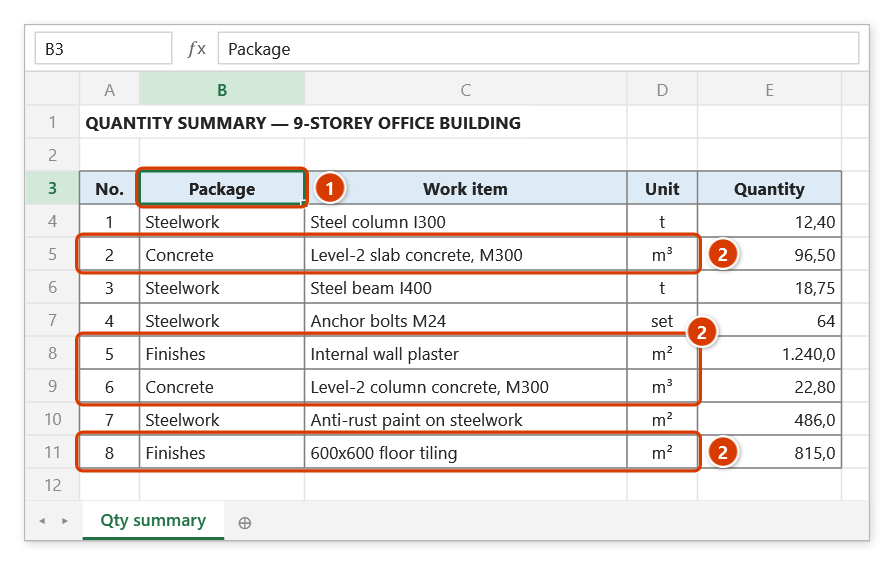
Step 1. Hide the rows you do not want to keep — usually with AutoFilter. For example, filter the Package column (1) to Steelwork only: the rows of other packages (2) become hidden. Work on a copy of the original file.
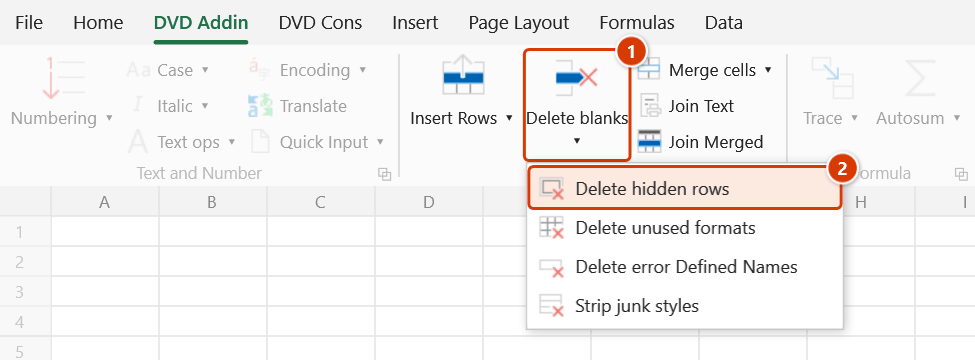
Step 2. On the ribbon, open the DVD Addin tab → Cells and Rows group → open Delete blanks → choose Delete hidden rows.
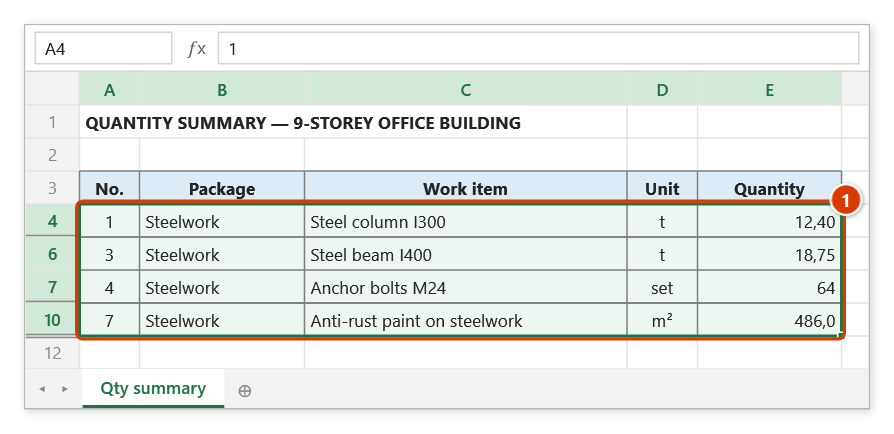
Step 3. The range box asks Select range to delete hidden rows: drag over the whole table, here A4:E11 — the range spans the hidden rows 5, 8–9, 11 (1) — and click OK.
Step 4. The confirmation box shows how many hidden rows will be deleted and reminds you that filtered-out rows still hold data (1). Keep the backup ticked (2) and click Continue (3).
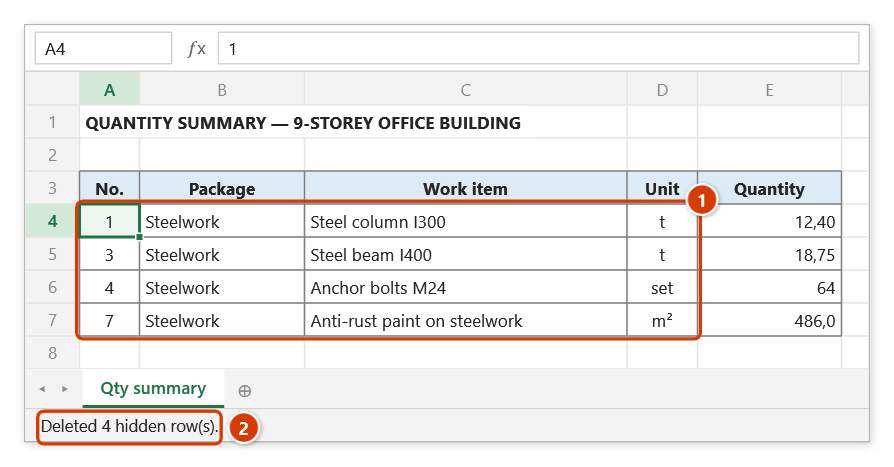
Step 5. The hidden rows are gone for good and only the Steelwork rows remain (1); the status bar reports how many rows were deleted (2). Re-check totals and the print area afterwards.
Example
A consolidated quantity workbook holds five sections on one sheet, 900 rows in total. The Steel structure part has to be issued separately to a subcontractor.
Save a copy of the file → AutoFilter the "Section" column to Steel structure so the other rows are hidden → select A6:K905 → click Delete hidden rows. What remains is only the steel-structure scope, safe to send without exposing the other sections' quantities.
Notes
- The command deletes entire sheet rows — data outside your selection but on the same rows is lost as well.
- Excel's normal Ctrl+Z cannot undo it; if you kept the backup ticked in the confirmation window, press Ctrl+Z right after the command to put the sheet back (later on, use Restore data). When the output leaves your office, still work on a copy of the original.
- Rows hidden by a collapsed row group (outline) count as hidden and will be deleted too — expand all groups first if you are unsure.
- Large ranges take a while because each row is a separate delete call; ESC stops it mid-way.
- Afterwards, re-check total formulas and print areas, since the referenced ranges have changed.
- The range picker does not lock Excel: while it is open you can scroll, switch sheets or switch workbooks to pick the range there. Click OK or press Enter on the sheet when done; Cancel or Esc to stop.
Related
- Delete blanks — removes empty rows and by default keeps hidden ones.
- Select visible — select only what you can see, to copy rather than delete.
- Copy and paste visible — the safer route: move the visible part to a new sheet.
- Hide empty rows — hide rows for printing without touching the data.