
Cutting Tpl
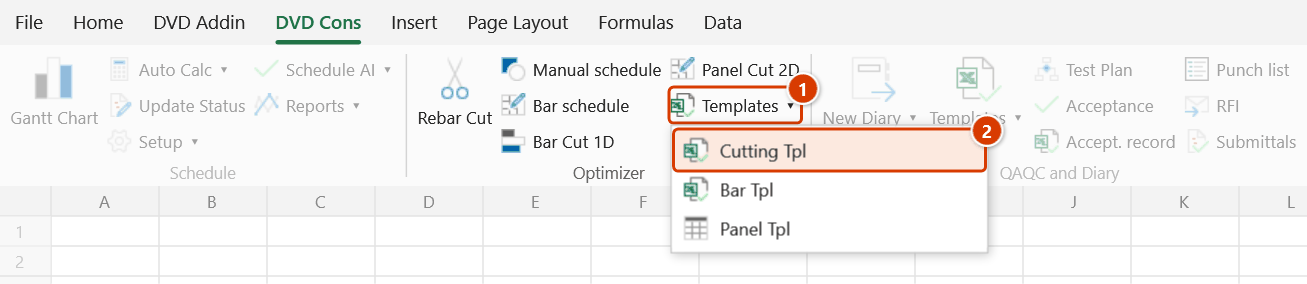
Location on ribbon: Tab DVD Cons → Group Optimizer → Menu Templates
Command ID: btnCuttingTpl
What it does
Opens RebarCutOptimizer.xlsx, the rebar cutting template shipped with DVDAddin. The file already contains the input columns the optimizer expects, so you fill in numbers instead of building the table yourself.
Use it at the start of a rebar take-off: open the template, enter the pieces you need on the 2_CatThep sheet, then run Rebar Cut (the stock length and kerf are set in Preferences → Rebar cutting).
How to use
- Click Templates ▸ Cutting Tpl in the Optimizer group.
- The add-in looks for
Template\RebarCutOptimizer.xlsxin the add-in install folder (C:\DVDAddin\Template\), then in aTemplate\folder next to the active workbook. - The master template file itself opens (not a copy) — use Save As with a project-specific name before editing, because Ctrl+S overwrites the template.
- On the
2_CatThepsheet, delete the example rows and enter the four columns Ø (mm) · Chiều dài (mm) · Số lượng · Ký hiệu (diameter, length, quantity, mark — the file itself is in Vietnamese) (or paste from Bar schedule → Export cut list). Stock length, kerf and coil threshold are set in Preferences → Rebar cutting. - Run Rebar Cut to compute the cutting plan.
Video tutorial
Narrated in Vietnamese, with Vietnamese subtitles. Cắt tối ưu thép · 6 min 26 s · 13 cases · Download the video · Practice workbook for the video
Commands in this video: Rebar Cut · Cutting Tpl
Chapters (17)
- Giới thiệu
- Mở lệnh
- 1 · Từ Thống kê thép
- 2 · Từ tệp Mẫu Cắt thép
- 3 · Thông số ở Tùy chọn
- 4 · Các sheet kết quả
- 5 · Thép cuộn Ø nhỏ
- 6 · Mẩu thừa và sổ tồn kho
- 7 · Thanh dài hơn cây thép
- 8 · Ghép hai đoạn: bật / tắt
- 9 · Mạch cắt (lưỡi cắt)
- 10 · Cây 11,7 m hay 8,6 m
- 11 · Dữ liệu lỗi
- 12 · Chạy lại và hoàn tác
- 13 · In phiếu cho tổ thép
- Mẹo
- Kết thúc
Illustrated walkthrough
Practice
Download this command's sample workbook — the data matches the pictures below (sheet 2_CatThep), so you can follow each step right away.
Step 1. On the ribbon, open the DVD Cons tab → Optimizer group → open Templates → choose Cutting Tpl.
Step 2. The add-in opens RebarCutOptimizer.xlsx from the install folder (C:\DVDAddin\Template\; failing that, a Template\ folder next to the active workbook), on its 1_HuongDan guide sheet. Use Save As to keep a project copy before editing, so the shared template stays untouched.
Step 3. Go to the 2_CatThep sheet: four columns Ø (mm) · Chiều dài (mm) · Số lượng · Ký hiệu (diameter, length, quantity, mark) (1) — the file itself is in Vietnamese. The tinted rows are sample data, as the note on the right says (2): clear them and enter your cut list, or paste it from Bar schedule → Export cut list.
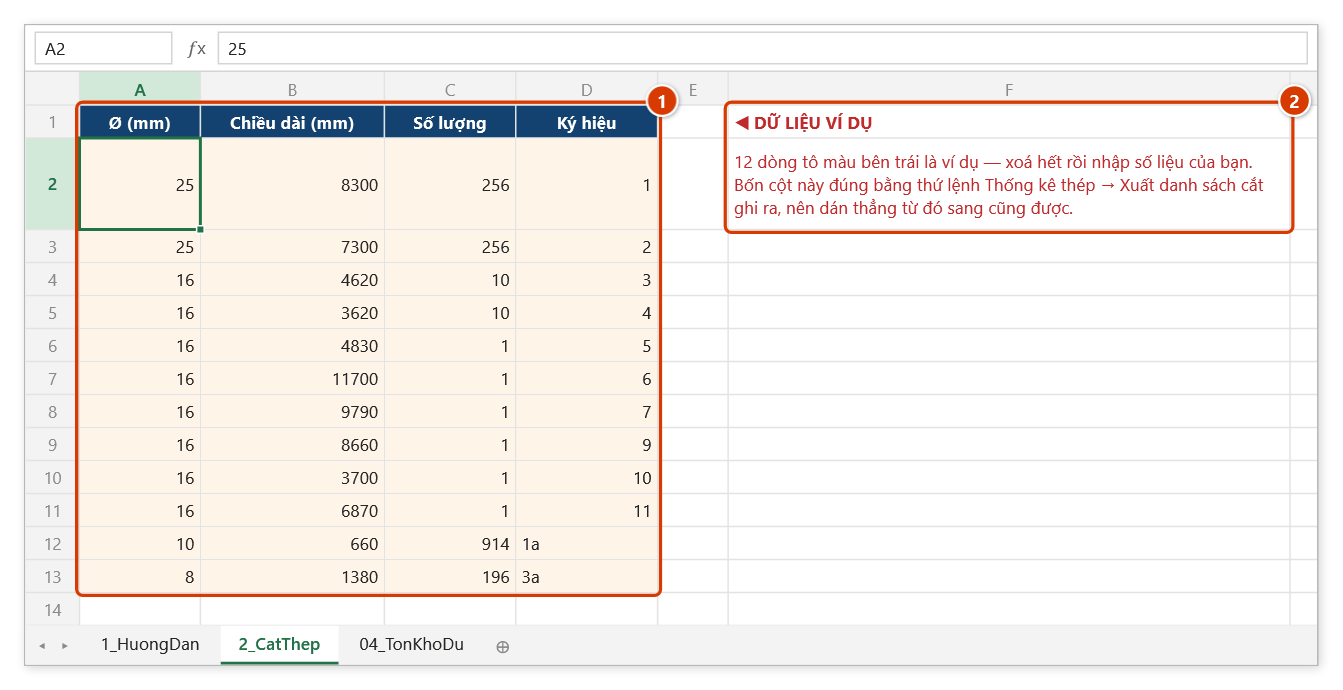
Step 4. The template no longer has configuration sheets: the stock bar length (usually 11,700 mm), kerf, coil threshold and the offcut rule per diameter live in Preferences → Rebar cutting. Once the list is in, run Rebar Cut — the results go to 03_KetQuaCat, 05_PhieuIn… in this same file, and 04_TonKhoDu is the offcut register.
Example
Preparing rebar for pile cap M1: click Cutting Tpl, and in the template enter the bar schedule (Ø16 × 3,850 mm × 48 bars, Ø16 × 2,200 mm × 32 bars) leaving the stock length at 11,700 mm in Preferences → Rebar cutting. Run Rebar Cut to get the cutting patterns and the waste percentage.
Notes
- If the file is not found in either location the add-in shows a warning listing the paths it searched — usually a sign the
Template\folder is missing from the installation. - For workbooks stored on OneDrive or SharePoint the add-in still checks for a
Template\folder beside the locally synced copy. - The file that opens is the master copy in the install folder — always Save As elsewhere before editing so the shared template is not damaged.
- This is the template for Rebar Cut (rebar with lap splices); Bar Cut 1D and Panel Cut 2D have their own template commands.