
Bar Tpl
Location on ribbon: Tab DVD Cons → Group Optimizer → Menu Templates
Command ID: btnBarTpl
What it does
Creates, inside the workbook you already have open, the two input sheets that Bar Cut 1D reads: CatThanh_Phoi (the pieces to cut) and CatThanh_Thanh (the stock bars available). Both come with the correct column headers in the right order and sample data so you can run the optimizer immediately.
Use it whenever you start a new linear cutting problem — faster and safer than typing sheet and column names yourself, because the optimizer reads this exact structure.
How to use
- Open the workbook where the cutting data should live (with no workbook open, the add-in creates a new one).
- Click Templates ▸ Bar Tpl.
- The add-in creates the two sheets and shows a confirmation message:
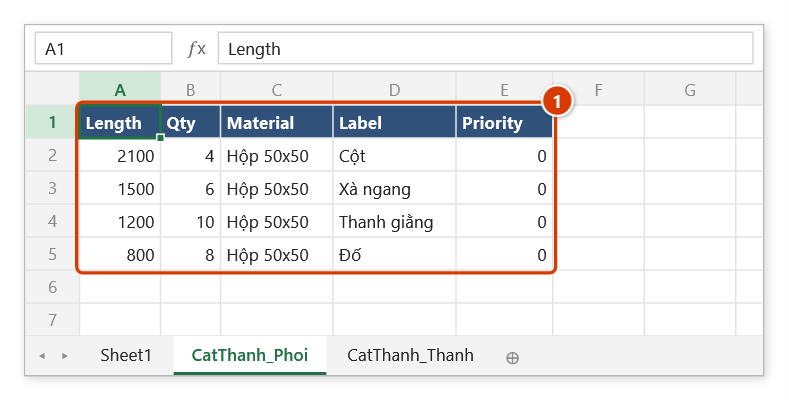
- CatThanh_Phoi — 5 columns
Length | Qty | Material | Label | Priority - CatThanh_Thanh — 8 columns
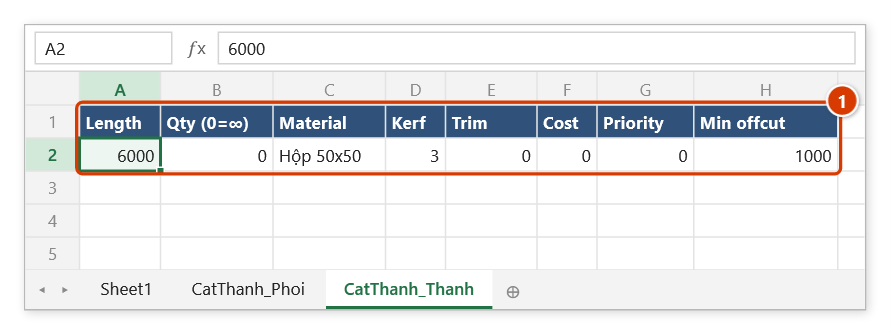
Length | Qty (0=∞) | Material | Kerf | Trim | Cost | Priority | Min offcut
- CatThanh_Phoi — 5 columns
- Replace the sample rows with your real figures.
- Click Bar Cut 1D to optimize and see the cutting layout.
Video tutorial
Narrated in Vietnamese, with Vietnamese subtitles. Cắt thanh 1D · 7 min 11 s · 8 cases · Download the video · Practice workbook for the video
Commands in this video: Bar Cut 1D · Bar Tpl
Chapters (12)
- Giới thiệu
- Mẫu nhập liệu
- 1 · Sàn thao tác
- 2 · Sheet kết quả
- 3 · Lan can – nhiều vật liệu
- 4 · Khung nhôm – kho và xén mép
- 5 · Ống PPR – mạch cưa
- 6 · Phôi không xếp được
- 7 · Lưu tồn-dư và chạy lại
- 8 · Khi nhập sai
- Mẹo
- Kết thúc
Illustrated walkthrough
Practice
Download this command's sample workbook — the data matches the pictures below (sheet CatThanh_Phoi), so you can follow each step right away.
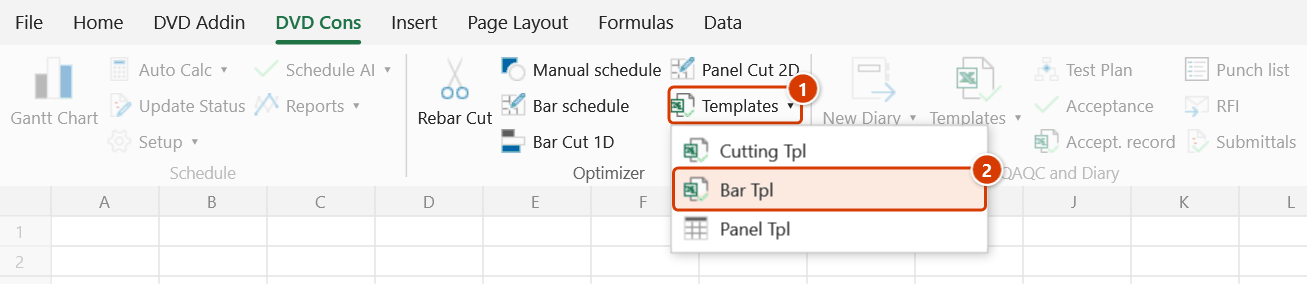
Step 1. On the ribbon, open the DVD Cons tab → Optimizer group → open Templates → choose Bar Tpl.
Step 2. The add-in adds two sheets to the open workbook (with no workbook open it creates a new one) and confirms ✓ Bar-cut template ready. CatThanh_Phoi is the list of pieces to cut — Length · Qty · Material · Label · Priority, with 4 sample rows (1); pieces with a higher Priority are placed first. A sheet that already has something in A1 is left untouched.
Step 3. CatThanh_Thanh holds the stock bars (1): Qty (0=∞) set to 0 means unlimited, Kerf is the saw width, Trim is the end loss, Min offcut is the leftover length from which an offcut is kept as a remnant. Replace the sample rows with real figures — Material must match CatThanh_Phoi exactly — then run Bar Cut 1D. Remember to Save the workbook.
Example
Taking off C150 purlins for a factory roof: click Bar Tpl, then on CatThanh_Phoi enter 4500 | 26 | C150 | Roof purlin and 2800 | 14 | C150 | Gable purlin; on CatThanh_Thanh enter 6000 | 0 | C150 | 3 | 0 | 265000. Running Bar Cut 1D immediately tells you how many C150 bars to order and how each one is cut.
Notes
- The new sheets live in the open workbook and are not saved yet — remember to Save before closing Excel.
- A sheet that already exists with something in cell A1 is left untouched; only new or empty sheets get the headers and sample rows.
- Keep the sheet names and column order as generated — Bar Cut 1D reads the data by position.
- The Material value must match exactly between the two sheets, otherwise pieces are never placed on the corresponding stock.
- The sample rows are for a trial run only; clear them before entering project data so nothing is counted twice.
Related
- Bar Cut 1D — the optimizer that reads the two sheets created here.
- Panel Tpl — the equivalent template for 2D panel cutting.
- Cutting Tpl — template file for the Rebar Cut optimizer.