
Panel Tpl
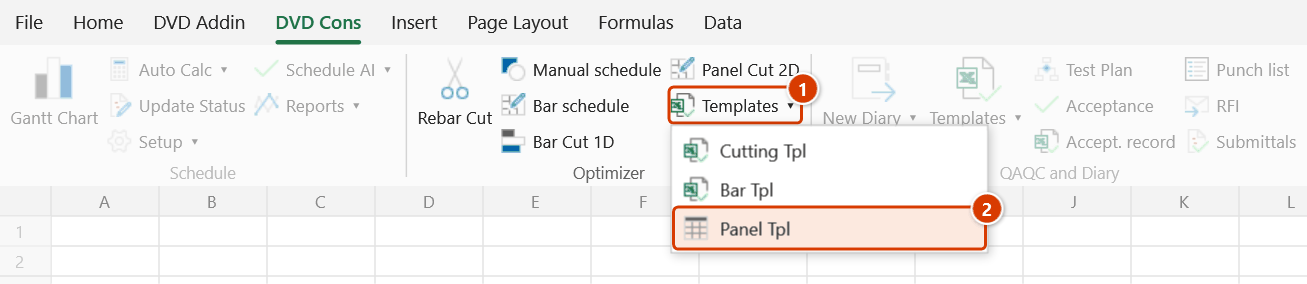
Location on ribbon: Tab DVD Cons → Group Optimizer → Menu Templates
Command ID: btnPanelTpl
What it does
Creates, inside the workbook you already have open, the two input sheets that Panel Cut 2D reads: CatTam_Phoi (the rectangular pieces to cut) and CatTam_Tam (the stock sheets available). Both come with the correct headers in the right order plus sample data so you can run the optimizer straight away.
Use it whenever you start a new plywood, glass or metal-sheet cutting problem, instead of building the tables by hand and risking a wrong sheet name or column order.
How to use
- Open the workbook where the cutting data should live (with no workbook open, the add-in creates a new one).
- Click Templates ▸ Panel Tpl.
- The add-in creates the two sheets and shows a confirmation message:
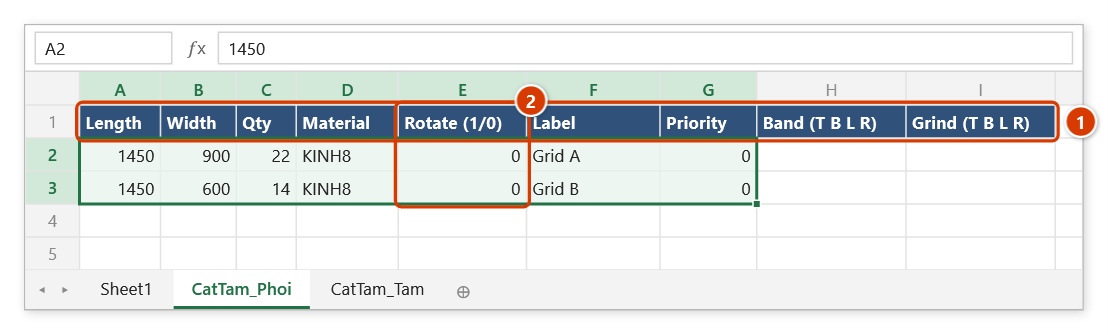
- CatTam_Phoi — 9 columns
Length | Width | Qty | Material | Rotate (1/0) | Label | Priority | Band (T B L R) | Grind (T B L R) - CatTam_Tam — 10 columns
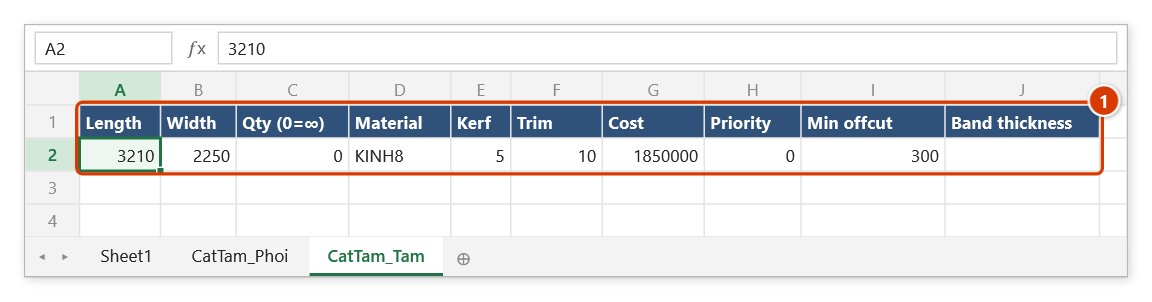
Length | Width | Qty (0=∞) | Material | Kerf | Trim | Cost | Priority | Min offcut | Band thickness
- CatTam_Phoi — 9 columns
- Replace the sample rows with your real figures, paying attention to the Rotate column (may the piece be turned 90°?).
- Click Panel Cut 2D to optimize and see the layout for each sheet.
Video tutorial
Narrated in Vietnamese, with Vietnamese subtitles. Cắt tấm 2D · 6 min 15 s · 12 cases · Download the video · Practice workbook for the video
Commands in this video: Panel Cut 2D · Panel Tpl
Chapters (16)
- Giới thiệu
- Mở lệnh
- 1 · Mẫu Cắt tấm
- 2 · Ván phủ phim cốp pha
- 3 · Đọc kết quả, nẹp cạnh
- 4 · Cấm xoay – ván vân gỗ
- 5 · Mạch cưa và xén mép
- 6 · Cắt tự do hay 2 tầng
- 7 · Nhiều vật liệu, độ dày
- 8 · Phôi quá khổ, sai vật liệu
- 9 · Nhiều khổ tấm, thiếu tấm
- 10 · Lưu tồn-dư vào kho
- 11 · Chạy lại, Ctrl+Z, bẫy tồn nhỏ
- 12 · Khi thiếu sheet nhập
- Mẹo
- Kết thúc
Illustrated walkthrough
Practice
Download this command's sample workbook — the data matches the pictures below (sheet CatTam_Phoi), so you can follow each step right away.
Step 1. On the ribbon, open the DVD Cons tab → Optimizer group → open Templates → choose Panel Tpl.
Step 2. The add-in adds two sheets, CatTam_Phoi and CatTam_Tam, to the open workbook (with no workbook open it creates a new one), with the column headers and a few sample rows, and confirms ✓ Panel-cut template ready. A sheet that already has something in A1 is left untouched.
Step 3. Clear the sample rows and enter the pieces to cut in CatTam_Phoi in the column order shown (1) — here 8 mm glass for a curtain wall. Set Rotate (1/0) (2) to 0 for directional glass, grained board or ribbed sheet; the Band / Grind columns list the edges to band / grind (T B L R) — leave them empty if none.
Step 4. In CatTam_Tam enter the stock sheets (1): Qty (0=∞) set to 0 means unlimited sheets, Kerf is the saw width, Trim is the edge loss around the sheet, Min offcut is how big a leftover must be to be kept as a remnant. Material must match CatTam_Phoi exactly. Then run Panel Cut 2D and remember to Save the workbook.
Example
Cutting glass for a curtain wall: click Panel Tpl, then on CatTam_Phoi enter 1450 | 900 | 22 | KINH8 | 0 | Grid A and 1450 | 600 | 14 | KINH8 | 0 | Grid B; on CatTam_Tam enter 3210 | 2250 | 0 | KINH8 | 5 | 10 | 1850000. Because the glass is directional, leave Rotate at 0. Run Panel Cut 2D to see how many stock sheets are needed and the scrap percentage.
Notes
- The new sheets live in the open workbook and are not saved yet — remember to Save before closing Excel.
- A sheet that already exists with something in cell A1 is left untouched; only new or empty sheets get the headers and sample rows.
- Keep the sheet names and column order as generated — Panel Cut 2D reads the data by position.
- The Rotate column matters for grained, ribbed or one-side-coated material: disallow rotation there so the result matches what the workshop can actually cut.
- The sample rows are for a trial run only; clear them before entering project data.
Related
- Panel Cut 2D — the optimizer that reads the two sheets created here.
- Bar Tpl — the equivalent template for 1D bar cutting.
- Bar Cut 1D — optimizes linear pieces cut from stock bars.