
Rebar Cut
Location on ribbon: Tab DVD Cons → Group Optimizer
Command ID: btnCuttingOptimizer
License required
This command needs an active DVDAddin account (Standard or PRO). During the trial period it is fully available.
What it does
Runs the rebar cutting optimizer: starting from a four-column cut list Ø (mm) · Length (mm) · Quantity · Marks, it packs the required cut pieces onto stock bars so that total scrap is minimised, groups bars sharing the same pattern into ×N batches, and opens the Rebar cutting preview window so you can approve the plan before anything is written to a sheet. The goal is concrete: less offcut waste per 11.7 m bar, and a cutting list the fabrication yard can work from.
How to use
- Prepare the four-column cut list Ø (mm) · Length (mm) · Quantity · Marks: the
2_CutListsheet written by Bar schedule → Export cut list, or the Cutting Tpl file. Stock length, kerf, coil threshold and so on are set in Preferences → Rebar cutting (the small arrow at the corner of the Optimizer group). - Go to Tab DVD Cons → group Optimizer → click Rebar Cut.
- The optimizer computes the plans with the Preferences → Rebar cutting parameters and opens the Rebar cutting preview window — nothing is written yet.
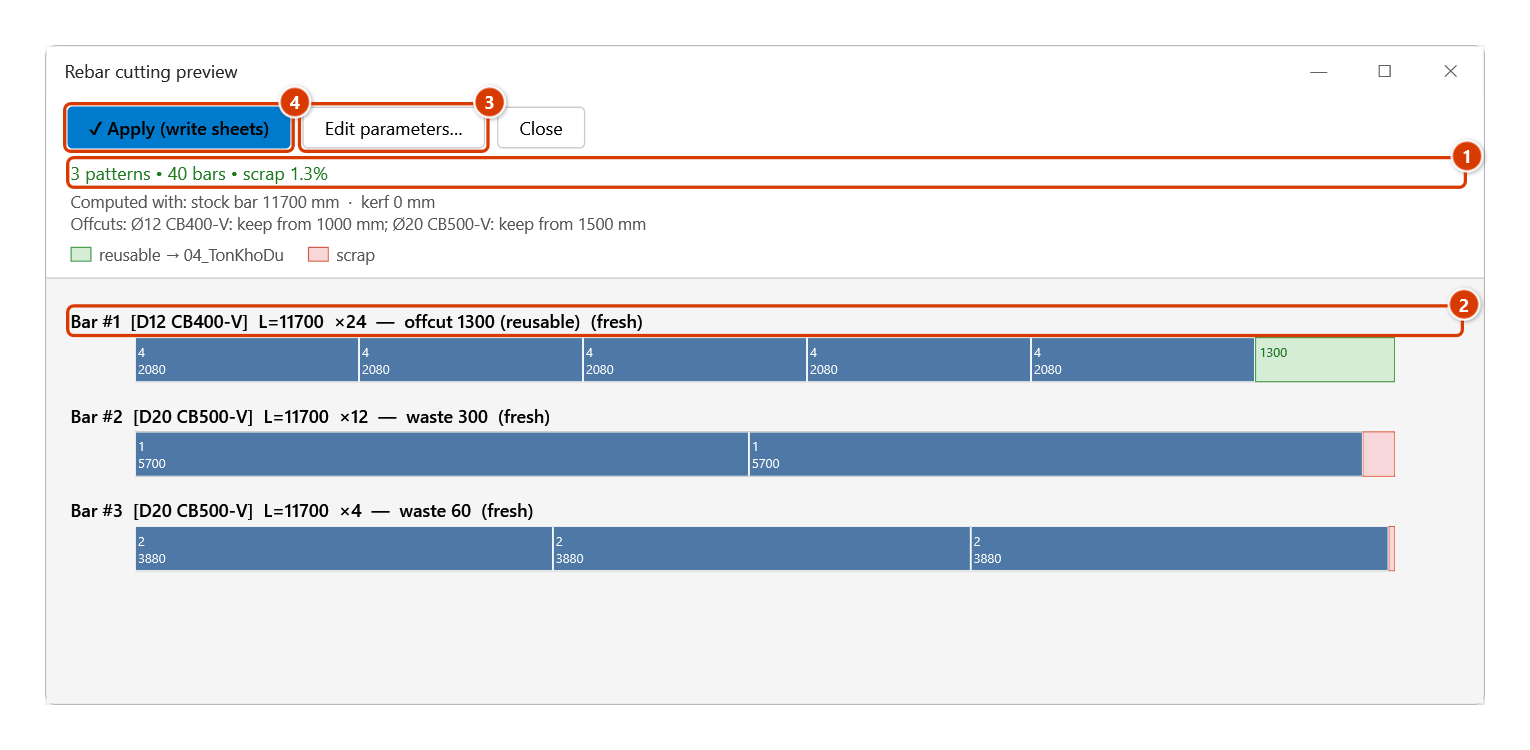
- The stats line at the top reports the number of patterns, the total bar count and the scrap percentage — shown in red when scrap exceeds the configured limit, green when it stays within it.
- Scroll through the plans: each is captioned like
Bar #3 [D20 CB400-V] L=11700 ×8 — waste 240 (fresh), drawn as a bar with the dead length in grey, the cut pieces coloured with their mark and length; a green tail is a reusable offcut (goes into the04_TonKhoDuregister), a pink tail is scrap. - To change the stock length or kerf, click Edit parameters… (opens Preferences → Rebar cutting; once you close it, the command recomputes). If the plan looks right, click ✓ Apply (write sheets); the Confirm data change box appears — keep the
04_TonKhoDubackup ticked and click Continue. The results go to03_KetQuaCat,05_PhieuIn,06_ThepRac,07_BaoCaoTong,08_ThepCuon(when there is coil steel) and04_TonKhoDuis updated. If not, click Close to cancel — nothing is written.
Video tutorial
Narrated in Vietnamese, with Vietnamese subtitles. Cắt tối ưu thép · 6 min 26 s · 13 cases · Download the video · Practice workbook for the video
Commands in this video: Rebar Cut · Cutting Tpl
Chapters (17)
- Giới thiệu
- Mở lệnh
- 1 · Từ Thống kê thép
- 2 · Từ tệp Mẫu Cắt thép
- 3 · Thông số ở Tùy chọn
- 4 · Các sheet kết quả
- 5 · Thép cuộn Ø nhỏ
- 6 · Mẩu thừa và sổ tồn kho
- 7 · Thanh dài hơn cây thép
- 8 · Ghép hai đoạn: bật / tắt
- 9 · Mạch cắt (lưỡi cắt)
- 10 · Cây 11,7 m hay 8,6 m
- 11 · Dữ liệu lỗi
- 12 · Chạy lại và hoàn tác
- 13 · In phiếu cho tổ thép
- Mẹo
- Kết thúc
Illustrated walkthrough
Practice
Download this command's sample workbook — the data matches the pictures below (sheet 2_CutList), so you can follow each step right away.
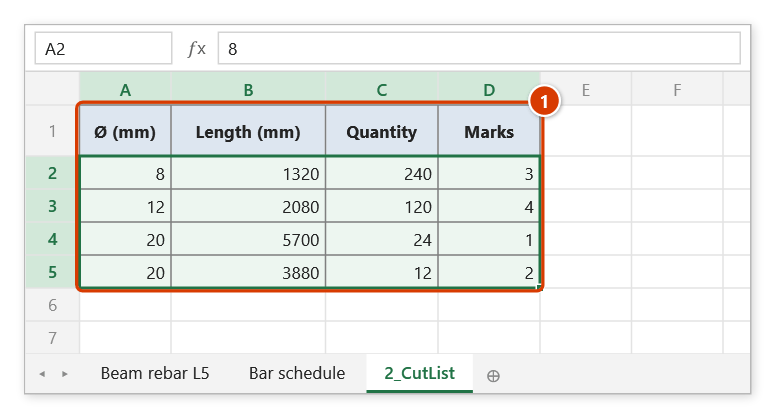
Step 1. Open the workbook that holds a four-column cut list Ø (mm) · Length (mm) · Quantity · Marks (1) — the 2_CutList sheet written by Bar schedule → Export cut list, or the Cutting Tpl file. Rows below the coil threshold (10 mm by default) are not cut, only totalled in metres and kg.
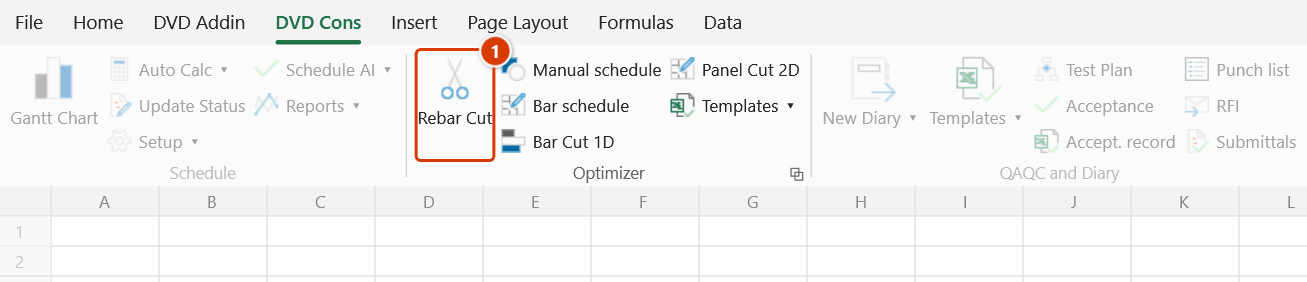
Step 2. On the ribbon, open the DVD Cons tab → Optimizer group → click Rebar Cut.
Step 3. The command optimises straight away with the settings in Preferences → Rebar cutting and opens the Rebar cutting preview window — nothing is written yet. The stats line (1) gives the number of patterns, bars, the scrap rate (green = within the limit) and the settings used; each pattern is drawn as a bar to scale (2): cut pieces show their mark and length, a green tail is a reusable offcut (it goes into the 04_TonKhoDu register), a pink tail is scrap. To change the stock length or kerf, click Edit parameters… (3); when the plan looks right, click ✓ Apply (write sheets) (4).
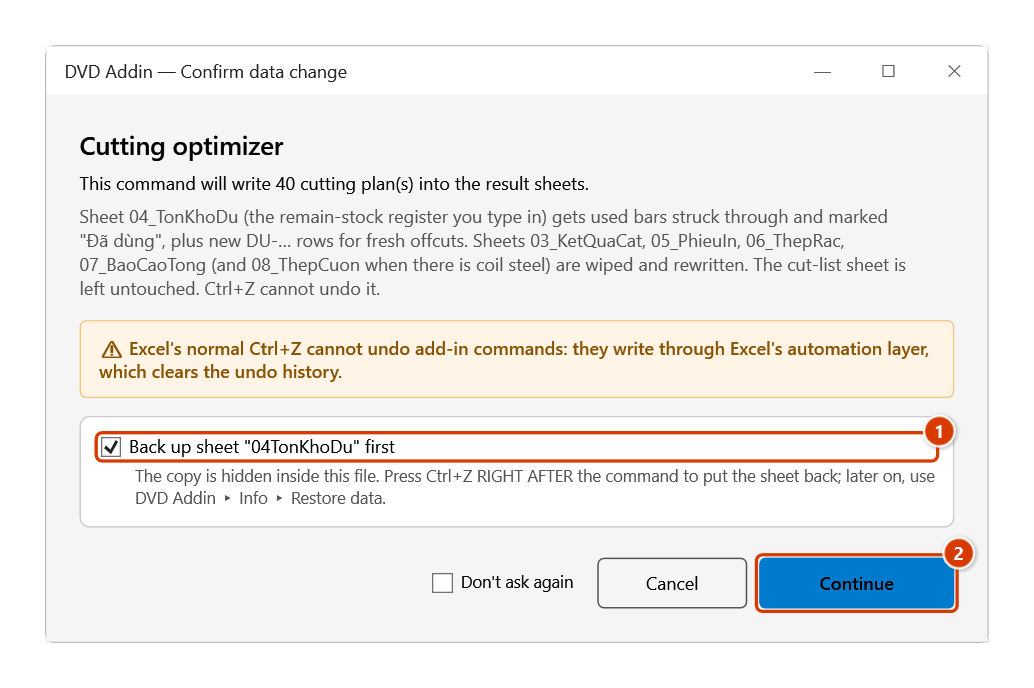
Step 4. The confirmation box spells out which sheets will be rewritten. Keep the backup box for the 04_TonKhoDu register ticked (1) — Ctrl+Z right after the command then restores the stock register — and click Continue (2).
Step 5. The add-in writes 03_KetQuaCat (every bar and its cutting pattern), 05_PhieuIn (a drawing of every bar for the yard, with the settings used at the bottom), 06_ThepRac, 07_BaoCaoTong, 08_ThepCuon (the Ø8 coil steel, totalled in metres and kg), appends the 1300 mm Ø12 offcuts to 04_TonKhoDu so the next run uses them first, then opens 05_PhieuIn and reports the scrap rate. Close in the preview writes nothing.
Example
The level-5 slab bar schedule needs 128 pieces of D20 at 4,200 mm, 96 at 3,150 mm and 40 at 2,600 mm, from 11.7 m stock bars. After running the command, the preview reports 6 patterns, 84 bars and 3.1% scrap in green. The dominant pattern is 4200 + 4200 + 3150 on one bar, repeated ×31, leaving only a 150 mm tail. The engineer clicks Apply → Continue, prints the cutting plan sheet and hands it to the rebar yard.
Notes
- A cut-list sheet (or the Cutting Tpl file) must exist first; otherwise the command reports that it found neither a template nor a cut-list sheet.
- Clicking Close in the preview cancels everything — no sheet is written.
- After Apply, result sheets 03 and 05–08 are wiped and rewritten. The backup covers the
04_TonKhoDuregister: Ctrl+Z right after the command puts the stock register back. - The stock length (default 11700 mm) and the saw kerf apply to the whole list and are set in Preferences → Rebar cutting; the kerf defaults to 0 mm (shear = 0, abrasive saw 3–4 mm) — a wrong kerf makes the last piece on each bar come up short in real life.
- The optimizer can use both fresh stock and remnants; every plan caption states "fresh" or "remnant" so the yard knows which material to pull.
Related
- Cutting Tpl — inserts the input template this command reads.
- Bar Cut 1D — the general one-dimensional bar cutting problem with its own input set.
- Panel Cut 2D — for sheet materials (formwork, metal sheet, glass) instead of bars.
- Bar Tpl — the input template for the 1D bar cutting problem.