
Bar schedule
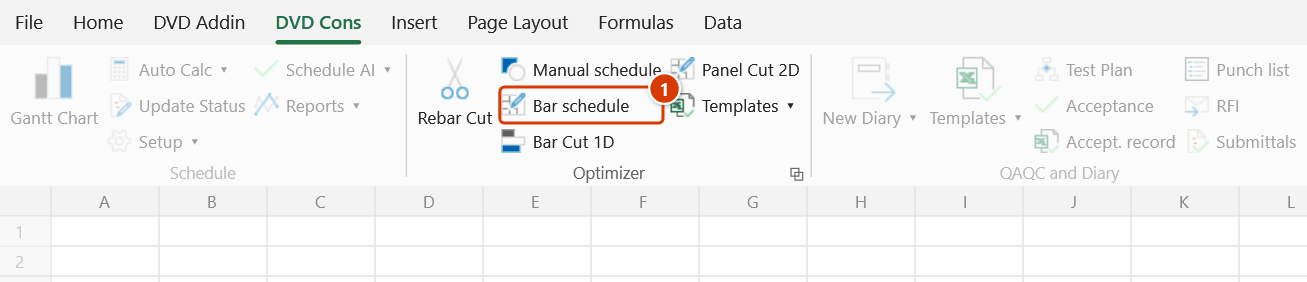
Ribbon location: DVD Cons tab → Optimizer group
Command ID: btnBendingSchedule
License required
This command needs an active DVDAddin account (Standard or PRO). During the Trial period it is fully available.
What it does
Works out each bar's cutting length from its shape and dimensions, then writes a full bar bending schedule with a weight summary by diameter.
This is the link that was missing just before Cutting optimiser: that command takes each bar's length as input, but until now you had to work the cutting length out yourself from the shape dimensions — and every hand calculation is another chance to be a few per cent out on the steel tonnage.
Formulae
Cutting length = Σ(segment dimensions) + Σ(hook allowances) − Σ(bend deductions)
Unit weight    = d² / 162   (kg/m, d in mm)
Defaults, as multiples of the bar diameter d:
| Coefficient | Default |
|---|---|
| 90° bend deduction | 1.0 d |
| 135° bend deduction | 1.5 d |
| Hook allowance | 10 d |
| Minimum hook | 75 mm |
| Round up to | 10 mm |
These differ between offices
There is no single correct value for bend deductions and hook allowances — some offices use 1d for a 90° bend, others 2d, depending on the project specification. The add-in ships the values most commonly used and lets you change them in the window, so the tonnage matches the schedule the checking engineer is working from.
Shapes supported
| Code | Shape | Cutting length |
|---|---|---|
| 00 | Straight | A |
| 01 | Straight, hooks both ends | A + 2 hooks |
| 21 | L shape | A + B − 1 × 90° deduction |
| 31 | U shape | A + B + C − 2 × 90° deduction |
| 41 | Z shape | A + B + C − 2 × 90° deduction |
| 51 | Closed rectangular stirrup | 2(A+B) + 2 × 135° hooks − 3 × 90° − 2 × 135° deductions |
| 99 | Enter length directly | taken as given |
The shape column accepts either the code or a word: 51, đai, dai, L, U, Z, straight are all understood.
How to use it
- Select the rebar dimension table, then click Bar schedule.
- The selection is pre-filled; press
⤴to change it. State the number of header rows. - The Which column is which table is guessed from the header names — check and correct it. Only Diameter is mandatory.
- Adjust the coefficients if the project specification differs from the defaults.
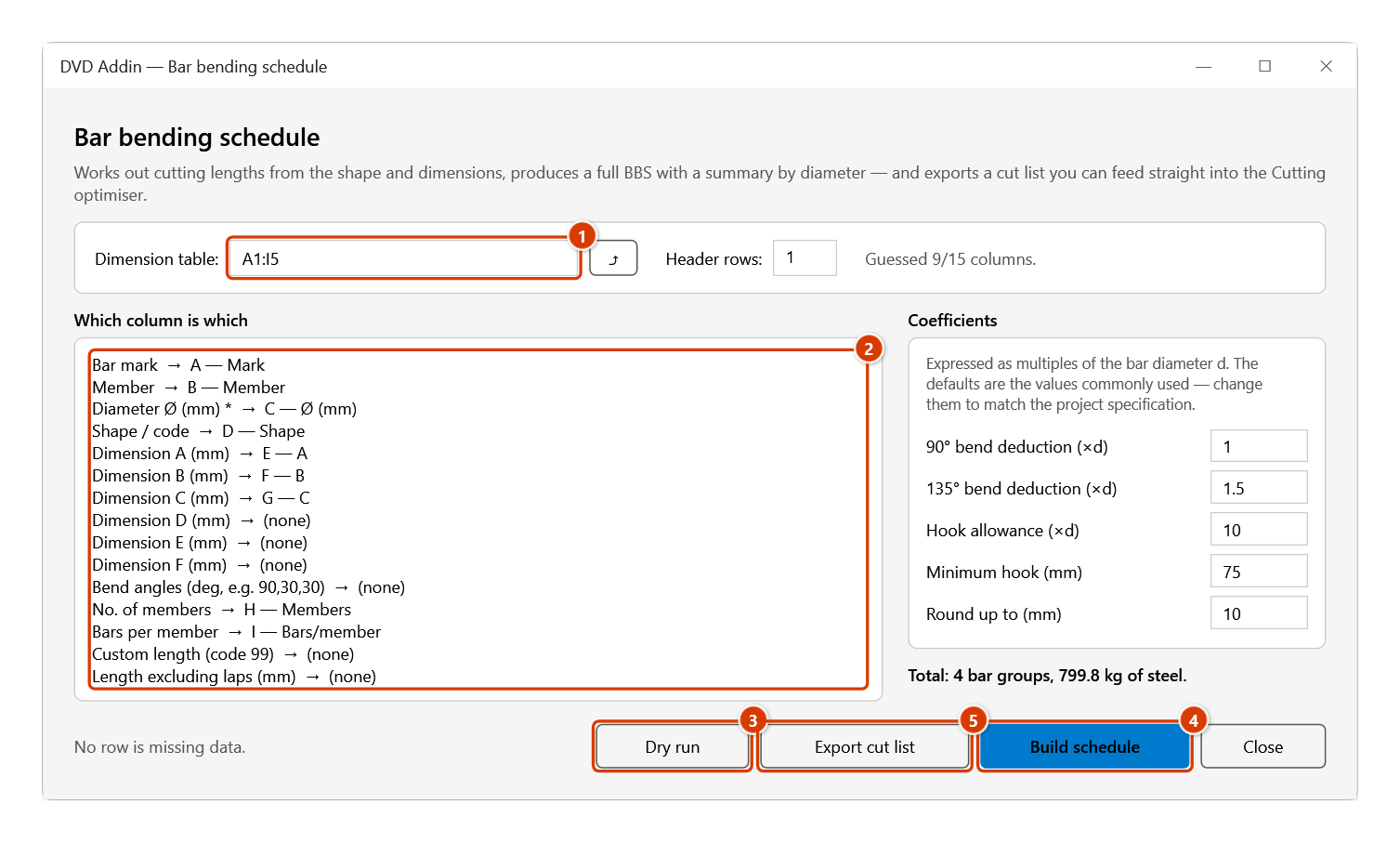
- Click Dry run to see the total weight and any rows missing data, without writing anything.
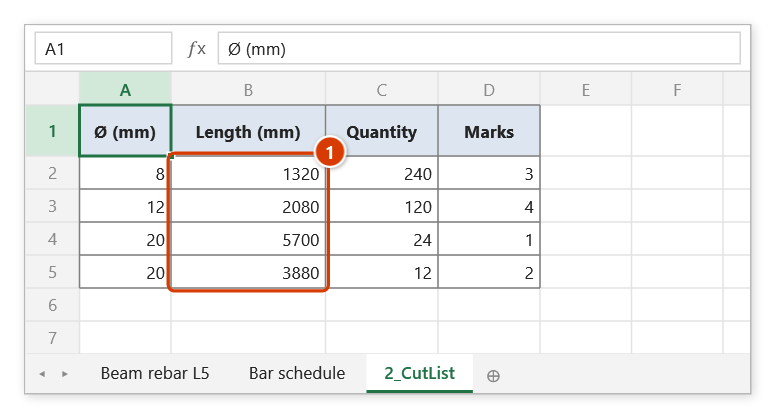
- Build schedule writes the full BBS to a new sheet. Export cut list writes a four-column table (Ø, length, quantity, marks) to a
2_CutListsheet, ready for Cutting optimiser.
Video tutorial
Narrated in Vietnamese, with Vietnamese subtitles. Thống kê thép và Nhập thống kê · 6 min 40 s · 15 cases · Download the video · Practice workbook for the video
Commands in this video: Bar schedule · Manual schedule
Chapters (20)
- Giới thiệu
- Mở lệnh
- 1 · Bảng dầm và sàn
- 2 · Tiêu đề hai tầng
- Bảng khung trục 3
- 3 · Móc 180° và móc tối thiểu
- 4 · Đai kín
- 5 · Chữ Z, chữ U thêm đoạn
- 6 · Gấp khúc và góc uốn
- 7 · Hình dạng gõ bằng chữ
- 8 · Bảng chỉ có chiều dài
- 9 · Thanh dài hơn cây 11,7 m
- 10 · Đổi hệ số, lập lại bảng
- 11 · Dòng thiếu, số sai
- 12 · Nhập thống kê: tạo bảng
- 13 · Chọn hình, ghi từng dòng
- 14 · Công thức trong bảng
- 15 · Nối sang Cắt tối ưu
- Mẹo
- Kết thúc
Illustrated walkthrough
Practice
Download this command's sample workbook — the data matches the pictures below (sheet Beam rebar L5), so you can follow each step right away.
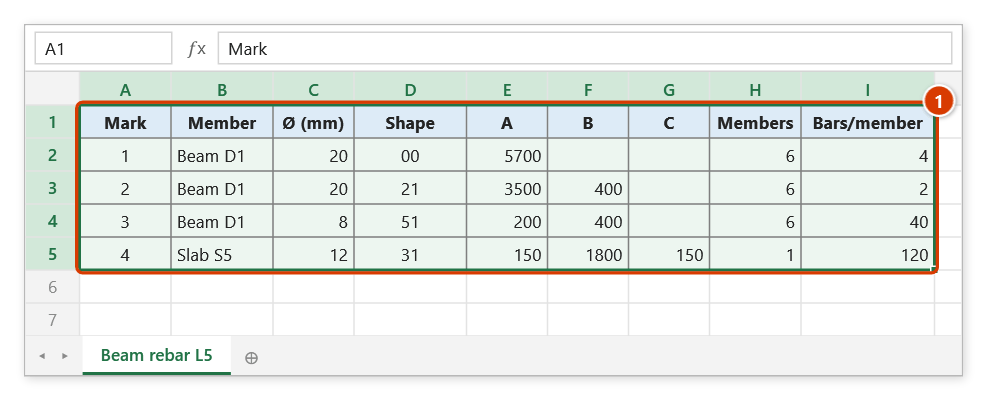
Step 1. Select the rebar dimension table, header row included (1). The shape column takes either a code (00, 21, 51…) or a word (straight, L, đai); only the diameter column is mandatory.
Step 2. On the ribbon, open the DVD Cons tab → Optimizer group → click Bar schedule.
Step 3. The current selection is pre-filled (1) (press ⤴ to pick again) and the Which column is which table is guessed from the headers (2) — check it and correct anything wrong. Keep the default coefficients or change them to the project specification, then click Dry run (3): the total weight appears on the right and nothing is written yet. Then click Build schedule (4) and/or Export cut list (5).
Step 4. Build schedule writes a new Bar schedule sheet: one row per bar with the cutting length rounded up to 10 mm, total length, kg/m, weight and a Working column a checker can follow (Ø8 stirrup: 2×(200+400) + 2×80 − 3×8 − 2×12 = 1320), then a TOTAL row and a summary by diameter. Export cut list writes the 2_CutList sheet below with the computed cutting lengths (1), bars of the same Ø and length grouped — ready for Cutting optimiser.
Example
An Ø8 stirrup, 200×400 section, 50 members:
Centre-line perimeter  2×(200+400)              = 1200
Two hooks              2 × max(10×8, 75) = 2×80 =  160
Three 90° deductions   3 × (1.0×8)              =  −24
Two 135° deductions    2 × (1.5×8)              =  −24
                                          Total = 1312 → rounded 1320 mm

Total length  1320 × 50 / 1000 = 66.0 m
Weight        66.0 × 8²/162    = 26.1 kg
The Working column in the schedule records exactly this line for every bar, so a checker can follow it.
Notes
- Lengths are rounded up, never down: a bar cut short is scrap, a bar a few mm long still fits.
- Rows that have a mark but no diameter are counted and reported — one missing row is missing tonnage in a schedule that still looks complete.
- Dimensions that produce a negative cutting length (smaller than the deduction) are reported rather than written as a meaningless number.
- The cut list groups bars of the same diameter and length — the optimiser runs much faster on a grouped list.
- Weight uses
d²/162, matching the standard steel table (Ø10 → 0.617 kg/m; Ø16 → 1.580; Ø20 → 2.469). - This window does not block Excel: you can keep working on the sheet while it is open. The ⤴ button opens a range picker that does not lock Excel — the window steps aside, and while picking you can scroll, switch sheets or workbooks; click OK or press Enter on the sheet to take the range, Cancel or Esc to keep the old one. The bar schedule and the cut list go into the workbook that holds the dimension table, even if you have switched to another workbook.
See also
- Cutting optimiser — the next step: nesting the bars into stock lengths.
- 1D bar cutting · Cutting template