
Connect
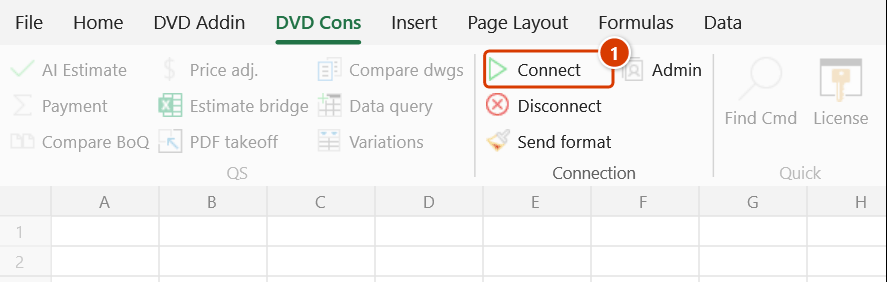
Location on ribbon: Tab DVD Cons → Group Connection
Command ID: btnConnect
License required
This command needs an active DVDAddin account (Standard or PRO). During the Trial period it is fully available.
What it does
The command opens the DVD Addin Sync Pro window, where you host or join a teamwork session that syncs cell data and formatting between machines in real time. There are two transports: LAN (one machine runs the server, the others connect by IP) and Internet over MQTT (all machines join the same "room ID" on a broker).
It suits a quantity-surveying team working on one BoQ together, or a site engineer and the head office who need to look at the same programme file without emailing copies back and forth.
How to use
- Click DVD Cons → Connection → Connect. If the licence is not valid, the window simply does not open.
- The DVD Addin Sync Pro window has three tabs; below them sit three shared boxes, Display name, Data password (mandatory, identical on every machine) and Admin password (the session host):
- LAN Host — the session server: enter Port (default 8888), then click ▶ Start Server. Click ■ Stop Server to shut it down.
- LAN Client — a joining machine: enter Host IP (prefilled
192.168.1.) and Port, then click Connect LAN. - Internet (MQTT) — enter Broker (default
broker.hivemq.com), Room ID (defaultDuAn1), User, Password, then click Connect Net; Disconnect Net leaves the broker.
- The host must set an Admin password before starting the server, otherwise the add-in warns "Host must set Admin password!".
- Once the server is running the host IP is copied to the clipboard — pass it to the other machines for the Host IP box.
- Successful actions show a confirmation ("MQTT connected!", "LAN stopped!" …). Click Close to hide the window; the session keeps running.
Video tutorial
Narrated in Vietnamese, with Vietnamese subtitles. Làm việc nhóm qua mạng · 8 min 19 s · 16 cases · Download the video
Commands in this video: Connect · Admin · Disconnect · Send Format
Chapters (20)
- Giới thiệu
- Mở lệnh
- 1 · Kết nối lần đầu
- 2 · Máy chủ và thành viên
- 3 · Làm việc qua Internet
- 4 · Người vào sau
- 5 · Gõ dữ liệu
- 6 · Dán nhiều ô, chèn dòng
- 7 · Gửi định dạng
- 8 · Vùng lẫn nhiều kiểu
- 9 · Gộp ô và độ rộng cột
- 10 · Phân quyền, Kick, Ban
- 11 · Ngắt kết nối
- 12 · Mất mạng giữa chừng
- 13 · Hai người sửa cùng ô
- 14 · Sổ, sheet khác tên
- 15 · Bảo mật
- 16 · Bản quyền
- Mẹo
- Kết thúc
Illustrated walkthrough
Step 1. On the ribbon, open the DVD Cons tab → Connection group → click Connect.
Step 2. The DVD Addin Sync Pro window has three tabs — LAN Host, LAN Client, Internet (MQTT) — with Display name, Data password and Admin password below. Type your name (shown in the online list, the permission table and the change log) and the Data password — mandatory, and every machine in the session must type exactly the same one to decrypt the packets.
Step 3. On the host machine: also set an Admin password (without it the add-in warns Host must set Admin password!), keep Port 8888 on the LAN Host tab and click ▶ Start Server. The add-in shows the machine's IP (already copied to the clipboard) — pass the IP and the Data password to the other machines.
Step 4. On the other machines: on the LAN Client tab type the Host IP (e.g. 192.168.1.24) and Port 8888, then click Connect LAN — the add-in waits for the result and says what to check if it fails. To work remotely use the Internet (MQTT) tab: Broker, Room ID (default DuAn1), User, Password → Connect Net; a public test broker such as broker.hivemq.com asks for confirmation first because the link is not encrypted.
Step 5. Once in the session, the ribbon button is relabelled like Joined · LAN chủ · 4 users and Disconnect, Send format and Admin become available. Close only hides the window — the session keeps running; Export change log writes every change of the session (when, who, sheet, cell, old/new value) to a new sheet.
Example
A four-person QS team works on the infrastructure-package BoQ in one office.
The lead opens the BoQ file, clicks Connect, leaves Port = 8888 on the LAN Host tab, sets Data password = boq2026 and Admin password = qs@dvd, then clicks ▶ Start Server; IP 192.168.1.24 is copied automatically and shared in the team chat. The other three click the same command, enter IP 192.168.1.24 and port 8888 on the LAN Client tab, and click Connect LAN. From then on cell edits and pushed formatting appear on every teammate's screen.
Notes
- The window only opens with a valid licence — there is no error message, so a click that seems to do nothing usually means the licence is missing or expired.
- The Data password is now required: it encrypts the packets, and leaving it empty would put sheet names, cell addresses and cell contents on the wire in clear text. Every machine in the session must type it identically, otherwise incoming data cannot be decrypted.
- Connecting to a public test broker (
broker.hivemq.com,test.mosquitto.org) now asks for confirmation first: the add-in reaches those on an unencrypted port, and anyone who guesses your Room ID can watch the room. - Send Format pushes merge state, column width and row height; ordinary edits sync only colours, fonts, borders and the number format, so typing no longer disturbs a teammate's layout.
- Display name — type your own name here before opening the session. It is what appears in the online list, in the permission table and in the change log; the default is the computer name, which nobody can read.
- Export change log writes every edit of the session (when, who, sheet, cell, old value, new value) to a new sheet. The log lives in memory only, so press Ctrl+S to keep it.
- When somebody joins, the host offers them a snapshot of the current sheet so both machines start from the same table. The newcomer is asked first and can decline — the snapshot overwrites their range.
- Large pastes are now split into batches instead of being dropped; above 200,000 cells the add-in refuses and says so.
- Missing packets are detected: if a message is lost, the status bar warns that the sheets may differ.
- When several people set an Admin password, only one of them acts as host, so a newcomer is asked about the snapshot once instead of several times.
- If the host runs a LAN server and is connected over the Internet, it now relays between the two, so LAN-only and Internet-only members finally see each other.
- The change log records the workbook name as well, and an edit that covers a whole range is logged on the machine that made it, not only on the receiving machines.
- A LAN session requires the same subnet and the chosen port to be open in the host's Windows Firewall.
- The public MQTT broker (
broker.hivemq.com) is shared infrastructure — for sensitive data use your own broker and a hard-to-guess room ID. - Closing the window does not end the session; click the Disconnect ribbon button to leave it.
Related
- Disconnect — leave the session and stop syncing.
- Send Format — push the selected range's formatting to the team.
- Admin — manage View/Edit/Range rights for session members.
- Preferences — general add-in settings to check before working as a team.