
Send Format
Location on ribbon: Tab DVD Cons → Group Connection
Command ID: btnSyncFormat
What it does
The command pushes the formatting of the selected range (font, fill, font colour, borders, number format…) to every machine in the current teamwork session. The packet carries the sheet name, the range address and the format description, encrypted with the session's Data password before it is sent.
Inside a sync session cell data flows automatically, but formatting only travels when you deliberately push it — so everyone can experiment with colours and borders locally and only publish the version the team agrees on.
How to use
- Make sure you are in a teamwork session (you clicked Connect and the connection succeeded — the Send format button is only enabled inside a session).
- Format the range the way you want it on your own machine.
- Select exactly the range you want to publish.
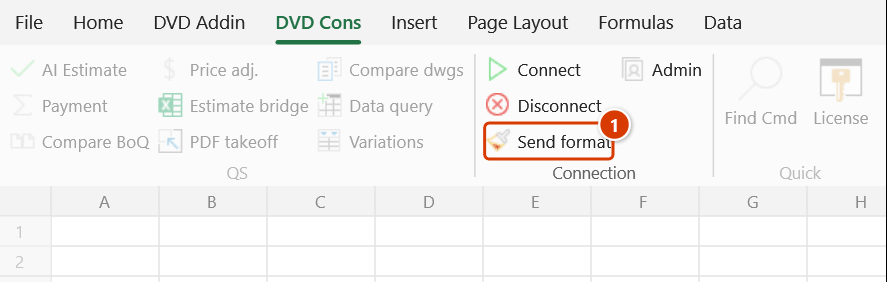
- Click DVD Cons → Connection → Send format. The formatting is sent immediately, with no message.
- That formatting is applied to the same sheet and the same cell addresses on your teammates' machines.
Video tutorial
Narrated in Vietnamese, with Vietnamese subtitles. Làm việc nhóm qua mạng · 8 min 19 s · 16 cases · Download the video
Commands in this video: Connect · Admin · Disconnect · Send Format
Chapters (20)
- Giới thiệu
- Mở lệnh
- 1 · Kết nối lần đầu
- 2 · Máy chủ và thành viên
- 3 · Làm việc qua Internet
- 4 · Người vào sau
- 5 · Gõ dữ liệu
- 6 · Dán nhiều ô, chèn dòng
- 7 · Gửi định dạng
- 8 · Vùng lẫn nhiều kiểu
- 9 · Gộp ô và độ rộng cột
- 10 · Phân quyền, Kick, Ban
- 11 · Ngắt kết nối
- 12 · Mất mạng giữa chừng
- 13 · Hai người sửa cùng ô
- 14 · Sổ, sheet khác tên
- 15 · Bảo mật
- 16 · Bản quyền
- Mẹo
- Kết thúc
Illustrated walkthrough
Practice
Download this command's sample workbook — the data matches the pictures below (sheet Tong hop), so you can follow each step right away.
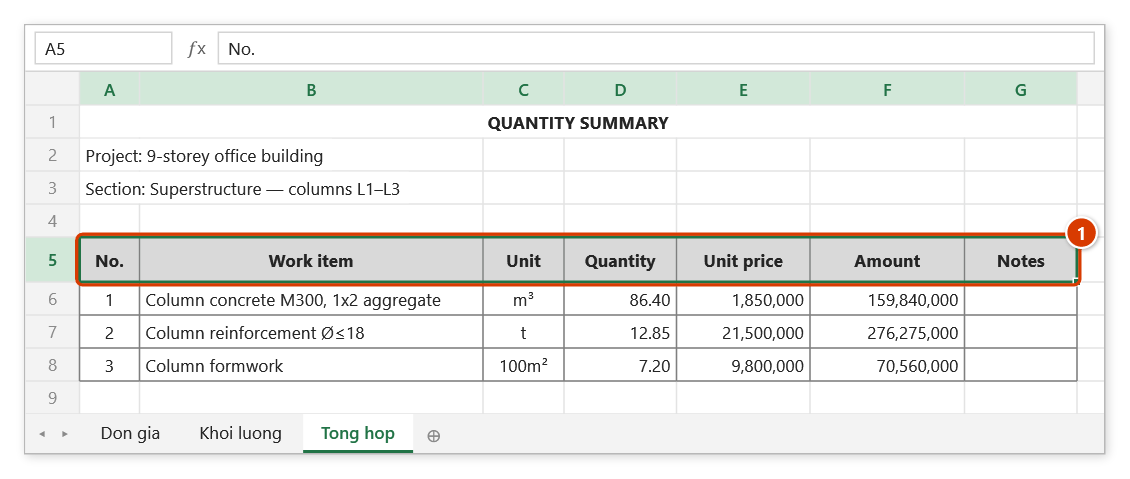
Step 1. While in a teamwork session (the Connect button reads Joined · …), format the range the way you want on your machine, then select exactly that range — e.g. the header band A5:G5 of the Tong hop sheet (1).
Step 2. On the ribbon, open the DVD Cons tab → Connection group → click Send format.
Step 3. The command sends at once, with no message: on every member's machine, range A5:G5 of the sheet with the same name Tong hop gets the range's common formatting — fill, font, font colour, borders, alignment, wrap, number format. Cell values are not sent; if the other sheet is named differently or its rows/columns are shifted, the formatting lands in the wrong place.
Example
The team is finishing a quantity summary sheet. You settle on a header style: light grey fill, bold text, double bottom border, centred.
Select A5:H5 on sheet Tong hop and click Send format. The other three machines immediately see row A5:H5 on their Tong hop sheet switch to that style — nobody has to copy the formatting by hand or drag the format painter across files.
Notes
- With no active session the Send format button is greyed out; if the command is run another way (e.g. from a shortcut) the add-in says "Not connected, so there is nobody to send formatting to."
- You must select a range first; if the current selection is not a valid Range, the command is skipped.
- It sends formatting only, not cell values — content travels through the session's own data-sync mechanism.
- Receiving machines apply the format by sheet name and cell address: if their sheet is named differently or the rows/columns are offset, the formatting lands in the wrong place.
- Received formatting overwrites teammates' cells directly and cannot be undone with Ctrl+Z — warn the team before pushing large ranges.
Related
- Connect — open the session and set the Data password used to encrypt the packets.
- Disconnect — leave the session, after which this button is greyed out.
- Admin — restrict Edit/Range rights so members do not overwrite each other.