
Acceptance Plan
Location on ribbon: Tab DVD Cons → Group QAQC and Diary
Command ID: btnAcceptancePlan
License required
This command needs an active DVDAddin account (Standard or PRO). During the Trial period it is fully available.
What it does
The command reads the schedule table on the active sheet (it auto-detects the Task name / Start / Finish / Level columns) and turns every task into one acceptance-plan row. Instead of retyping the inspection register from the construction programme, you get a ready 10-column table following the acceptance sequence of Decree 207/2026/ND-CP (which replaced Decree 06/2021 on 1 July 2026) for submission to the client and supervision consultant.
Run it right after the construction programme is frozen, and again whenever the programme is revised and the acceptance plan has to be reissued. The resulting sheet is also the input for Acceptance Record: select rows and click to get the acceptance record, with the plan rows switched to Đạt / Không đạt (pass / fail).
How to use
- Open the sheet that holds the schedule (it must contain a task-name column and Start/Finish date columns).
- Click DVD Cons → QAQC and Diary → Acceptance.
- If no schedule is detected, the add-in reports "No schedule table detected on the active sheet" — switch to the correct sheet and retry.
- The Acceptance plan window opens; its first line confirms the sheet name and the number of tasks found. Fill in:
- Project / package
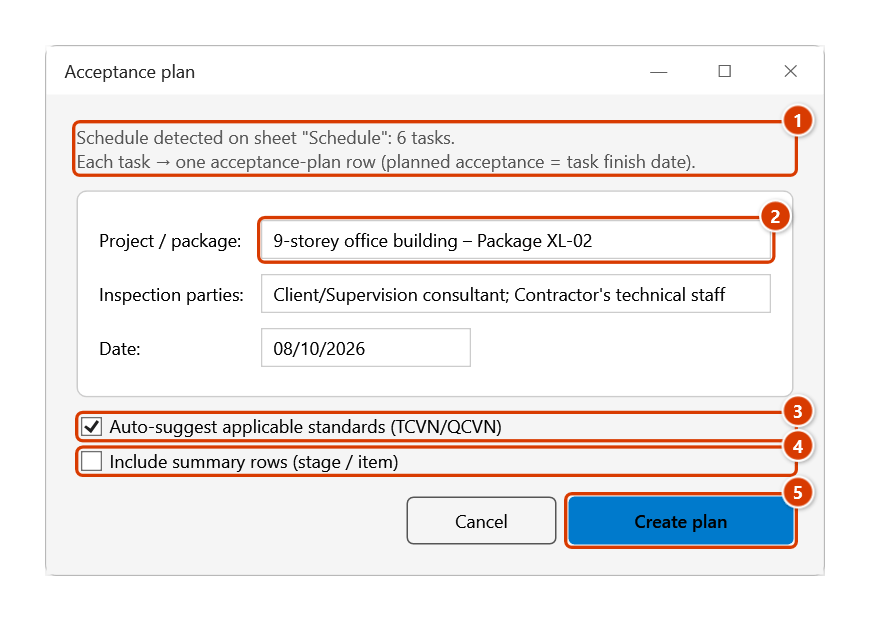
- Inspection parties — pre-filled with "Client/Supervision consultant; Contractor's technical staff"
- Date — defaults to today (dd/MM/yyyy)
- Option Auto-suggest applicable standards (TCVN/QCVN)
- Option Include summary rows (stage / item)
- Click Create plan (or Cancel to exit).
- The add-in creates a new sheet named
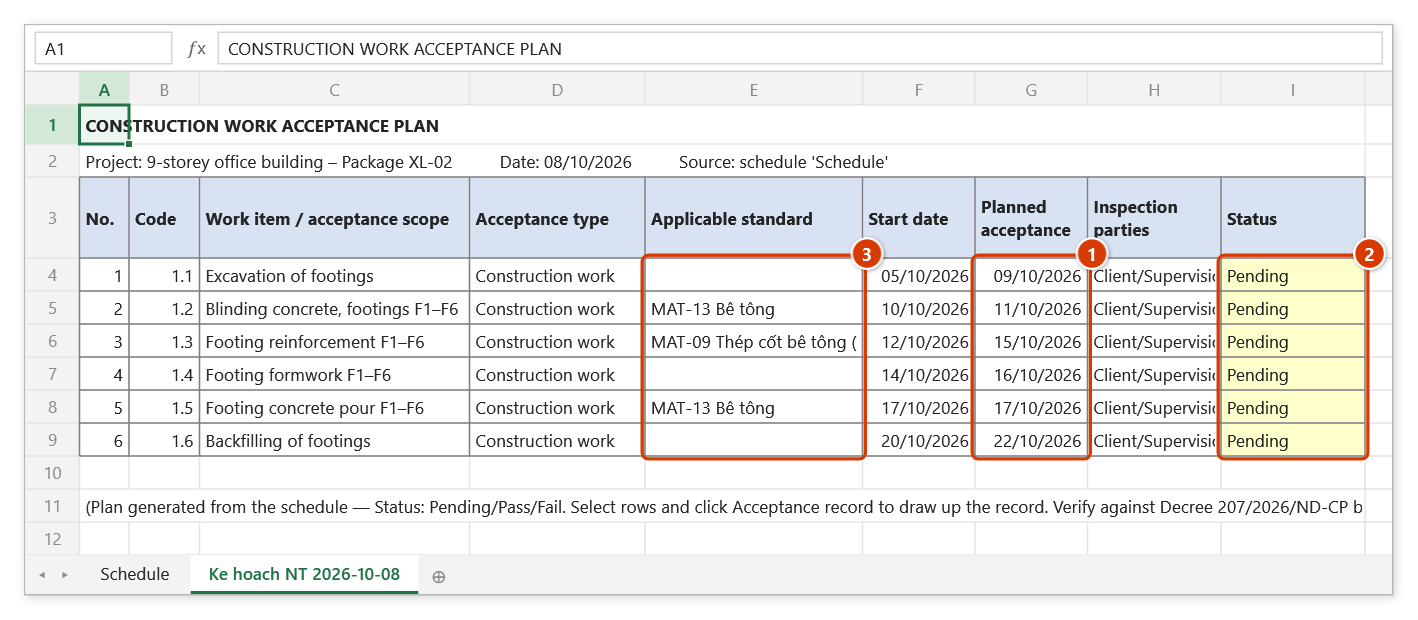
Ke hoach NT YYYY-MM-DDat the end of the workbook, with 10 columns: No., Code, Work item / acceptance scope, Acceptance type, Applicable standard, Start date, Planned acceptance, Inspection parties, Status (starts as Pending, shaded yellow), Note.
Video tutorial
Narrated in Vietnamese, with Vietnamese subtitles. Kế hoạch và Biên bản nghiệm thu · 6 min 59 s · 12 cases · Download the video · Practice workbook for the video
Commands in this video: Acceptance Plan · Acceptance Record · Material Record Tpl · Work Record Tpl
Chapters (17)
- Giới thiệu
- Mở lệnh
- 1 · Lập kế hoạch từ tiến độ
- 2 · Tiêu đề phải cùng một dòng
- 3 · Dòng tổng, cột Cấp, chạy lại
- 4 · Mốc và ngày nghiệm thu
- 5 · Rà cột Tiêu chuẩn áp dụng
- Lệnh Biên bản NT
- 6 · Biên bản cho một công việc
- 7 · Không đạt – nghiệm thu lại
- 8 · Nhiều việc, một biên bản
- 9 · Kèm chỉ tiêu thí nghiệm
- 10 · Mỗi việc một biên bản
- 11 · Mẫu NT công việc, vật liệu
- 12 · Khi nhập sai
- Mẹo
- Kết thúc
Illustrated walkthrough
Practice
Download this command's sample workbook — the data matches the pictures below (sheet Schedule), so you can follow each step right away.
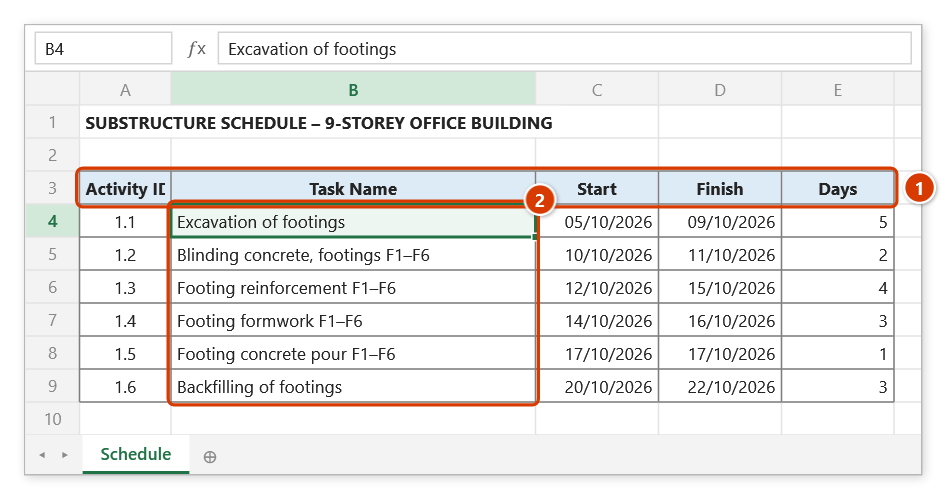
Step 1. Open the sheet that holds the schedule. The add-in finds the header row with a Task Name column and Start / Finish (plus Activity ID and Level if present) (1); every task row below it (2) becomes one acceptance-plan row.
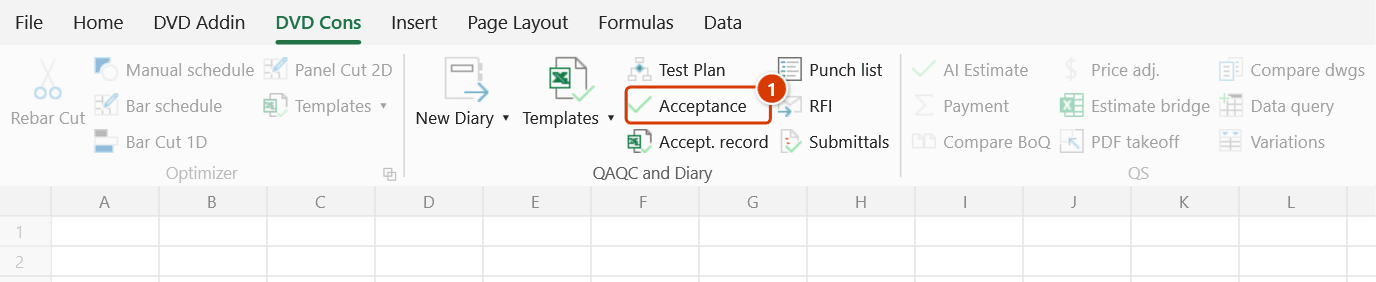
Step 2. On the ribbon, open the DVD Cons tab → QAQC and Diary group → click Acceptance.
Step 3. The Acceptance plan window shows which sheet was detected and how many tasks (1). Fill in Project / package (2), keep or edit Inspection parties and Date. Leave Auto-suggest applicable standards (3) ticked to look task names up in the TCVN database; tick Include summary rows (4) to plan stage / item rows too. Click Create plan (5).
Step 4. The add-in creates a new sheet Ke hoach NT 2026-10-08 with 10 columns (the last one, Note, is off to the right here). Planned acceptance (1) equals the task finish date; Status (2) starts as Pending, shaded yellow. Applicable standard (3) holds the TCVN-database entry whose keyword matches the task name (for example MAT-13 Bê tông) and stays blank when nothing matches — check every row before issuing. Select rows and click Accept. record to draw up the record.
Example
The programme sheet for package "Workshop No. 2" contains Excavate footing F1 (05/09 → 09/09), Blinding concrete F1 (10/09 → 11/09) and Rebar footing F1 (12/09 → 15/09).
Enter Project = "Workshop No. 2 – Nhon Trach IZ", leave the parties as pre-filled, tick Auto-suggest applicable standards, untick Include summary rows, then click Create plan. Sheet Ke hoach NT 2026-08-22 is generated with three acceptance rows whose planned acceptance dates equal the task finish dates (09/09, 11/09, 15/09); the Applicable standard column holds the database entry matched by the task name — MAT-13 Bê tông for the blinding row, MAT-09 Thép cốt bê tông (…) for the rebar row, blank for the excavation row, which matches nothing; and a Status column left at "Pending" for site supervision to update.
Notes
- The plan is a drafting aid — check it against Decree 207/2026/ND-CP and the client's own requirements before issuing.
- The sheet must contain a recognisable schedule; a plain text sheet or a BoQ will be rejected.
- The Applicable standard column is suggested from task-name keywords and currently holds the TCVN-database entry Id (up to two, for example
MAT-13 Bê tông), not a standard number; rows with no match stay blank. Replace it with the proper TCVN/QCVN numbers before issuing — Acceptance Record copies this column verbatim into the basis of acceptance. - The planned acceptance date is taken from the task finish date (the start date when there is no finish date); adjust it directly on the output sheet if you need a different date.
- Each run creates a new date-stamped sheet; running twice on the same day adds a suffixed duplicate, so delete obsolete drafts.
Related
- Acceptance Record — draw up the acceptance records for this plan's rows.
- Work Record Tpl — the work acceptance record template you fill in next.
- Material Record Tpl — incoming-material acceptance record for the same dossier.
- Gantt Chart — build a clean schedule table so this command can detect it.
- New Diary — fold the acceptance plan into the document register and site diary.