
New Diary
Location on ribbon: Tab DVD Cons → Group QAQC and Diary
Command ID: btnConsDiary
License required
This command needs an active DVDAddin account (Standard or PRO). During the trial period it is fully available.
What it does
Expands a work-item catalog into a day-by-day construction diary. The add-in reads your record catalog (one row per work item, with construction start date, end date, acceptance date and work description), spreads those items across every day in the period you define, and writes the result to a sheet named DM_NKTC.
Use it when a whole month or phase of diary entries has to be produced: instead of typing what happened on each day, you keep one clean catalog of work items and let the add-in generate the daily listing.
How to use
- Prepare a work-item catalog on a worksheet with columns for construction start date, construction end date, acceptance date and work description — plus an optional rest-days column.
- Put the diary period's start date and end date in two cells somewhere on the sheet.
- Click New Diary. The Construction Diary window opens.
- Fill the top card: Source data range, Start date cell, End date cell. Each field has a ⤴ button for picking the reference directly on the worksheet. The data range must include the header row — the add-in always skips the first row of the range.
- Fill the Columns in the data range card: Construction start column, Construction end column, Acceptance date column, Work content column and Rest-days column (optional).
- Click Generate diary. The output is written to sheet DM_NKTC (created at the front of the workbook if missing), one row per day: column A holds the date, column B lists the tasks under way, column C the tasks accepted that day — one task per line inside the cell.
Video tutorial
Narrated in Vietnamese, with Vietnamese subtitles. Nhật ký công trình · 7 min 50 s · 14 cases · Download the video · Practice workbook for the video
Commands in this video: New Diary · Diary Template · Export Category · Pick Rest Days
Chapters (18)
- Giới thiệu
- Mở lệnh
- 1 · Tạo nhật ký từ danh mục
- 2 · Chọn ngày nghỉ trên lịch
- 3 · Sửa ngày nghỉ đã có
- 4 · Nghỉ chung nhiều công tác
- 5 · Công tác vắt qua kỳ
- 6 · Dòng chỉ có ngày nghiệm thu
- 7 · Ngày gõ dạng chữ
- 8 · Quên dòng tiêu đề
- 9 · Chạy lại: ghi đè và Ctrl+Z
- 10 · Xuất danh mục hồ sơ
- 11 · Bảng lọc, xuất lại
- 12 · Mẫu Nhật ký và in A4
- 13 · Sheet đang bảo vệ
- 14 · Khi nhập sai
- Mẹo
- Kết thúc
Illustrated walkthrough
Practice
Download this command's sample workbook — the data matches the pictures below (sheet Work items), so you can follow each step right away.
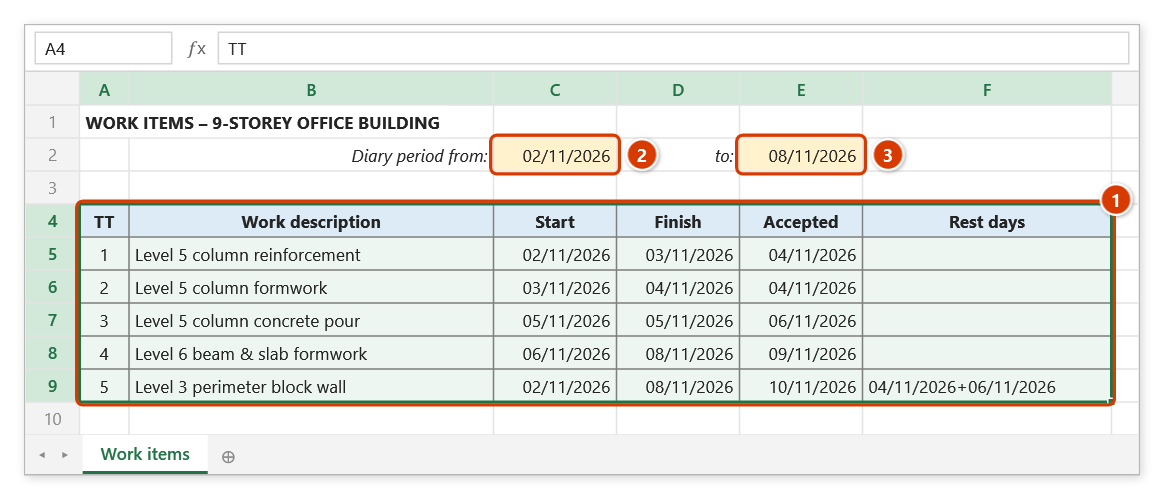
Step 1. Prepare the work-item catalog (1): one row per task with start, finish, acceptance date, description and (optionally) rest days. Put the diary period start (2) and end date (3) in two separate cells. The data range must include the header row — the add-in skips the first row of the range.
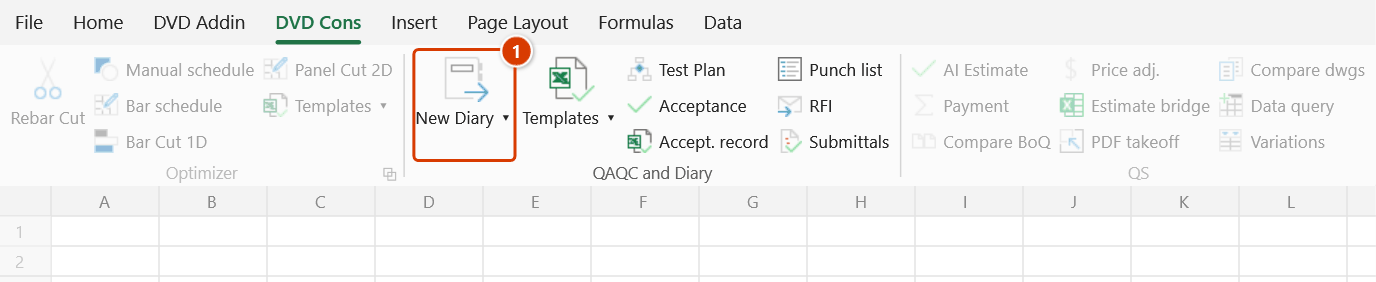
Step 2. On the ribbon, open the DVD Cons tab → QAQC and Diary group → click the upper part of the first large button (1) — New Diary (its ▾ arrow opens the sub-commands Export Category and Pick Rest Days).
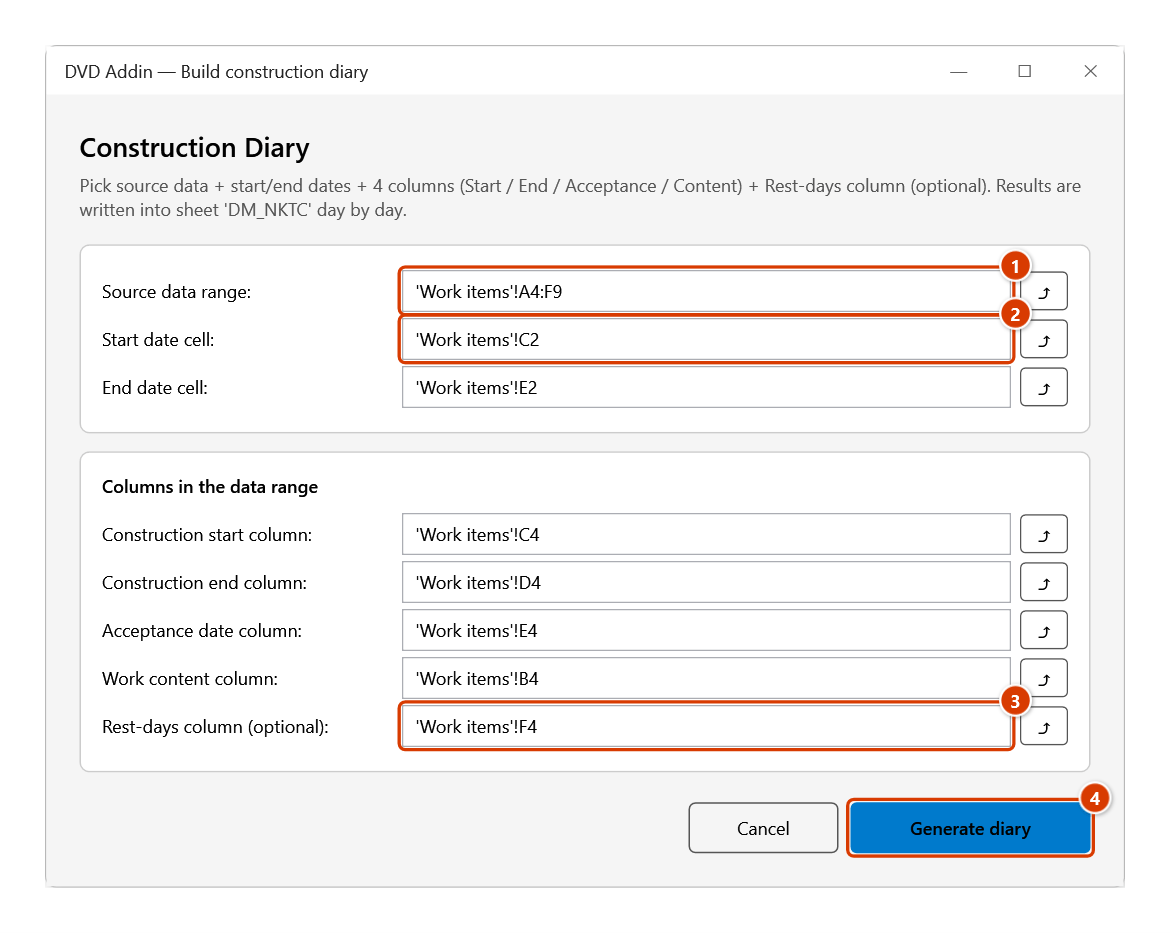
Step 3. The Construction Diary window opens. Fill in the Source data range (1), the two date cells (2), then the start / finish / acceptance / content columns — any one cell of each column is enough; click ⤴ to pick on the sheet. The Rest-days column (3) is optional. Click Generate diary (4).
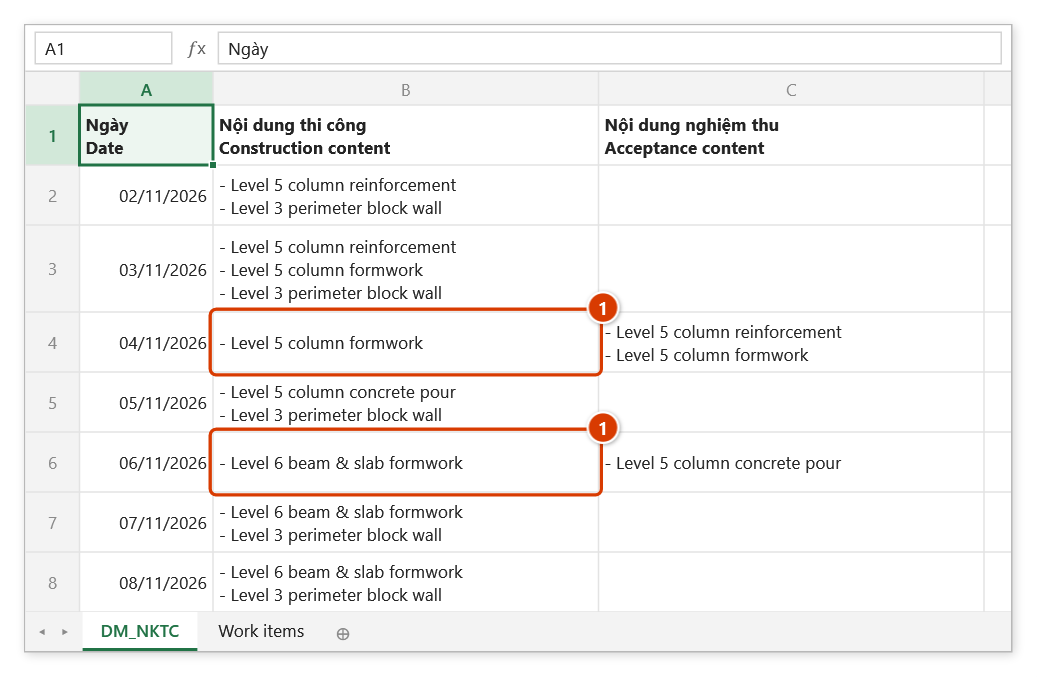
Step 4. The add-in creates (or rewrites) sheet DM_NKTC at the front of the workbook and reports Extracted 7 days into sheet 'DM_NKTC'. One row per day: column B lists the tasks under way, column C the tasks accepted that day. Declared rest days are left out — 04/11 and 06/11 have no "Level 3 perimeter block wall" (1).
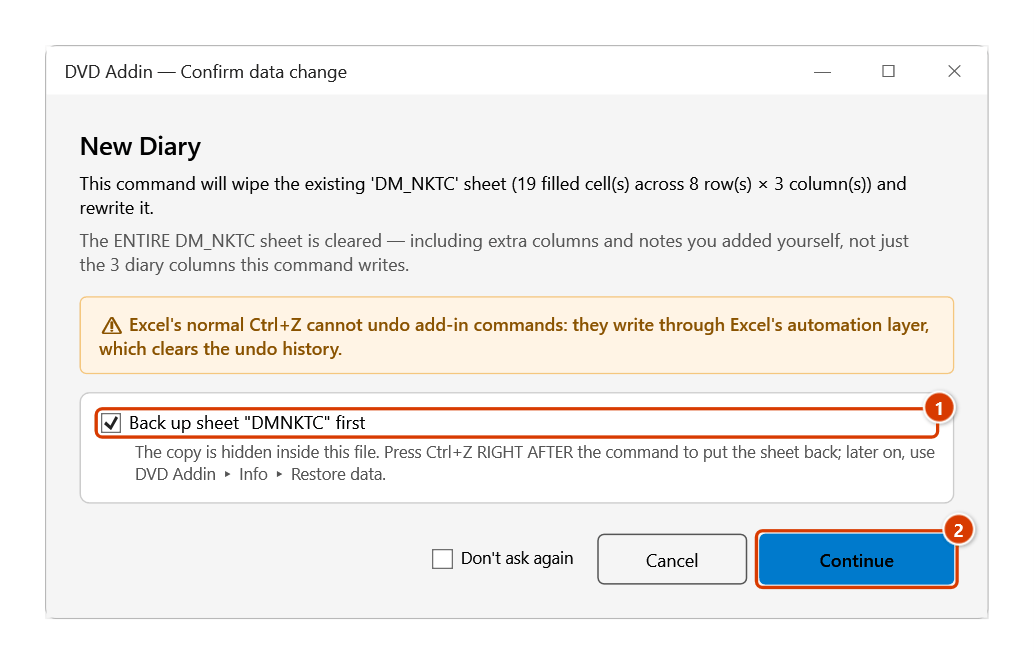
Step 5. When you run the command again and sheet DM_NKTC already holds data, the Confirm data change window appears before the whole sheet is wiped (including columns and notes you added). Keep Back up sheet "DM_NKTC" first ticked (1) so Ctrl+Z right after the command restores it, then click Continue (2); Cancel writes nothing.
Example
The November superstructure catalog sits in A5:H60 (row 5 is the header row), the diary period start date is in B2 and the end date in D2. Inside the data range the construction start column is C, the end column is D, the acceptance column is E, the work content column is B, and the rest-days column is H.
Enter exactly that in the dialog and click Generate diary — sheet DM_NKTC is produced day by day from 1 to 30 November: on every day where "Concrete pour, level 5 columns" is running, that item appears, except on the days listed in the rest-days column.
Notes
- The rest-days column lists days a task is not worked on, joined with
+, for example23/11/2021+25/11/2021. Leave it blank for continuous work. - Fill that column with the Pick Rest Days command rather than typing — it writes the exact format the generator expects.
- The source range and the referenced columns must be on the same worksheet, and the columns are worksheet columns, not positions inside the selection.
- Running the command again wipes the whole
DM_NKTCsheet and rewrites it; any manual edits or extra columns there are lost. When the sheet already holds data, the Confirm data change window appears first; with the backup ticked, Ctrl+Z right after the command putsDM_NKTCback as it was; see Restore data. - Cancel (or Esc) in the dialog closes it without writing anything to the workbook.
- This window does not block Excel: you can keep working on the sheet while it is open. The ⤴ button opens a range picker that does not lock Excel — the window steps aside, and while picking you can scroll, switch sheets or workbooks; click OK or press Enter on the sheet to take the range, Cancel or Esc to keep the old one.
Related
- Pick Rest Days — fills the rest-days column from a calendar in the right format.
- Diary Template — the standard construction diary form.
- Export Category — exports a record catalog into a fixed sheet layout.
- Work Record Tpl — the work acceptance record that goes with the diary package.