
Data query functions
Three functions that read data from a closed Excel file — no opening it, no links, nothing extra to install.
| Function | Purpose |
|---|---|
dvdSQL | Query and return a whole result range. |
dvdSQLValue | The same, but returns a single value — for totals, counts and single-cell lookups. |
dvdSheets | List the sheet names of a closed file. |
The examples below separate arguments with a semicolon ; (Vietnamese regional format). On an English (US) machine, use a comma ,.
Why the file does not need opening
The functions read the file directly with a library already inside the add-in. In practice that means:
- No extra driver to install. The usual approach elsewhere is the ACE OLEDB provider, which must be installed separately and must match Office's 32/64-bit build — often missing on site machines.
- The source file is not opened, not locked and not modified.
- Results are cached against the file's modified time, so a hundred formula cells read the file once. Edit the source and recalculate, and it re-reads.
- The cell shows
#N/Abriefly and then the result — the work runs in the background so Excel never freezes.
Syntax
SELECT  * | column [AS name] | SUM(column) | COUNT(*) | COUNT|AVG|MIN|MAX(column)
FROM    'file path'!sheet name
[WHERE  condition]
[GROUP BY column[, column…]]
[ORDER BY column [ASC|DESC][, …]]- Column names containing spaces go in square brackets:
[Khối lượng]. - Strings go in single quotes:
'Móng'. Double the quote to include one:'Bê tông ''M250'''. - Numbers always use a decimal point — the statement is text and does not follow the regional format.
- Conditions:
= <> > >= < <=,LIKE(%any string,_one character),IN (…),IS NULL,IS NOT NULL, combined withAND/OR/NOTand parentheses.
JOIN, subqueries, HAVING and DISTINCT are not supported. That is deliberate: the real need is filtering, summing and grouping data spread across files.
dvdSQL
=dvdSQL(statement; [header row]; [include header])| Argument | Default | Meaning |
|---|---|---|
| statement | — | The compact SQL statement. |
| header row | 1 | Row holding the source column names. 0 = no header; columns are F1, F2… |
| include header | TRUE | First result row is the column names. |
The result spills into the cells below (Excel 365 / 2021). On older Excel, select the range first and press Ctrl+Shift+Enter.
=dvdSQL("SELECT [Mã hiệu], [Khối lượng] FROM 'D:\HS\KL.xlsx'!TH WHERE [Hạng mục]='Móng'")Separators inside the statement
The statement is one string, so the separator between columns inside it is always a comma , as SQL requires — it does not follow the regional format. Only the separator between the function's arguments switches between ; and ,.
Illustrated walkthrough
Practice
Download this function's sample workbook — the data matches the pictures below and the cell for the formula is already selected.
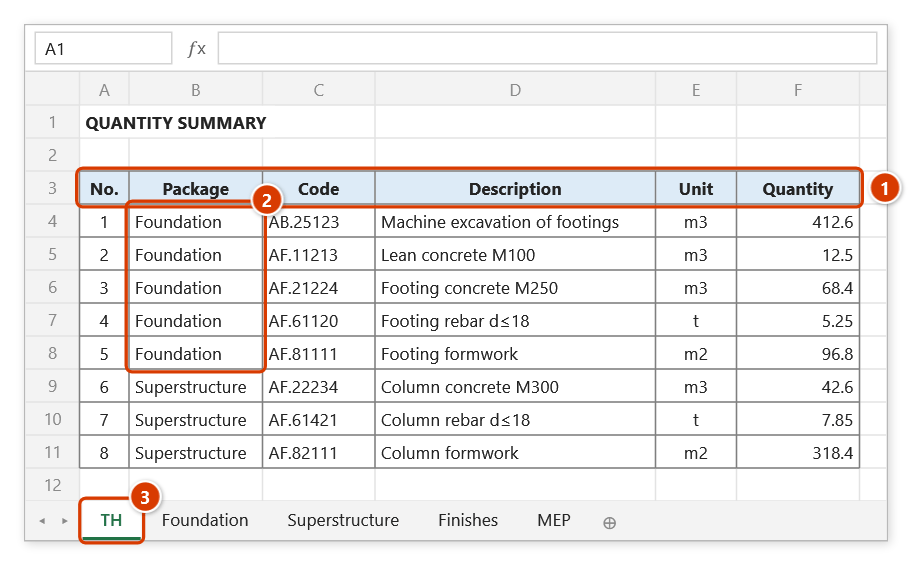
Step 1. The source file D:\DuAn\KhoiLuong.xlsx (it does NOT need to be open): sheet TH (3) has its column headers on row 3 (1), and the Package column (2) is used to filter.
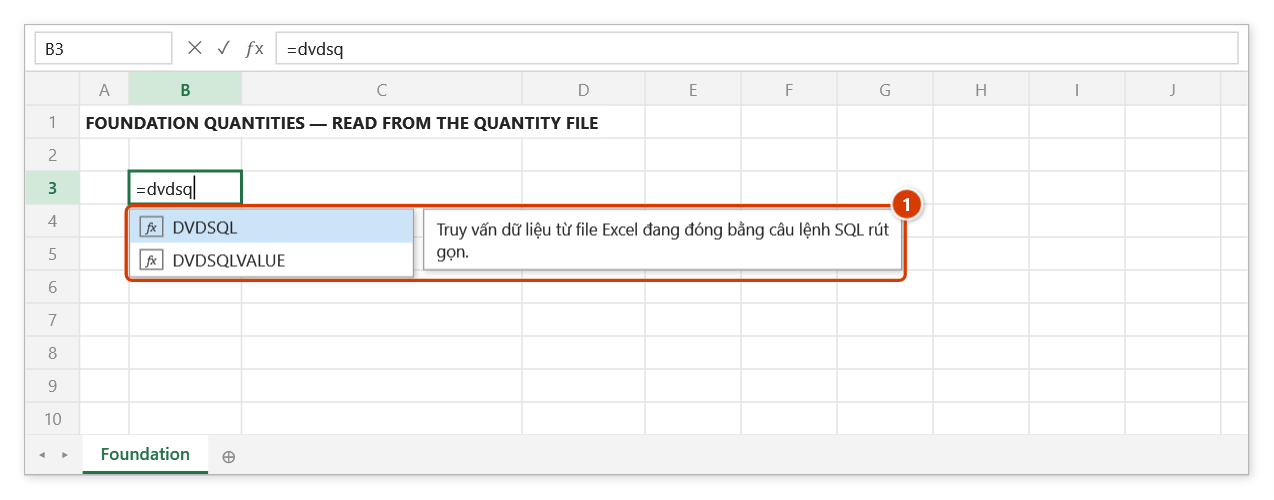
Step 2. In your working file, select a cell and type =dvdsq — the suggestion list shows DVDSQL with the function description (1). Press Tab to pick it.
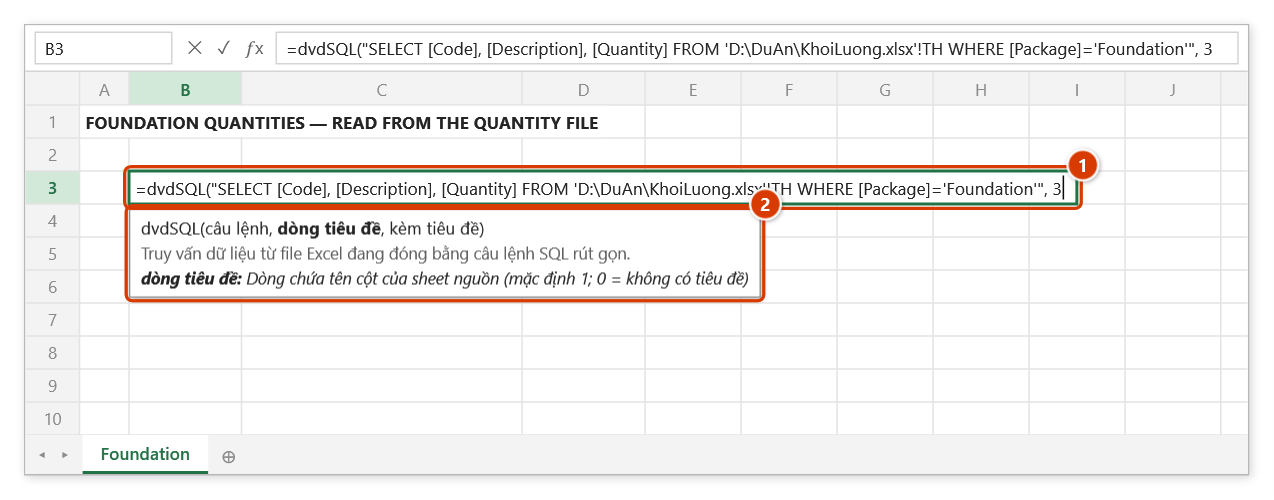
Step 3. Type the statement in double quotes (1) — inside it, columns are separated by commas, strings use single quotes and column names with spaces go in [ ]. The headers are on row 3, so add , 3 (2).
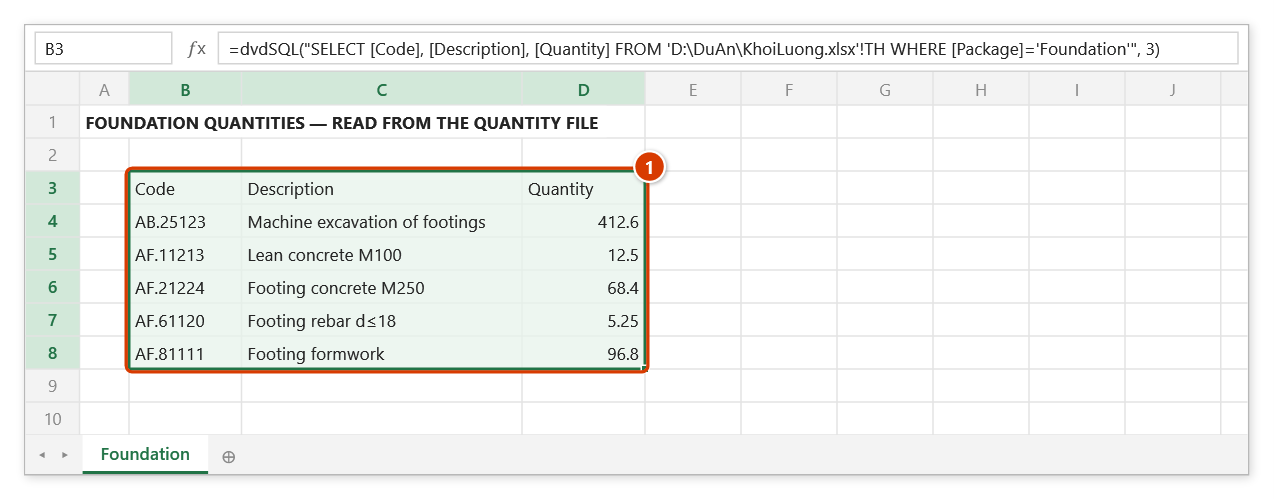
Step 4. Press Enter: the cell shows #N/A briefly, then the result spills down (1) with the column names on the first row. The source file is not opened or locked; a bad statement shows #SQL: <reason>.
dvdSQLValue
Use it when you only need one number — a cross-file lookup replacing a VLOOKUP pointed at a closed file.
=dvdSQLValue("SELECT SUM([Khối lượng]) FROM 'D:\HS\KL.xlsx'!TH WHERE [Mã hiệu]='AF.211'")If nothing matches it returns #N/A, so IFNA catches it like any lookup.
Illustrated walkthrough
Practice
Download this function's sample workbook — the data matches the pictures below and the cell for the formula is already selected.
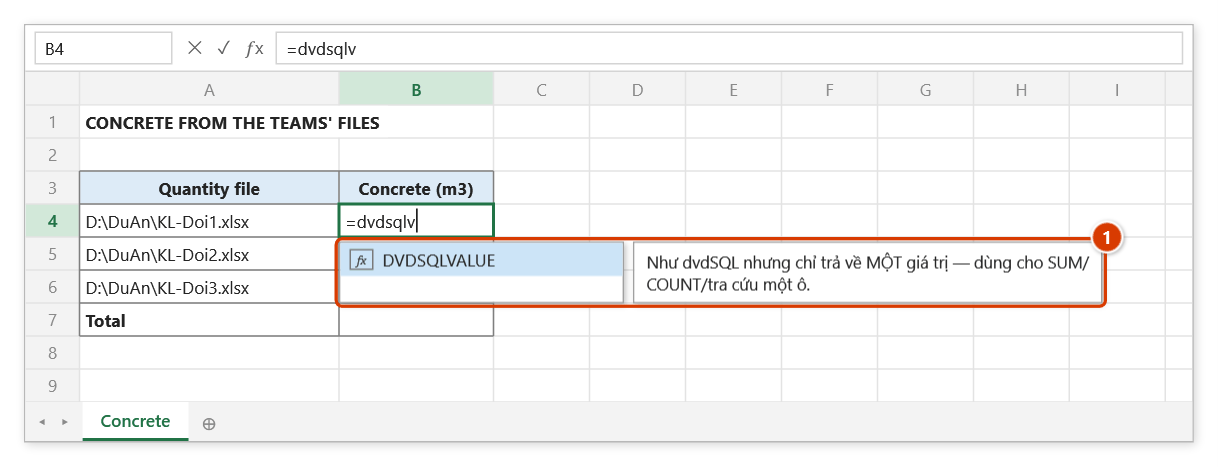
Step 1. Select the cell next to the first file path and type =dvdsqlv — Excel suggests DVDSQLVALUE with the function description (1). Press Tab to pick it.
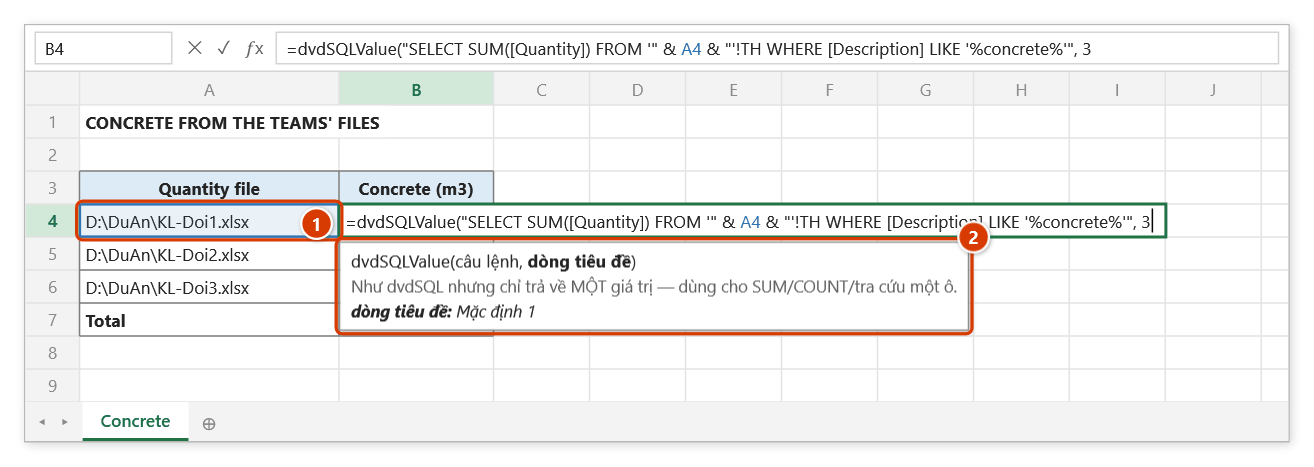
Step 2. Join the path in A4 (1) into the statement with &: FROM '" & A4 & "'!TH. The statement returns a single value — here a SUM; the files have their column headers on row 3, so add , 3 (2).
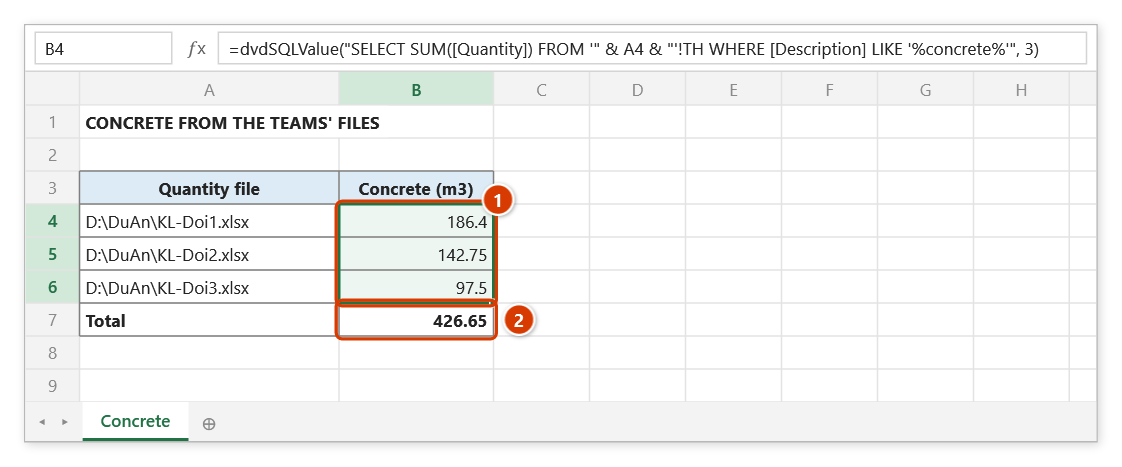
Step 3. Press Enter and fill down: each cell returns the concrete total of one file (1) without opening any of them; the total =SUM(B4:B6) (2) follows. No matching row returns #N/A, which IFNA catches like any lookup.
dvdSheets
=dvdSheets("D:\HS\KL.xlsx")Returns the sheet names down a column — handy when you cannot remember the sheet name to write the statement.
Illustrated walkthrough
Practice
Download this function's sample workbook — the data matches the pictures below and the cell for the formula is already selected.
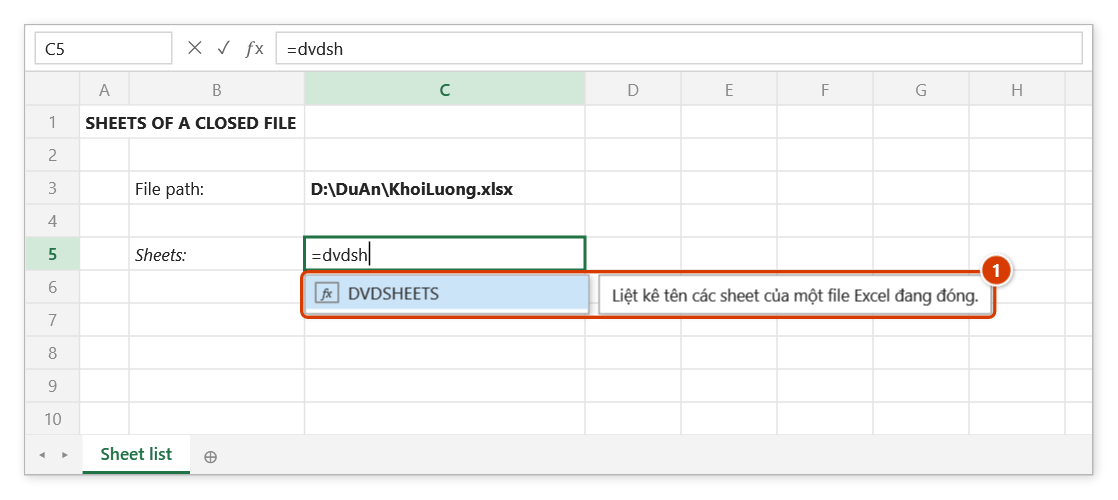
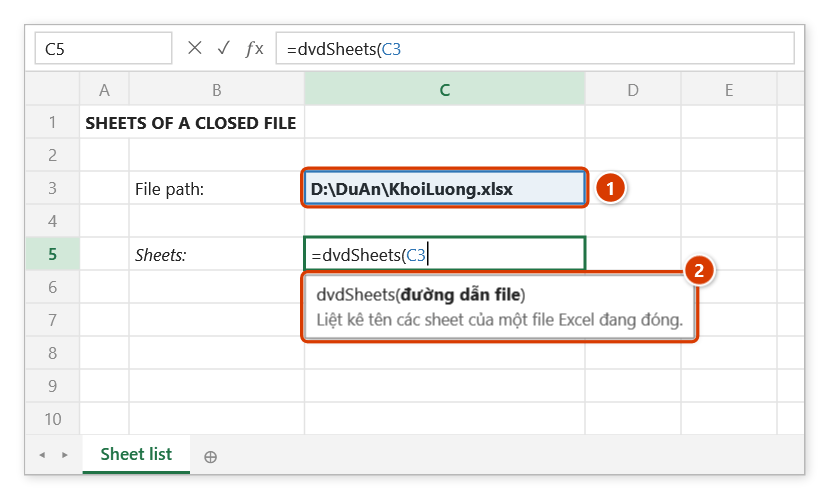
Step 1. Select the first result cell and type =dvdsh — Excel suggests DVDSHEETS with the function description (1). Press Tab to pick it.
Step 2. Click the cell holding the file path (1) (or type the path in double quotes). The function has a single argument (2); the file does not need to be open.
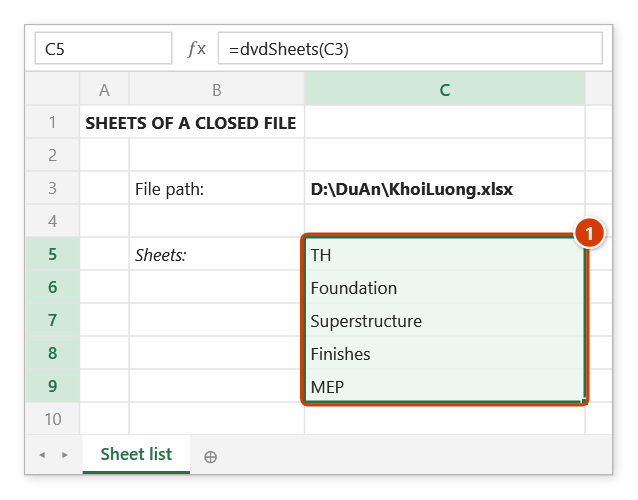
Step 3. Press Enter: after a brief #N/A, the sheet names spill down the column (1) — copy a name into a dvdSQL / dvdSQLValue statement. When the file cannot be read the cell shows #SQL: ….
Real examples
Total concrete quantity across the 12 files the teams sent in, one per cell:
=dvdSQLValue("SELECT SUM([Khối lượng]) FROM '" & A2 & "'!TH WHERE [Tên công tác] LIKE 'Bê tông%'")Column A holds each file's path; fill the formula down and you are finished — without opening a single file.
A summary by work package from another file:
=dvdSQL("SELECT [Hạng mục], SUM([Khối lượng]) AS Tổng FROM 'D:\HS\KL.xlsx'!TH GROUP BY [Hạng mục] ORDER BY Tổng DESC")Notes
- A bad statement shows
#SQL: <reason>rather than#VALUE!, so you can see what to fix. - Password-protected files cannot be read; the cell says so.
dvdSQLresults are capped at 50,000 rows. When that happens the result gets one extra last row whose first cell reads⚠ Result truncated to 50,000 rows — narrow it with WHERE / GROUP BY(the Vietnamese interface shows the same warning in Vietnamese; the other cells of that row are empty) — narrow it withWHEREor aggregate withGROUP BY. An untruncated result has no such row.ORDER BYmay use a column that is not inSELECT, except whenGROUP BYor an aggregate (SUM,COUNT…) is present: then it can only sort by a result column — the column name or the name given withAS. Any other column makes the cell show#SQL: ORDER BY cột "…" không có trong kết quả…(the statement errors are reported in Vietnamese) instead of returning an unsorted table.- Empty cells do not satisfy
>or<, matching how SQL treats nulls.
Would rather not type the statement?
The Data query command writes it for you: pick the file, tick columns, set conditions, preview the real data, then insert a formula or dump the values to a sheet.
See also
- Data query — the builder window.
- Combine files — when you want to merge the files for real.
- Estimate bridge — import a BoQ from other estimating software.