AI, network & shape functions
This group contains the 8 functions that reach beyond the spreadsheet: asking an AI to explain a formula, translating text, fetching stock prices and exchange rates, generating QR codes, placing site photos into cells, and colouring or moving shapes on a worksheet.
The examples below use a semicolon ; to separate arguments (Excel running on a Vietnamese regional format). If your Excel uses the English (US) format, type a comma , instead of ;.
Quick reference:
| Function | Purpose |
|---|---|
dvdAIExplain | Ask an AI to explain the Excel formula in a cell. |
dvdTranslate | Translate text with Google Translate. |
dvdStock | Fetch the price of a Vietnamese listed share. |
DVDFx | Fetch an exchange rate, latest or for a given date. |
dvdQR | Build a QR code from text and insert it into the cell. |
dvdPic | Insert a picture into a cell, scaled to fit. |
dvdColorShapes | Recolour several shapes from a list, with transparency. |
dvdMoveShape | Move a shape to new coordinates on the worksheet. |
dvdAIExplain
Sends the formula of a cell to an AI model and returns the explanation in Vietnamese.
Syntax:
=dvdAIExplain(cell_formula; [Detail])| Parameter | Required | Description |
|---|---|---|
cell_formula | Yes | Cell holding the formula to explain. |
Detail | No | TRUE = detailed explanation (default), FALSE = short explanation. |
Example:
=dvdAIExplain(F42; FALSE)
// → "Công thức nhân khối lượng ở cột D với đơn giá ở cột E rồi làm tròn 0 chữ số."
Notes
- The function uses the AI provider you have selected in Preferences ▸ AI Assistant, so it needs that provider's API key and an internet connection. Without a key the cell shows a message pointing you to Preferences ▸ AI Assistant to enter one.
- The function runs asynchronously: the cell shows
#N/Aand updates itself once the answer arrives. - Results are cached (in memory and on disk) by provider +
Detailmode + formula, so recalculating the workbook does not call the API again. Changing the formula, theDetailsetting or the provider makes the function ask the AI again. - When the AI call fails, the cell shows a plain-language error message (in the interface language) instead of a technical error code.
- The argument must point at a cell that contains a formula; otherwise the function returns
The cell has no Excel formula(Vietnamese interface:Ô không chứa công thức MS Excel).
Illustrated walkthrough
Practice
Download this function's sample workbook — the data matches the pictures below and the cell for the formula is already selected.
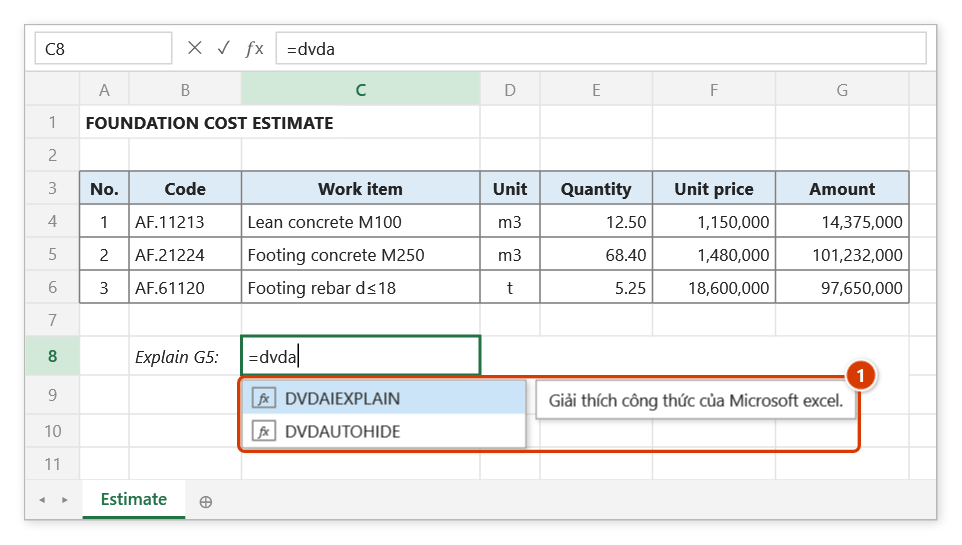
Step 1. Select the cell for the explanation and type =dvda — Excel suggests DVDAIEXPLAIN with the function description (1). Press Tab to pick it.
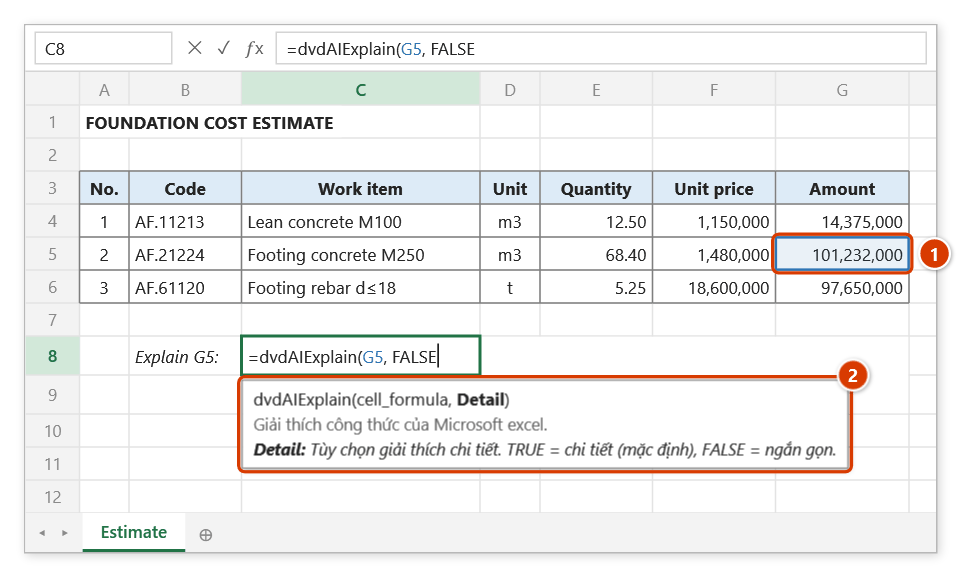
Step 2. Click the cell holding the formula to explain (1) (here =ROUND(E5*F5,0)), then type , and FALSE for a short explanation — the tip (2) describes the current argument.
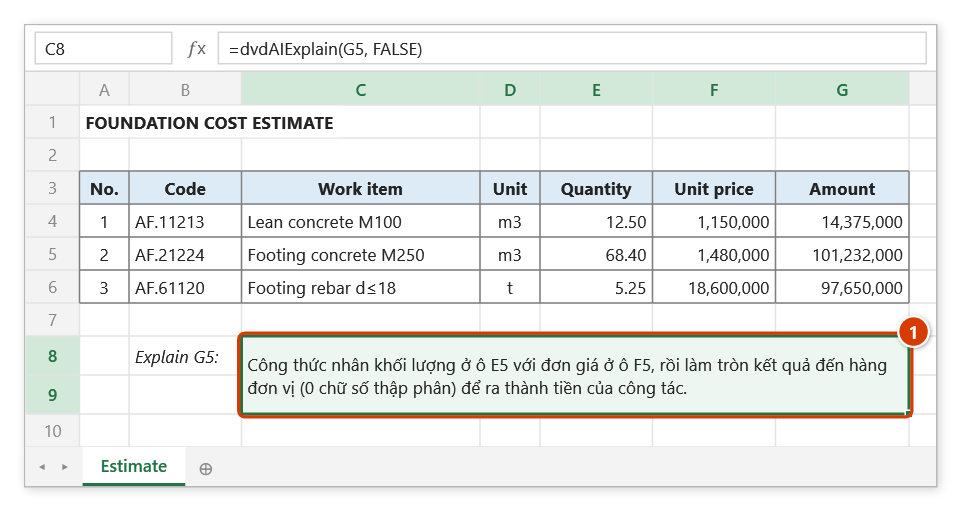
Step 3. Press Enter: the cell shows #N/A while the AI answers, then the explanation appears in Vietnamese (1) (here: it multiplies the quantity in E5 by the unit price in F5 and rounds to whole dong). The answer is cached, so recalculating does not call the AI again; an API key is needed in Preferences ▸ AI Assistant.
dvdTranslate
Translates a piece of text with Google Translate — for bilingual documents and correspondence with foreign consultants.
Syntax:
=dvdTranslate(Text; [FromLang]; [ToLang])| Parameter | Required | Description |
|---|---|---|
Text | Yes | Text to translate. |
FromLang | No | Source language code, for example "vi", "en"; empty means auto-detect. |
ToLang | No | Target language code; empty means "en". |
Example:
=dvdTranslate(B6; "vi"; "en")
// → "Concrete works for foundation M1"

=dvdTranslate("Biên bản nghiệm thu công việc xây dựng"; "vi"; "en")
// → "Minutes of acceptance of construction work"
Notes
- Requires an internet connection; the function returns
#VALUE!when no translation comes back. - Best used cell by cell; filling hundreds of rows at once is slow and may get throttled.
Illustrated walkthrough
Practice
Download this function's sample workbook — the data matches the pictures below and the cell for the formula is already selected.
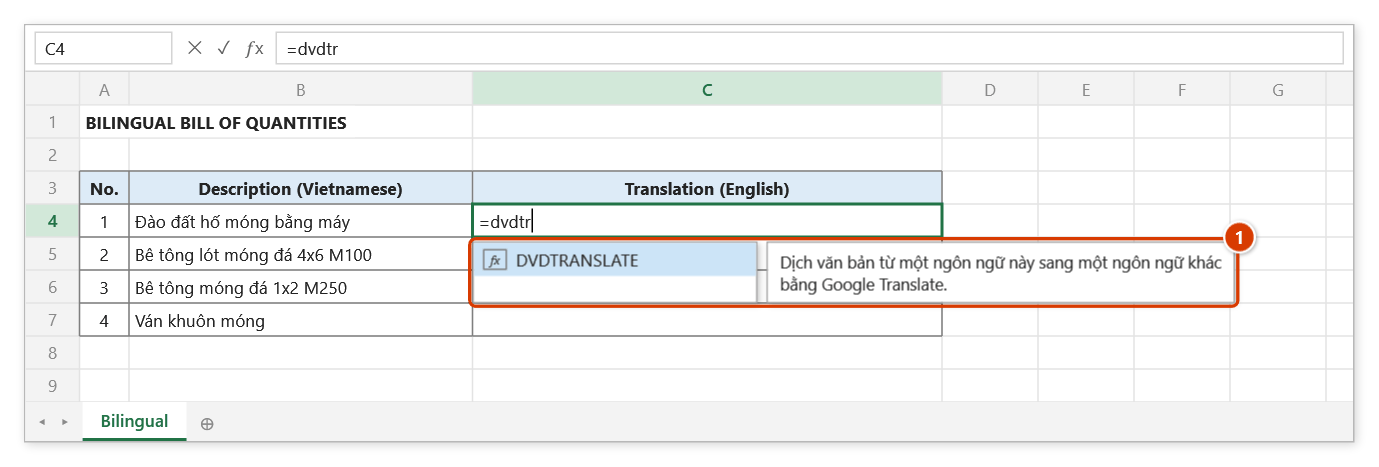
Step 1. Select the first cell of the translation column and type =dvdtr — Excel suggests DVDTRANSLATE with the function description (1). Press Tab to pick it.
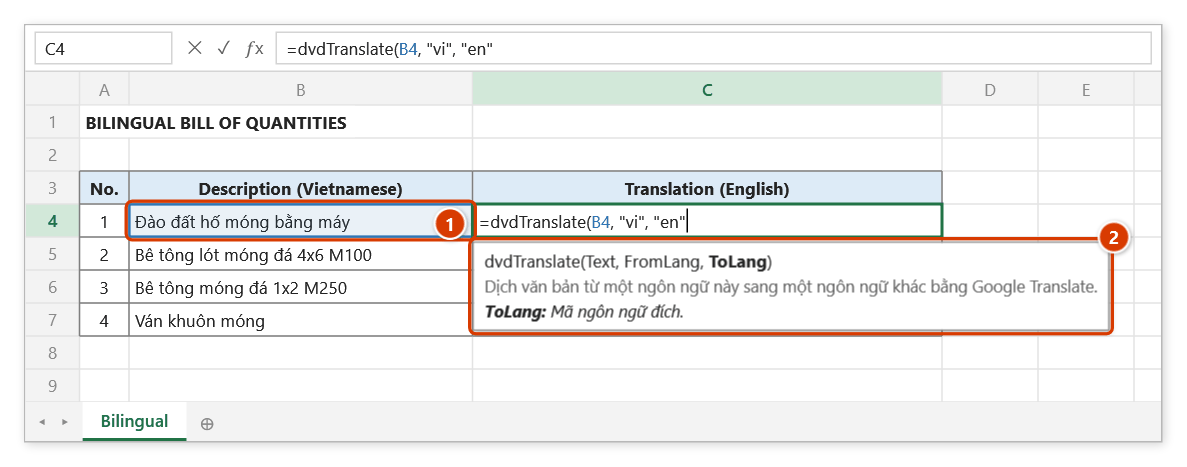
Step 2. Click the cell to translate (1), then type the source language code "vi" and the target code "en" in double quotes, separated by ,. The tip (2) explains the current argument.
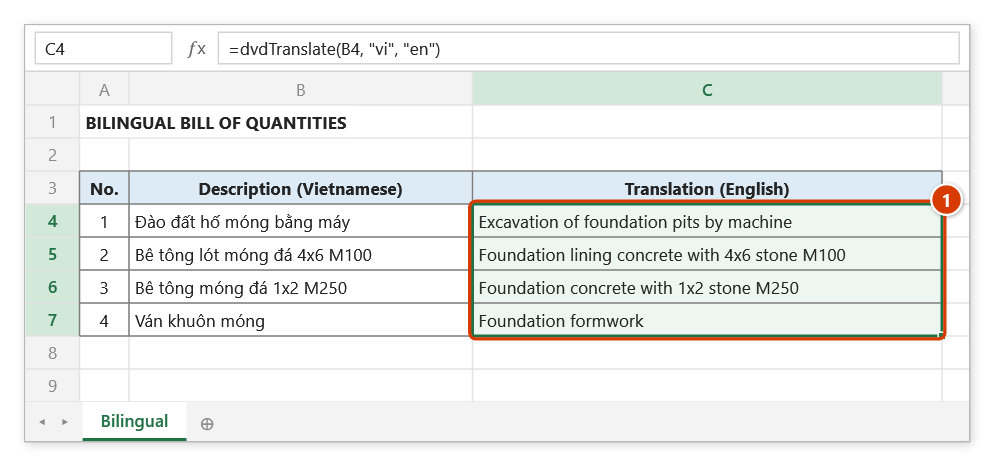
Step 3. Press Enter and fill the formula down: each cell shows the Google Translate result (1). An internet connection is needed; when nothing comes back the cell shows #VALUE!. Each cell waits for the network, so fill a few dozen rows, not hundreds at once.
dvdStock
Fetches the price of a Vietnamese listed share by ticker.
Syntax:
=dvdStock(MaSIC; [match_mode])| Parameter | Required | Description |
|---|---|---|
MaSIC | Yes | Ticker symbol, for example "VCB". |
match_mode | No | 1 = PriceBoard.vcbs.com.vn source (default), 2 = quotes.vcbs.com.vn source. |
Example:
=dvdStock("VCB")
// → 92500 (latest matched price, in dong)

=dvdStock(B6; 2)
// → price from the fallback source when the default one does not answer
Notes
- Requires an internet connection; an unknown ticker returns
#N/A. - Mode
1converts the board price into dong (multiplied by 1,000).
Illustrated walkthrough
Practice
Download this function's sample workbook — the data matches the pictures below and the cell for the formula is already selected.
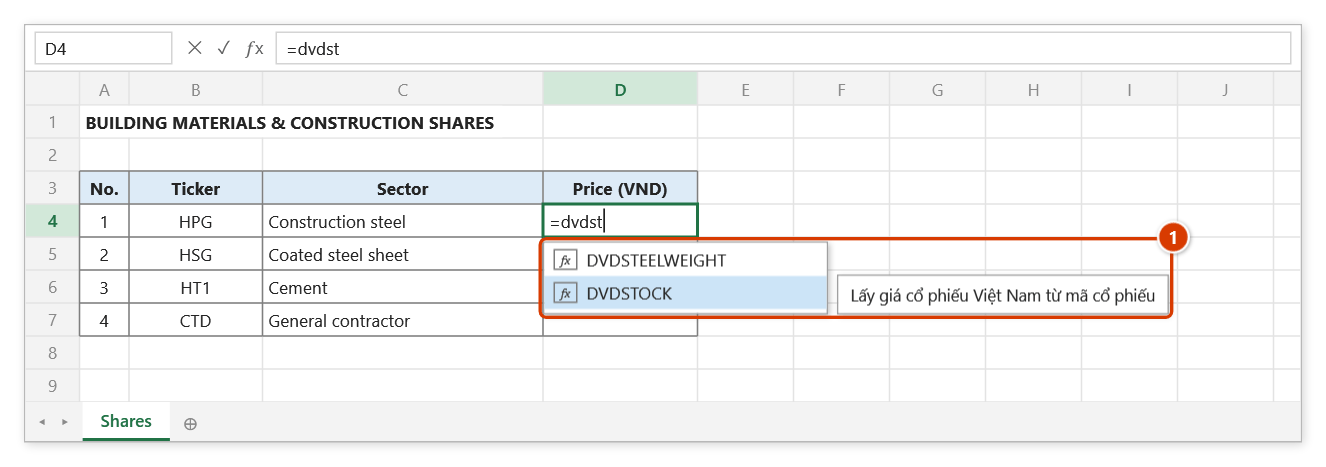
Step 1. Select the first price cell and type =dvdst — the suggestion list shows DVDSTOCK (1). Highlight it with the arrow keys and press Tab.
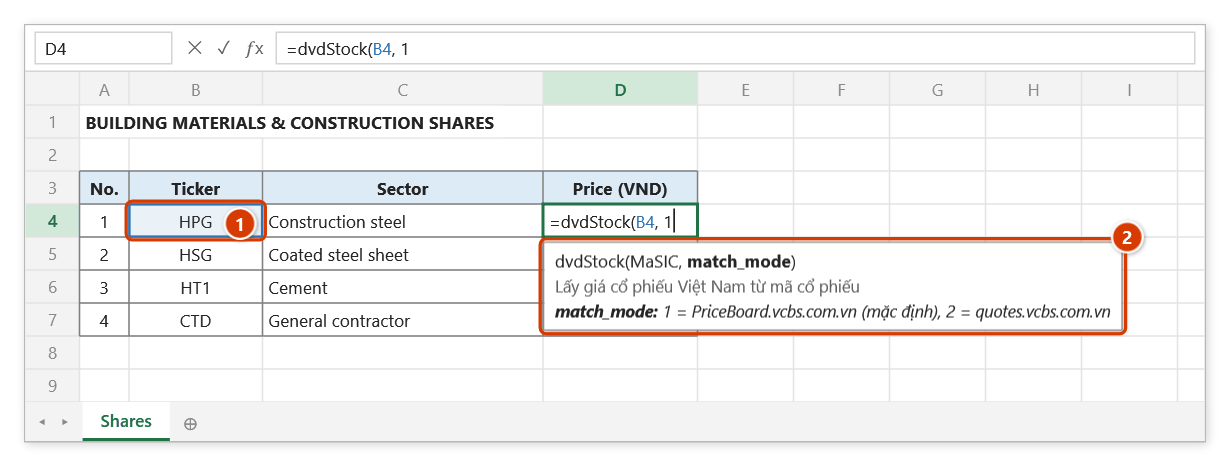
Step 2. Click the ticker cell (1), then type , and 1 to read the default source (PriceBoard). The tip (2) lists the two sources: 1 or 2.
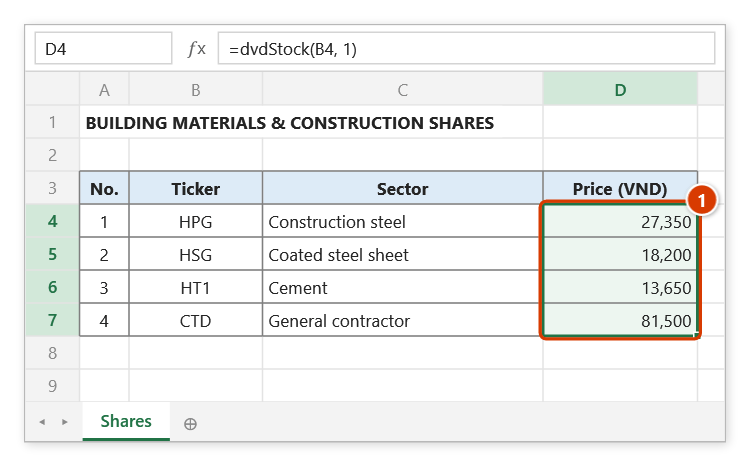
Step 3. Press Enter and fill down: each cell shows the latest matched price, converted to dong (board price × 1,000) (1) — the figures shown are only an illustration. An internet connection is needed; an unknown ticker returns #N/A.
DVDFx
Fetches the conversion rate between two currencies, either the latest rate or the rate of a past date.
Syntax:
=DVDFx(from; to; [date])| Parameter | Required | Description |
|---|---|---|
from | Yes | Source currency code, for example "USD", "EUR". |
to | Yes | Target currency code, for example "VND", "JPY". |
date | No | Rate date, as yyyy-MM-dd or dd/MM/yyyy; empty means the latest rate. |
Example:
=DVDFx("USD"; "VND")
// → 25,400 (latest rate, used to convert a contract value in foreign currency)

=DVDFx("USD"; "VND"; "2026-06-30")
// → the rate at the cut-off date of the payment period, 30/06/2026
Notes
- Requires an internet connection; the function runs asynchronously, so the cell shows
#N/Aon the first fetch. - Results are cached for one hour per currency pair and date, so later recalculations answer instantly.
- Two identical currency codes return
1; an empty code returns#VALUE!.
Illustrated walkthrough
Practice
Download this function's sample workbook — the data matches the pictures below and the cell for the formula is already selected.
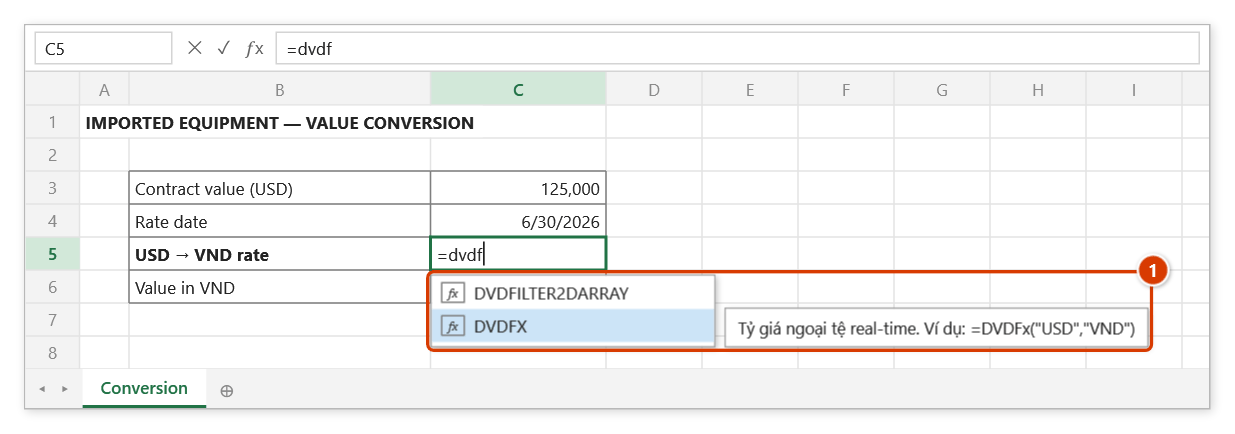
Step 1. Select the rate cell and type =dvdf — the suggestion list shows DVDFX (1). Highlight it with the arrow keys and press Tab.
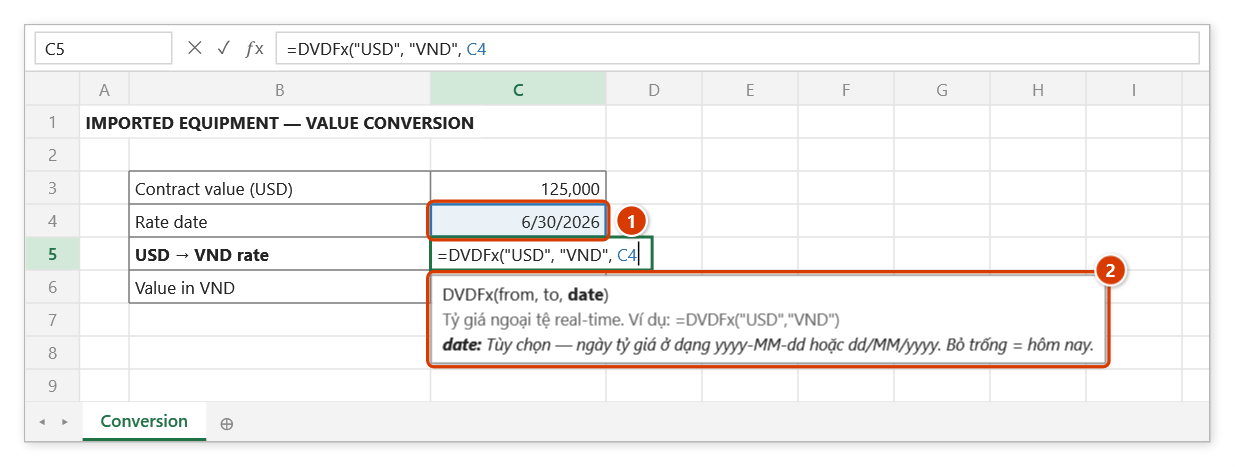
Step 2. Type the source and target currency codes in double quotes, then click the rate-date cell (1). An Excel date cell, "2026-06-30" or "30/06/2026" all work; leave it out for the latest rate (2).
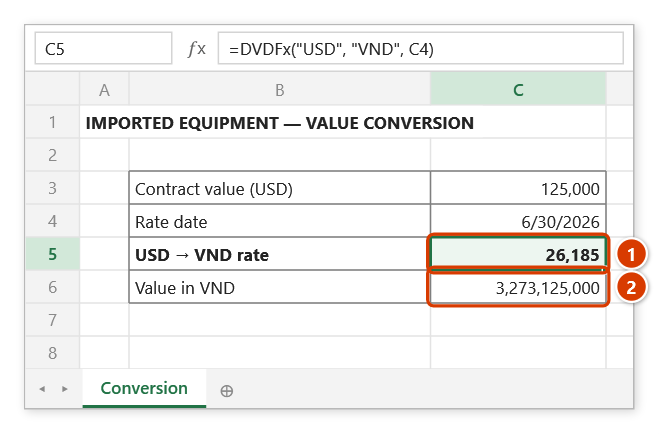
Step 3. Press Enter: on the first fetch the cell shows #N/A briefly, then the rate of 30/06/2026 (1) (illustrative figure); the converted value =C3*C5 (2) follows. Rates are cached for one hour per currency pair and date.
dvdQR
Builds a QR code from a text string and inserts the picture into the formula cell.
Syntax:
=dvdQR(Text; [charsetName])| Parameter | Required | Description |
|---|---|---|
Text | Yes | Text to encode as a QR code. |
charsetName | No | Character set, "UTF-8" by default (keeps Vietnamese diacritics); pass "Shift_JIS" for the Japanese character set, which strips diacritics. |
Example:
=dvdQR(A6)
// → a QR code carrying the member mark, for identification tags on site

=dvdQR("https://hoso.congtrinh.vn/bb/BB-2026-0142")
// → a QR code that opens the acceptance record on a phone
Notes
- The function itself returns an empty string; the real output is the QR picture inserted into the cell and centred on its merge area.
- The picture is drawn right after Excel finishes calculating (like
dvdPic), so it may appear one beat later. When printing or exporting many pages, use the DVDAddin print command so the QR code is redrawn before the export. - Any earlier picture overlapping the cell is deleted before the new one is inserted. When the content has not changed and the picture (named
DVDQR_<cell>) is still on its cell, it is kept as is instead of being deleted and reinserted on every recalculation. - Text that cannot be encoded (too long, unknown character set name) makes the cell return
#VALUE!.
Illustrated walkthrough
Practice
Download this function's sample workbook — the data matches the pictures below and the cell for the formula is already selected.
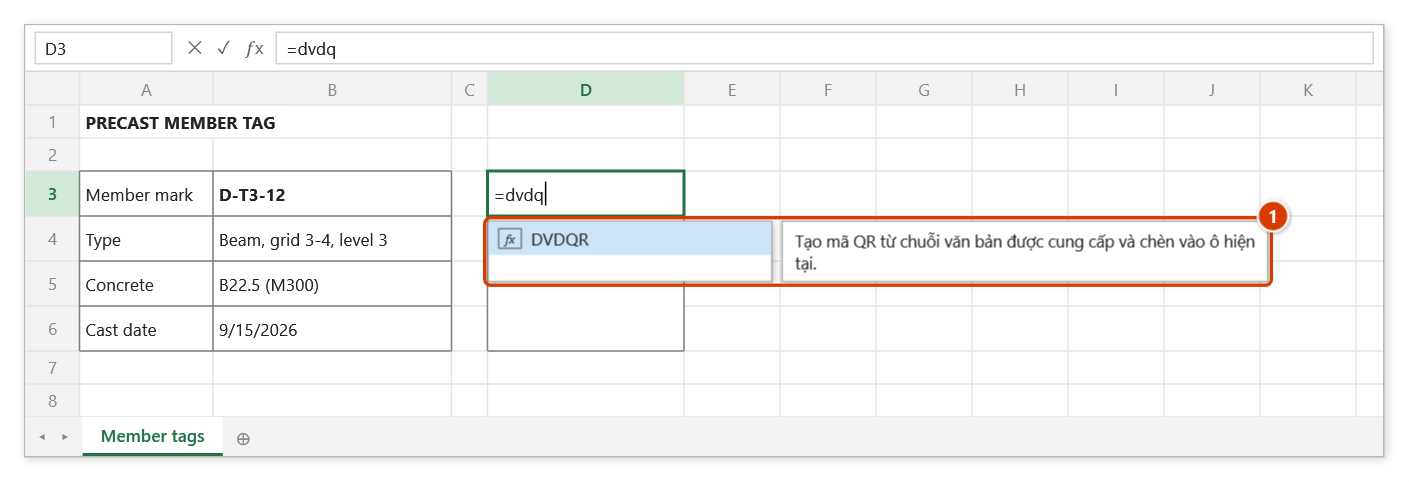
Step 1. Select the cell (or merged area) that will hold the QR code and type =dvdq — Excel suggests DVDQR with the function description (1). Press Tab to pick it.
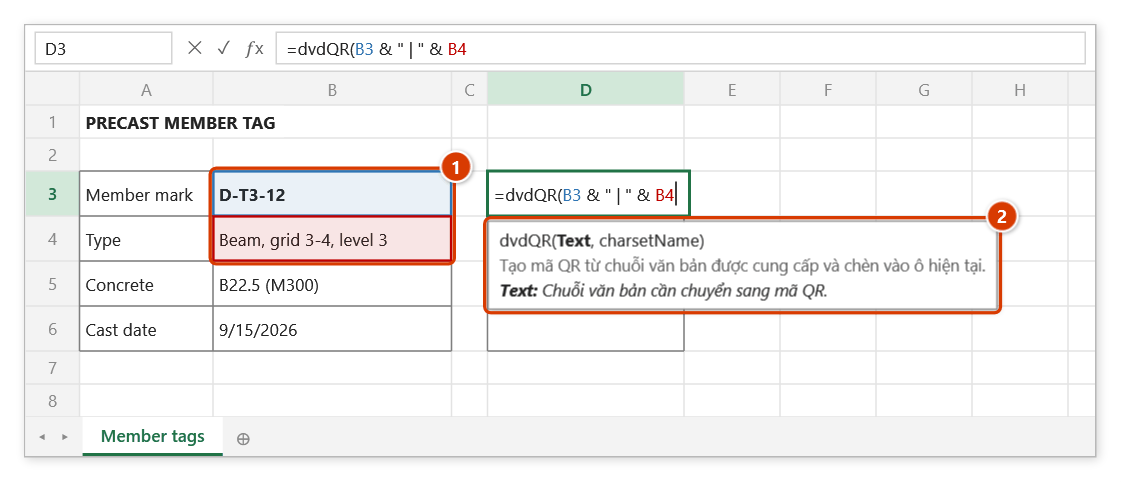
Step 2. Build the text to encode from cells (1), for example the member mark and its location. Leave the second argument out to use UTF-8, which keeps Vietnamese diacritics (2).
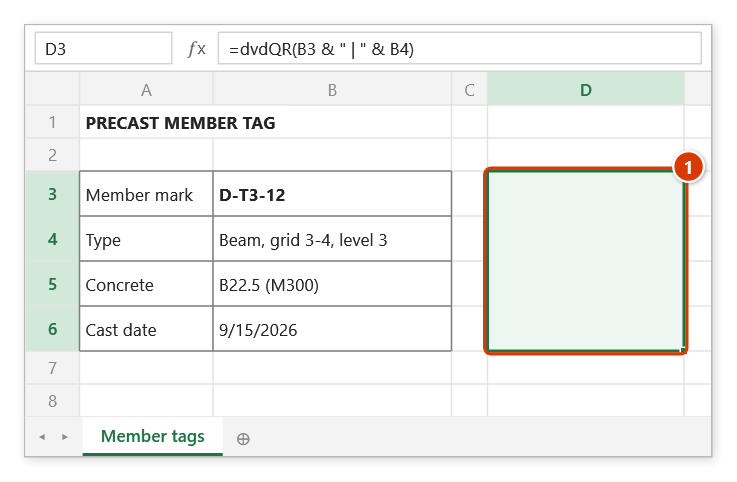
Step 3. Press Enter: the cell returns an empty string, and the QR picture is inserted into the merged area D3:D6 (1), centred with about 5 pt clear on each side (the picture is not drawn in this illustration). Any older picture over the cell is deleted first.
dvdPic
Inserts a picture from a path into a cell, scaling it to fit and leaving optional padding.
Syntax:
=dvdPic(ImgPath; [FitMode]; [Space]; [Extensions])| Parameter | Required | Description |
|---|---|---|
ImgPath | Yes | Path to the picture; a relative path is resolved against the folder of the workbook. |
FitMode | No | TRUE = scale to the cell (default). |
Space | No | Padding around the picture, in points (pt, the unit Excel uses for shape sizes), subtracted from the picture size on each side; decimals are accepted (2.5). |
Extensions | No | Default file extension when the path has none, ".jpg" by default. |
Example:
=dvdPic("Anh\BB-0142-01.jpg")
// → inserts the site photo into the photo appendix of an acceptance record

=dvdPic(B6; TRUE; 6)
// → picture named in B6, with 6 pt of padding around it
Notes
- The formula cell shows an empty string; the picture is drawn right after Excel finishes calculating, so it may appear one beat later.
- When printing or exporting many pages, use the DVDAddin print command so that pictures are refreshed before the export and the previous photo is not printed.
- One picture per cell: the cell's own previous picture is deleted before the new one is drawn.
- A workbook stored on OneDrive/SharePoint that is not synced locally makes the function return a message starting with
ERR:.
Illustrated walkthrough
Practice
Download this function's sample workbook — the data matches the pictures below and the cell for the formula is already selected.
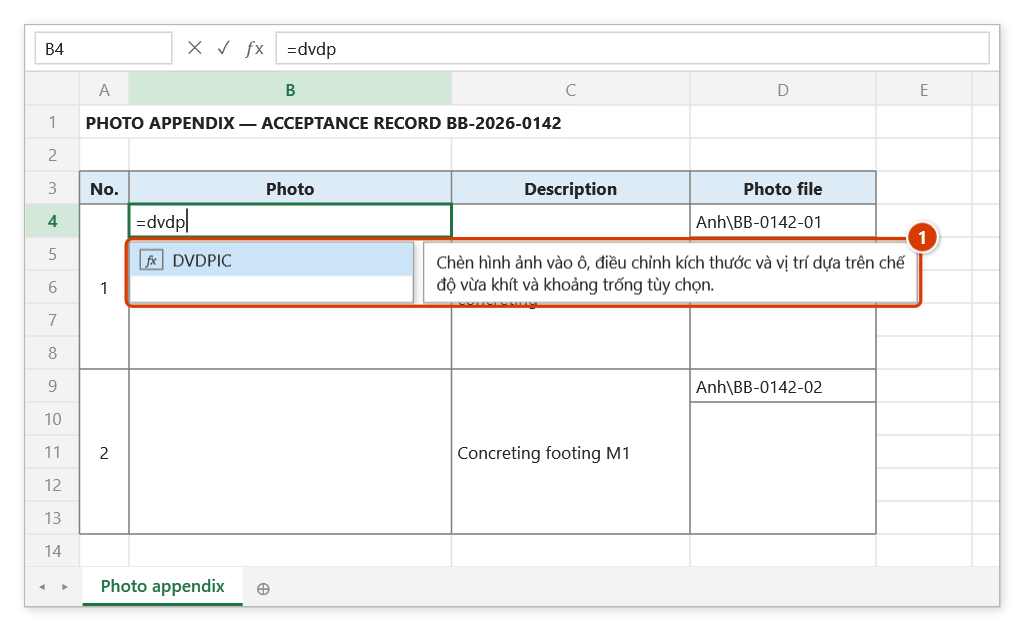
Step 1. Select the cell that will hold the photo and type =dvdp — Excel suggests DVDPIC with the function description (1). Press Tab to pick it.
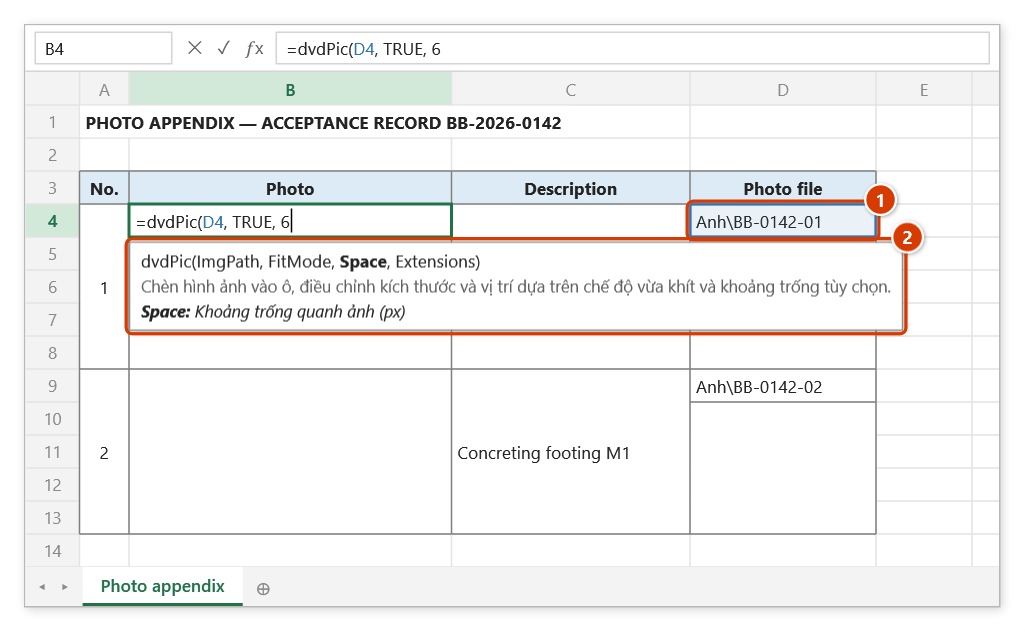
Step 2. Click the cell with the photo file name (1) — a relative path starts from the workbook's folder, and .jpg is added when there is no extension. Type , TRUE, 6 to stretch the photo to the cell with a 6 pt margin on each side (2).
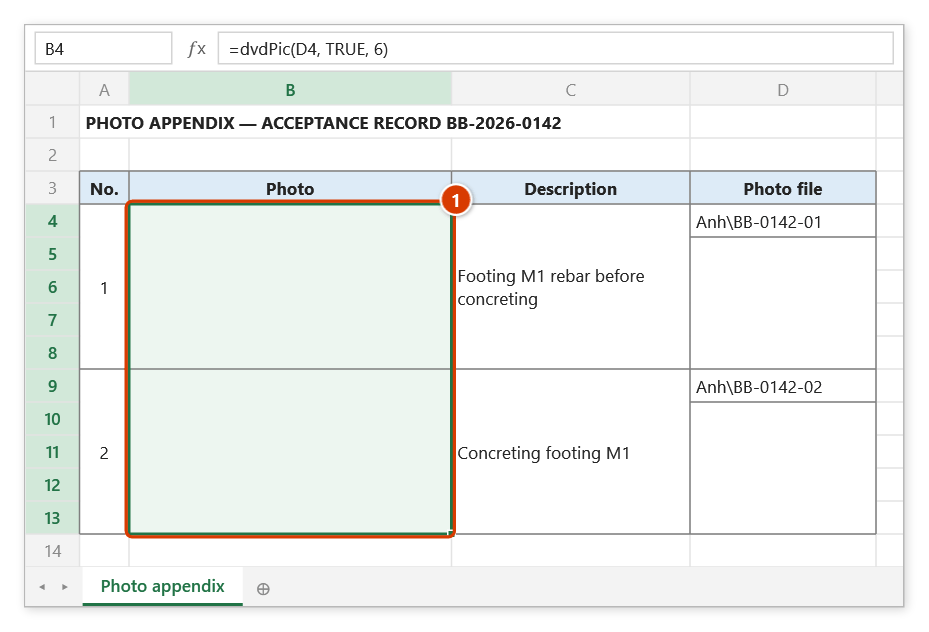
Step 3. Press Enter and copy the formula down to the second photo: the formula cell stays empty, and the photo Anh\BB-0142-01.jpg is inserted and fitted to the merged area B4:B8 (1) (the photo is not drawn in this illustration). It appears a moment after Excel finishes calculating; each cell keeps one picture.
dvdColorShapes
Changes the fill colour and transparency of several shapes on a worksheet from a list of shape names and colour codes.
Syntax:
=dvdColorShapes(ShapeList; [TargetSheetName]; [ShapeTransparency])| Parameter | Required | Description |
|---|---|---|
ShapeList | Yes | Two-column range: shape name and RGB colour code. |
TargetSheetName | No | Name of the sheet holding the shapes, looked up in the workbook that contains the formula; empty means the sheet that contains the formula (not the active sheet). |
ShapeTransparency | No | Transparency between 0 and 1, 0 by default. |
Example:
=dvdColorShapes($H$6:$I$40; "Mat bang"; 0,2)
// → "Coloured 33/35 · missing: KV-07, KV-12", colouring the zones of the site layout by completion status
Notes
0,2in the example follows the Vietnamese format (decimal comma, together with the;separator); with the English (US) format type0.2and,between the arguments.- Rows with an invalid colour (a blank cell,
#N/A, a header row) are skipped and the function carries on with the rows below — there is no need to wrap the colour lookup inIFERROR. - The function returns a summary such as
Coloured 223/225 · missing: P66, P148: the number of shapes coloured out of the total, and the names of the shapes that were not found; when some rows have no colour, the summary also gives their count. The Vietnamese interface showsĐã tô 223/225 · thiếu: P66, P148. - Colouring happens right after Excel finishes calculating, so the colours may appear one beat later.
- Shapes inside groups are still found by name.
- A sheet name that does not exist returns the message
Sheet '<name>' does not exist.(Vietnamese interface:Sheet '<name>' không tồn tại.).
Illustrated walkthrough
Practice
Download this function's sample workbook — the data matches the pictures below and the cell for the formula is already selected.
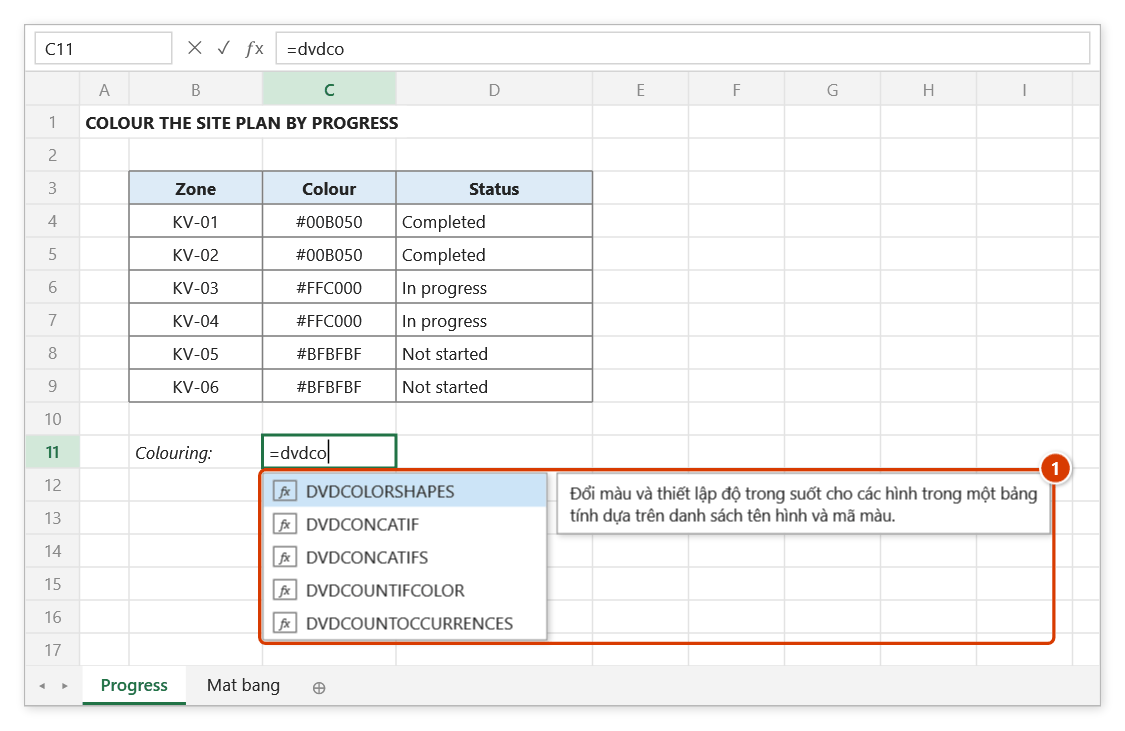
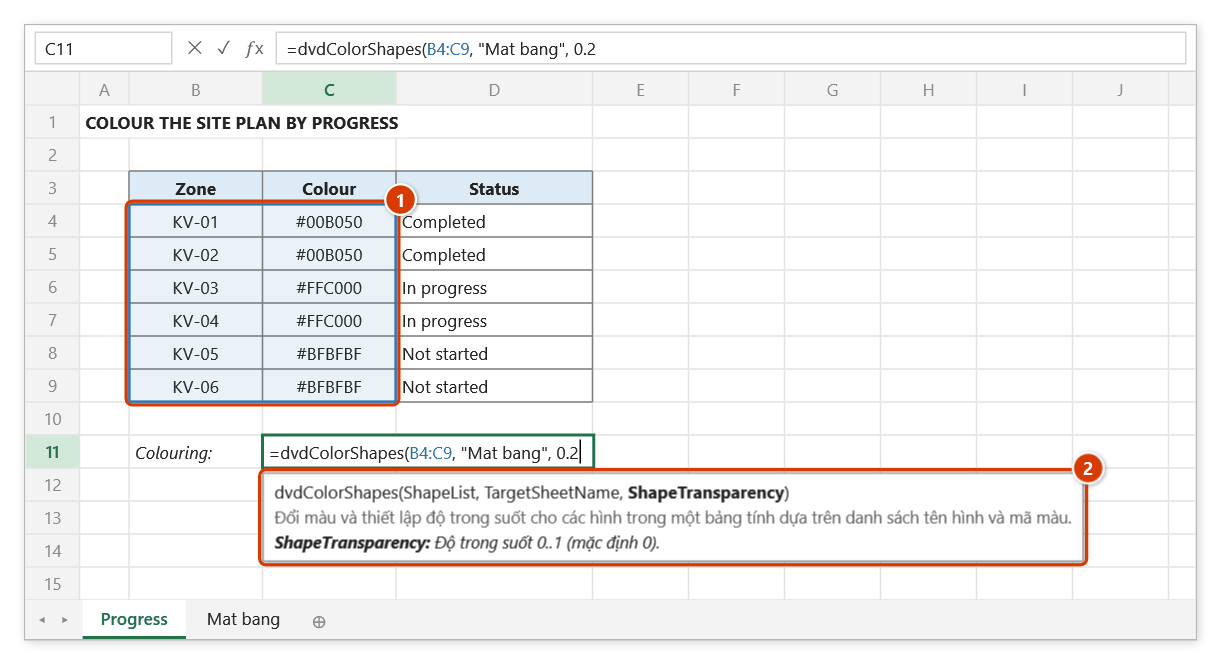
Step 1. Select the cell for the formula and type =dvdco — the suggestion list shows DVDCOLORSHAPES with the function description (1). Press Tab to pick it.
Step 2. Select the two-column range of shape names and colour codes (1) (#RRGGBB or an Excel RGB number), type the name of the sheet holding the shapes in double quotes, then the transparency 0.2 (2).
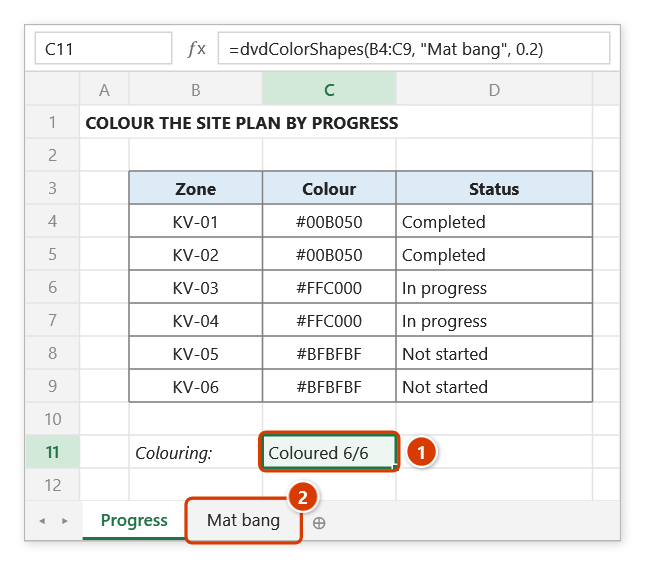
Step 3. Press Enter: right after Excel finishes calculating, the six shapes KV-01…KV-06 on sheet Mat bang (2) are filled with their colours at 20 % transparency, and the cell reports Coloured 6/6 (1). Shapes that are not found are listed after missing:; rows without a colour code are skipped.
dvdMoveShape
Moves a drawing, picture or text box to new coordinates on the worksheet.
Syntax:
=dvdMoveShape(ShapeName; NewPosition; [TargetSheet])| Parameter | Required | Description |
|---|---|---|
ShapeName | Yes | Name of the shape to move. |
NewPosition | Yes | New position as the string "Top;Left". |
TargetSheet | No | Name of the sheet holding the shape, looked up in the workbook that holds the formula; empty means the sheet holding the formula (not the active sheet). |
Example:
=dvdMoveShape("MuiTenTienDo"; "120;340"; "Tien do")
// → TRUE, moving the milestone arrow to the current week

=dvdMoveShape("Cau_thap"; H6 & ";" & I6)
// → moves the tower-crane symbol to the coordinates computed in H6 and I6
Notes
- The position string always uses a semicolon between
TopandLeft, whatever the regional format is. The numbers may use either a comma or a dot as decimal separator (587,81;653,4=587.81;653.4), soH6 & ";" & I6works on comma-decimal machines; a string with thousands separators (1,081.5) is rejected — the function returnsFALSEinstead of moving the shape to a wrong place. Top;Leftis where the shape is drawn, for the unrotated shape — exactly what the Get Position command writes.- The shape is moved right after Excel finishes calculating (never during the calculation), so it may move one beat later. When printing or exporting many pages with the DVDAddin print command, pending moves are completed before the export.
- Shapes inside a group: the function re-reads the group frame before each move so the group's other shapes do not shift. If the shape's sheet is not the active sheet, the add-in briefly switches to that sheet (without redrawing the screen) to place it exactly, then switches back.
- A wrong position format returns
FALSEimmediately. Otherwise the function returnsTRUEonce the move is scheduled; if the move then finds a wrong shape name or sheet name, the cell recalculates once and showsFALSE.
Illustrated walkthrough
Practice
Download this function's sample workbook — the data matches the pictures below and the cell for the formula is already selected.
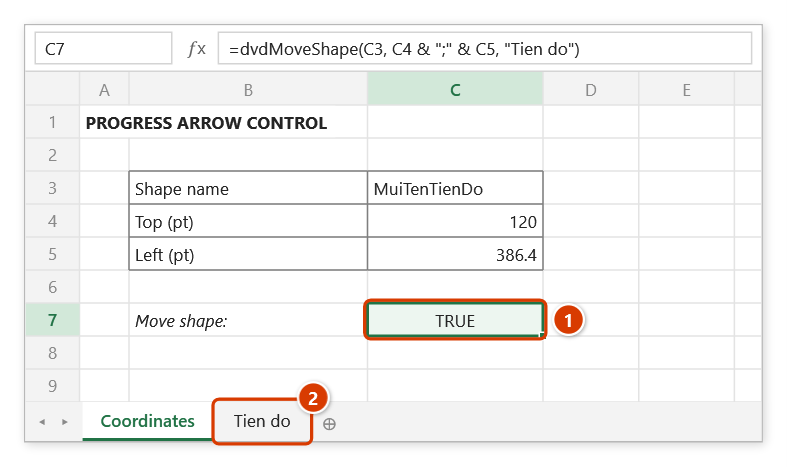
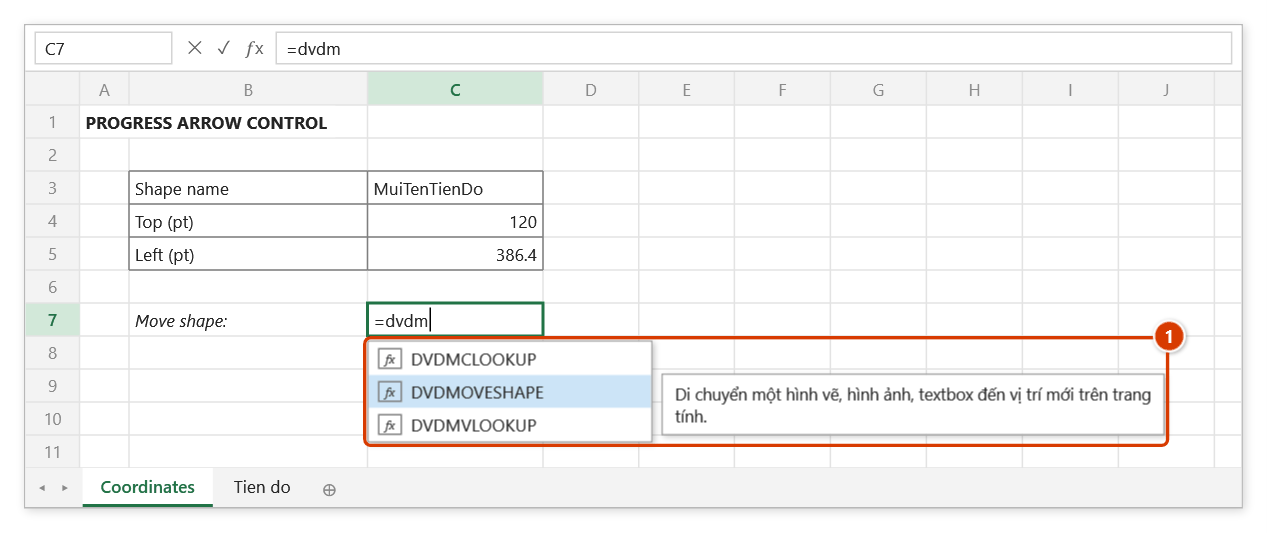
Step 1. Select the cell for the formula and type =dvdm — the suggestion list shows DVDMOVESHAPE (1). Highlight it with the arrow keys and press Tab.
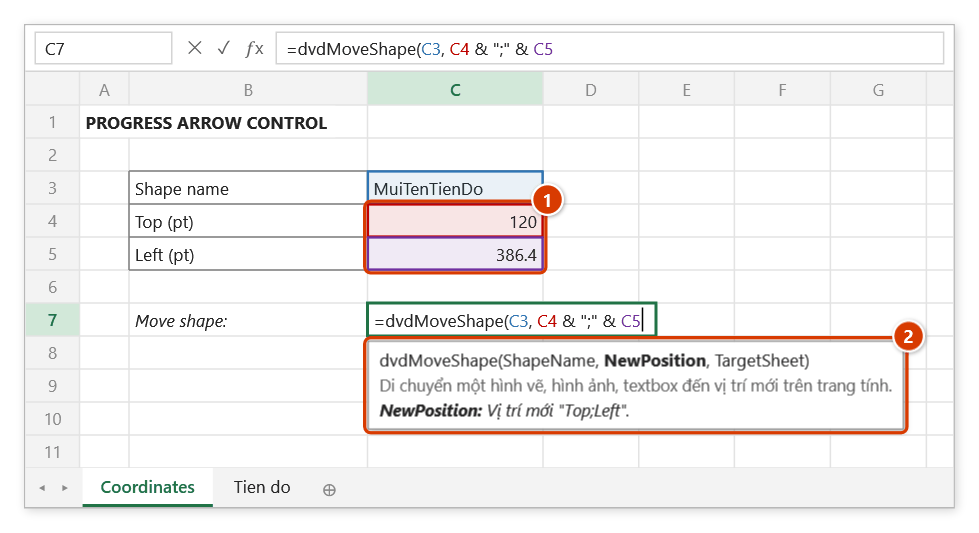
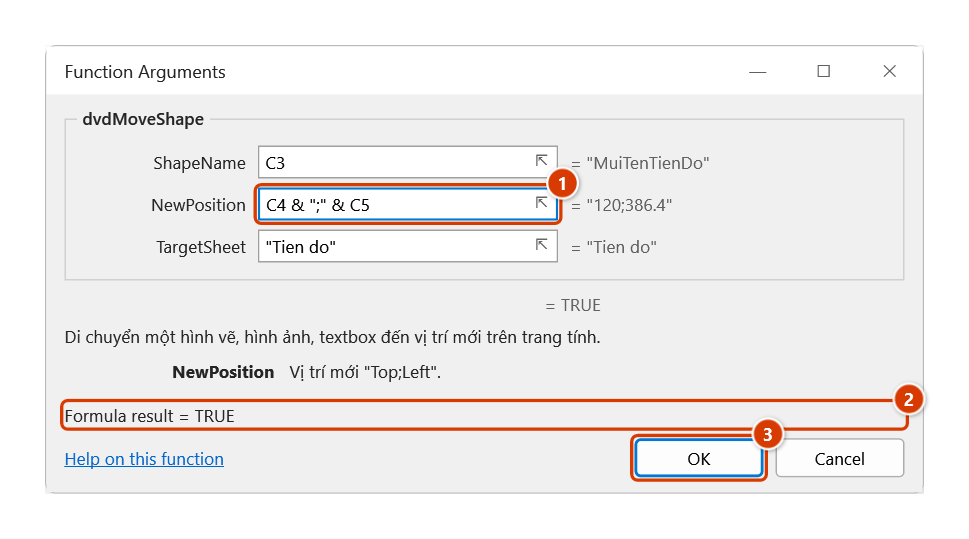
Step 2. Click the shape-name cell, then join Top and Left with a semicolon: C4 & ";" & C5 (1). The position string always uses ; between the two numbers, whatever the regional format (2).
Step 3. Add , "Tien do" (the sheet holding the shape). To check, open the Function Arguments dialog (the 𝑓x button): the position argument evaluates to "120;386.4" (1) and the result is TRUE (2). Click OK (3).
Step 4. The cell shows TRUE (1) and the arrow MuiTenTienDo on sheet Tien do (2) moves to Top 120 pt, Left 386.4 pt — where the unrotated shape is drawn. Change C5 and the arrow follows. The shape moves right after Excel finishes calculating; a wrong position format returns FALSE at once, while a wrong shape or sheet name makes the cell recalculate once and switch to FALSE.