
Navigation
Location on ribbon: Tab DVD Addin → Group View and Sheets
Command ID: btnNavigation
What it does
Opens the Navigation pane — a task pane docked to the left of the Excel window that lists the open workbooks and every sheet of the active one. From there you filter sheets by name, jump to a sheet, hide or show it, rename it and reorder the tabs, without hunting along the tab bar.
It is the answer to submission files with dozens of sheets — estimates, quantity take-offs by work package, folders of inspection records — where Excel's tab bar can no longer show the names.
How to use
- Go to tab DVD Addin → group View and Sheets → Navigation, or press Ctrl+Shift+W. Keyboard: Alt, G, D, H opens the window; Alt, G, N, G opens the sub-menu (which includes Tab Bar).
- The Navigation pane opens and docks on the left edge of the Excel window.
- Type in the search box to filter the sheet list by name; the list narrows as you type.
- Single-click a row to jump to that sheet (hold Ctrl/Shift to select several rows).
- Manage sheets right in the pane: clear or tick a row's check box to hide or show the sheet; F2 renames; drag a row to reorder. Right-click a row for Rename, Protect Sheet/Unprotect Sheet, Insert Sheet, Hide Selected/Very Hide Selected/Unhide Selected, Unhide All Sheets, Hide Others, Group… and Delete Sheets.
- Close the pane with the X in its corner when you are done.
Video tutorial
Narrated in Vietnamese, with Vietnamese subtitles. Điều hướng và Thanh tab · 6 min 45 s · 21 cases · Download the video
Commands in this video: Navigation · Tab Bar
Chapters (27)
- Giới thiệu
- Mở lệnh
- Phần 1
- 1 · Mở khung Điều hướng
- 2 · Danh sách file và sheet
- 3 · Tìm sheet theo tên
- 4 · Bấm để tới sheet
- 5 · Ẩn, hiện bằng ô tích
- 6 · Chọn nhiều sheet
- 7 · Đổi tên (F2)
- 8 · Kéo thả đổi thứ tự
- 9 · Menu chuột phải
- 10 · Nhóm sheet
- 11 · Xoá sheet và Ctrl+Z
- 12 · Đóng file từ danh sách
- 13 · Thu gọn, tự cập nhật
- Phần 2
- 14 · Bật Thanh tab
- 15 · Chuyển file, chấm chưa lưu
- 16 · Đóng tab
- 17 · Kéo thả sắp xếp
- 18 · Một file nhiều cửa sổ
- 19 · Menu chuột phải trên tab
- 20 · Nhiều file, tên dài
- 21 · Khi thanh tab trục trặc
- Mẹo
- Kết thúc
Illustrated walkthrough
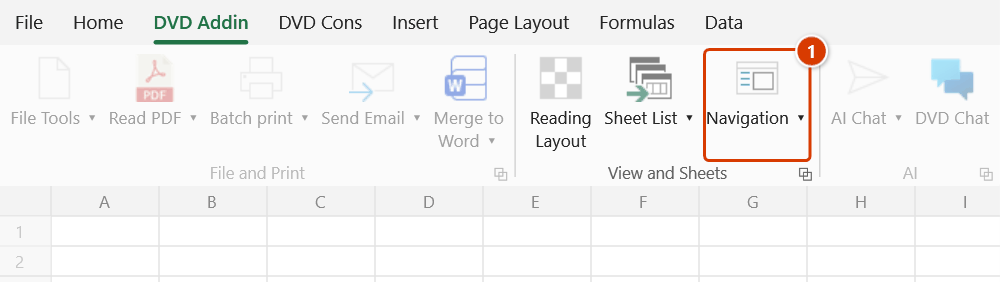
Step 1. On the ribbon, open the DVD Addin tab → View and Sheets group → click Navigation, or press Ctrl+Shift+W. Click the button again to hide or show the pane.
Step 2. The WORKBOOKS - SHEETS pane docks on the left of the Excel window: the top part lists the open workbooks, the bottom part lists the sheets of the active workbook with a 🔍 Tìm sheet... search box. Type a few characters (for example T05) to filter, then click a row to jump to that sheet. The footer counts visible / hidden sheets, and ⟳ reloads the list.
Step 3. Manage sheets right in the pane: clear or tick a row's check box to hide or show the sheet; hold Ctrl/Shift to select several rows; F2 renames; drag a row to reorder. Right-click opens Rename, Protect/Unprotect Sheet, Insert Sheet, Hide/Very Hide/Unhide Selected, Unhide All Sheets, Hide Others, Group…, Delete Sheets. These act directly on the workbook and cannot be undone with Ctrl+Z — except Delete Sheets: keep the backup ticked in the confirmation box and Ctrl+Z right after rebuilds the deleted sheets.
Step 4. The « button at the top collapses the pane to a small arrow at the window edge (click the arrow or the Navigation button to expand it again); close it completely with the pane's X.
Example
Hoso-Nghiemthu-BlockA.xlsx holds 63 sheets named NT-<floor>-<activity>: NT-T05-Cotthep, NT-T05-Copha, NT-T06-Betong and so on.
Instead of clicking the tab-scroll arrows dozens of times, press Ctrl+Shift+W, type T05 in the filter — the list narrows to the seven fifth-floor sheets — then click NT-T05-Cotthep to land straight on the record you need to sign.
Notes
- The Navigation pane is an Excel task pane: it belongs to the Excel window, so a newly opened Excel window needs the command run again.
- The Ctrl+Shift+W shortcut only works once the add-in has finished loading, after Excel has fully started.
- The pane takes up screen width; on a small laptop screen, close it when you need the full sheet width.
- Renaming, hiding and reordering sheets from this pane act directly on the workbook and cannot be undone with Ctrl+Z. Delete Sheets asks first and takes a backup: press Ctrl+Z right after and the sheets are rebuilt (same names, same order, at the end of the workbook); later on, use Restore data.
- If the workbook structure is protected, Excel blocks the hide/show and reorder actions.
Related
- Sheet List — generate a permanent index sheet instead of browsing ad hoc.
- Hide Unselected — hide the sheets you are not working on.
- Unhide All — reveal everything before browsing.
- Reading Layout — read the table comfortably once you are on the right sheet.