
Tab Bar
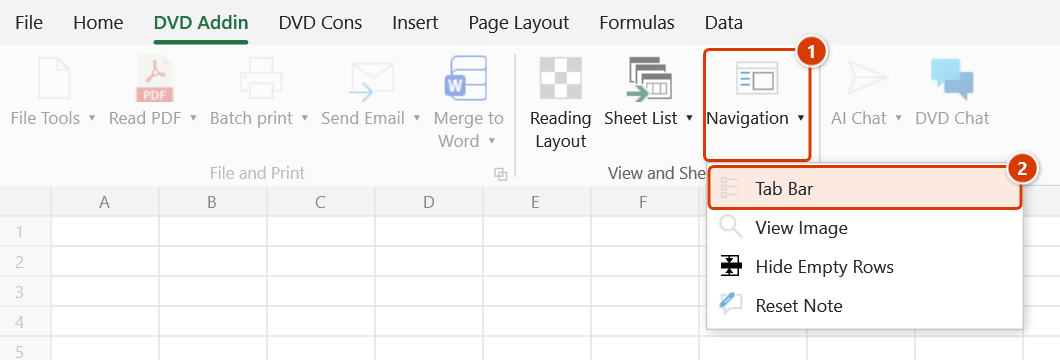
Ribbon location: DVD Addin tab → View and Sheets group → the arrow under Navigation → Tab Bar
Command ID: ToggleTabBar
What it does
Since Excel 2013 every workbook opens in its own top-level window, so juggling five or six files means going through the Windows taskbar or Alt+Tab. This command puts a tab bar just below the formula bar: one tab per open workbook, one click to switch.
How to use it
- Turn it on with Tab Bar in the DVD Addin tab → View and Sheets group → the arrow under Navigation (keyboard: Alt, G, N, G, T, B). The item shows a check mark while on; the on/off state is remembered for your next Excel session. (Since 2.8.5 the command lives in the Navigation menu instead of being its own large button, so the About group has room on the ribbon.)
- Click a tab to switch to that workbook.
- Click the × on a tab, or middle-click the tab, to close that file.
- Drag a tab to reorder it — handy when you work in groups of files. The order you set is remembered after Excel closes.
- Right-click a tab for a menu with Save (when the file has unsaved changes), Copy full path, Open containing folder, Close this tab, Close other tabs and Close all tabs.
Video tutorial
Narrated in Vietnamese, with Vietnamese subtitles. Điều hướng và Thanh tab · 6 min 45 s · 21 cases · Download the video
Commands in this video: Navigation · Tab Bar
Chapters (27)
- Giới thiệu
- Mở lệnh
- Phần 1
- 1 · Mở khung Điều hướng
- 2 · Danh sách file và sheet
- 3 · Tìm sheet theo tên
- 4 · Bấm để tới sheet
- 5 · Ẩn, hiện bằng ô tích
- 6 · Chọn nhiều sheet
- 7 · Đổi tên (F2)
- 8 · Kéo thả đổi thứ tự
- 9 · Menu chuột phải
- 10 · Nhóm sheet
- 11 · Xoá sheet và Ctrl+Z
- 12 · Đóng file từ danh sách
- 13 · Thu gọn, tự cập nhật
- Phần 2
- 14 · Bật Thanh tab
- 15 · Chuyển file, chấm chưa lưu
- 16 · Đóng tab
- 17 · Kéo thả sắp xếp
- 18 · Một file nhiều cửa sổ
- 19 · Menu chuột phải trên tab
- 20 · Nhiều file, tên dài
- 21 · Khi thanh tab trục trặc
- Mẹo
- Kết thúc
Illustrated walkthrough
Step 1. On the ribbon, open the DVD Addin tab → View and Sheets group → the arrow under Navigation → click Tab Bar (keyboard: Alt, G, N, G, T, B). The item shows a check mark while on; the choice is remembered for your next Excel session.
Step 2. A tab bar appears right below the formula bar, one tab per open workbook (a workbook open in several windows gets one tab per window). It takes space from the grid only, never covering the ribbon or the formula bar. A dot before the name means the file has unsaved changes.
Step 3. Click a tab to switch to that file. Click the × (shown on the active tab or the tab under the mouse) or middle-click a tab to close the file. Drag a tab to reorder — the order is remembered even after Excel closes. Right-clicking a tab also offers Save, Copy full path, Open containing folder, Close other tabs and Close all tabs.
Step 4. Click Tab Bar again to turn it off; the Excel grid returns to its usual place. If your Excel build refuses the hook into the grid window, the feature switches itself off and no other command is affected.
Conventions
- A dot on a tab means the file has unsaved changes.
- A workbook opened in several windows (View ▸ New Window) gets one tab per window.
- The tab bar takes space from the grid only; it never covers the ribbon or the formula bar.
If the tab bar does not appear
The bar hooks into Excel's grid window through a Windows mechanism. If your Excel build refuses the hook, the add-in disables this feature rather than retrying on every file open. No other feature is affected.