
Reading Layout
Location on ribbon: Tab DVD Addin → Group View and Sheets
Command ID: ToggleReadingLayout
What it does
Turns on a translucent overlay that highlights the row and column of the active cell, so your eye stays on the right line in wide, long tables. The highlight follows the selection as you move around, scroll, or switch sheets.
It pays off on hundred-row bills of quantities, multi-column programme sheets, and rebar schedules where the "Total" column sits far to the right of the item description.
How to use
- Open the sheet you need to read.
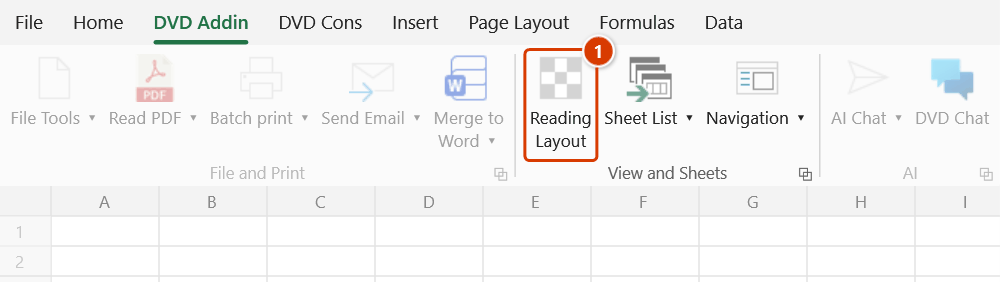
- Go to tab DVD Addin → group View and Sheets → click the Reading Layout toggle. The button stays pressed while the mode is on.
- Select any cell — its row and column are highlighted immediately.
- Move the selection with the mouse or arrow keys; the highlight tracks it. By default the highlight fades out over about 5 seconds after each selection and stays gone until you select again.
- Click Reading Layout again to turn it off; the overlay disappears and the sheet looks normal again.
Video tutorial
Narrated in Vietnamese, with Vietnamese subtitles. Nổi bật hàng cột · 5 min 28 s · 14 cases · Download the video · Practice workbook for the video
Chapters (18)
- Giới thiệu
- Mở lệnh
- 1 · Bật lệnh – một ô
- 2 · Di chuyển và mờ dần
- 3 · Vùng nhiều ô
- 4 · Ô gộp
- 5 · Khi nào dải tự ẩn
- 6 · Dòng ẩn, danh sách lọc
- 7 · Cố định khung
- 8 · Cuộn và thu phóng
- 9 · Màu, độ đậm, kiểu tô
- 10 · Chuyển sheet, chuyển sổ
- 11 · Hình vẽ, biểu đồ
- 12 · Nhiều màn hình, Page Layout
- 13 · Nhẹ máy khi bật
- 14 · Tắt và mở lại Excel
- Mẹo
- Kết thúc
Illustrated walkthrough
Practice
Download this command's sample workbook — the data matches the pictures below (sheet BoQ-Super), so you can follow each step right away.
Step 1. On the ribbon, open the DVD Addin tab → View and Sheets group → click Reading Layout.
Step 2. Select any cell, for example the Amount on row 8: its whole row (1) and column (2) are covered by a translucent tint (by default cyan at 50%, row and column), leaving the selected cell itself clear. Move the selection with the mouse or arrow keys and the highlight follows.
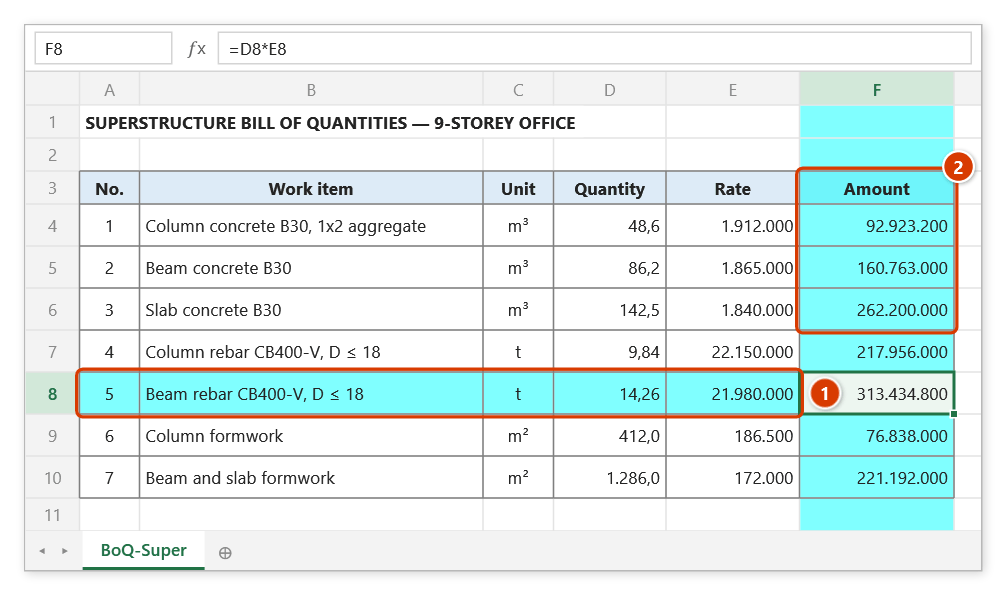
Step 3. The highlight is a screen overlay, not a cell fill: the workbook formatting is untouched and printouts/PDFs show no tint. By default it fades out over about 5 seconds after each selection; colour, opacity, mode and fading are set in Preferences. Click Reading Layout again to turn it off.
Example
You are checking a superstructure bill of quantities: 480 work items, columns A to R covering Item code, Description, Unit, Length, Width, Height, Number of elements, Quantity, Rate, Amount.
Without the mode on, selecting the Amount cell on row 317 means tracing your eye all the way back to column B to see which activity it belongs to — and it is easy to land one row off. With Reading Layout on, row 317 and the Amount column are both tinted, so matching "which item — how much" is instant, with no manual selection tricks.
Notes
- The highlight is a screen overlay, not a cell fill: it never changes the workbook formatting and does not appear in printouts or PDF exports.
- The on/off state applies to the current Excel session; reopen Excel and switch it on again if you want it.
- Colour, transparency, highlight mode (row and column, row only, or column only) and the fade effect (on/off, duration) come from the add-in settings under Preferences — untick Enable fade effect to keep the highlight steady.
- On multi-monitor setups with different display scaling (DPI), the band stays on the cell edges on every screen — including frozen panes, split panes and smooth scrolling. In Page Layout view, on right-to-left sheets, or with Office set to Optimize for compatibility, the command uses an approximate method that can be a few pixels off on the secondary screen.
- While a cell is in edit mode the overlay pauses updating until you press Enter or Esc.
Related
- Preferences — set the overlay colour, opacity and highlight mode.
- Navigation — workbook and sheet manager, a natural companion on large books.
- Hide Empty Rows — shrink a long table before reading it.