
Polygon Cloud
Location on ribbon: Tab DVD Addin → Group Graphics → the arrow next to Revision Cloud
Command ID: btnCloudPoly
What it does
Draws a revision cloud along a polygon whose corners you click one by one — like the Cloud (poly) tool in Read PDF. Use it when the area is not rectangular: a diagonal strip of footings, an L-shaped corner of a building, a skewed pile group.
The scallops follow the cursor live from the third point on, and always bulge outwards — even on concave shapes such as an L or a U (the older tools flipped scallops inwards at concave corners).
How to use
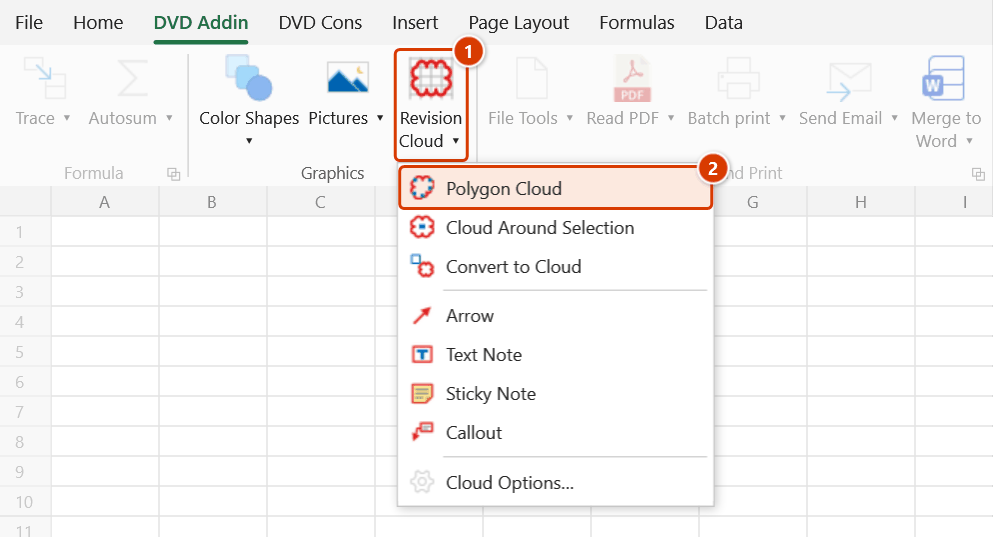
- Go to tab DVD Addin → group Graphics → the arrow under Revision Cloud → Polygon Cloud.
- Click each corner around the area. Hold Shift to keep the current edge at 0°/45°/90°.
- Finish one of these ways:
- double-click the last corner;
- right-click or press Enter — the cursor position becomes the last corner, exactly as previewed;
- click the first point again (a green ring shows when you are close enough) to close the shape.
- Clicked a wrong corner? Press Backspace to remove the last point; Esc discards the whole shape in progress.
- Draw another cloud or press Esc again to finish.
The other keys (scroll, zoom, scallop size [ ] or − =, colours 1–6, Ctrl+Z to remove the last cloud) work as in Revision Cloud; press R to switch to rectangles.
Video tutorial
Narrated in Vietnamese, with Vietnamese subtitles. Khoanh mây · 6 min 08 s · 14 cases · Download the video · Practice workbook for the video
Commands in this video: Revision Cloud · Convert to Cloud · Cloud Options… · Polygon Cloud · Cloud Around Selection
Chapters (18)
- Giới thiệu
- Mở lệnh
- 1 · Mây quanh nhiều khối ô
- 2 · Chọn cả cột, khối ẩn
- 3 · Mây quanh ảnh, hình xoay
- 4 · Kéo chuột vẽ mây
- 5 · Bấm ô, giữ Shift bám ô
- 6 · Cuộn, thu phóng khi vẽ
- 7 · Phím trong lớp vẽ
- 8 · Mây đa giác hình chữ L
- 9 · Kết thúc mây đa giác
- 10 · Chuyển shape thành mây
- 11 · Giữ gì, bỏ qua gì
- 12 · Tên mây, Ctrl+Z, xoá
- 13 · Tùy chọn mây
- 14 · Khi lệnh từ chối
- Mẹo
- Kết thúc
Illustrated walkthrough
Practice
Download this command's sample workbook — the data matches the pictures below (sheet L3 slab), so you can follow each step right away.
Step 1. On the ribbon, open the DVD Addin tab → Graphics group → open Revision Cloud → choose Polygon Cloud.
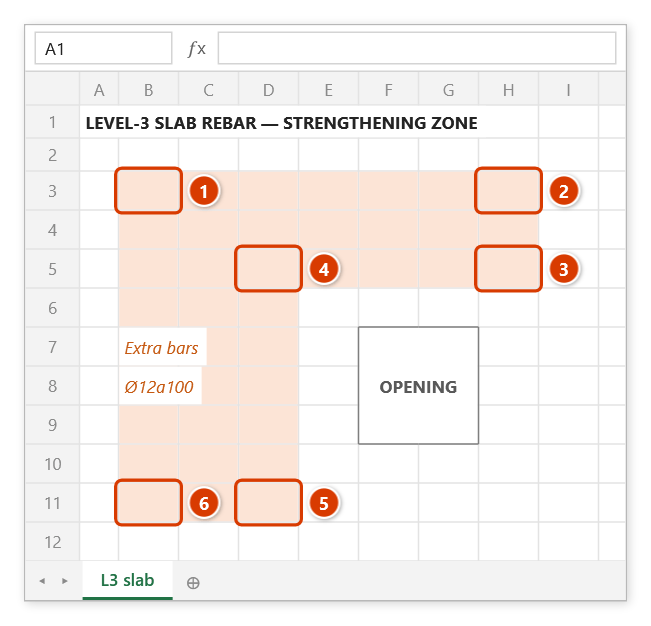
Step 2. Click the six corners along the L-shaped strengthening zone in turn (1) → (6) — the scallops follow the cursor from the third point. Hold Shift to keep the current edge at 0°/45°/90°; Backspace removes a wrong last point, Esc discards the whole shape.
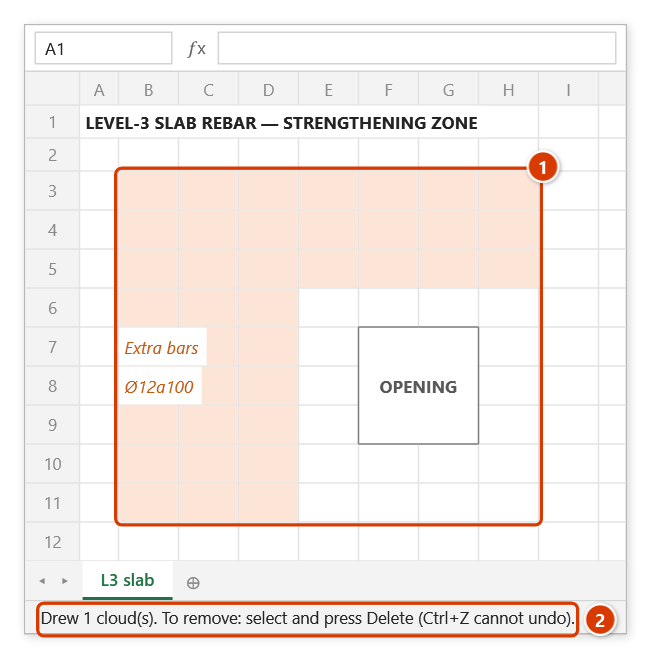
Step 3. Click the first point again (a green ring shows when close enough) — or double-click the last point, right-click, Enter — to close: the cloud hugs the L, and the scallops at the inner corner still bulge outwards (1). Draw more or press Esc to finish; the status bar reports the count (2).
Example
On a slab reinforcement plan, the extra bars around an opening cover an L-shaped area. You pick Polygon Cloud, click its six corners and then the first one again: the cloud hugs the L, and the scallops at the concave corner still face outwards.
Notes
- You need at least 3 points that are not in a straight line; with fewer the command says so and drops the shape.
- All corners must be in the same pane as the first one (on sheets with frozen or split panes); a click in another pane, on a header or on a scrollbar is reported and ignored.
- Self-crossing outlines (a figure 8), even ones that pass through the same corner twice, still work — each scallop is tested on its own so that it bulges outwards.
- The corners lie exactly on the line you clicked; the scallops stick out by about one scallop radius.
- Ctrl+Z removes the last cloud, not a corner — use Backspace for corners.
- Clouds cannot be undone with Excel's Ctrl+Z — afterwards select the cloud and press Delete.
- Page Layout view is not supported; sheets that protect drawing objects are refused.
Related
- Revision Cloud — drag a rectangular cloud.
- Convert to Cloud — turn a freeform you already drew into a cloud.
- Cloud Options… — colour, line weight, scallop size.
- Read PDF — the polygon cloud tool on PDFs.