
Revision Cloud
Location on ribbon: Tab DVD Addin → Group Graphics
Command ID: btnCloudRect
What it does
Draws a revision cloud straight onto the worksheet — exactly like the Cloud tool in Read PDF, except that the result is a shape on the sheet instead of a PDF annotation.
When you click the command, a transparent drawing layer covers the cells of the active Excel window. Drag around the area you want to mark: the scallops show while you drag, and releasing the mouse turns the cloud into a shape on the sheet. You can draw several clouds before leaving.
Clouds are freeform shapes made of true curves, so they stay smooth in PDF output, and by default they move with their top-left cell when rows or columns above or to the left are inserted or deleted.
How to use
- Open the sheet to mark (for example a plan sheet with a drawing picture) and scroll to the area.
- Go to tab DVD Addin → group Graphics → Revision Cloud. A key-hint panel appears at the bottom left.
- Drag around the area to mark and release. The cloud appears on the sheet at once.
- To cloud exactly one cell (the whole merged area), click it without dragging. Hold Shift while dragging to make the frame take in the whole cells (merged areas included) at both ends.
- Draw more clouds if needed, then press Esc (or Enter, or right-click) to finish. The new clouds are left selected so you can recolour or delete them straight away.
Keys while drawing:
| Key | Effect |
|---|---|
| Wheel / Shift+wheel | Scroll vertically / horizontally (works mid-drag — the frame stretches with it) |
| Ctrl+wheel | Zoom |
[ ] or − = | Smaller / larger scallops ([ ] also work with a Vietnamese Telex input method on) |
1–6 | Red, blue, green, orange, purple, black |
P (or Tab) | Switch to Polygon Cloud |
| Ctrl+Z | Remove the last cloud (press again to keep going back) |
| Esc | Drop the rectangle being dragged; press again to finish |
Video tutorial
Narrated in Vietnamese, with Vietnamese subtitles. Khoanh mây · 6 min 08 s · 14 cases · Download the video · Practice workbook for the video
Commands in this video: Revision Cloud · Convert to Cloud · Cloud Options… · Polygon Cloud · Cloud Around Selection
Chapters (18)
- Giới thiệu
- Mở lệnh
- 1 · Mây quanh nhiều khối ô
- 2 · Chọn cả cột, khối ẩn
- 3 · Mây quanh ảnh, hình xoay
- 4 · Kéo chuột vẽ mây
- 5 · Bấm ô, giữ Shift bám ô
- 6 · Cuộn, thu phóng khi vẽ
- 7 · Phím trong lớp vẽ
- 8 · Mây đa giác hình chữ L
- 9 · Kết thúc mây đa giác
- 10 · Chuyển shape thành mây
- 11 · Giữ gì, bỏ qua gì
- 12 · Tên mây, Ctrl+Z, xoá
- 13 · Tùy chọn mây
- 14 · Khi lệnh từ chối
- Mẹo
- Kết thúc
Illustrated walkthrough
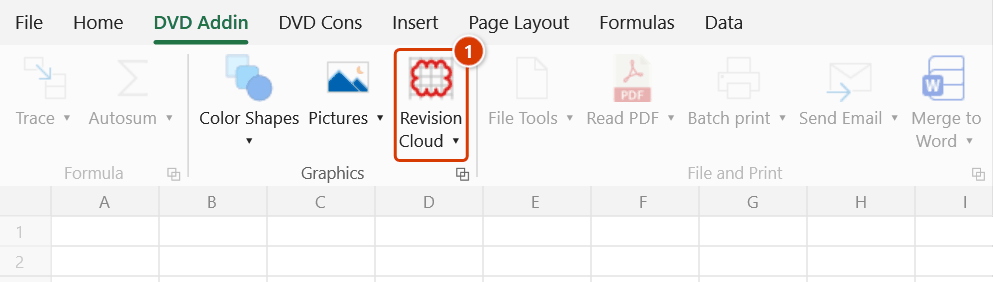
Step 1. On the ribbon, open the DVD Addin tab → Graphics group → click the large cloud button (its upper part, not the ▾ arrow).
Step 2. A transparent drawing layer covers the window's cell area, with a key-hint strip at the bottom left. Drag around the footing to mark and release — the scallops show while you drag, and releasing turns it into a shape on the sheet. Click a cell (without dragging) to cloud exactly that cell (whole merged area); hold Shift while dragging to snap both ends to whole cells.
Step 3. Draw more clouds as needed. While drawing: wheel to scroll, Ctrl+wheel to zoom, [ ] (or − =) for the scallop size, 1–6 for the colour, Ctrl+Z removes the last cloud, P switches to Polygon Cloud. Press Esc (or Enter, right-click) to finish.
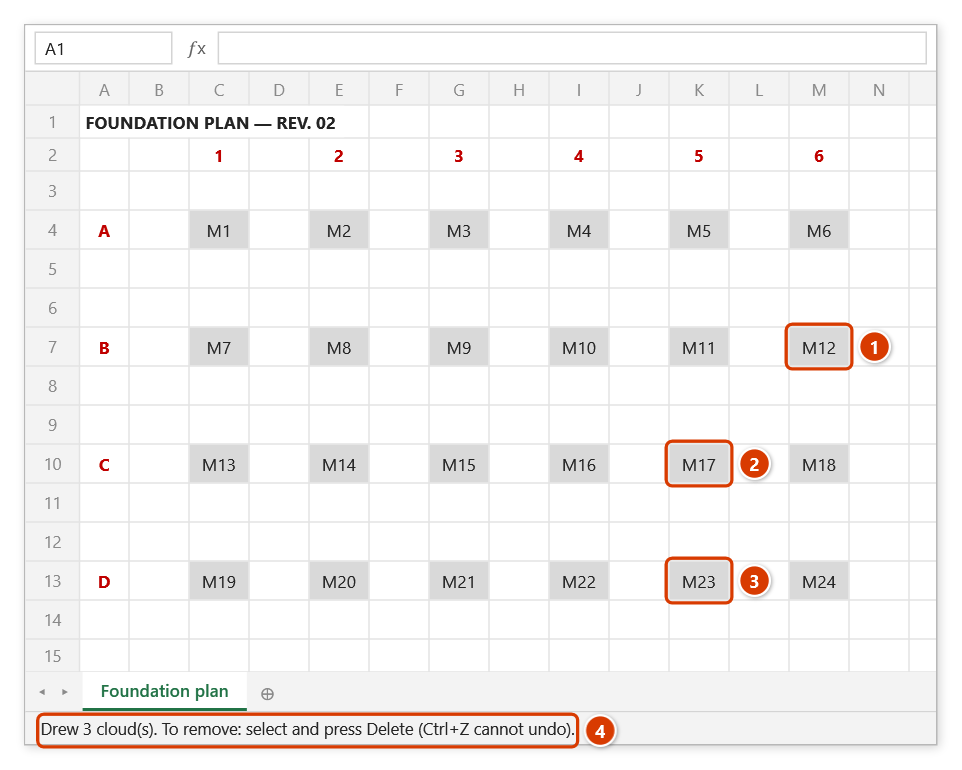
Step 4. Three red clouds now surround the revised footings M12, M17, M23 (1) (2) (3) and are left selected so you can recolour or delete them right away. The status bar reports how many were drawn (4) — Excel's Ctrl+Z cannot remove clouds; select them and press Delete.
Example
The consultant returns the footing plan with three footings resized. You open the NSP sheet with the plan picture, click Revision Cloud, drag three frames around F12, F17 and F23, and press Esc. Three red clouds sit on the picture; export to PDF and the reader sees the changes at a glance.
Notes
- Colour, line weight and scallop size (radius in pt — the same meaning as the Size box of the Read PDF cloud tools) are set in Cloud Options…. Changes made with the keys while drawing are remembered too.
- Clouds added by the add-in cannot be undone with Excel's Ctrl+Z. While drawing, the command's own Ctrl+Z removes the last cloud; afterwards select the cloud and press Delete.
- If the dragged frame is very thin in one direction (under about 12 screen pixels), that direction snaps to the cells at both ends — dragging along a row gives exactly that row band; thin in both directions counts as a click on the cell where it started. Pressing, rolling the wheel and releasing takes in whole cells from the pressed cell to the one under the pointer.
- Page Layout view and right-to-left sheets are not supported — switch to Normal view and run again. Page Break Preview works.
- If the sheet protects drawing objects the command refuses; unprotect the sheet first.
- While the drawing layer is open the ribbon and the cells are not clickable — press Esc to give them back.
Related
- Polygon Cloud — click corners to cloud an irregular area.
- Cloud Around Selection — cloud the selected cells or shapes without drawing.
- Convert to Cloud — turn existing freeforms, diamonds, triangles… into clouds.
- Read PDF — the original cloud tools on PDF drawings.
- Capture and Annotate — capture the screen and draw clouds on the image.