
Convert to Cloud
Location on ribbon: Tab DVD Addin → Group Graphics → the arrow next to Revision Cloud
Command ID: btnCloudConvert
What it does
Replaces the selected shapes with revision clouds that follow their outline:
- Freeforms / polylines (scribbles and shapes with curved segments included): the cloud follows the real outline, even when the shape is rotated or flipped. Curves are followed and the outline is re-spaced to the scallop size, so a dense hand-drawn line or a circle drawn with the Curve tool gets properly sized scallops instead of a zigzag.
- Diamonds, isosceles and right triangles: the cloud follows their corners (rotation, flips and the apex adjustment included).
- Other built-in shapes (rectangle, circle, ellipse, rounded rectangle, empty text box…): the cloud follows the shape's frame, rotation included.
Each new cloud keeps the name of the original — so formulas and Color Shapes that work by name keep working — along with its line colour and weight (when it has a line), stacking order and assigned macro. Placement follows Cloud Options… (an original set to "don't move or size with cells" keeps that). The original is deleted once its cloud has been created.
How to use
- Select one or more shapes.
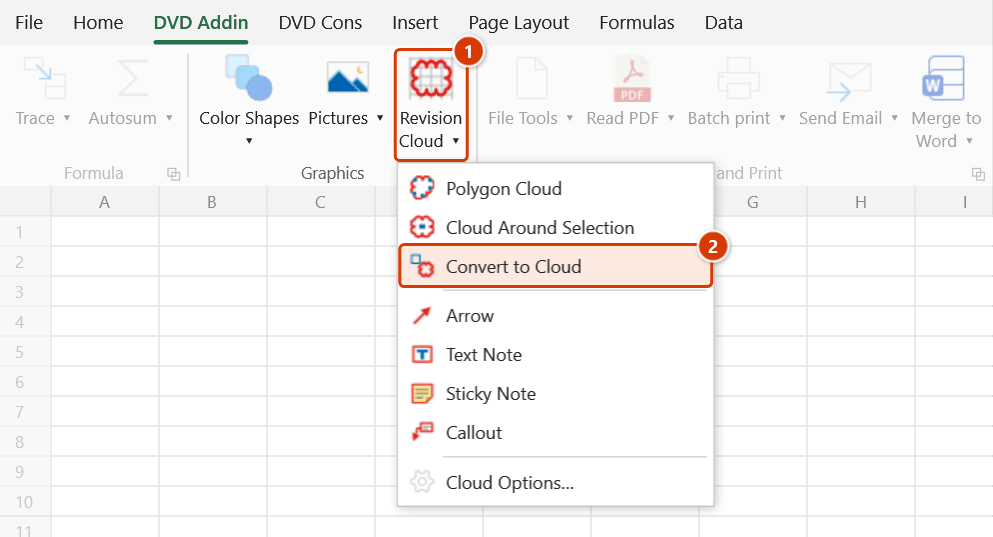
- Go to tab DVD Addin → group Graphics → the arrow under Revision Cloud → Convert to Cloud.
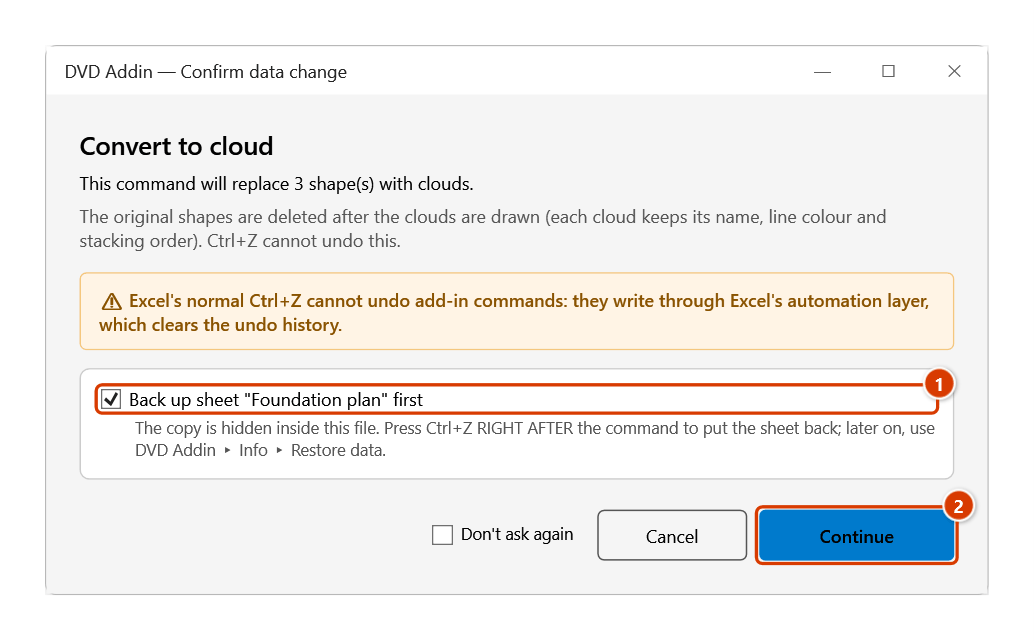
- The Confirm data change window asks first — keep Back up the sheet first ticked for a way back, then click Continue.
- The new clouds are left selected; any shape that could not be converted is listed with the reason.
Video tutorial
Narrated in Vietnamese, with Vietnamese subtitles. Khoanh mây · 6 min 08 s · 14 cases · Download the video · Practice workbook for the video
Commands in this video: Revision Cloud · Convert to Cloud · Cloud Options… · Polygon Cloud · Cloud Around Selection
Chapters (18)
- Giới thiệu
- Mở lệnh
- 1 · Mây quanh nhiều khối ô
- 2 · Chọn cả cột, khối ẩn
- 3 · Mây quanh ảnh, hình xoay
- 4 · Kéo chuột vẽ mây
- 5 · Bấm ô, giữ Shift bám ô
- 6 · Cuộn, thu phóng khi vẽ
- 7 · Phím trong lớp vẽ
- 8 · Mây đa giác hình chữ L
- 9 · Kết thúc mây đa giác
- 10 · Chuyển shape thành mây
- 11 · Giữ gì, bỏ qua gì
- 12 · Tên mây, Ctrl+Z, xoá
- 13 · Tùy chọn mây
- 14 · Khi lệnh từ chối
- Mẹo
- Kết thúc
Illustrated walkthrough
Step 1. Select the shapes to convert — for example three red rectangles drawn with Insert ▸ Shapes around the revised footings (hold Ctrl to pick several). Freeforms, polylines, diamonds and triangles follow their corners; other built-in shapes follow their frame.
Step 2. On the ribbon, open the DVD Addin tab → Graphics group → open Revision Cloud → choose Convert to Cloud.
Step 3. A confirmation box asks first, because the change cannot be undone. Keep Back up the sheet first (1) ticked for a way back, then click Continue (2).
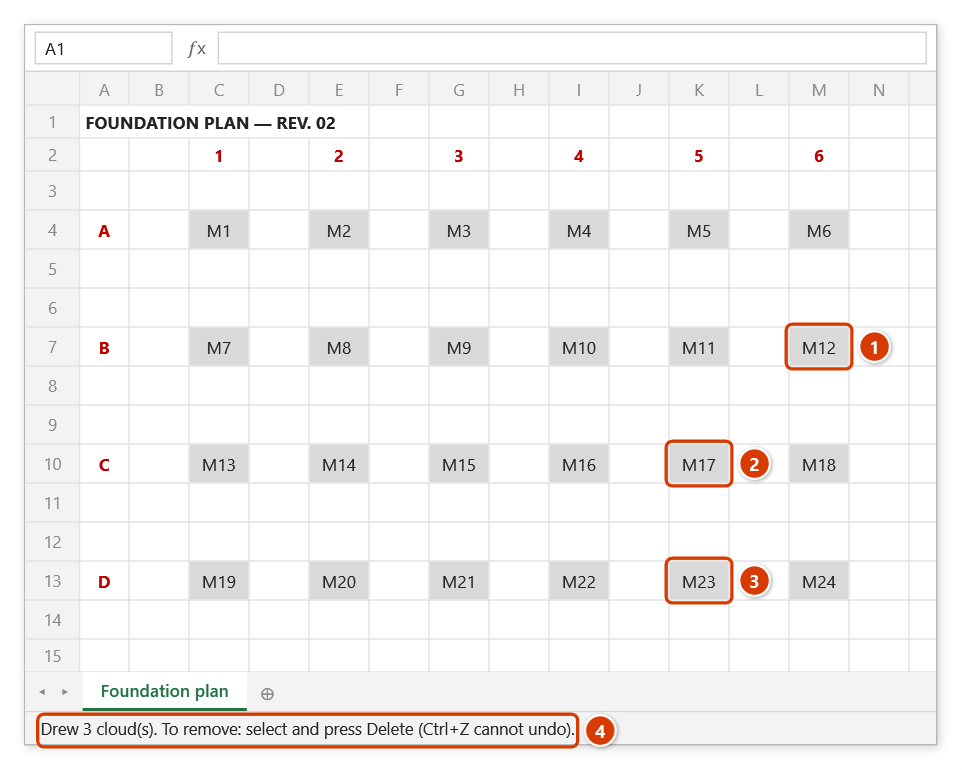
Step 4. The three frames become three clouds in place (1) (2) (3), keeping the originals' names, line colour and weight, stacking order and assigned macro; the originals are deleted. The status bar reports the count (4). Shapes with text, pictures, groups, lines and existing clouds are skipped and listed with the reason.
Example
You are used to drawing red rectangles with Insert ▸ Shapes to mark changes on a plan. Select all five, click Convert to Cloud: the five rectangles become five red clouds in the same places, with the same names, still underneath the note picture as before.
Notes
- The command skips (and says why):
- shapes with text — the text would be lost; use Cloud Around Selection;
- pictures, groups, charts, lines and connectors — converting would lose the picture or the diagram links; use Cloud Around Selection, which leaves the original alone;
- shapes inside a group — ungroup first if you want to convert them;
- shapes that already are clouds — change them with Format Shape, or delete and redraw.
- Circles, ellipses and rounded rectangles are converted by their frame, giving a rectangular cloud.
- Excel's normal Ctrl+Z cannot undo this — the command always asks first (unless you turned confirmations off in Preferences). Keep Back up the sheet first ticked and Ctrl+Z right after the command puts the sheet (original shapes included) back; later on, use Restore data.
- Sheets that protect drawing objects are refused.
Related
- Cloud Around Selection — cloud a shape without deleting it.
- Polygon Cloud — draw a polygon cloud by hand.
- Cloud Options… — the scallop size used when converting.