
UPPERCASE
Location on ribbon: Tab DVD Addin → Group Text and Number → Menu Case
Command ID: btnUPPERCASE
What it does
Converts every text character in the selection to capitals, handling Vietnamese diacritics correctly through the current system culture. Values are read and written one contiguous area at a time, so it stays fast on tables of several thousand rows.
In construction paperwork, full capitals are the convention for table titles, top-level item names, package names and the heading line of an acceptance record — anywhere the document template demands all-caps.
How to use
- Select the cells you want converted.
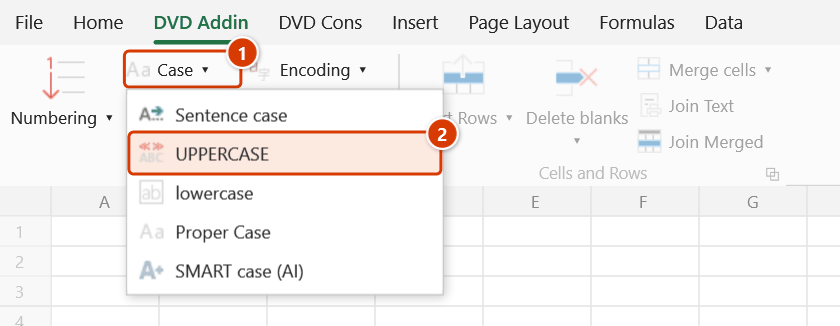
- Go to tab DVD Addin → group Text and Number → open the Case menu → click UPPERCASE.
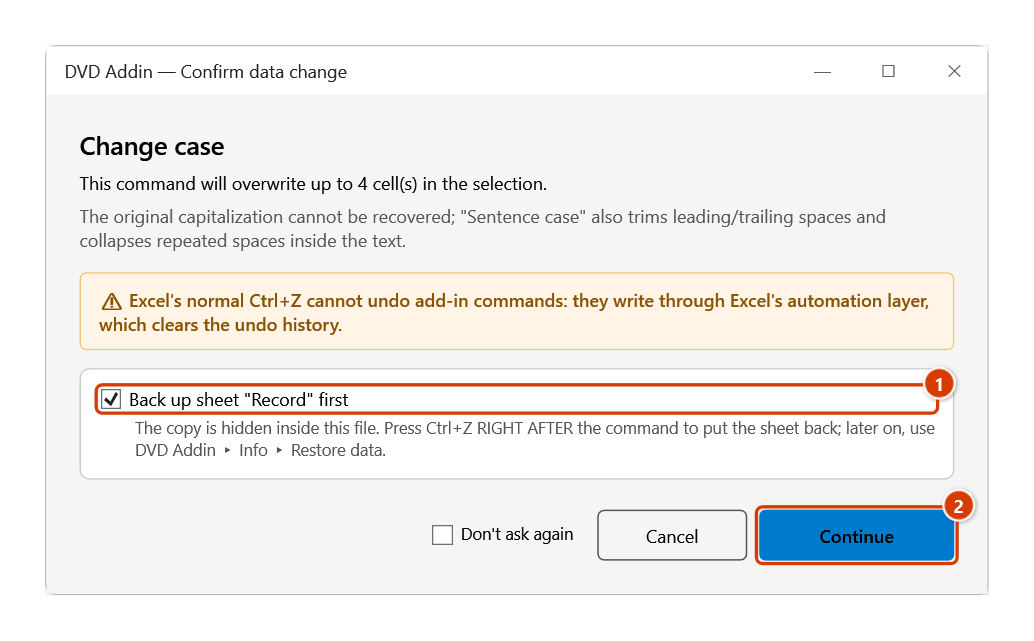
- The Confirm data change box appears before anything is overwritten; keep Back up sheet ticked and click Continue.
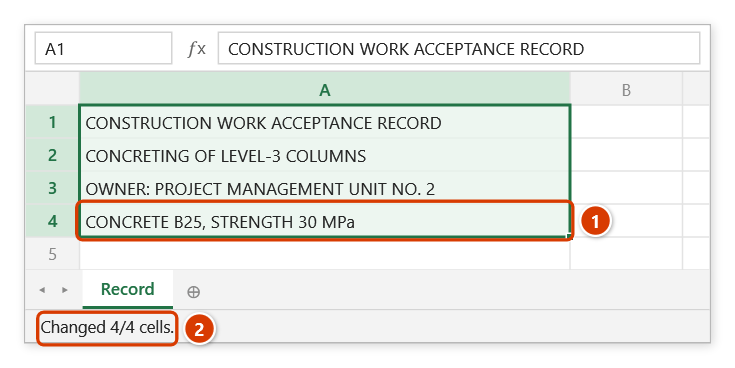
- The Excel status bar reports "Changed N/M cells". If nothing changed, a message box explains why.
Video tutorial
Narrated in Vietnamese, with Vietnamese subtitles. Đổi chữ hoa thường · 5 min 21 s · 12 cases · Download the video · Practice workbook for the video
Commands in this video: Sentence case · Proper Case · SMART case (AI) · UPPERCASE · lowercase
Chapters (17)
- Giới thiệu
- Mở lệnh
- Năm kiểu chữ
- 1 · Hoa đầu câu
- 2 · HOA TOÀN BỘ
- 3 · thường toàn bộ
- 4 · Hoa Đầu Mỗi Từ
- 5 · Chữ viết tắt, ô toàn chữ HOA
- 6 · Ô nhiều dòng
- 7 · Chọn cả bảng: số, công thức
- 8 · Danh sách đang lọc
- 9 · Hoa theo ngữ cảnh (AI)
- 10 · Khi AI báo lỗi
- 11 · Ghi đè và hoàn tác
- 12 · Khi không ô nào đổi
- Mẹo
- Kết thúc
Illustrated walkthrough
Practice
Download this command's sample workbook — the data matches the pictures below (sheet Record), so you can follow each step right away.
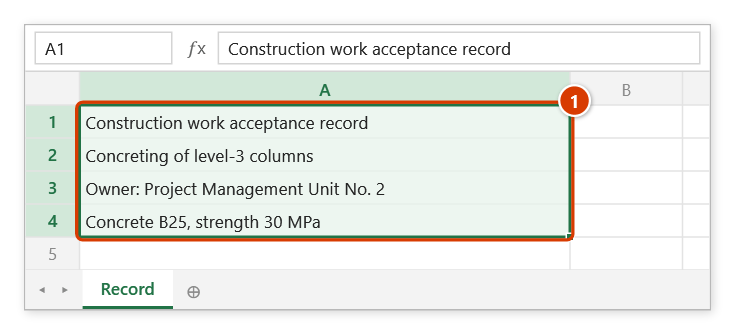
Step 1. Select the cells to convert to upper case (1).
Step 2. On the ribbon, open the DVD Addin tab → Text and Number group → open Case → choose UPPERCASE.
Step 3. The add-in asks before overwriting. Keep the sheet backup ticked (1) so that Ctrl+Z right after the command puts the sheet back, then click Continue (2).
Step 4. All text becomes upper case, while units (MPa, kN, m3…) keep their exact symbols (1). The status bar reports how many cells changed (2).
Example
The heading block of a work acceptance record:
| Before | After |
|---|---|
| Work acceptance record | WORK ACCEPTANCE RECORD |
| Column concrete works, level 3 | COLUMN CONCRETE WORKS, LEVEL 3 |
| Employer: Project Management Unit No. 2 | EMPLOYER: PROJECT MANAGEMENT UNIT NO. 2 |
| Concrete B25, strength 30 MPa | CONCRETE B25, STRENGTH 30 MPa |
Notes
- Units of measure (
MPa,kN,kg,mm,m2,m3…) are kept exactly as typed instead of turning intoMPA,KN,M3. Everything other than units is capitalized. - Formula cells are preserved — their results are never frozen into static values.
- Numbers and dates come out unchanged, since the uppercase form of a digit is the digit itself.
- Hold ESC while it runs to stop early; areas already written stay written.
- The selection is clamped to the UsedRange so whole-column selections are still fast, and empty cells are skipped.
- Content is overwritten in place. Ctrl+Z right after the command puts the sheet back as it was (thanks to the backup); see Restore data.
Related
- lowercase — the opposite conversion.
- Proper Case — capitalizes only the first letter of each word.
- Sentence case — normalizes long text sentence by sentence.
- SMART case (AI) — lets AI pick the capitalization that fits the context.