
Italic
Location on ribbon: Tab DVD Addin → Group Text and Number
Command ID: btnRegularItalic
What it does
Splits each cell's text on a delimiter you supply, then italicizes the even-numbered chunks — the text after the first delimiter, after the third, and so on in alternation. The first chunk always keeps the regular font style.
This is the standard layout for bilingual bills of quantities and for tables carrying a secondary note: the first line is the Vietnamese work description, the second line (after Alt+Enter) is the English version or an explanation, set in italic so the two read apart. Instead of selecting each fragment by hand, the command formats a whole range in one pass.
How to use
- Select the cells you want formatted.
- Go to tab DVD Addin → group Text and Number → click Italic, or press Ctrl+Shift+I.
- An Excel input box asks for the delimiter, pre-filled with
Chr(10), which means the in-cell line break. Keep the default or type another character such as/or-. - Click OK. Clicking Cancel aborts the command without changing anything.
- The Excel status bar reports how many cells were processed.
For each cell the command first clears italic from the whole cell and then re-applies it to the alternating chunks, so running it twice gives the same result.
Video tutorial
Narrated in Vietnamese, with Vietnamese subtitles. In nghiêng, Đảo ngược, Đổi Font · 6 min 53 s · 13 cases · Download the video · Practice workbook for the video
Commands in this video: Italic · Font Change · Text Reverse
Chapters (20)
- Giới thiệu
- Mở lệnh
- Hộp nhập
- 1 · Song ngữ hai dòng
- 2 · Nghiêng xen kẽ nhiều đoạn
- 3 · Dấu / trên cùng một dòng
- 4 · Ô đã in nghiêng sẵn
- Lệnh Đảo ngược
- 5 · Tên – mã hiệu đổi chỗ
- 6 · Ba phần trở lên
- 7 · Đổi chỗ từng cặp dòng
- 8 · Bẫy: gõ - thiếu dấu cách
- Lệnh Đổi Font
- 9 · Tiêu đề Việt / Anh
- 10 · Hai kiểu ngăn cách
- 11 · Chiều cao dòng bị tính lại
- 12 · Ký tự ngăn cách không nhận
- 13 · Ghi đè và hoàn tác
- Mẹo
- Kết thúc
Illustrated walkthrough
Practice
Download this command's sample workbook — the data matches the pictures below (sheet Quantities), so you can follow each step right away.
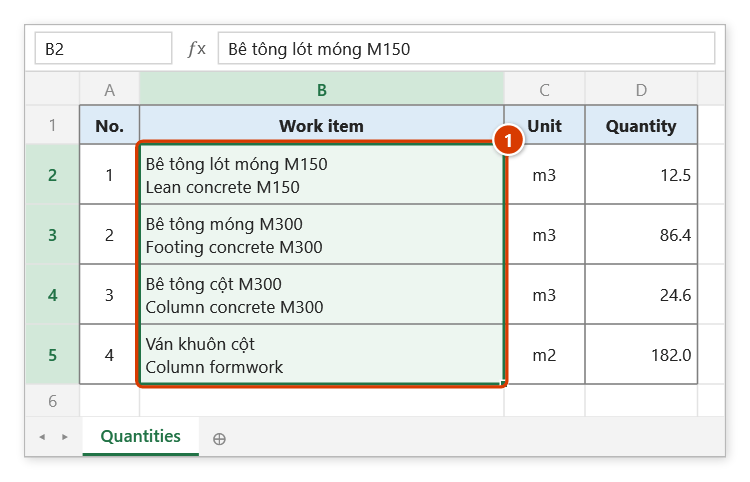
Step 1. Select the bilingual cells, each holding two lines separated by Alt+Enter: Vietnamese on top, English below (1).
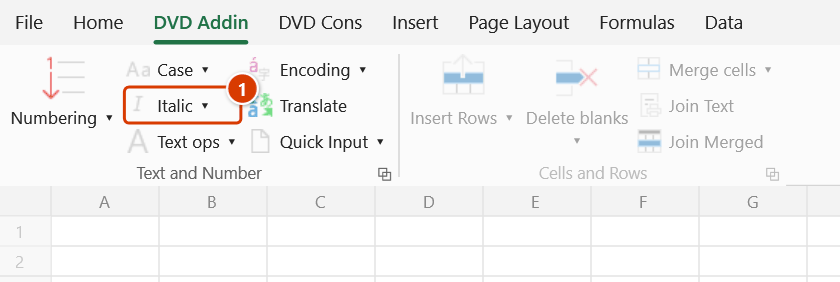
Step 2. On the ribbon, open the DVD Addin tab → Text and Number group → click Italic (or press Ctrl+Shift+I).
Step 3. An Excel input box (title DVD Addin) asks for the separator, pre-filled with Chr(10) — the in-cell line break. Keep it and click OK; to split on another character, type it instead, e.g. /. Cancel stops the command without changing anything.
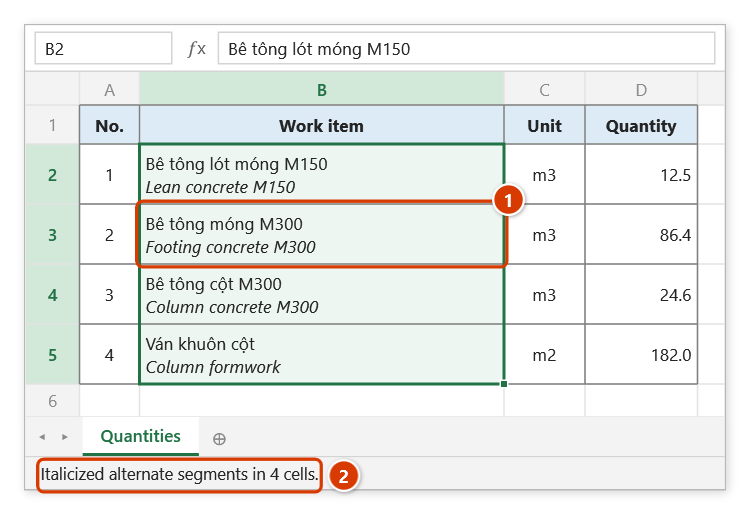
Step 4. In every cell the chunk after the separator (chunks 2, 4…) becomes italic while the Vietnamese line stays upright (1). The status bar reports how many cells were processed (2).
Example
A bilingual work-description column, each cell holding two lines separated by Alt+Enter:
- Cell A5 contains
Bê tông cột M300+ line break +Column concrete M300. - Select A5:A40, click Italic, leave the delimiter at the default
Chr(10), click OK. - Result: the Vietnamese line stays upright while the English line becomes italic inside the same cell.
Notes
- Cells that do not contain the delimiter are skipped and keep their formatting.
- It only works on cells holding static text; a formula cell cannot carry per-character formatting.
- Chunks 2, 4, 6 … are italicized; in a cell with three chunks the last one returns to regular style.
- This changes character formatting, not cell content — but Ctrl+Z usually cannot undo it across the whole range.
- Typing
Chr(10)(any letter case) is interpreted as the line-break character; any other string is used literally. - The ribbon tooltip says the delimiter is configured in Preferences, but the current build always asks for it through an input box when the command runs.
Related
- Font Change — same chunk-splitting logic, changing the font instead of the style.
- Merge keep data — builds the multi-line cells this command formats.
- AutoFit merged — sets the row height once cells hold several lines.
- Subscript — another per-character formatting command in the same group.