
Font Change
Location on ribbon: Tab DVD Addin → Group Text and Number → Menu Italic
Command ID: btnRegularFontChange
What it does
This command changes the font of part of a cell's content, with the part identified by a delimiter. It solves a common problem in bilingual construction paperwork: the Vietnamese line and the English line live in the same cell, so you cannot set the font per cell.
Two delimiters are supported. With the in-cell line break (Chr(10)), segments 2, 4, 6… get the new font. With a slash /, the text after the slash on each line gets the new font.
How to use
- Select the cells whose inner text needs a different font.
- Go to tab DVD Addin → group Text and Number → menu Italic → Font Change.
- The first input box asks for the delimiter, defaulting to
Chr(10). OnlyChr(10)or/is accepted; with anything else the command still asks for the font name, then shows "Only Chr(10) or / separators are supported" and stops. - The second input box asks for the font name, defaulting to
Times New Roman. Type the exact name of a font installed on the machine, e.g.Arial Narrow,Cambria. - Click OK, then Continue in the Confirm data change box. The matching text gets the new font, Wrap Text is switched on and the row height is auto-fitted. The status bar reports how many cells were processed.
Video tutorial
Narrated in Vietnamese, with Vietnamese subtitles. In nghiêng, Đảo ngược, Đổi Font · 6 min 53 s · 13 cases · Download the video · Practice workbook for the video
Commands in this video: Italic · Font Change · Text Reverse
Chapters (20)
- Giới thiệu
- Mở lệnh
- Hộp nhập
- 1 · Song ngữ hai dòng
- 2 · Nghiêng xen kẽ nhiều đoạn
- 3 · Dấu / trên cùng một dòng
- 4 · Ô đã in nghiêng sẵn
- Lệnh Đảo ngược
- 5 · Tên – mã hiệu đổi chỗ
- 6 · Ba phần trở lên
- 7 · Đổi chỗ từng cặp dòng
- 8 · Bẫy: gõ - thiếu dấu cách
- Lệnh Đổi Font
- 9 · Tiêu đề Việt / Anh
- 10 · Hai kiểu ngăn cách
- 11 · Chiều cao dòng bị tính lại
- 12 · Ký tự ngăn cách không nhận
- 13 · Ghi đè và hoàn tác
- Mẹo
- Kết thúc
Illustrated walkthrough
Practice
Download this command's sample workbook — the data matches the pictures below (sheet Acceptance), so you can follow each step right away.
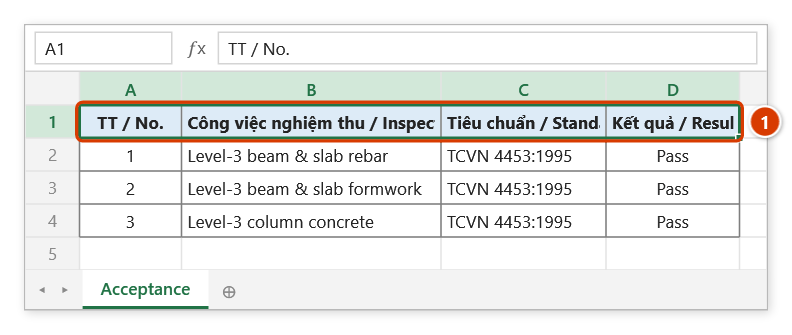
Step 1. Select the bilingual cells whose second part needs another font, for example a header row written as Vietnamese / English (1).
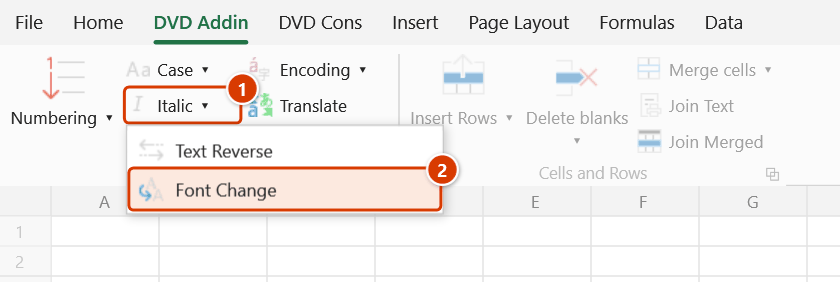
Step 2. On the ribbon, open the DVD Addin tab → Text and Number group → open the Italic menu → choose Font Change.
Step 3. Two Excel input boxes follow. The first asks for the separator (pre-filled with Chr(10)): type / and click OK — only Chr(10) or / is accepted. The second asks for the font name, pre-filled with Times New Roman: keep it or type the exact name of an installed font, then click OK.
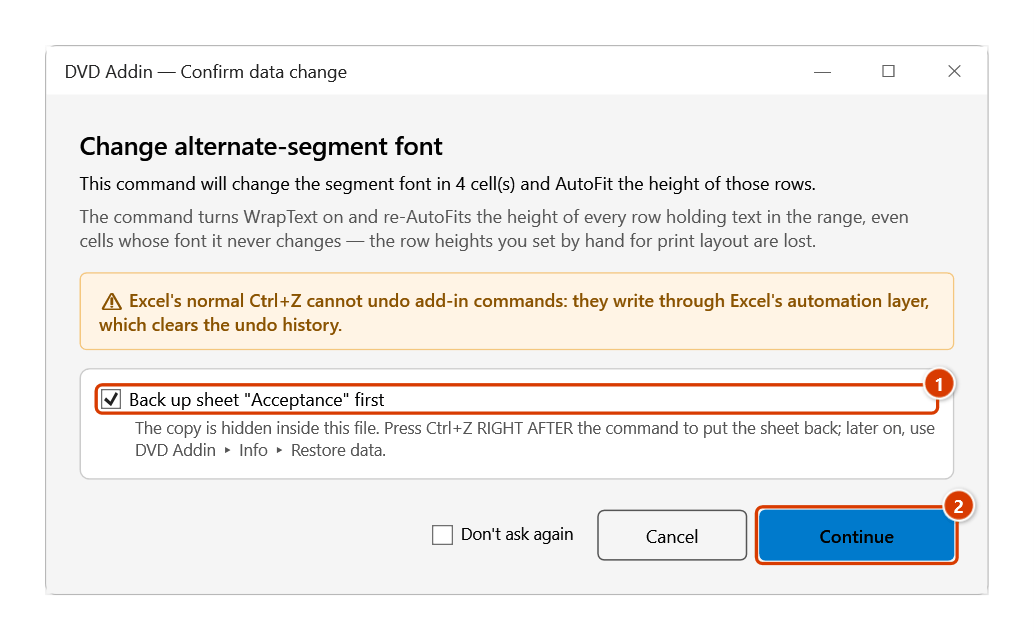
Step 4. The add-in warns that the command also turns on wrapping and auto-fits the row height. Keep the sheet backup ticked (1), then click Continue (2).
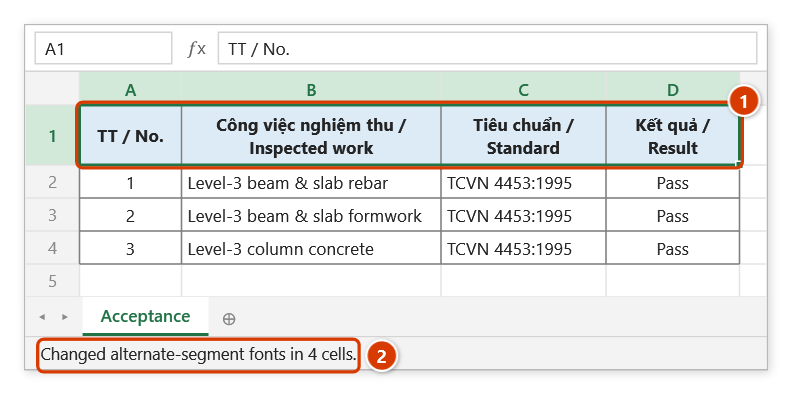
Step 5. In each cell the text after / (No., Inspected work…) switches to Times New Roman while the Vietnamese part keeps its font; the cells get Wrap Text and the row height is auto-fitted (1). The status bar reports how many cells were processed (2).
Example
A bilingual acceptance sheet where each header cell holds two lines: Vietnamese first, English second. Select the header row, run the command, keep Chr(10) and type Arial Narrow. The "Foundation concrete" line becomes Arial Narrow, the "Bê tông móng" line keeps its original font, and the cell wraps with the row height adjusted to fit both lines.
If your sheet uses Bê tông móng / Foundation concrete on a single line instead, pick / as the delimiter and the text after the slash is restyled.
Notes
- Only the character font changes; the cell value is untouched.
- Only
Chr(10)and/are valid delimiters — any other input is rejected. - The command turns on Wrap Text and auto-fits row heights, so the table layout may shift after it runs.
- Formula cells generally do not accept per-character formatting and are skipped silently.
- For merged cells the command reads the value of the top-left cell of the merge area.
- Ctrl+Z right after the command puts the sheet back as it was (thanks to the backup); see Restore data.
Related
- Italic — same delimiter mechanism, applies italics instead of a font.
- Text Reverse — reorder the segments in the cell before restyling them.
- Encoding — convert the Vietnamese encoding (Unicode / VNI / TCVN3) of whole cells.
- Remove extra spaces — tidy stray spaces so the segments split cleanly.