
AutoFit merged
Location on ribbon: Tab DVD Addin → Group Cells and Rows → Menu Merge cells
Command ID: btnAutoFitMerge
What it does
Excel's AutoFit ignores merged cells: long text loses its last line on the printout even though the screen looks fine. This command measures the height each merged area really needs — it temporarily unmerges, collapses the combined width into one column, lets Excel AutoFit, then restores the merge — and applies the largest required height to every row.
Run it just before printing acceptance records, inspection requests or quantity sheets with long description columns, so no text is clipped on paper.
How to use
- Select the range containing the merged cells (a whole table works — plain rows and merged rows alike).
- Click DVD Addin → Cells and Rows → Merge cells → AutoFit merged.
- The command measures each merged area, adds the padding configured in Preferences and sets the height of each row.
- The status bar reports the result, e.g. "Auto-fit 48 rows (merged + plain)".
- Check Print Preview before running a batch print.
Video tutorial
Narrated in Vietnamese, with Vietnamese subtitles. AutoFit gộp ô · 5 min 04 s · 9 cases · Download the video · Practice workbook for the video
Chapters (13)
- Giới thiệu
- Mở lệnh
- 1 · Ô gộp nhiều cột
- 2 · Ô gộp dọc nhiều dòng
- 3 · Nhiều ô gộp chồng nhau
- 4 · Ô thường cùng dòng
- 5 · Ô gộp có công thức
- 6 · Dòng đang ẩn
- 7 · Dòng đã chỉnh chiều cao tay
- 8 · Không hoàn tác bằng Ctrl+Z
- 9 · Khoảng đệm chiều cao
- Mẹo
- Kết thúc
Illustrated walkthrough
Practice
Download this command's sample workbook — the data matches the pictures below (sheet Footing rebar record), so you can follow each step right away.
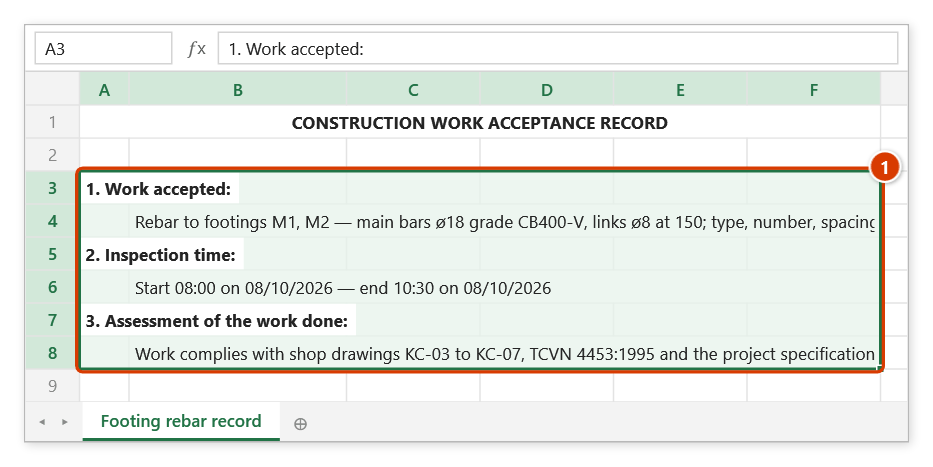
Step 1. Select the range holding the merged cells to fit — the whole form is fine, plain rows and merged rows alike (1). Here the merged cells B4:F4 and B8:F8 show only one line of text, so the rest would be lost in print.
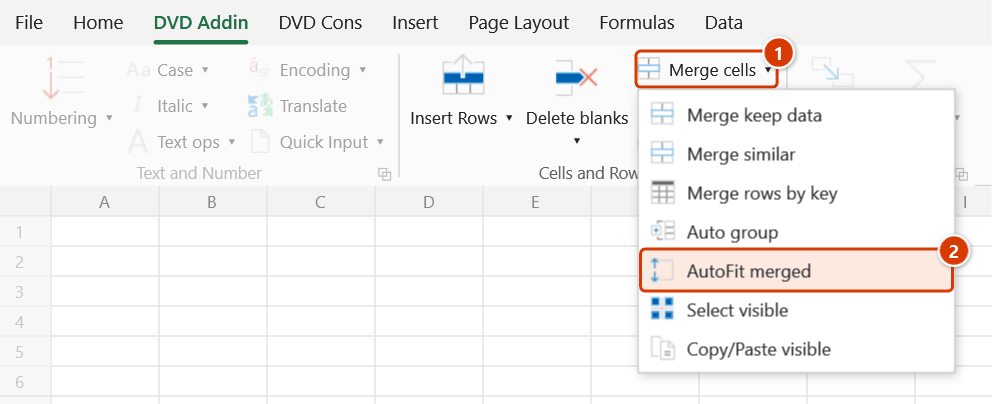
Step 2. On the ribbon, open the DVD Addin tab → Cells and Rows group → open Merge cells → choose AutoFit merged.
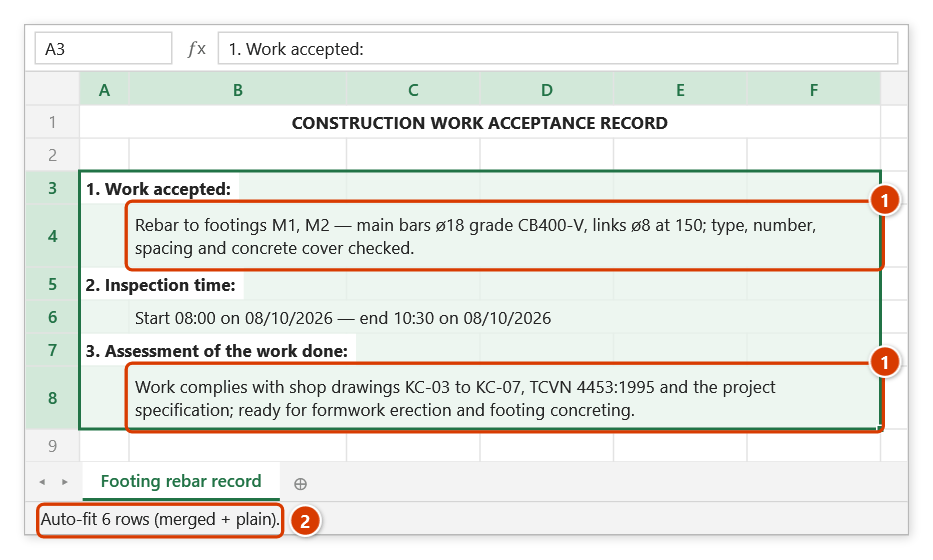
Step 3. The command runs at once, with no window: it measures each merged cell and gives every row just the height it needs (1), plus the padding set in Preferences. The status bar reports how many rows were processed (2). Check with Print Preview before printing.
Example
A work acceptance record has merged cell B12:F12 holding: "Acceptance of rebar for footings M1 and M2 — main bars ø18 CB400-V, stirrups ø8@150, type, count, spacing and concrete cover verified". Row 12 is only 15 pt high, so a single line shows. Select B10:F30 and click AutoFit merged — row 12 expands to exactly three lines and the printout shows the full text.
Notes
- A selection is required; without one the status bar shows "Please select a data range".
- Ctrl+Z cannot undo it — the previous row heights are not restored.
- Extra height padding can be added in Preferences (Cells and Rows section) if the print still looks tight.
- The command needs an active DVDAddin licence (or a running trial); once expired it shows the renewal dialog.
- On tables of several thousand rows the measuring pass takes a while — hold ESC to stop; rows already measured keep their new height.
Related
- Merge keep data — produces the multi-line merged cells this command sizes.
- Batch print — has an option to auto-fit merged cells on each sheet while printing.
- Page margins — set margins before re-checking the print layout.