
Configure source ranges…
Location on ribbon: Tab DVD Addin → Group Text and Number → arrow on Quick Input
Command ID: btnQuickInputSources
License required
This command needs an active DVDAddin account (Standard or PRO). During the trial period it is fully available.
What it does
Opens the Quick Input — Source ranges dialog, where you define Target → Source rules: when the active cell falls inside a Target range, the Quick Input popup pulls its suggestions from the matching Source range, which may live on another sheet. Instead of only suggesting values from the column above, you point the add-in at the proper master table — the material catalogue, the subcontractor list, the coded work items from the norm book. Multi-column rules go further: pick one source row and several target columns are filled at once.
How to use
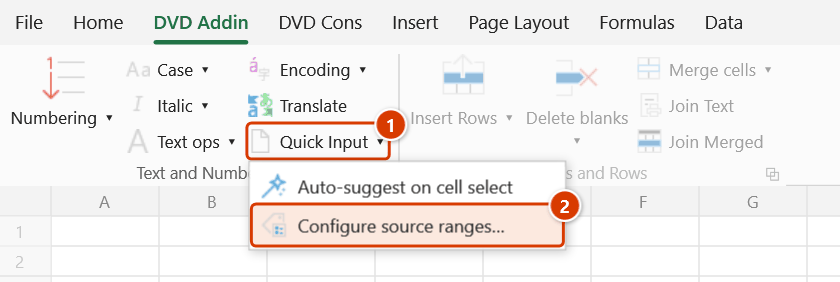
- Go to tab DVD Addin → group Text and Number → arrow on Quick Input → choose Configure source ranges….
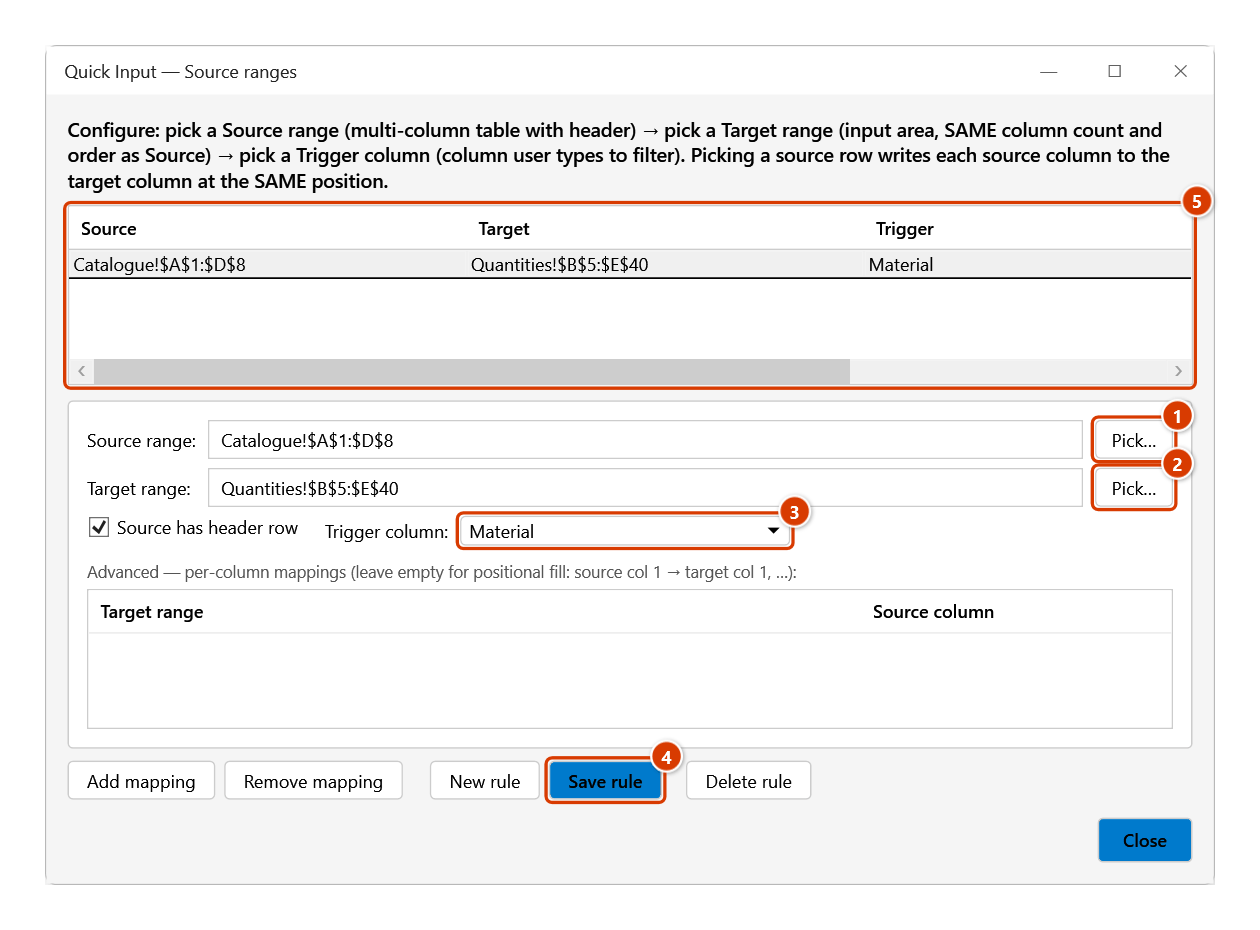
- The grid at the top lists existing rules in four columns: Source, Target, Trigger and Maps. Click a row to edit it, or click New rule to start a fresh one.
- Fill in Source range — the master table; the Pick… button lets you select it directly on the sheet (including another sheet).
- Fill in Target range — the data-entry area that should get suggestions, with the same number and order of columns as the source; it has its own Pick… button.
- Tick Source has header row if the first row of the source is a header, then choose the Trigger column — the source column that the popup searches on. The popup only opens when the cursor is in the matching column of the target range.
- The Advanced — per-column mappings section (Add mapping / Remove mapping) currently has no effect: because Target range is mandatory, picking a row always fills by position — source column 1 into target column 1, column 2 into column 2… Leave it empty.
- Click Save rule to store it (or Delete rule to remove the selected one), then Close. Rules are saved inside the open workbook — press Ctrl+S to keep them.
Video tutorial
Narrated in Vietnamese, with Vietnamese subtitles. Nhập nhanh · 5 min 41 s · 10 cases · Download the video · Practice workbook for the video
Commands in this video: Quick Input · Auto-suggest on cell select · Configure source ranges…
Chapters (15)
- Giới thiệu
- Mở lệnh
- Nguồn gợi ý
- 1 · Gợi ý theo cột phía trên
- 2 · Lọc không dấu, giữa từ
- 3 · Bẫy ở cột ngày
- 4 · Ô có Data Validation
- 5 · Khai báo bảng danh mục
- 6 · Điền cả dòng một lượt
- 7 · Tự động hiện gợi ý
- 8 · Tắt và nơi lưu thiết đặt
- 9 · Ghi đè, chọn nhiều ô
- 10 · Khi lệnh không ghi
- Mẹo
- Kết thúc
Illustrated walkthrough
Practice
Download this command's sample workbook — the data matches the pictures below (sheet Catalogue), so you can follow each step right away.
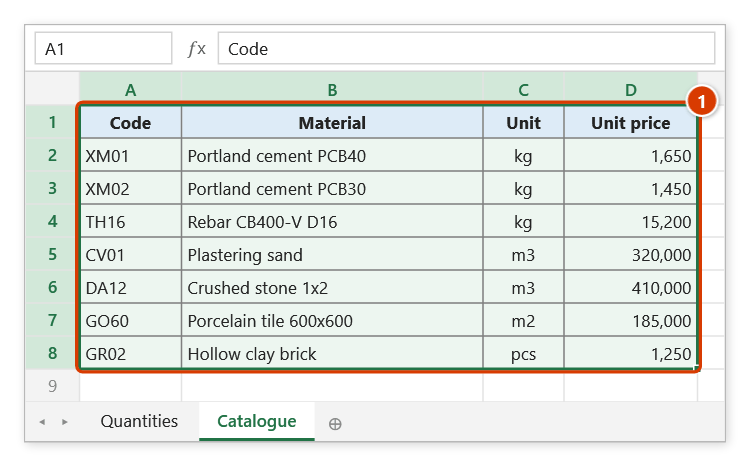
Step 1. Prepare the catalogue table that will be the source, with a header row (1) — here the Catalogue sheet with Code, Material, Unit, Unit price.
Step 2. On the ribbon, open the DVD Addin tab → Text and Number group → open Quick Input → choose Configure source ranges….
Step 3. Click Pick… to select on the sheet (or type the address) the Source range (1) and the Target range (2) — the input area, with the same number and order of columns as the source. Keep Source has header row ticked, pick the Trigger column you will type in to search (3) and click Save rule (4): the rule appears in the list at the top (5). Rules are stored inside the workbook — remember Ctrl+S.
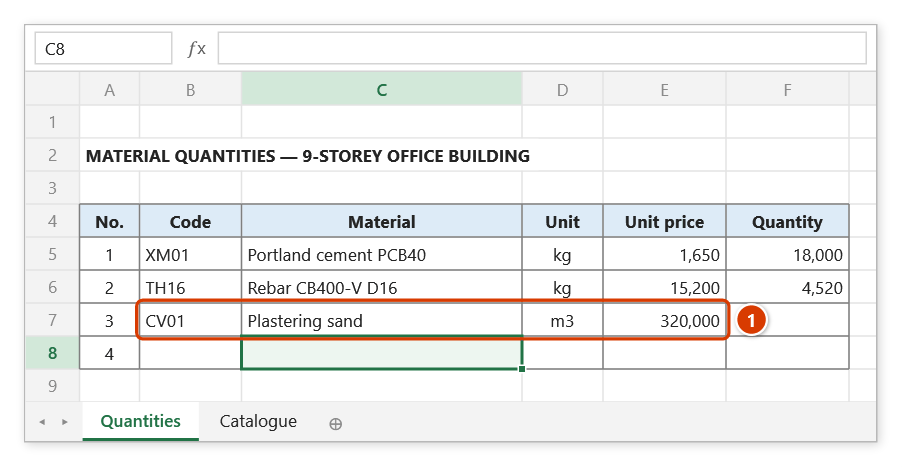
Step 4. From now on, put the cursor in the trigger column of the target range (the Material column) and click Quick Input or press Ctrl+Alt+I (or turn on Auto-suggest on cell select): the popup shows the whole catalogue; type sand, pick a row and Code, Material, Unit and Unit price are filled in one go (1), then the cursor moves down.
Example
Sheet DM_VatTu holds the material catalogue: column A Material code, B Material name, C Unit, D Unit price. Sheet BangKhoiLuong has an entry area B10:E200 with Code / Name / Unit / Price columns.
Create a rule: Source range = DM_VatTu!A1:D500, Target range = BangKhoiLuong!B10:E200 (four columns in the same order as the source), tick Source has header row, Trigger column = Material name. No mappings are needed.
While filling the bill of quantities you put the cursor in C15 (the Name column — the second column of the target range, matching Material name), press Ctrl+Alt+I, type "xi mang", and the popup shows the catalogue as a table; pick the right row, press Enter, and code, name, unit and price all land in B15:E15 in one go.
Notes
- Rules are stored by range address — if you later insert or delete rows and columns so the target shifts, reopen the dialog and update the addresses.
- The source table should have a header row with Source has header row ticked, otherwise the header itself shows up as a suggestion.
- The add-in always fills by position from the source columns (source column 1 into target column 1…); the mapping list currently cannot change that, so the target must have the same number and order of columns as the source.
- Close does not save a rule you are still editing — click Save rule first. Rules live inside the workbook itself, so press Ctrl+S to keep them for next time; they travel with the file when you send it.
- This dialog only defines the rules; to have the popup open automatically on cell selection you still need Auto-suggest on cell select.
- This window does not block Excel and is tied to the workbook that was active when you ran the command (its name shows in the title bar): rules are loaded, source columns read and rules saved in that workbook, even if you have switched to another one; a Source / Target range picked in another workbook is refused. The Pick… buttons open a range picker that does not lock Excel (scroll and switch sheets freely; OK or Enter on the sheet to take it, Cancel or Esc to stop).
Related
- Quick Input — the popup that consumes the rules defined here.
- Auto-suggest on cell select — make the popup open whenever a cell in the trigger column of the Target range is selected.
- Get lookup data — the formula-based alternative when you need a live link instead of typed-in values.