
Punch list
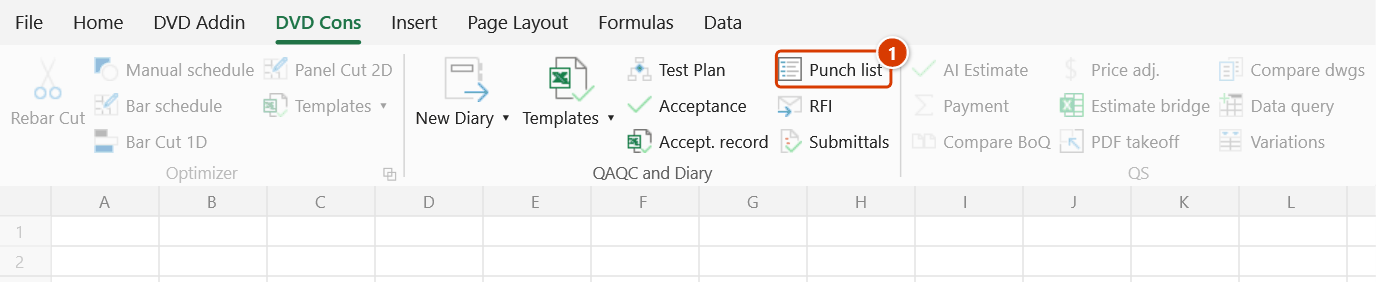
Ribbon location: DVD Cons tab → QAQC and Diary group
Command ID: btnPunchList
What it does
A register of punch list items — the defects found at inspection that must be closed before handover.
The data lives on an Excel sheet, not in a hidden database: you can still filter, print, email and hand-edit it like any other table. This command only handles the parts that go wrong by hand — non-clashing references, overdue calculation, status colouring, and the summary.
How to use it
- Click Punch list in the DVD Cons tab → QAQC and Diary group.
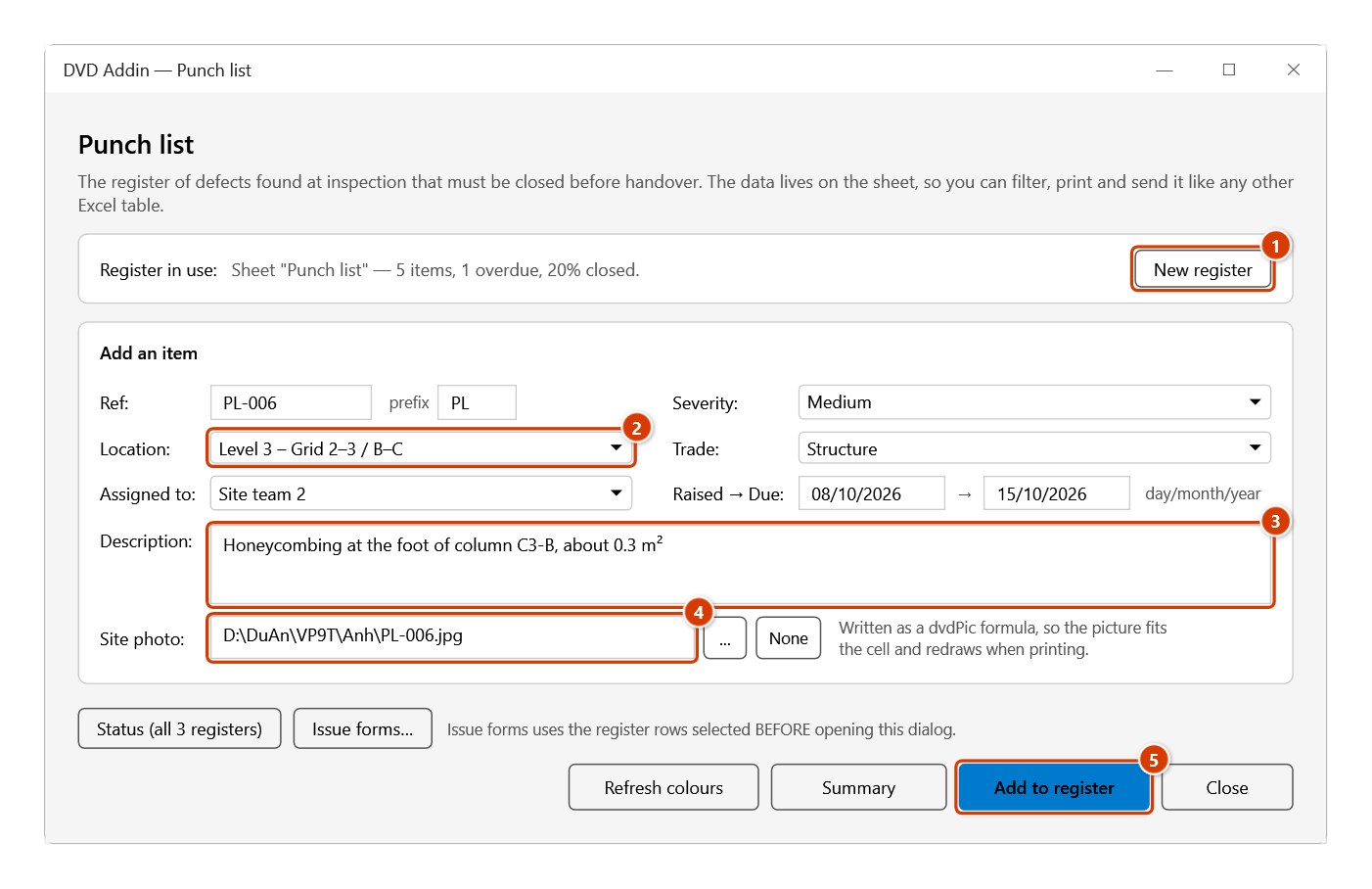
- The first time, click New register — a sheet is created with 13 standard columns, a frozen header, filtering switched on and drop-downs for Status and Severity.
- Fill in the form and click Add to register. The reference is generated; Location, Trade and Assigned to suggest what you have entered before.
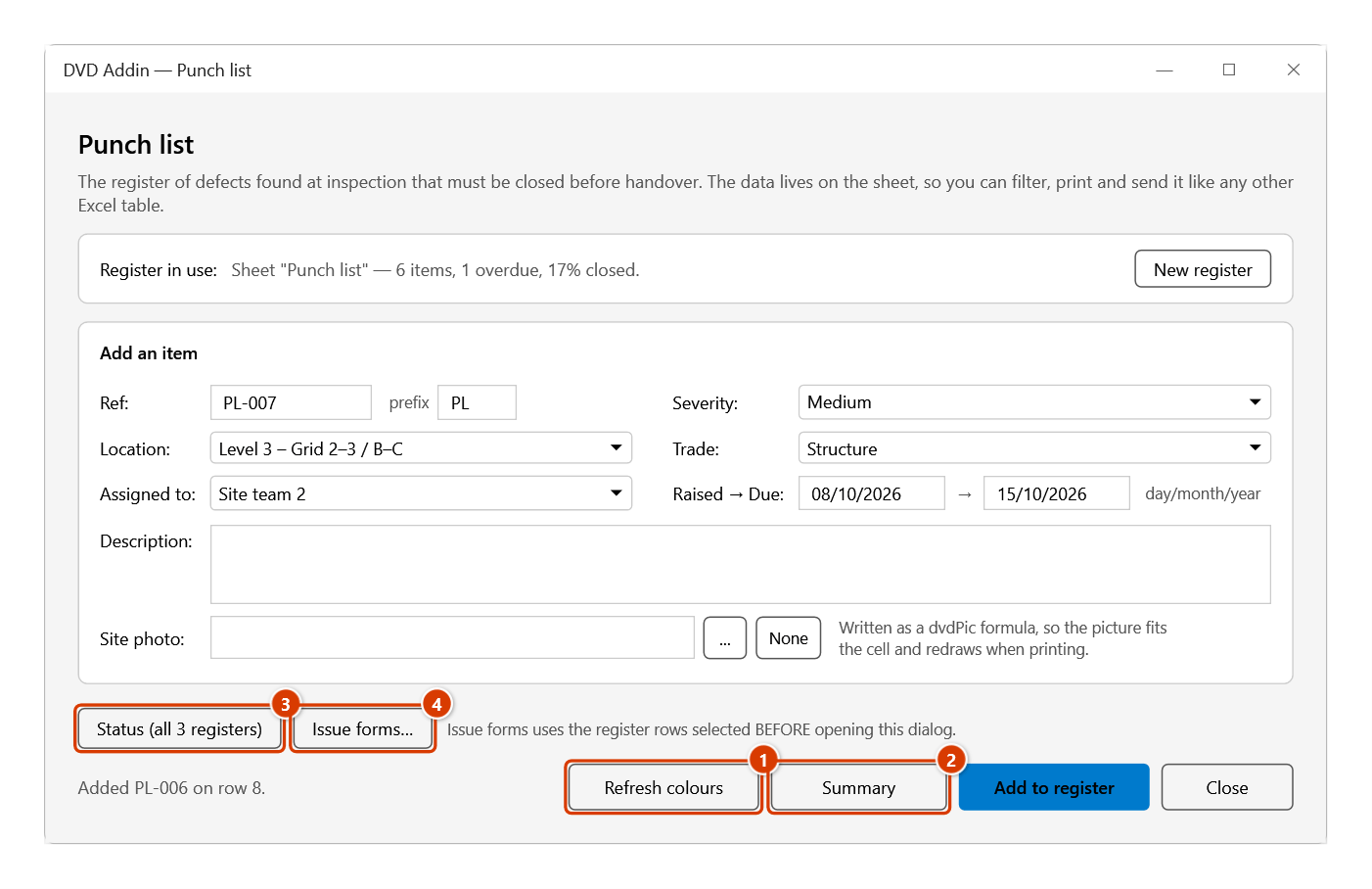
- After adding, Description and Photo are cleared for the next item while Location / Trade / Assignee stay — an inspection walk usually raises several items in the same area.
- Refresh colours recolours the whole register by status and flags overdue items.
- Summary writes a sheet with the counts by status, trade and location.
Video tutorial
Narrated in Vietnamese, with Vietnamese subtitles. Tồn tại, RFI và Trình duyệt · 6 min 25 s · 16 cases · Download the video · Practice workbook for the video
Commands in this video: Punch list · RFI · Submittals
Chapters (21)
- Giới thiệu
- Mở lệnh
- 1 · Tạo sổ lần đầu
- 2 · Sổ đã có – không tạo trùng
- 3 · Thêm tồn tại kèm ảnh
- 4 · Mã không trùng, tiền tố
- 5 · Cập nhật màu – quá hạn
- 6 · Đóng mục – mâu thuẫn
- 7 · Bảng tổng hợp, lọc
- 8 · Thông báo kèm ảnh
- 9 · RFI: số hiệu, hạn trả lời
- 10 · RFI: chờ, trả lời, quá hạn
- Sổ Trình duyệt
- 11 · Tính ngược hạn phải trình
- 12 · Trình lại – Rev
- 13 · Mã A/B/C/D, Tình trạng
- 14 · Giao ban cả 3 sổ
- 15 · Sheet bảo vệ, Ctrl+Z
- 16 · Khi nhập sai
- Mẹo
- Kết thúc
Illustrated walkthrough
Step 1. On the ribbon, open the DVD Cons tab → QAQC and Diary group → click Punch list.
Step 2. The first time in a workbook, click New register (1): the add-in adds a Punch list sheet with 13 standard columns, a frozen header, filters and drop-down lists for Status / Severity. Then fill in the form: the Ref is generated; Location, Trade, Assigned to (2) suggest what you typed before; the Description (3) is required; dates are day/month/year (due defaults to +7 days); pick the Site photo (4) with .... Click Add to register (5).
Step 3. The new item goes to the next empty row; Description and Photo are cleared for the next one while Location / Trade / Assigned to are kept. Refresh colours (1) recolours the whole register by status and flags overdue items (see the next step). Summary (2) writes a sheet of counts by status, trade and location. Status (all 3 registers) (3) builds a meeting sheet across Punch list + RFI + Submittals; Issue forms… (4) produces defect notices with photos for the register rows selected before opening the dialog.
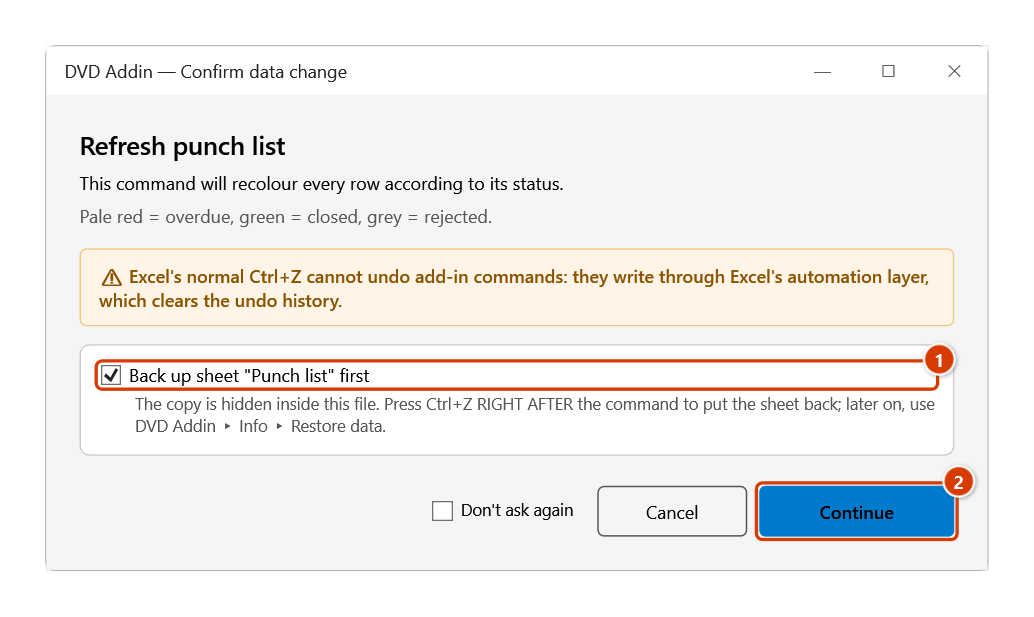
Step 4. Click Refresh colours: the Confirm data change window appears because the command repaints the whole register. Keep Back up sheet "Punch list" first ticked (1) — Ctrl+Z right after the command puts the register back — then click Continue (2). The add-in then reports the rows recoloured, the overdue count and any data conflicts (closed without a closing date…) without fixing them.
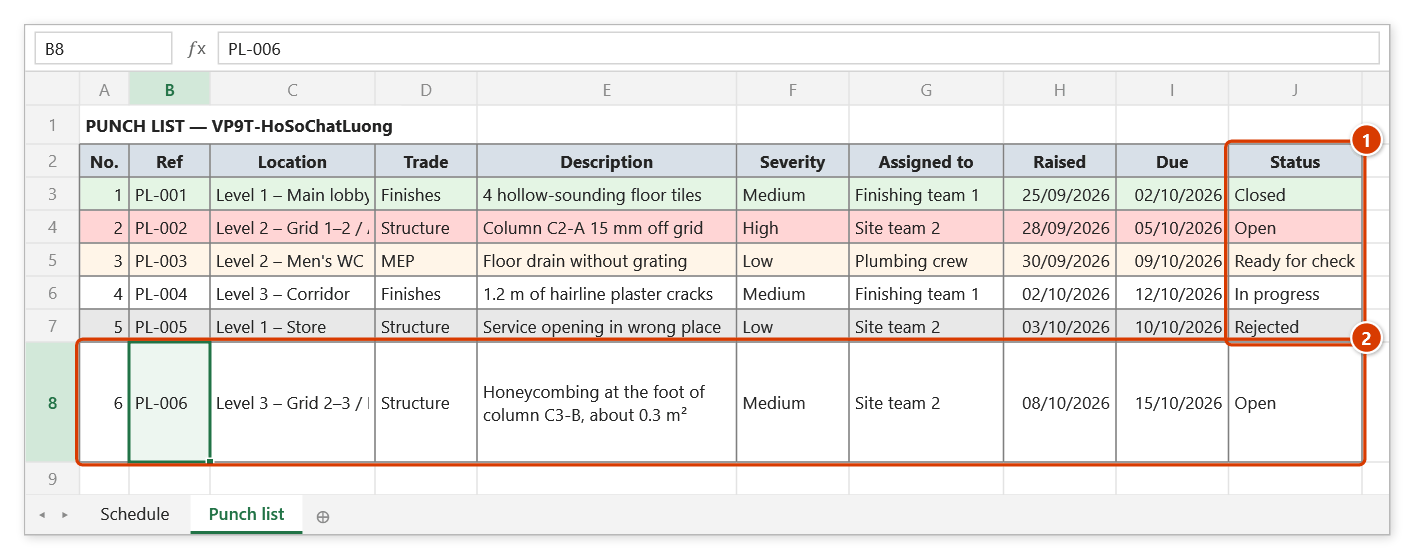
Step 5. On the Punch list sheet after Refresh colours (1): pale red = overdue (has a due date, past it, not settled), pale yellow = ready for check, green = closed, grey = rejected. The new row (2) is raised to 60 pt because a photo is embedded in the Photo column (to the right, with Closed on and Note).
The register columns
| Column | Note |
|---|---|
| No. · Ref | Generated as PL-001; the prefix is configurable |
| Location · Trade | Used to group the summary |
| Description | Required |
| Severity | Low / Medium / High |
| Assigned to | |
| Raised · Due | |
| Status | Open / In progress / Ready for check / Closed / Rejected |
| Closed on · Photo · Note | The photo is inserted as a picture embedded in the file — it still shows on a client machine with no add-in, and it does not expose the author’s folder path |
Conventions that matter
Overdue = there is a due date and it has passed and the item is not settled.
- Closed or Rejected items are no longer overdue, even if they were closed late — they are done, not something still to chase.
- An item with no due date is never overdue. To track it, give it a due date.
- A due date of today is not yet overdue.
References take the highest existing number plus one, not the row count. Delete a row in the middle and the next reference still moves forward, so it never clashes with one already issued to the contractor.
Status colours
| Colour | Meaning |
|---|---|
| Pale red | Overdue |
| Pale yellow | Ready for check |
| Pale green | Closed |
| Grey | Rejected |
Status and issuing forms
The button row at the top of the dialog (the same in all three registers: Punch list, RFI, Submittals):
- Status (all 3 registers) — writes a
Giao ban yyyy-MM-ddsheet across the three registers in the workbook:- per register, how many items are open, overdue, due soon (7 days), and held by the reviewer or the contractor;
- a chase list sorted by days overdue — click a reference to jump to its row in the register;
- a table by responsible party / addressee. Items marked Ready for check count as held by the reviewer; other open items are held by the contractor.
- Issue forms… — for the rows selected in the register before you opened the dialog, creates defect notices with the site photos (by default one notice per responsible party; register photos travel with their rows, no clipboard involved) on new A4 sheets ready to print. The dialog asks:
- project, issuing organisation, prepared by, place of issue — remembered for next time;
- whether to export PDFs to a
Phieufolder next to the workbook; - whether to draft an Outlook e-mail with the PDFs. It opens a draft only: you add recipients and press Send; the add-in never sends.
The documents are in Vietnamese.
Notes
- Rows with a photo are grown to 60pt so the picture is readable; rows you have already resized are left alone.
- The register is recognised by its column headers, not by the sheet name — rename the sheet after a work package and it still works.
- Dates are read as day/month/year regardless of the machine's language, even when the cell holds text.
- A date typed in an unreadable format is rejected rather than silently left blank — an item without a due date would never be flagged overdue.
- Refresh colours reports data contradictions (closed without a closing date, a closing date without the Closed status) but does not fix them — this register is a record, and the add-in must not fill it in on your behalf.
- Recolouring overwrites existing fill; the add-in confirms (the Confirm data change window) and backs the sheet up first — Ctrl+Z right after the command puts the register back, and later you can still recover it from Restore data.
See also
- Acceptance plan — inspection and acceptance planning.
- Test plan · Variation register
- Screen clip — annotated screenshots for illustrations.