
Arrow
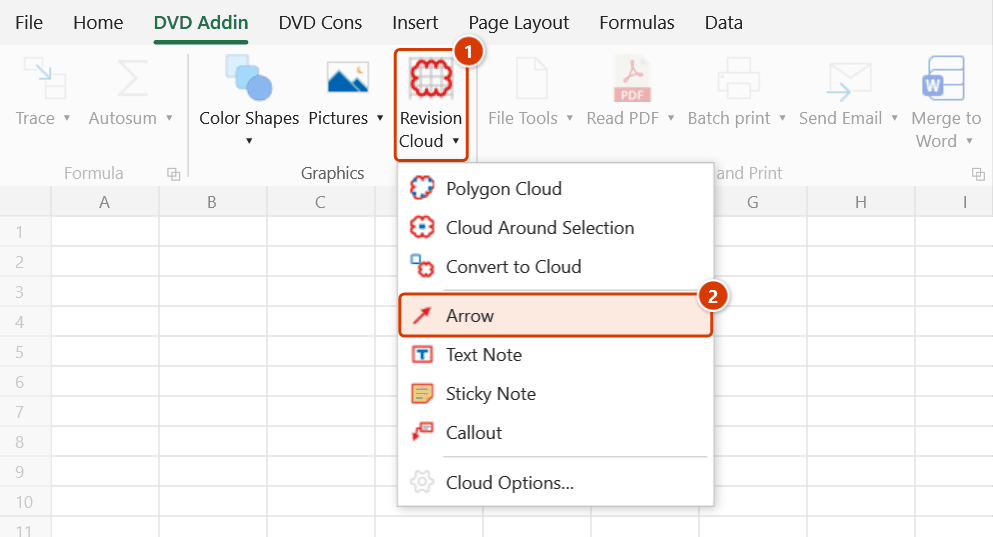
Ribbon location: Tab DVD Addin → Group Graphics → the arrow next to Revision Cloud
Command ID: btnNoteArrow
What it does
Draws an arrow straight onto the sheet to point at a cell or a detail on a plan picture, or to link two places to compare — like the Arrow tool of Read PDF. The arrow is a line with Excel's own arrowhead: drag its ends later to edit it, and the head follows.
How to use
- Go to DVD Addin → Graphics → the arrow under Revision Cloud → Arrow.
- Press at the tail, drag to the point and release — the arrow appears at once. Hold Shift to keep it horizontal, vertical or at 45°.
- Draw more arrows, or press Esc to exit.
A plain click without dragging creates nothing (the command reminds you to drag from tail to head).
Video tutorial
Narrated in Vietnamese, with Vietnamese subtitles. Ghi chú trên sheet · 5 min 27 s · 13 cases · Download the video · Practice workbook for the video
Commands in this video: Arrow · Callout · Sticky Note · Text Note
Chapters (17)
- Giới thiệu
- Mở lệnh
- 1 · Mũi tên chỉ đúng chỗ
- 2 · Nhiều mũi tên, giữ Shift
- 3 · Ghi chú chữ: bấm rồi gõ
- 4 · Kéo khung định bề rộng
- 5 · Nhiều dòng, Enter, Esc
- 6 · Ghi chú nền vàng
- 7 · Chú thích: kéo tới chỗ đặt chữ
- 8 · Chú thích: chỉ bấm
- 9 · Phím trong lớp vẽ
- 10 · Tùy chọn mây
- 11 · Sửa, di chuyển, xoá
- 12 · Hoàn tác Ctrl+Z
- 13 · Khi lệnh từ chối
- Mẹo
- Kết thúc
Illustrated walkthrough
Step 1. On the ribbon, open the DVD Addin tab → Graphics group → open Revision Cloud → choose Arrow.
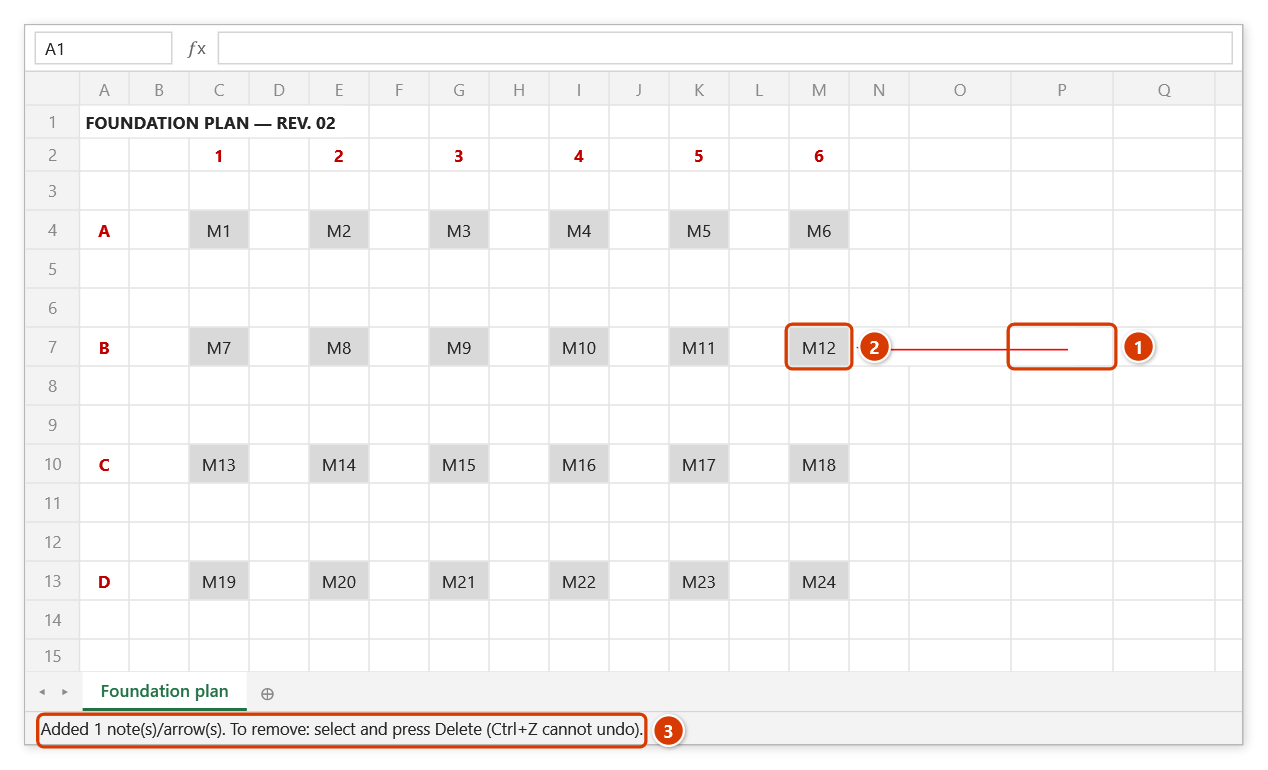
Step 2. Press on an empty spot for the tail, drag to the footing to point at and release — the arrow appears at once. Hold Shift for horizontal, vertical or 45° arrows; [ ] change the head size, 1–6 the colour, M / T / N / L switch between Arrow, Text Note, Sticky Note and Callout; R / P go back to clouds. Keep drawing, or press Esc to finish.
Step 3. A red arrow runs from where you pressed (1) to the delayed footing M12 (2). It is a real Excel line with an arrowhead — drag its ends later to edit, the head follows. The status bar reports how many shapes were added (3).
Keys in the drawing layer
| Key | Effect |
|---|---|
M / T / N / L | Switch to Arrow / Text Note / Sticky Note / Callout |
R / P, Tab | Back to rectangle / polygon cloud; Tab cycles through all tools |
[ ] (or − =) | Text size; with the Arrow tool: arrowhead size |
1–6 | Colour (red, blue, green, orange, purple, black) |
| Wheel / Ctrl+wheel | Scroll / zoom while drawing (only scroll while typing) |
| Ctrl+Z | Remove the last shape drawn in this session |
| Esc | Discard the shape in progress; Esc again (or Enter, right-click — when not typing) to exit |
While typing: Enter finishes, Shift+Enter adds a line, Esc cancels; clicking elsewhere also finishes (that click only ends the typing; it does not place a new note). The keys above only apply when you are not typing — Vietnamese input (Telex, VNI) works normally.
Example
On a footing plan picture you want to point at footing M12, which is behind schedule: choose Arrow, press in an empty spot next to it, drag to M12 and release. Add a Text Note "3 days late" at the tail — or use Callout to get both in one go.
Notes
- Excel arrowheads come in only three sizes (small / medium / large, keys
[]) and grow with the line weight — for a bigger head, increase the line weight in Cloud Options. - Colour and line weight are shared with clouds; font, text size and arrowhead size are set in Cloud Options… (changes made with keys in the drawing layer are remembered).
- The result is a real Excel shape (text box, line, group), so it can be edited, moved, printed and exported to PDF like any shape; by default it moves with cells but does not resize (change this with Clouds and notes resize with cells in Cloud Options…).
- Shapes created by the command cannot be undone with Excel's Ctrl+Z — inside the drawing layer use the command's own Ctrl+Z; after exiting, select and press Delete.
- Page Layout view is not supported; on a sheet that protects drawing objects the command refuses.
Related
- Callout — a text box with an arrow leader.
- Text Note · Sticky Note
- Revision Cloud — mark a changed area.
- Cloud Options… — colour, line weight, arrowhead size.