
Get Color Code
Location on ribbon: Tab DVD Addin → Group Graphics → the ▾ arrow of Color Shapes
Command ID: btnGetCellColorCode
What it does
The command reads the background colour (Interior.Color) of every cell in a range and writes the numeric colour code back into that cell. The code is Excel's packed integer, R + G×256 + B×65536 — exactly the value VBA and conditional-formatting rules work with.
Use it when you need to standardise a project colour scheme: capture the approved colour for each work package (substructure, rebar, finishes…) and reapply it on other sheets, or to check whether two quantity sheets really use the same palette.
How to use
- Open the sheet that holds the coloured range.
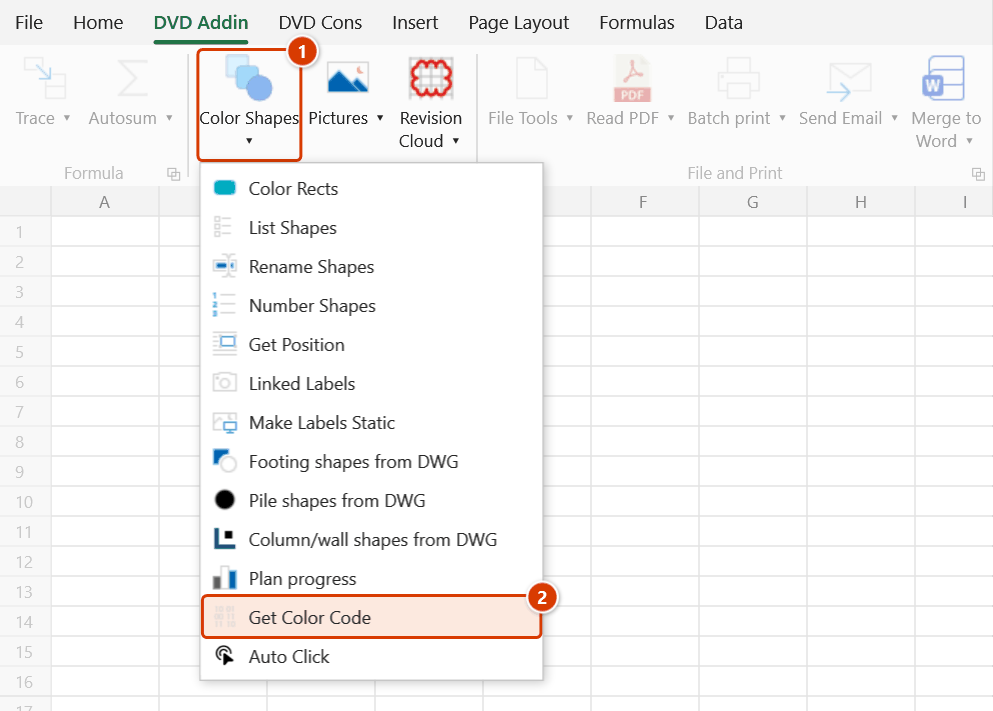
- Go to tab DVD Addin → group Graphics → the ▾ arrow of Color Shapes → Get Color Code.
- A range picker appears — "Select coloured range to read RGB".
- Drag over the coloured cells and press OK.
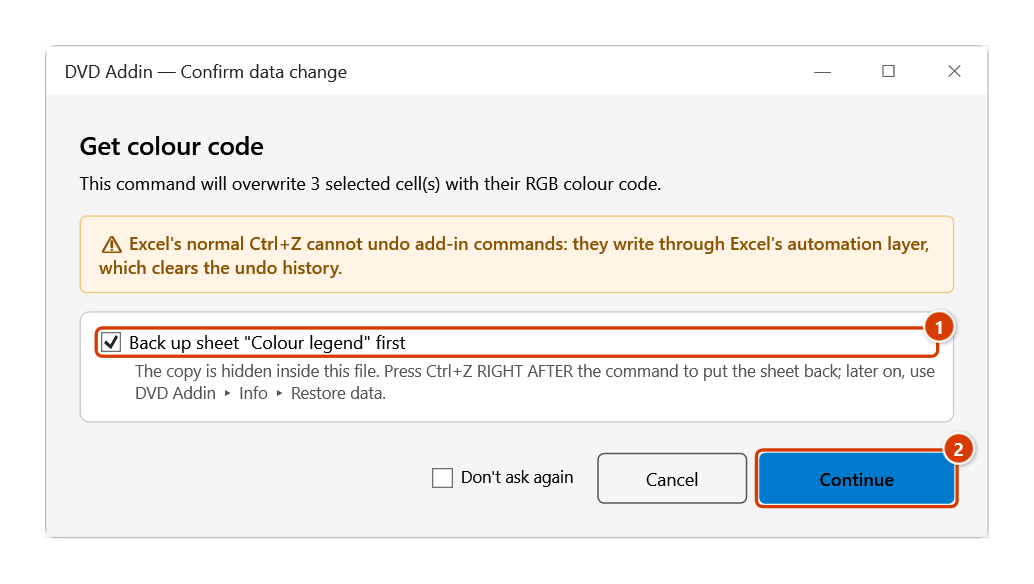
- The Confirm data change window asks before overwriting. Keep Back up sheet … first ticked so Ctrl+Z right after the command puts the sheet back, then click Continue.
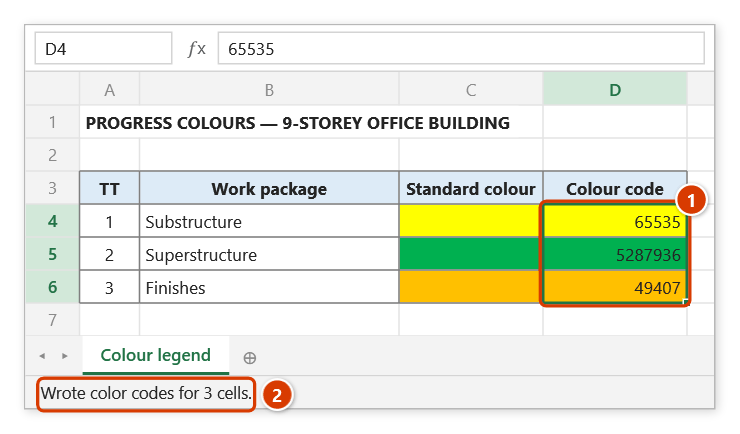
- The command writes the colour code into each cell in that range and reports how many cells were processed.
Video tutorial
Narrated in Vietnamese, with Vietnamese subtitles. Tô màu Shape, Vẽ hình chữ nhật màu, Lấy mã màu · 5 min 28 s · 14 cases · Download the video · Practice workbook for the video
Commands in this video: Color Shapes · Color Rects · Get Color Code
Chapters (20)
- Giới thiệu
- Mở lệnh
- Hộp chọn vùng
- Mã màu
- 1 · Mặt bằng theo tiến độ
- 2 · Mã HEX, mã dạng chữ
- 3 · Khớp theo tên shape
- 4 · Shape trong nhóm
- 5 · Mã màu ở cột xa
- 6 · Báo cáo cuối lệnh
- 7 · Lấy mã màu chuẩn
- 8 · Ô không tô, màu điều kiện
- 9 · Ô có chữ bị ghi đè
- 10 · Lưới tiến độ thành khối màu
- 11 · Ô chữ, ô trống, ô ngày
- 12 · Ô chỉ có màu nền
- 13 · Sheet đang bảo vệ
- 14 · Hoàn tác và chạy lại
- Mẹo
- Kết thúc
Illustrated walkthrough
Practice
Download this command's sample workbook — the data matches the pictures below (sheet Colour legend), so you can follow each step right away.
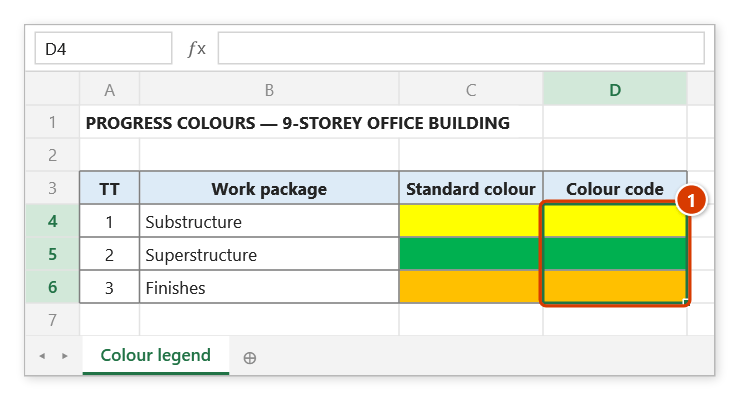
Step 1. The command writes the colour code over the selected cells themselves, so first copy the coloured cells to a spare column — for example copy the Standard colour column to column D (1).
Step 2. On the ribbon, open the DVD Addin tab → Graphics group → open Color Shapes → choose Get Color Code.
Step 3. The range picker appears with the prompt Select coloured range to read RGB: drag over the copied range D4:D6 and click OK.
Step 4. The add-in asks before overwriting. Keep Back up sheet … first ticked (1) so Ctrl+Z right after the command puts the sheet back, then click Continue (2).
Step 5. Each cell receives its own fill colour as the number R + G×256 + B×65536 (1) (the fill stays); the status bar reports how many cells were written (2). Paste these codes into the project's colour table or use them with Color Shapes.
Example
A programme legend has phase colours in column B. You copy column B into column C and run the command on C2:C4.
| Work package | Sample cell (fill) | After running on the copy |
|---|---|---|
| Substructure | (yellow fill) | 65535 |
| Superstructure | (green fill) | 5287936 |
| Finishes | (orange fill) | 49407 |
You can now paste those three codes into the project's colour standard so every sheet uses the same values.
Notes
- The code overwrites the cell it read, destroying the previous content — run it on a copy of the coloured range, never on the master table.
- Excel's normal Ctrl+Z cannot undo this command; if you kept the backup ticked in the confirmation window, press Ctrl+Z right after the command to put the sheet back (later on, use Restore data).
- A cell with No Fill returns the default white code
16777215rather than a blank. - Colours produced by conditional formatting are not read — only the static cell fill is returned.
- Hold ESC to stop early; the cells already written keep their values.
- The range picker does not lock Excel: while it is open you can scroll, switch sheets or switch workbooks to pick the range there. Click OK or press Enter on the sheet when done; Cancel or Esc to stop.
Related
- Color Rectangles — build coloured rectangles from these very codes.
- Color Shapes — apply colour codes to shapes on the sheet.
- Sync Format — replicate formatting, fill colour included, onto another range.
- Get Position — sibling command that reads object properties into cells.