
Color Rects
Location on ribbon: Tab DVD Addin → Group Graphics → the ▾ arrow of Color Shapes
Command ID: btnColorRectangles
What it does
This command reads the numeric RGB code stored in each cell of the range you pick and draws, on top of that cell, a rectangle of exactly the cell's size filled with that colour at 50% transparency. The number itself is then hidden (number format ;;;) so only the colour block shows.
It is a fast way to build a progress heat map or a grid-style site plan directly on the sheet: each cell is a zone or a day, a formula turns status into a colour code, and the command converts the whole block into real shapes — unlike cell shading, these can be moved, grouped and copied into Word or PowerPoint.
How to use
- Prepare a range where each cell's value is a numeric RGB code (usually produced by a formula).
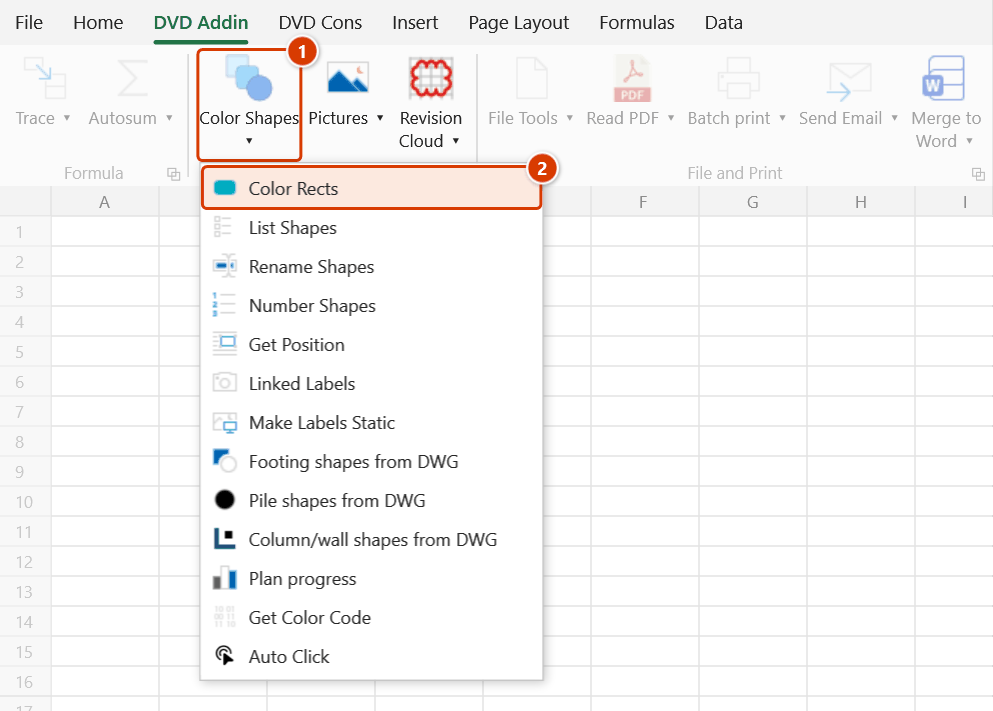
- Go to tab DVD Addin → group Graphics → the ▾ arrow of Color Shapes → click Color Rects.
- The range picker appears with the prompt "Select numeric range to create coloured rectangles". Drag over the range and click OK.
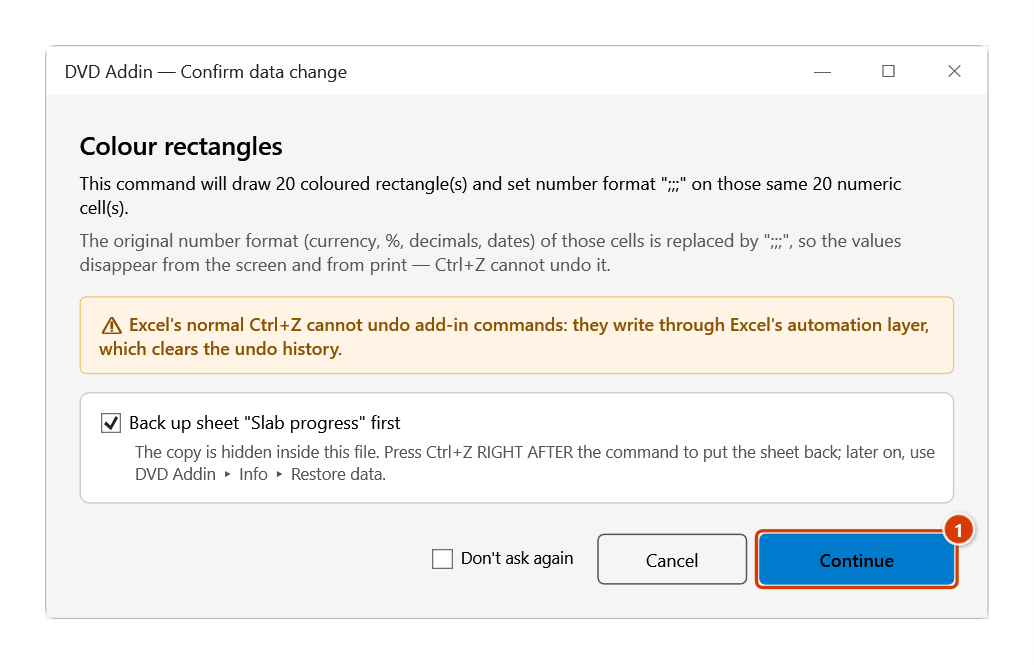
- The Confirm data change window shows how many rectangles will be drawn and warns that the numeric cells get the
;;;number format. Keep the backup ticked and click Continue. - The add-in creates one rectangle per numeric cell, positioned and sized to that cell.
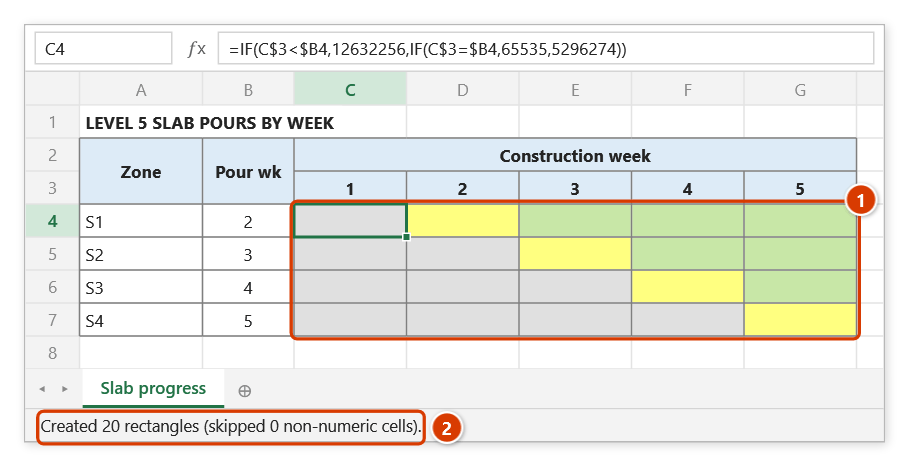
- When it finishes, the status bar reports "Created N rectangles (skipped X non-numeric cells)".
Video tutorial
Narrated in Vietnamese, with Vietnamese subtitles. Tô màu Shape, Vẽ hình chữ nhật màu, Lấy mã màu · 5 min 28 s · 14 cases · Download the video · Practice workbook for the video
Commands in this video: Color Shapes · Color Rects · Get Color Code
Chapters (20)
- Giới thiệu
- Mở lệnh
- Hộp chọn vùng
- Mã màu
- 1 · Mặt bằng theo tiến độ
- 2 · Mã HEX, mã dạng chữ
- 3 · Khớp theo tên shape
- 4 · Shape trong nhóm
- 5 · Mã màu ở cột xa
- 6 · Báo cáo cuối lệnh
- 7 · Lấy mã màu chuẩn
- 8 · Ô không tô, màu điều kiện
- 9 · Ô có chữ bị ghi đè
- 10 · Lưới tiến độ thành khối màu
- 11 · Ô chữ, ô trống, ô ngày
- 12 · Ô chỉ có màu nền
- 13 · Sheet đang bảo vệ
- 14 · Hoàn tác và chạy lại
- Mẹo
- Kết thúc
Illustrated walkthrough
Practice
Download this command's sample workbook — the data matches the pictures below (sheet Slab progress), so you can follow each step right away.
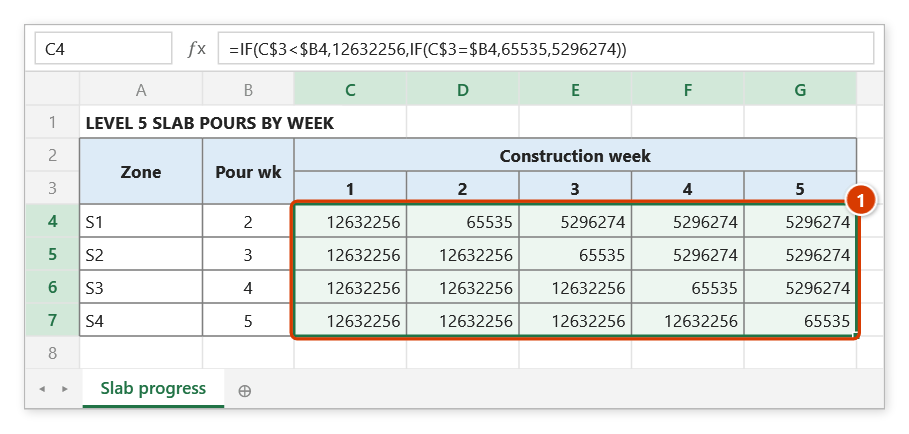
Step 1. Prepare a range whose values are numeric RGB colour codes — here a zone × week grid where a formula turns the status into a colour code (grey = not yet, yellow = pour week, green = poured) (1).
Step 2. On the ribbon, open the DVD Addin tab → Graphics group → open Color Shapes → choose Color Rects.
Step 3. The range picker appears with the prompt Select numeric range to create coloured rectangles: drag over C4:G7 and click OK.
Step 4. The add-in asks first because the numeric cells get the number format ;;; (value hidden). Check how many rectangles will be drawn, then click Continue (1).
Step 5. Each numeric cell is covered by a rectangle shape of exactly its size, filled with that colour at 50% transparency; the number in the cell is hidden (1). The status bar reports how many rectangles were created (2). They are real shapes — group them or copy them to Word/PowerPoint; running again on the same range stacks another layer.
Example
A slab-pouring progress tracker laid out as zone × week in D5:M20. Each cell holds a formula turning status into a colour:
=IF(D$4<$C5,12632256,IF(D$4=$C5,65535,5296274))
Select D5:M20 in the picker and click OK → Continue: the 160-cell grid becomes 160 semi-transparent colour blocks packed edge to edge — green for poured, yellow for the current week, grey for not yet started. A screenshot of that grid drops straight into the weekly report.
Notes
- Cells must contain numbers; text, blanks and
#RRGGBBhex strings are skipped and counted as non-numeric. - After the run, the cells in the range have their number format set to
;;;to hide the value — set the format back to General if you need to see the codes again. - The rectangles are always 50% transparent and sit on top of the cells; they are real shapes, so re-running the command over the same range stacks another layer.
- Hold
ESCto stop midway; rectangles already created are kept. - Excel's normal
Ctrl+Zcannot undo this command; if you kept the backup ticked in the confirmation window, pressCtrl+Zright after the command to put the sheet back — rectangles gone and the;;;format undone; see Restore data. To remove the rectangles later, use Home → Find & Select → Selection Pane, or Go To Special → Objects, then delete. - The range picker does not lock Excel: while it is open you can scroll, switch sheets or switch workbooks to pick the range there. Click OK or press Enter on the sheet when done; Cancel or Esc to stop.
Related
- Get Color Code — read existing cell fill colours to produce the numeric range this command needs.
- Color Shapes — recolour existing shapes instead of drawing new ones.
- List Shapes — list the shapes you just created for counting or further processing.