
Cash-flow
Location on ribbon: Tab DVD Cons → Group Schedule → Menu Reports
Command ID: btnCashflow
PRO feature
This command is part of the PRO plan. STANDARD accounts activated before 01/07/2026 keep access until their licence expires; other Standard accounts get an upgrade prompt when they click it.
What it does
Spreads each activity's budget (BAC) across its construction window, then rolls it up into planned cost per period (columns) with a cumulative S-curve on the secondary axis. The period is chosen automatically: weekly for short jobs, monthly for long ones. This is the table finance and the owner always ask for — how much money is needed each month, and how progress billing should be staged.
How to use
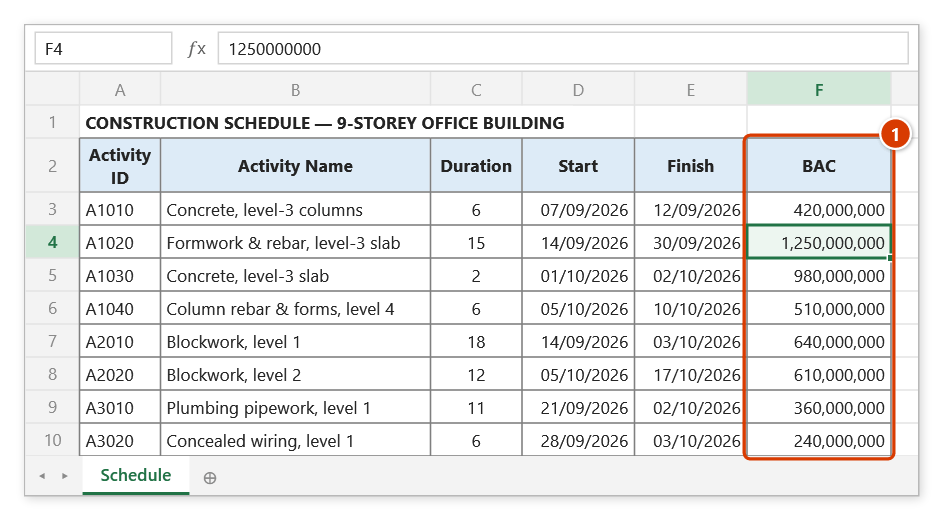
- Open a schedule sheet with the BAC column filled in per activity and complete start / finish dates.
- Run Auto Calc so the dates are current — costs are spread over each activity's actual window.
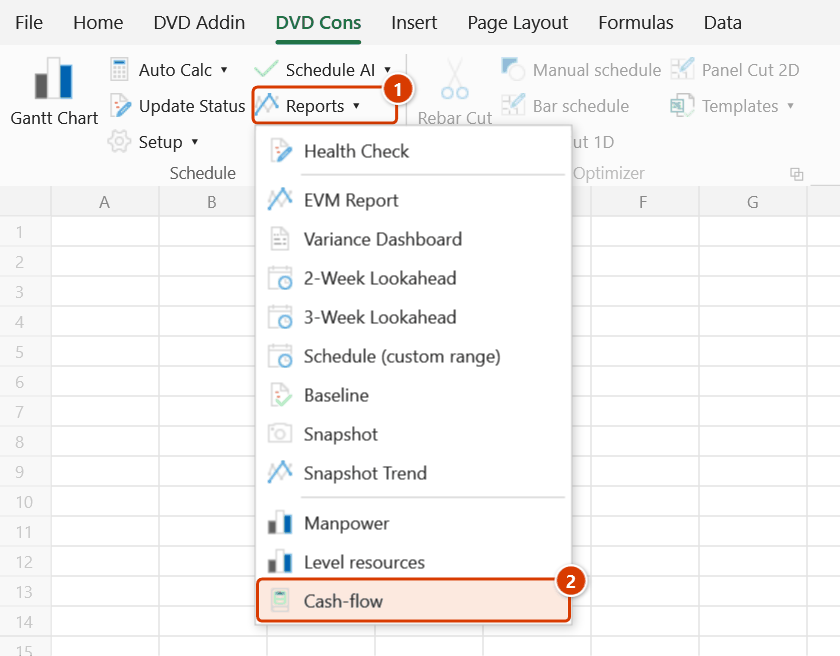
- Go to Tab DVD Cons → group Schedule → menu Reports → click Cash-flow.
- The command runs immediately with no dialog; weekly or monthly periods are chosen for you based on project length.
- Read the result sheet: columns are planned cost per period, the S-curve line is the cumulative total on the right-hand axis.
- Use the table below the chart to build the disbursement plan or the staged payment application.
Video tutorial
Narrated in Vietnamese, with Vietnamese subtitles. Dòng tiền · 5 min 48 s · 10 cases · Download the video · Practice workbook for the video
Chapters (14)
- Giới thiệu
- Mở lệnh
- 1 · Tiến độ có cột BAC
- 2 · Chia theo ngày lịch
- 3 · Tên cột tiền
- 4 · Dự án dài: theo tháng
- 5 · Dòng tổng có cột Cấp
- 6 · Dòng tổng không cột Cấp
- 7 · Dòng bị bỏ qua
- 8 · Chạy lại, hoàn tác
- 9 · Khi lệnh báo lỗi
- 10 · Lệnh không làm gì
- Mẹo
- Kết thúc
Illustrated walkthrough
Practice
Download this command's sample workbook — the data matches the pictures below (sheet Schedule), so you can follow each step right away.
Step 1. Open the schedule sheet with a BAC (budget) for each activity (1) and complete Start / Finish dates; run Auto Calc so the dates are current.
Step 2. On the ribbon, open the DVD Cons tab → Schedule group → open Reports → choose Cash-flow.
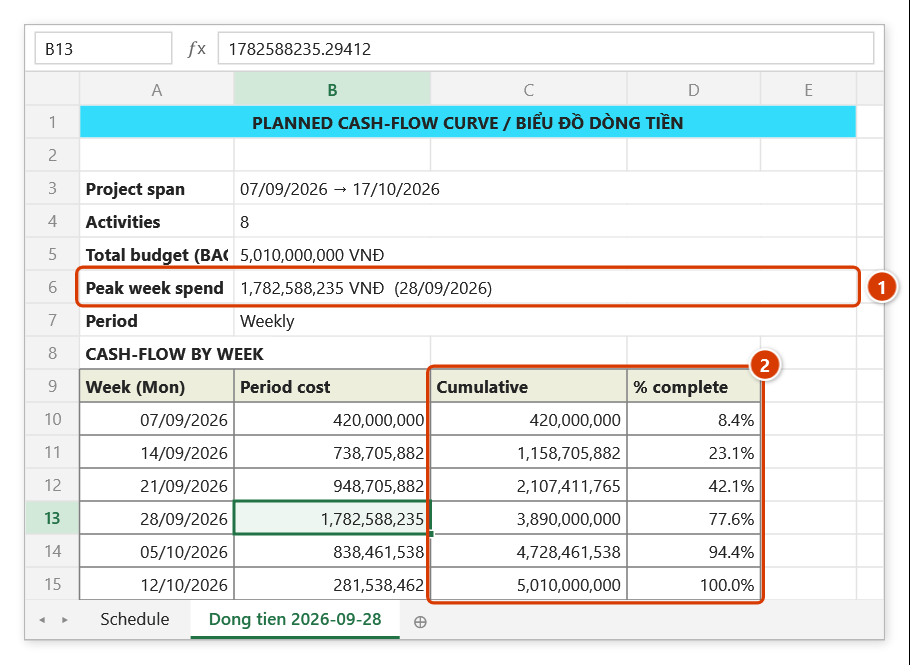
Step 3. The command runs straight away, with no dialog. On the Dong tien 2026-09-28 sheet the 6-week project gets a weekly period automatically (longer than 12 weeks → monthly). The peak spend of 1,782,588,235 VNĐ falls in the week of 28/09 (1); the Cumulative / % complete columns (2) feed the S-curve. The period-cost column chart with the cumulative line (secondary axis) sits to the right, from column G.
Example
An 18-month construction package with a total budget of 86 bn VND. The command picks monthly periods and produces:
| Period | Planned cost | Cumulative |
|---|---|---|
| March | 2.1 bn | 2.1 bn |
| April | 4.8 bn | 6.9 bn |
| May | 7.6 bn | 14.5 bn |
| June | 9.2 bn | 23.7 bn |
The S-curve is steepest across May to July, which is exactly the superstructure phase. Management uses it to fix the Q3 credit line and to agree the payment milestones with the owner.
Notes
- Without a BAC column there is nothing to spread — fill in the budget per activity first.
- Cost is distributed evenly across each activity's duration, not along a work-specific curve; for front-loaded or back-loaded activities, split them into smaller ones for a closer fit.
- This is planned cash-flow, not money actually spent — for actuals, use the EVM Report.
- The command is read-only and never edits dates or values on the schedule sheet.
- The chart sheet is regenerated on each run, and Ctrl+Z will not undo it.
Related
- EVM Report — compares the plan with actual spend (PV/EV/AC).
- Manpower — the same time-spreading approach applied to labour.
- Interim Payment — build the staged payment application from work actually done.
- Variance Dashboard — cost and schedule pulled into a single management page.