
Solver
Location on ribbon: Tab DVD Addin → Group AI → click the ▾ of AI Chat
Command ID: btnAISolver
License required
This command needs an active DVDAddin account (Standard or PRO). During the Trial period it is fully available.
What it does
Takes an image or PDF containing questions, sends it to Gemini with an instruction to reply with the answer only, and writes the result into the cell you had selected. In practice it is OCR plus question answering in one step: photograph the question sheet, pick a target cell, and the answer lands straight in Excel. Typically used when revising for a professional or site-safety certification, or when a batch of multiple-choice answers has to be captured into a spreadsheet.
How to use
- Select the target cell that will receive the answer (the command uses the active cell).
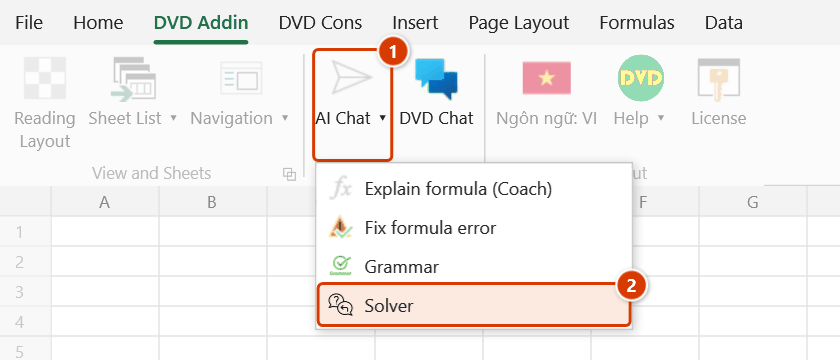
- Go to tab DVD Addin → group AI → click the ▾ of AI Chat → Solver.
- The Pick image or PDF dialog opens, pre-filtered to
*.png,*.jpg,*.jpeg,*.webp,*.pdf. Choose one file and click Open. - A "Sending to Gemini OCR…" message appears while the file is uploaded and the answer is awaited.
- When the reply arrives,
**markers are stripped and the answer is written to the selected cell; a message confirms which address received it.
Video tutorial
Narrated in Vietnamese, with Vietnamese subtitles. Ngữ pháp và Giải đề bằng AI · 6 min 48 s · 15 cases · Download the video · Practice workbook for the video
Commands in this video: Grammar · Solver
Chapters (20)
- Giới thiệu
- Mở lệnh
- 1 · Nhật ký nghiệm thu
- 2 · Tiếng Việt lẫn tiếng Anh
- 3 · Ghi thẳng, không bước kiểm
- 4 · Ô công thức
- 5 · Chọn cả bảng: mã, đơn vị
- 6 · Danh sách đang lọc
- 7 · Vùng lớn – dừng bằng Esc
- 8 · Ghi đè, hoàn tác, sheet khoá
- 9 · Khi AI không trả lời được
- 10 · Không có ô chữ để sửa
- Lệnh Giải đề
- 11 · Giải đề từ ảnh trang đề
- 12 · Trang sau – chọn ô trống
- 13 · Khi Giải đề không chạy
- 14 · AI có thể sai – dùng đúng mực
- 15 · Quyền riêng tư
- Mẹo
- Kết thúc
Illustrated walkthrough
Practice
Download this command's sample workbook — the data matches the pictures below (sheet Safety test), so you can follow each step right away.
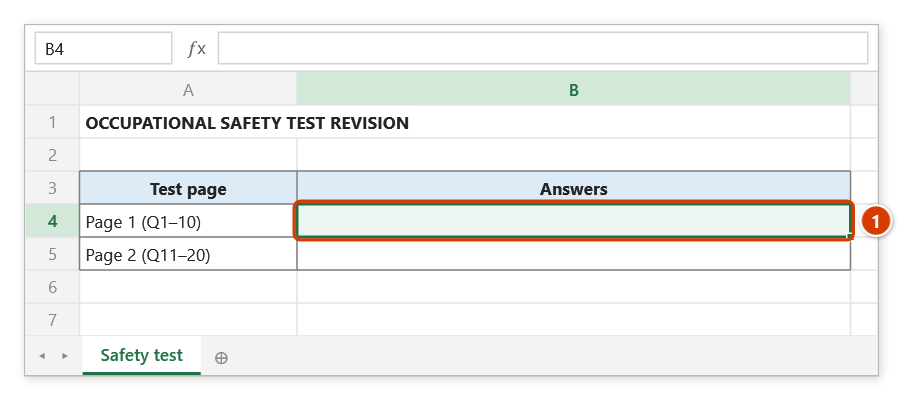
Step 1. Select the cell that will receive the answers (1) — the command writes to the active cell.
Step 2. On the ribbon, open the DVD Addin tab → AI group → open AI Chat → choose Solver.
Step 3. In the Pick image or PDF dialog, choose one image or PDF of the test page (e.g. de_ATLD_trang1.png). The status bar shows Sending to Gemini OCR… while you wait. The command only works with Gemini (a Gemini key in Preferences ▸ AI Assistant) because it uploads the file.
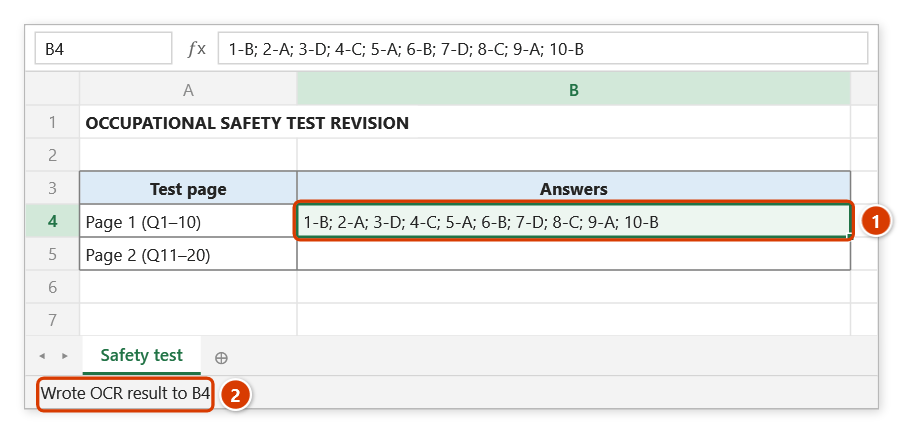
Step 4. The answer is stripped of ** and written to the selected cell (1); the status bar names the cell (2). The target cell is overwritten — do not switch sheets while waiting, and always check the AI's answers.
Example
You are building a site-safety revision sheet in Excel: column A holds the question numbers, column B is empty and waiting for answers. Screenshot a page of ten multiple-choice questions and save it as safety_quiz_p1.png. Select cell B2, run Solver, and pick that image. A few seconds later B2 contains Gemini's answer, for example 1-B; 2-A; 3-D; 4-C; 5-A; 6-B; 7-D; 8-C; 9-A; 10-B.
Notes
- A cell must be active; otherwise the add-in reports "Please select a cell to receive the result" and stops.
- Only one file can be picked per run; blurry photos or skewed scans produce wrong answers.
- The result is written by cell address on whichever sheet is active when the reply arrives — do not switch sheets while waiting, or the answer lands at the same address on the wrong sheet.
- It overwrites the target cell and cannot be undone with Ctrl+Z.
- Requires Internet and a Gemini API key in Preferences ▸ AI Assistant; if Gemini does not respond, a dialog reports the failure with details.
Related
- OCR — extract all the text from an image or PDF rather than just an answer.
- Screen clip OCR — grab a region of the screen and recognise the text in it.
- Read PDF — open and work with PDF documents directly.
- AI Chat — free-form questioning when you also want the reasoning.