
UnDiacritics
Location on ribbon: Tab DVD Addin → Group View and Sheets → the ▾ arrow of Sheet List
Command ID: btnUnDiacriticsViSheets
What it does
Strips Vietnamese accents from every sheet name in the active workbook and also removes spaces. Khối lượng thân becomes Khoiluongthan; Đài móng becomes Daimong.
This matters when the file has to pass through tools that choke on accented characters: cost-estimating software, batch PDF export scripts, a client's document management system, or cross-file formulas that reference sheets by name.
How to use
- Open the workbook to process (the command works on the active workbook).
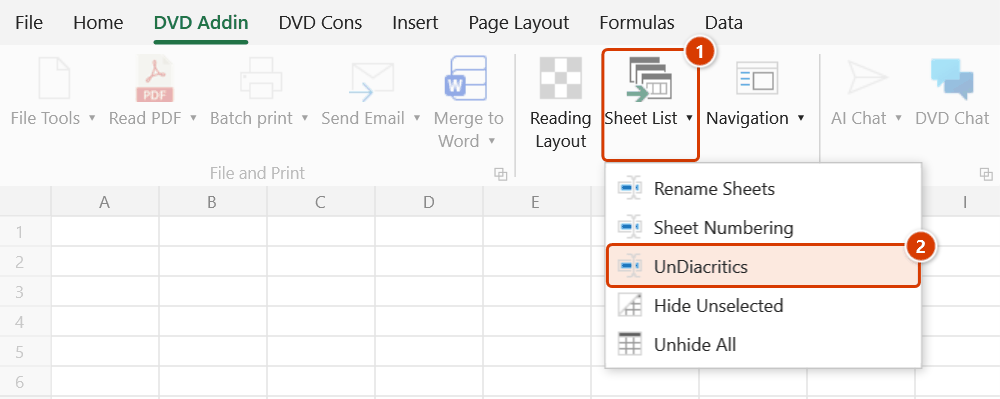
- Go to tab DVD Addin → group View and Sheets → the ▾ arrow of Sheet List → UnDiacritics.
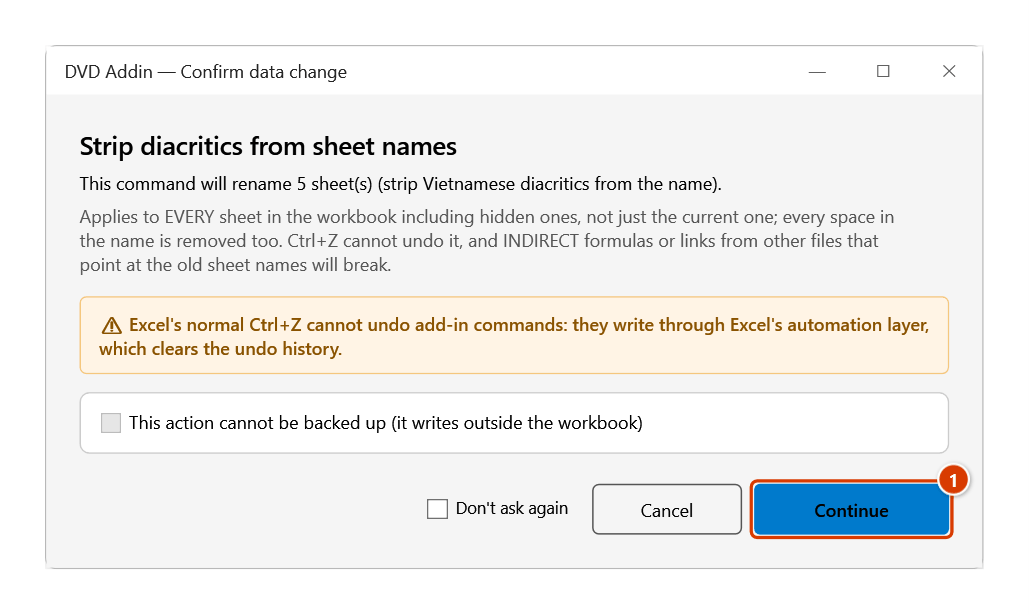
- The add-in counts the sheets that really need renaming (names that are already clean are left alone), then opens the Confirm data change window — note that every space in the names is removed too. Click Continue.
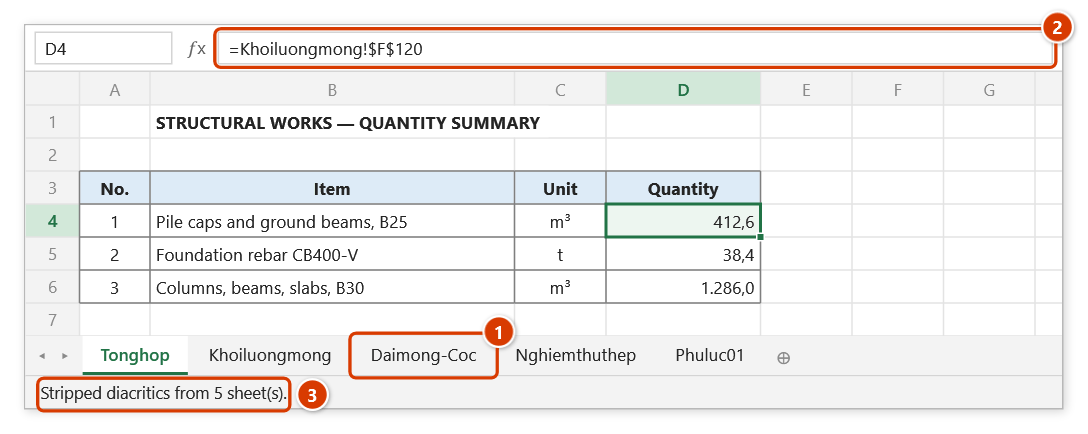
- Accents and spaces are removed; the status bar reports how many sheets were processed, and any refused sheets are listed in a message.
Video tutorial
Narrated in Vietnamese, with Vietnamese subtitles. Đổi tên, Đánh số, Bỏ dấu Sheet · 5 min 53 s · 13 cases · Download the video · Practice workbook for the video
Commands in this video: Rename Sheets · Sheet Numbering · UnDiacritics
Chapters (19)
- Giới thiệu
- Mở lệnh
- 1 · Đổi tên theo bảng
- 2 · Bảng có dòng lỗi
- 3 · Đổi chéo, nối tiếp
- 4 · Công thức theo tên mới
- 5 · Tên trùng sheet ẩn
- Lệnh Đánh số Sheet
- 6 · Đánh số theo thứ tự tab
- 7 · Thêm sheet, chạy lại
- 8 · Số cũ kiểu khác, tên dài
- Lệnh Bỏ dấu Sheet
- 9 · Bỏ dấu tên sheet
- 10 · Sheet ẩn, chữ Đ, dấu cách
- 11 · Trùng tên sau bỏ dấu
- 12 · Khi chọn sai
- 13 · Hoàn tác, đổi ngược
- Mẹo
- Kết thúc
Illustrated walkthrough
Practice
Download this command's sample workbook — the data matches the pictures below (sheet Tổng hợp), so you can follow each step right away.
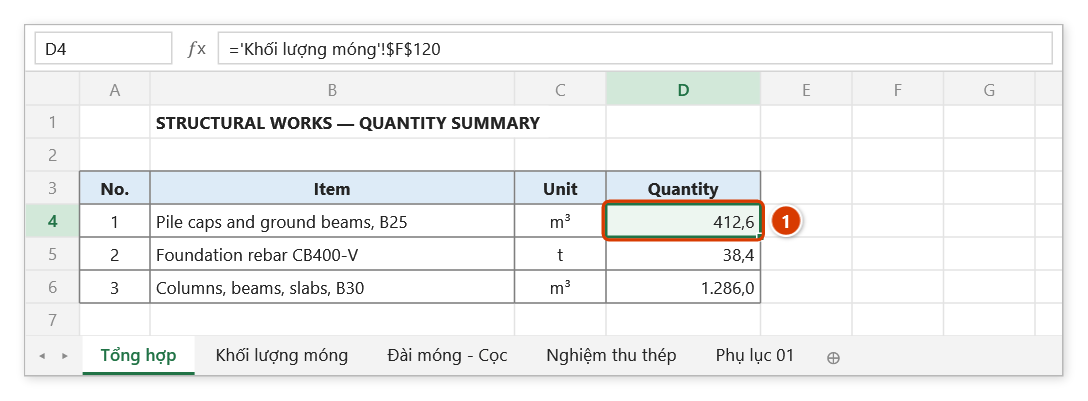
Step 1. Open the workbook whose sheet names contain Vietnamese accents. The command processes every sheet of the active workbook, hidden ones included. Cell D4 (1) refers to the Khối lượng móng sheet.
Step 2. On the ribbon, open the DVD Addin tab → View and Sheets group → open Sheet List → choose UnDiacritics.
Step 3. The add-in counts the sheets that really need renaming and asks again — note that every space in the names is removed too. Click Continue (1).
Step 4. Sheet names lose their accents and spaces: Khối lượng móng → Khoiluongmong, Đài móng - Cọc → Daimong-Coc (1). Formulas inside the workbook follow the new names automatically (2); the status bar reports how many sheets were processed (3).
Example
The structural handover file of a housing project:
| Before | After |
|---|---|
Tổng hợp | Tonghop |
Khối lượng móng | Khoiluongmong |
Đài móng - Cọc | Daimong-Coc |
Nghiệm thu thép | Nghiemthuthep |
Phụ lục 01 | Phuluc01 |
With clean names, link formulas such as ='Khoiluongmong'!$F$120 in the summary workbook no longer break with encoding problems on another machine.
Notes
- The command removes spaces as well as accents —
Khối lượng móngbecomesKhoiluongmong, notKhoi luong mong. đ/Đare converted tod/D; other characters such as-,_and digits are preserved.- It processes every sheet in the workbook, including hidden ones.
- If two sheets would end up with the same plain name (for example
Tầng 1andTang 1both becomeTang1), one of them is refused, keeps its old name and is listed in the final message — rename one of them by hand and run the command again. - Formulas inside the same workbook update automatically, but links from other files and VBA macros that call the old sheet names will break. The change cannot be undone with Ctrl+Z.
Related
- Remove Accents — strips accents from cell contents rather than sheet names.
- UnDiacritics Folder — the same treatment for file and folder names on disk.
- Rename Sheets — controlled renaming through a mapping table.
- Sheet Numbering — number the sheets once the names are normalised.