
Comment by Name
Location on ribbon: Tab DVD Addin → Group Graphics → the arrow next to Pictures
Command ID: btnPictureCommentByName
What it does
This command attaches comment images to a whole range at once: for every cell it takes the cell value as a file name, looks for a matching image in the folder you choose, and sets that image as the comment background (hidden, with the box following the picture's own aspect ratio as in Pic Comment, so nothing is distorted).
It is the fastest way to turn an existing coded list — element marks, inspection record numbers, material codes — into a photo lookup: hover over the code to see the picture, while the table itself stays print-ready.
How to use
- Select the range holding the image names (usually the item-code column).
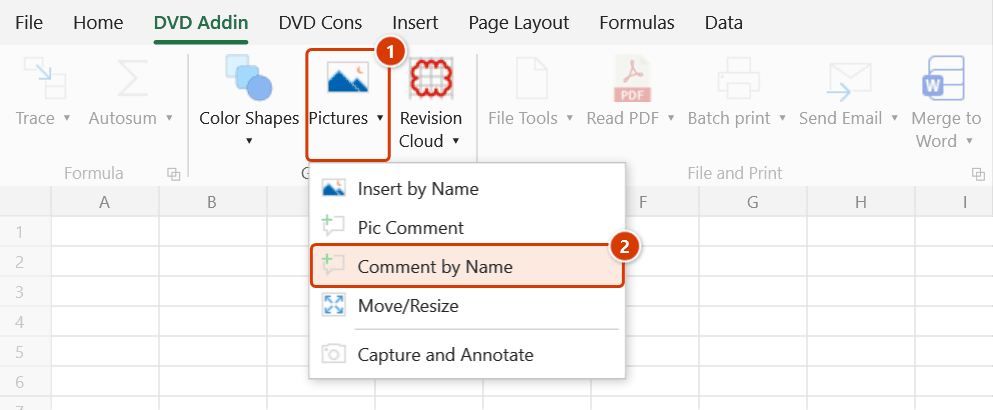
- Go to tab DVD Addin → group Graphics → the arrow next to Pictures → Comment by Name.
- The Select images folder dialog opens — pick the folder and press OK.
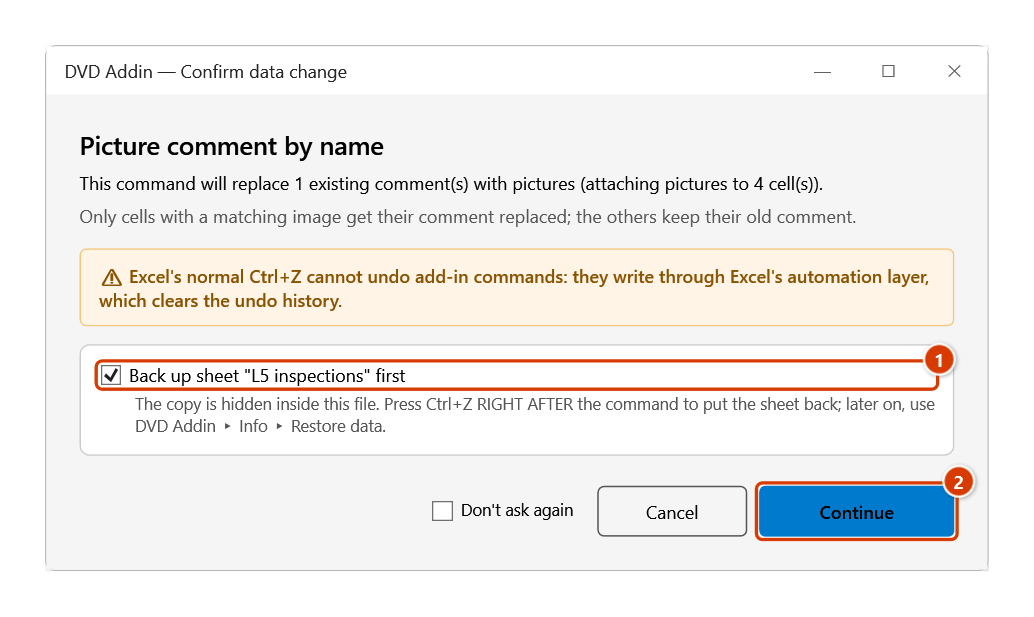
- The command looks up the image for each cell first; only cells where an image was found have their old comment replaced by the picture comment. If some of those cells already hold a comment, the Confirm data change window asks first — keep Back up the sheet first ticked and click Continue. Progress is shown while it runs; press ESC to stop midway.
- The final message reports how many cells received an image and lists the cells where no image was found. Hover over a cell to view it.
Video tutorial
Narrated in Vietnamese, with Vietnamese subtitles. Comment ảnh và Comment theo tên · 6 min 04 s · 12 cases · Download the video · Practice workbook for the video
Commands in this video: Pic Comment · Comment by Name
Chapters (17)
- Giới thiệu
- Mở lệnh
- Hai lệnh
- 1 · Gắn ảnh cho một ô
- 2 · Bôi đen cả vùng
- 3 · Ảnh dọc, ảnh ngang
- 4 · Ô đã có ghi chú
- 4 · Hoàn tác
- 5 · Theo tên cho cả cột
- 6 · Hoa thường, đuôi tệp
- 7 · Bẫy mã số 001
- 8 · Thay ghi chú cũ theo tên
- 9 · Danh sách đang lọc
- 10 · Không tìm thấy ảnh nào
- 11 · Sheet đang bảo vệ
- Mẹo
- Kết thúc
Illustrated walkthrough
Practice
Download this command's sample workbook — the data matches the pictures below (sheet L5 inspections), so you can follow each step right away.
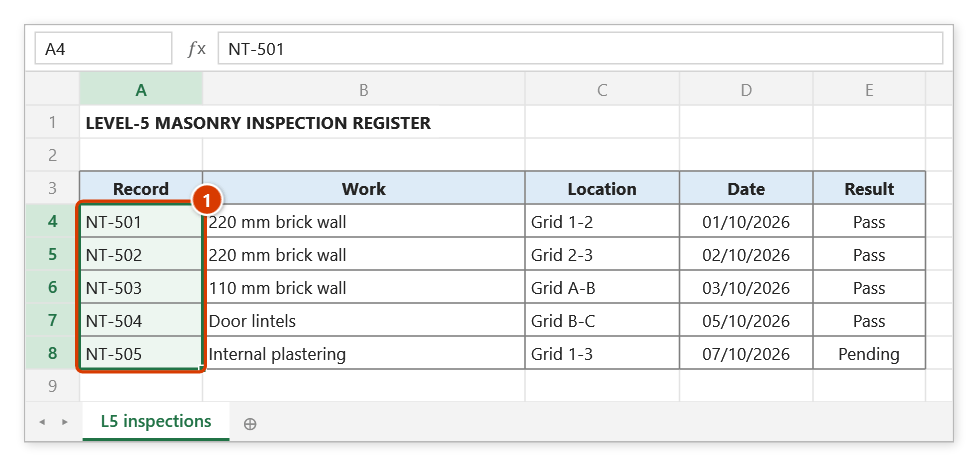
Step 1. Select the cells that hold the picture names — for example the inspection-record numbers A4:A8 (1). Each value is the picture's file name, usually without extension (NT-501).
Step 2. On the ribbon, open the DVD Addin tab → Graphics group → open Pictures → choose Comment by Name.
Step 3. The Select images folder box opens: choose D:\DuAn\VanPhong9T\HoSo\Anh_T5 (holding NT-501.jpg, NT-502.png, NT-503.jpeg, NT-504.jpg) and click OK. The command finds a picture for every cell before touching any comment; names are case-insensitive and subfolders are not searched.
Step 4. If some cells that have a matching picture already hold a comment, a confirmation box asks before replacing them. Keep Back up the sheet first (1) ticked for a way back, then click Continue (2).
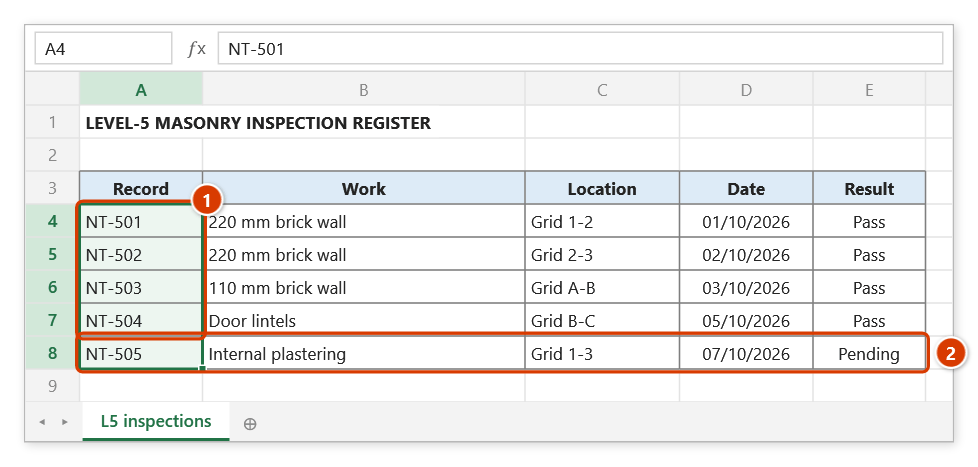
Step 5. The four cells with a matching file get a hidden picture comment (1) — hover to view it, framed in each picture's ratio. The final message reports Added 4 picture comment(s). and lists No picture found (old comment kept): NT-505 (1) (2).
Example
A level-5 blockwork inspection register keeps record numbers in column A. The folder D:\Records\Photos_L5 contains INS-501.jpg, INS-502.png, INS-503.jpeg and so on.
Select A2:A40, run the command and pick the folder. Cell A2 holding INS-501 gets INS-501.jpg; A3 holding INS-502 gets INS-502.png. Records with no photo yet keep their old comment (if any) and are listed in the final message. The register still prints on one page, but during document review a hover is enough to check the site photo.
Notes
- A range must be selected first; if the selection is not a range the command reports "Please select a data range" and stops.
- The cell value is the file name, with or without its extension:
INS-501.jpgmatches that exact file;INS-501matches a picture of that name with any of.jpg,.jpeg,.png,.bmp,.gif,.webp,.tif,.tiff,.emf,.wmf. - Only cells where an image was found lose their old comment (text comments included) to make room for the picture comment. Cells with no matching image keep their old comment and are listed in the final message.
- Each comment box follows its own picture's aspect ratio — portrait photos get portrait boxes, landscape photos landscape boxes, with no distortion.
- Only the chosen folder is searched, never its subfolders; matching is case-insensitive.
- When no cell had a comment before, the command runs straight away and Ctrl+Z will not undo it; to remove the comments in bulk, select the range and delete them manually. When old comments are replaced, keep Back up the sheet first ticked in the confirmation and Ctrl+Z right after the command puts the sheet back.
- With a large range and high-resolution photos the workbook grows a lot, because the images are embedded.
Related
- Pic Comment — attach a single image to the active cell.
- Insert by Name — same name matching, but the picture is placed on the sheet.
- File List — write the folder's file names into the sheet to build a matching code column.
- Resize Images — shrink photos before attaching them in bulk.