
Compare drawings
Ribbon location: DVD Cons tab → QS group
Command ID: btnPdfCompare
License required
This command needs an active DVDAddin account (Standard or PRO). During the Trial period it is fully available.
What it does
Overlays the previous revision on the later one and shows exactly what changed.
| Colour | Meaning |
|---|---|
| Red | Linework that was in the old drawing and is gone from the new |
| Blue | Linework newly added in the later revision |
| Pale grey | Unchanged — kept as background so the drawing still reads |
Every changed area is boxed and numbered; click a row in the list on the right to jump to it.
The window does not lock Excel.
Two things it does that the eye cannot
1. It aligns the two PDF exports for you
Two exports of the same drawing almost never line up pixel for pixel — a plot origin a few millimetres out is routine. Without alignment every line shows as changed, and that result still looks like a real answer.
The add-in finds the translation from a downsampled pyramid up to the full image before comparing. The status bar states how many pixels it had to shift.
2. If it cannot align them, it says so
Different sheet sizes, different scales, or simply not the same drawing — the add-in refuses and explains why, rather than producing a table of noise. A table of noise still looks like a result, and that is the worst kind of wrong.
A different page aspect ratio (A3 landscape against A3 portrait) is caught up front, with both sheet sizes quoted so you can see what happened.
How to use it
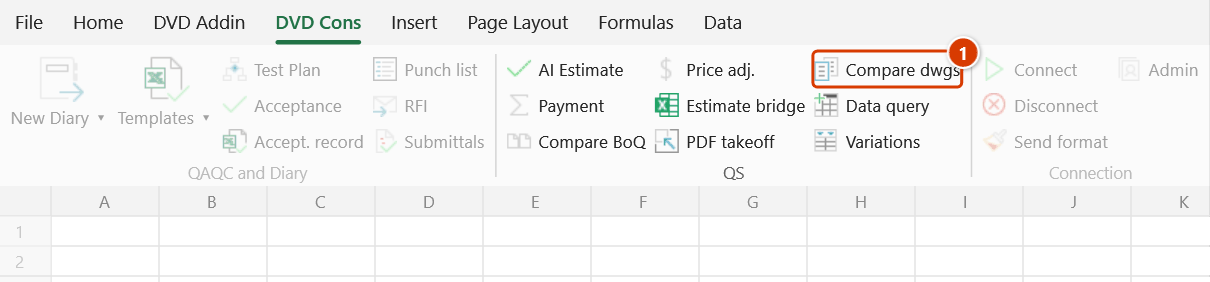
- Click Compare drawings in the DVD Cons tab → QS group.
- Pick the old drawing (previous rev), then the new drawing (later rev).
- Click Compare page for the selected page pair, or Compare all to run through every page of both files (press ESC to stop).
- Click a row in the list on the right to jump to that area.
- Save image writes the overlay to a PNG to attach to a letter; Export changes writes the table to a new Excel sheet.
In New / Old view: Ctrl + wheel zooms, the wheel or a held middle button scrolls. In Overlay view: the wheel zooms and dragging pans. The − / + buttons zoom, and Fit shows the whole page again.
Video tutorial
Narrated in Vietnamese, with Vietnamese subtitles. Đo bóc PDF và So bản vẽ · 8 min 03 s · 26 cases · Download the video
Commands in this video: PDF takeoff · Compare drawings
Chapters (32)
- Giới thiệu
- Mở lệnh
- Phần 1 · Đo bóc PDF
- 1 · Mở bản vẽ, cửa sổ đo
- 2 · Chuẩn hoá tỷ lệ
- 3 · Gõ 7.200 – add-in hỏi lại
- 4 · Kiểm tra chéo tỷ lệ
- 5 · Chiều dài
- 6 · Diện tích, số lần lặp
- 7 · Chu vi
- 8 · Thể tích = diện tích × dày
- 9 · Đếm số lượng
- 10 · Truy bắt điểm, bản scan
- 11 · Trang khác, tỷ lệ khác
- 12 · Trừ lỗ
- 13 · Sửa, xoá phép đo
- 14 · Xuất bảng khối lượng
- 15 · Đóng cửa sổ là mất phép đo
- Phần 2 · So bản vẽ
- 16 · Chọn bản cũ, bản mới
- 17 · Add-in tìm chỗ đổi thế nào
- 18 · Bản mới, mây soát xét
- 19 · Bản cũ – bấm qua lại
- 20 · Chồng ảnh đỏ – xanh
- 21 · Không đổi, lệch gốc in
- 22 · Khác khổ, khác tỷ lệ
- 23 · Độ nhạy, độ nét, cặp trang
- 24 · So cả tập, thêm bớt tờ
- 25 · PDF đánh dấu, lưu ảnh
- 26 · Bảng thay đổi ra Excel
- Mẹo
- Kết thúc
Illustrated walkthrough
Step 1. On the ribbon, open the DVD Cons tab → QS group → click Compare dwgs.
Step 2. Pick the old drawing (previous revision), then the new drawing (later revision) in the two file dialogs that follow. The DVD Addin — Compare two PDF drawings window opens and does not lock Excel.
Step 3. Set Sensitivity and Detail on the toolbar if needed, then click Compare page for the selected page pair or Compare all to go through every page (ESC stops). An offset between the two exports is aligned automatically; if the sheet sizes differ or the pages cannot be aligned, the add-in refuses and says why.
Step 4. Each changed area is clouded and numbered; click a row in the list on the right to jump to it. Switch between New, Old and Overlay (red = removed linework, blue = added). Marked-up PDF writes the clouds onto a copy of the new drawing; Save image saves the overlay as a PNG.
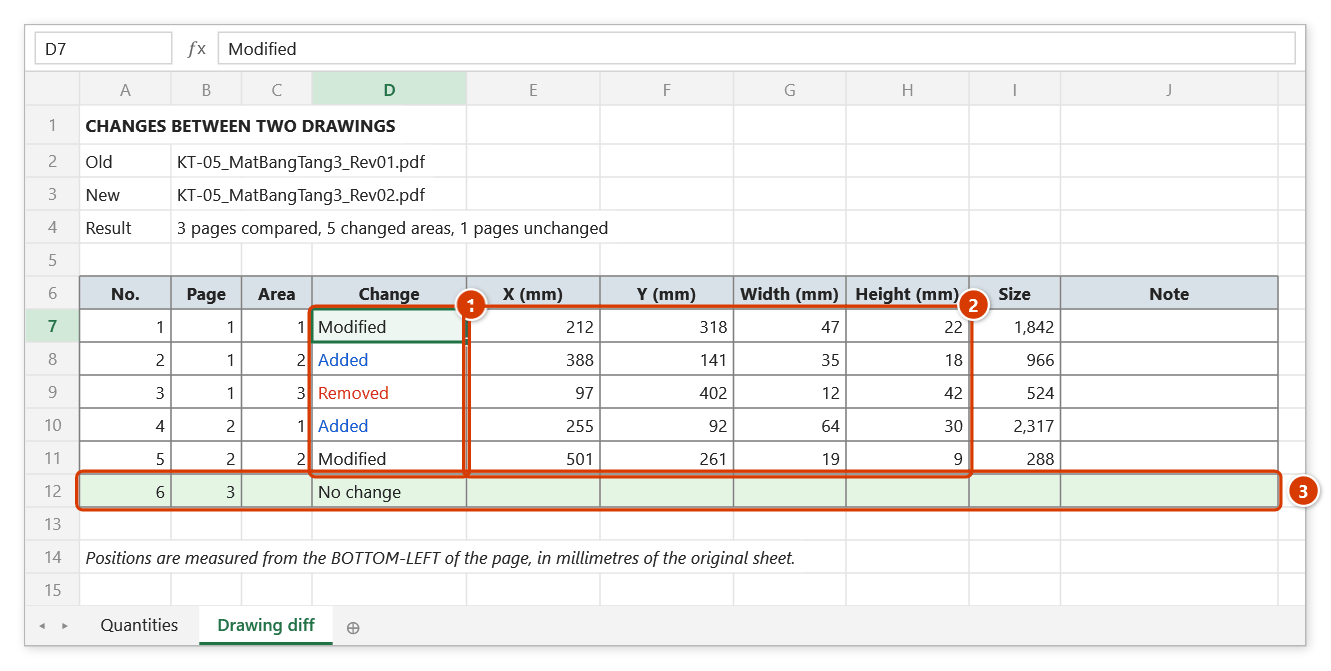
Step 5. Click Export changes: the add-in writes a Drawing diff sheet with one row per area, its Change type (Added in blue, Removed in red) (1) and its position and size in millimetres of the original sheet (2); unchanged or uncompared pages get a row of their own (3).
Sensitivity
| Level | Use when |
|---|---|
| High | You want even tiny changes; noisier because of anti-aliasing |
| Normal | The default — balanced between missing and over-reporting |
| Low | Scanned or poor-quality drawings, where only clear changes matter |
Detail
Detail affects detection only, not viewing: in New / Old mode the drawing is redrawn from the original file, so it stays sharp at any zoom.
A large sheet detected at Normal works out to roughly 2 pixels per millimetre — enough to find changes, but very small edits can slip through. Pick Fine or Very fine to catch those; it takes longer.
Changing the detail level does not change the answer: the same real change comes out at the same position and the same size at all three levels, because every pixel-counted threshold scales with it.
In Overlay mode unchanged linework is deliberately greyed so the red and blue stand out — that is by design, not a damaged drawing. Switch back to New to read the detail.
Three ways to look at it
By default the add-in shows the actual PDF drawing — vector linework, sharp at any zoom — with revision clouds around what changed. That is how drawing reviews are actually done, and it is why you should not be looking at a rasterised image.
| Button | What you get |
|---|---|
| New | The later revision, with the changes clouded. The default. |
| Old | The previous revision, with the same areas clouded. Flip between the two buttons to see before and after. |
| Overlay | Both superimposed: red for what went, blue for what arrived. Fastest to read, but it is an image, so it is softer. |
Cloud colour follows the change type: red for removed, blue for added, orange for modified. The number on each cloud matches the row number in the list and in the exported Excel sheet.
Marked-up PDF
Marked-up PDF clouds the changes onto a copy of the new drawing and saves it as its own PDF. The recipient opens the full-quality original with the clouds on it — that is what you send to the consultant or attach to a letter, not a screenshot.
- The original file is never touched. Pick the same filename and the add-in refuses.
- Pages with no change are not marked; if nothing changed anywhere, no junk file is written.
- Landscape sheets exported from CAD are usually stored as a portrait page with a
/Rotateflag. Both the on-screen clouds and the exported PDF handle the rotation correctly.
The exported change table
One row per area: page, area number, change type (Added / Removed / Modified), X, Y and size in millimetres of the original sheet, the changed-pixel count, note.
The list in the window also gives each area's size in millimetres — a number you can hold against the printed drawing.
Positions are measured from the bottom-left of the page, so they read straight off the printed drawing.
Pages that could not be compared, and pages that are a whole sheet added or removed, get a row too — dropping them would make the table look like everything had been checked.
Notes
- A drawing that is mostly repeating linework — a bar bending schedule, a ceiling grid, tiling, scaffolding, a curtain wall — can have several alignments that fit almost equally well, meaning the shift between the two simply cannot be determined. The add-in refuses and says so in that case, because picking one at random produces a table of changes that is entirely fabricated and gives no sign of it.
- Compare-all pairs page 1 with page 1, page 2 with page 2. Extra pages in the longer file are logged as a whole sheet added or removed.
- For pages that are out of order, set the page numbers in the Old page / new boxes and use Compare page.
- Both pages are rendered to the same width, so the same drawing exported at A1 and at A3 still compares — as long as the aspect ratio matches.
- The comparison runs at a resolution chosen to detect change (different text means different pixels, even where the text is too small to read at that size). Zoom the original PDF to read the detail.
- One change made of several separate ink clusters — adding a room gives you the room outline and its label — is listed as several areas. Merging them would mean joining changes a centimetre apart, and then the table stops meaning anything.
- Clicking Export while Excel is mid-edit in a cell means Excel refuses the write; the add-in says so.
See also
- PDF takeoff — measure quantities on the drawing.
- RFI — raise a query when the new drawing contradicts the old.
- Variation register — a drawing change usually brings a variation with it.
- Read PDF · Stamp PDF