
Export XML (P6/MSP)
Location on ribbon: Tab DVD Cons → Group Schedule → the arrow next to Setup
Command ID: btnExportXml
PRO feature
This command is part of the PRO package. STANDARD accounts activated before 1 July 2026 keep access until their licence expires; other Standard accounts will see an upgrade dialog.
What it does
Exports the whole schedule on the active sheet to a Microsoft Project XML (MSPDI) file: tasks, start/finish dates, durations, % complete, WBS level, plus the FS/SS/FF/SF relationships with their lags.
Use it when the client or the main contractor wants the programme as an MS Project or Primavera P6 file rather than a spreadsheet. The command is read-only — nothing on the sheet changes.
How to use
- Select the schedule sheet you want to export (it must be a worksheet, not a chart sheet).
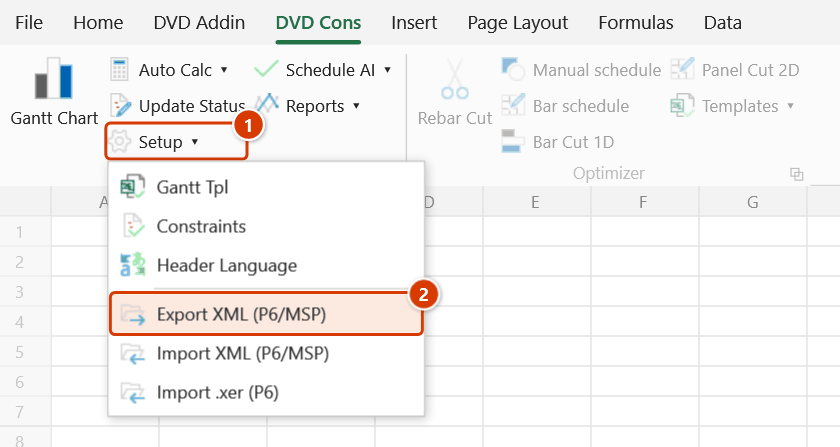
- Go to the DVD Cons tab → Schedule group → click the arrow next to Setup → Export XML (P6/MSP).
- The Export MS Project XML save dialog appears with a default file name taken from the workbook (filter
MS Project XML (*.xml)). Choose a folder and click Save. - The add-in writes the file and reports:
✓ Exported N tasks, M links to: <path>along with a reminder of how to open it. - A follow-up prompt asks Open the containing folder? — answer yes to jump to the file in Explorer.
- In Primavera P6, import it via File → Import → Microsoft Project XML.
Video tutorial
Narrated in Vietnamese, with Vietnamese subtitles. Xuất, Nhập MS Project và P6 · 6 min 24 s · 16 cases · Download the video · Practice workbook for the video
Commands in this video: Export XML (P6/MSP) · Import .xer (P6) · Import XML (P6/MSP)
Chapters (22)
- Giới thiệu
- Mở lệnh
- 1 · Xuất bảng tiến độ
- 2 · Cấp WBS và dòng tổng
- 3 · Quan hệ và lag
- 4 · Lịch làm việc, ngày lễ
- 5 · % hoàn thành, thực tế
- 6 · Ràng buộc
- 7 · Tên tệp, ký tự đặc biệt
- 8 · Khi không xuất được
- Nhập XML
- 9 · Nhập lại tệp XML
- 10 · Lịch tệp khác lịch sổ
- 11 · Tệp Primavera P6 XML
- 12 · Tệp XML sai, hỏng
- Nhập .xer
- 13 · Nhập .xer một dự án
- 14 · Tệp .xer nhiều dự án
- 15 · Lịch, giờ, mã hoá, tệp sai
- 16 · Vẽ tiến độ sau khi nhập
- Mẹo
- Kết thúc
Illustrated walkthrough
Practice
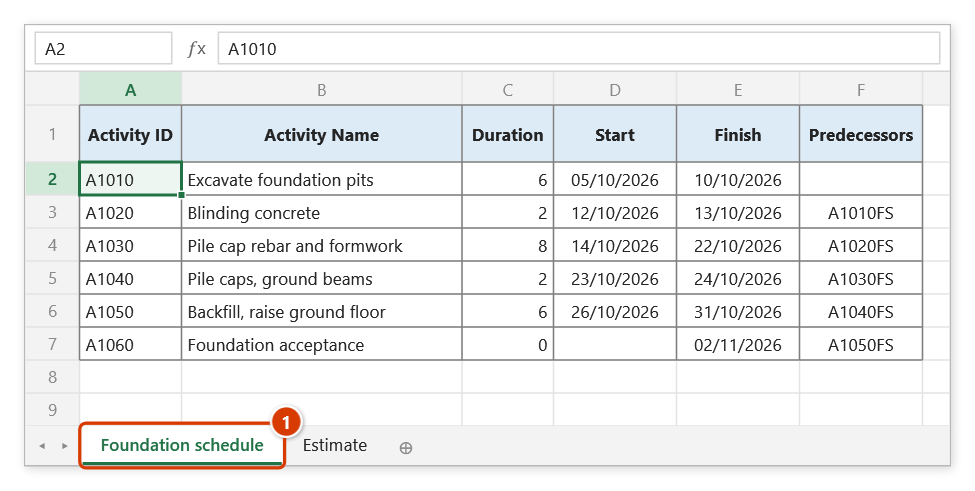
Download this command's sample workbook — the data matches the pictures below (sheet Foundation schedule), so you can follow each step right away.
Step 1. Open the schedule sheet to export (1) (it must be a worksheet). Let Auto Calc finish a pass first so the dates are current — the command only reads, it never changes the sheet.
Step 2. On the ribbon, open the DVD Cons tab → Schedule group → open Setup → choose Export XML (P6/MSP).
Step 3. The Export MS Project XML box suggests a file name from the workbook name (TD_NhaVanPhong.xml, filter MS Project XML (*.xml)). Pick a folder, e.g. D:\DuAn\NhaVanPhong9Tang\, and click Save (an existing file prompts before being overwritten).
Step 4. The message ✓ Exported 6 tasks, 5 links to: D:\DuAn\NhaVanPhong9Tang\TD_NhaVanPhong.xml ends with Open the containing folder? — choose Yes to open Explorer at the file. Rows whose Duration does not match their Start–Finish span are listed by ID at the end of the message (the XML follows Duration).
Step 5. Open the file in MS Project, or in Primavera P6 via File → Import → Microsoft Project XML. Every task carries a Start No Earlier Than constraint equal to its Start on the sheet, so the dates are not pulled earlier than in Excel.
Example
The N3 interchange flyover package is scheduled in Excel with DVDAddin, but the tender submission requires a P6 file.
Open the schedule sheet (128 activities, 190 links), click Export XML (P6/MSP) and save as Flyover_N3.xml. The message reads ✓ Exported 128 tasks, 190 links…. The consultant imports it into P6 via File → Import → Microsoft Project XML and sees the full WBS structure along with the FS/SS relationships and their lags.
Notes
- If the active sheet is not a worksheet, the add-in reports "Active sheet is not a worksheet." and stops.
- The command is read-only — it does not edit data or move dates on the sheet.
- If the export fails (missing required columns, invalid data), the add-in shows a
⚠warning with the reason instead of writing an empty file. - Choosing an existing file name prompts you to confirm the overwrite before the export runs.
- Run Auto Calc once before exporting so the dates on the sheet reflect the latest calculation.
- Dates are held in place by a constraint. Every leaf task in the XML carries a Start No Earlier Than constraint set to its Start date on the sheet. Without a constraint MS Project ignores the dates in the file and reschedules everything to the earliest its links allow — whole chains land 1–2 days earlier than in Excel. It is a soft constraint: tasks stay auto-scheduled and still slip when a predecessor is late. Put
ASAPin the Constraint Type column to let MS Project schedule freely, orMSOto pin a task hard. - The Duration column wins, not the Finish column. If a row's Duration disagrees with its own Start–Finish span — common on tasks that already have Actual Start / Actual Finish, where the CPM keeps the recorded dates and the Duration column is still the old planned figure — the XML follows Duration. After the export the add-in lists those activity IDs so you can fix the sheet.
Related
- Import XML (P6/MSP) — the other direction: bring an MS Project / P6 programme into Excel.
- Gantt Chart — build and sanity-check the schedule before exporting.
- Auto Calc — make sure the schedule is fully recalculated before you submit.
- Constraints — set the contractual milestones before finalising the submission file.