
Smart Data Cleaning…
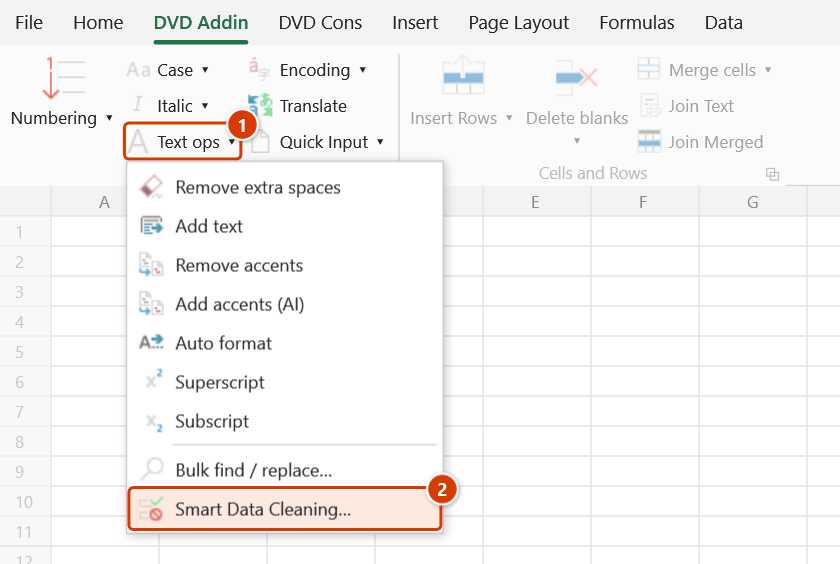
Location on ribbon: Tab DVD Addin → Group Text and Number → Menu Text ops
Command ID: btnDataCleaning
What it does
The command opens the Smart Data Cleaning window, which bundles six clean-up jobs into one run: trimming whitespace, normalising case, repairing Vietnamese encoding damage (mojibake), normalising date formats, normalising Vietnamese phone numbers and removing duplicate rows.
It suits tables assembled from many sources: site access lists, subcontractor contact sheets, material logs merged from files written by different people. The window skips formula cells and blanks, so it is safe to run over a sheet that already contains calculations.
How to use
- Select the range to clean in Excel.
- Go to tab DVD Addin → group Text and Number → menu Text ops → Smart Data Cleaning….
- In the window, tick the operations you want:
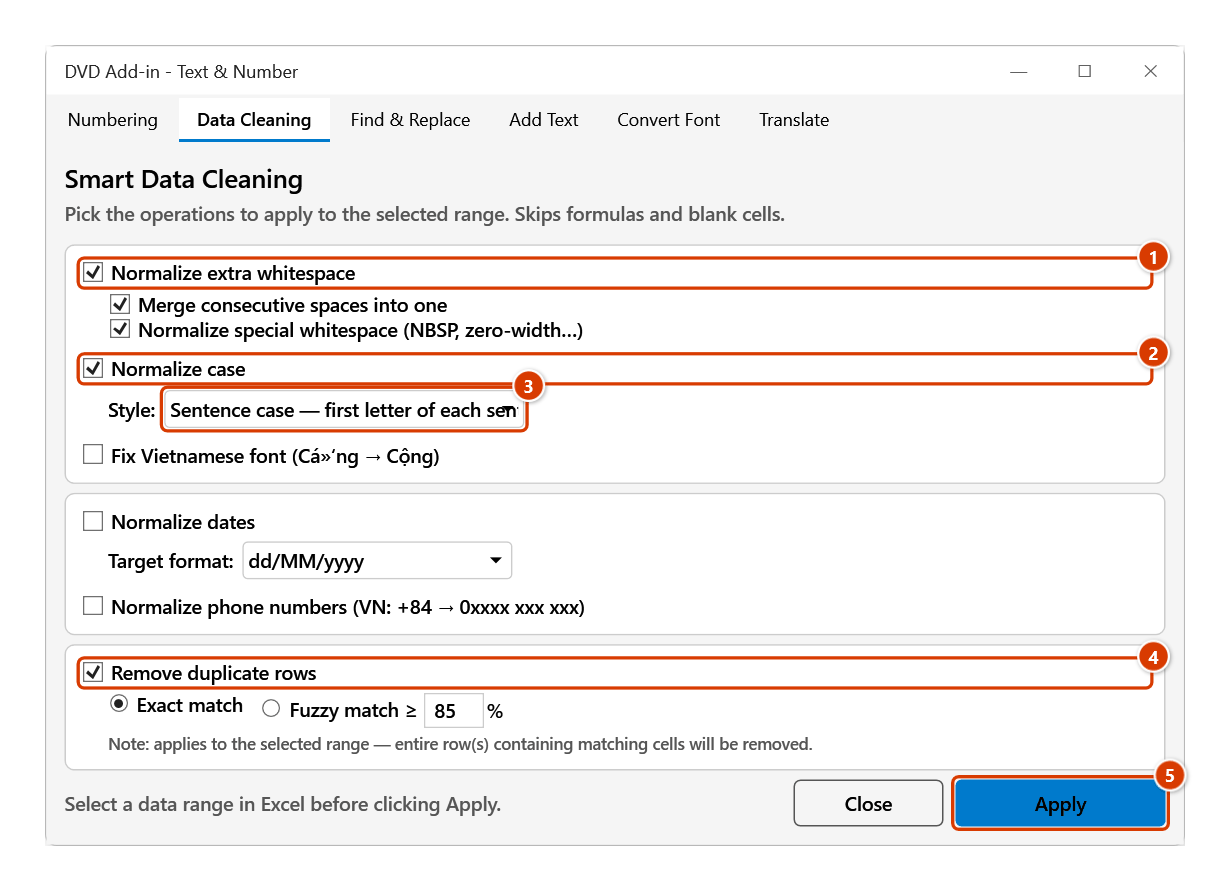
- Normalize extra whitespace (on by default) — with two sub-options: Merge consecutive spaces into one and Normalize special whitespace (NBSP, zero-width…).
- Normalize case — pick a Style: UPPERCASE, lowercase, Title Case (default) or Sentence case.
- Fix Vietnamese font — repairs broken strings such as
Cốngback intoCộng. - Normalize dates — pick a Target format:
dd/MM/yyyy,yyyy-MM-ddorMM/dd/yyyy. - Normalize phone numbers — rewrites Vietnamese numbers as
0xxxx xxx xxx, including ones written with+84. - Remove duplicate rows — choose Exact match or Fuzzy match ≥ with a percentage threshold (85 by default).
- Click Apply. The status line at the bottom shows progress and then the result, e.g. "✓ Done — fixed 214 cell(s), removed 6 duplicate row(s)".
- The window does not lock Excel: select another range and click Apply again. Click Close when done.
Video tutorial
Narrated in Vietnamese, with Vietnamese subtitles. Dọn dữ liệu thông minh · 6 min 06 s · 11 cases · Download the video · Practice workbook for the video
Chapters (16)
- Giới thiệu
- Mở lệnh
- Cửa sổ Dọn dữ liệu
- 1 · Bảng gom từ nhiều file
- 2 · Ký tự ẩn từ trang web
- 3 · Xuống dòng trong ô
- 4 · Họ tên hoa thường lộn xộn
- 5 · Ngày tháng dạng chữ
- 6 · Số điện thoại
- 7 · Xoá trùng: chọn thiếu cột
- 8 · Danh sách đang lọc
- 9 · Dòng gần giống nhau
- 10 · Ghi đè và hoàn tác
- 11 · Khi bấm mà không chạy
- Mẹo
- Kết thúc
Illustrated walkthrough
Practice
Download this command's sample workbook — the data matches the pictures below (sheet Materials), so you can follow each step right away.
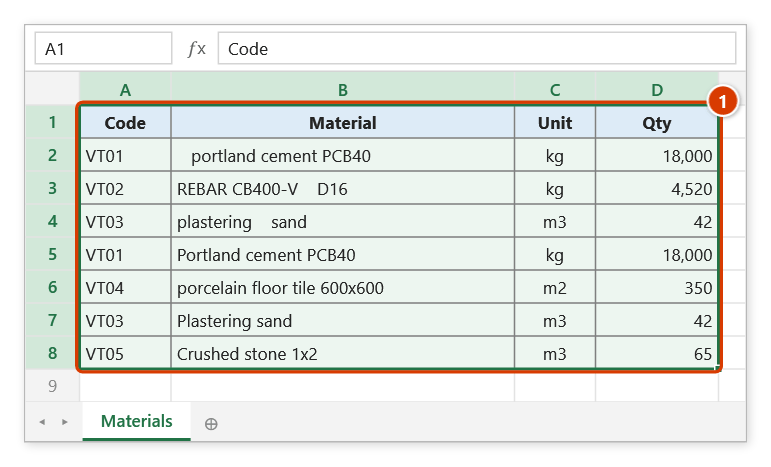
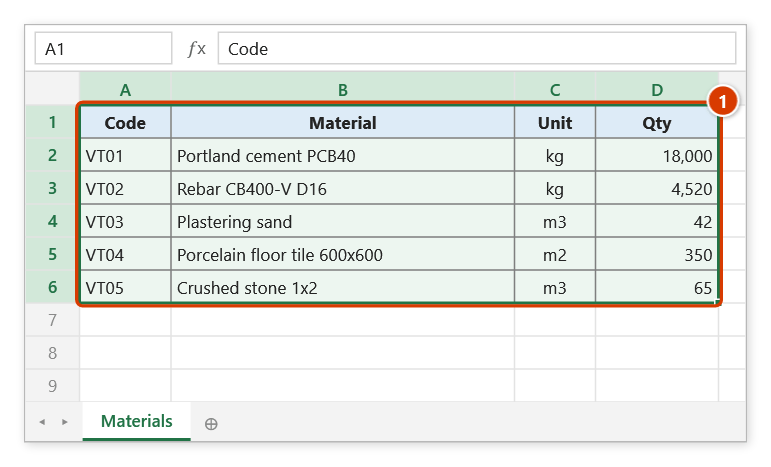
Step 1. Select the whole table to clean, header row included (1). The example is a material list merged from several files: stray spaces, inconsistent capitals and two rows entered twice.
Step 2. On the ribbon, open the DVD Addin tab → Text and Number group → open Text ops → choose Smart Data Cleaning….
Step 3. The Data Cleaning tab opens. Keep Normalize extra whitespace ticked (1), tick Normalize case (2) and pick Sentence case as the style (3), tick Remove duplicate rows with Exact match (4), then click Apply (5).
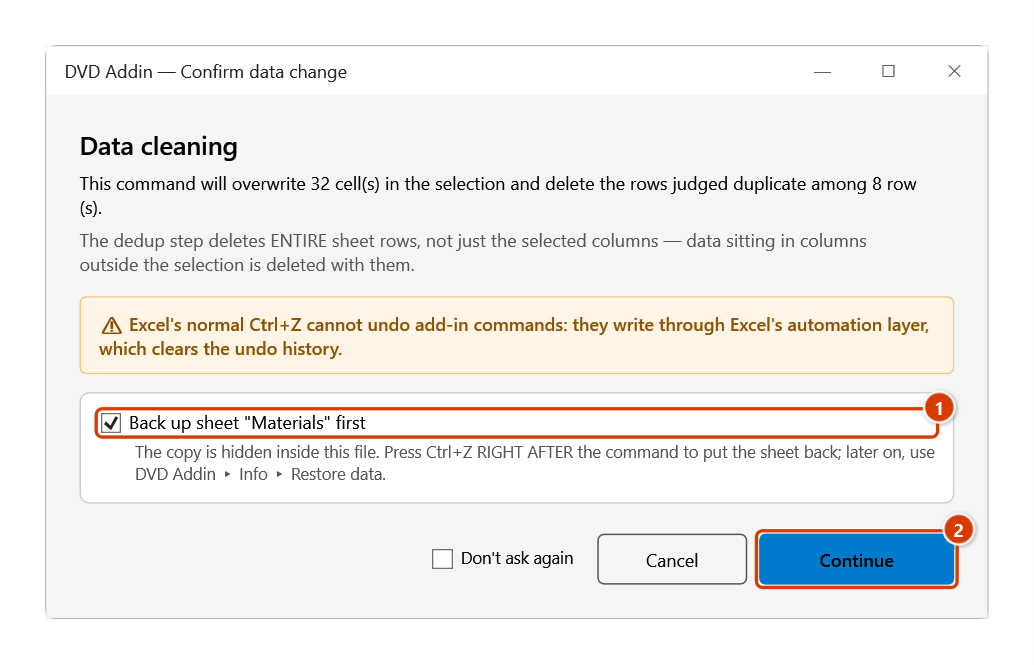
Step 4. Because the dedup step deletes entire sheet rows, the add-in asks once for all ticked steps. Keep the sheet backup ticked (1) and click Continue (2).
Step 5. Material names are trimmed and in sentence case, while the codes PCB40, CB400-V, D16 and the units kg, m3 stay as typed; the two duplicate rows are gone (1). The window's status line reports ✓ Done — fixed 7 cell(s), removed 2 duplicate row(s).
Example
A site access list arrives from three crews in three different files and is pasted into one sheet: names in mixed casing, rows carrying hard spaces copied from a web page, phone numbers written sometimes with +84 and sometimes with 0, and a few people entered twice.
Select the whole table, open the command, tick Normalize extra whitespace (keeping both sub-options), tick Normalize case with Title Case, tick Normalize phone numbers, tick Remove duplicate rows with Exact match, then click Apply. The result is a consistent list of names, one phone format and no repeated rows. To catch near-duplicates (a typo apart), run again with Fuzzy match: suspected duplicates are highlighted yellow for review.
Notes
- You must select the range first; otherwise the window reports "Please select a data range in Excel".
- Formula cells and blank cells are skipped, so your calculated values are not overwritten.
- Remove duplicate rows deletes the entire row that contains a matching cell in the selection — including columns outside the part you are looking at. This is the riskiest option in the window.
- Normalize whitespace keeps line breaks inside a cell (Alt+Enter): it only collapses spaces/tabs within each line and trims each line.
- Normalize case follows the same rules as the commands in the Case menu:
- Every style keeps units of measure exactly as typed (
MPa,kN,kg,mm,m2,m3…). UPPERCASE keeps only the units and capitalizes everything else. - lowercase, Title Case and Sentence case also keep marks that mix letters and digits (
C1,D12,P66…), common abbreviations (TCVN,QCVN,UBND,BTCT,HDPE…) and — in a cell that also contains lowercase text — every ALL-CAPS word of 2 or more letters (treated as an abbreviation). So a name typed in capitals inside lowercase text (for examplele hoang NAM) staysNAM. - Sentence case capitalizes the first letter of each sentence.
- Every style keeps units of measure exactly as typed (
- Normalize dates only rewrites dates stored as text; numeric cells (quantities, prices, real dates) are left alone.
- Fuzzy match deletes nothing: suspected duplicates are highlighted yellow for you to review and delete. Duplicates in hidden or filtered rows are never deleted.
Ctrl+Zright after the command puts the sheet back as it was (thanks to the backup); later on, recover it from Restore data.- With no operation ticked the window reports "No operation selected" and does nothing.
Related
- Remove extra spaces — the one-click version when trimming is all you need.
- Bulk find / replace… — keyword-driven edits with a per-cell preview.
- Auto format — turn the normalised date and number strings into real data types.
- Encoding — use this when the display problem is a TCVN3/VNI font rather than mojibake.