
Bulk find / replace…
Location on ribbon: Tab DVD Addin → Group Text and Number → Menu Text ops
Command ID: btnBulkFindReplace
What it does
The command opens the Bulk Find / Replace window, an upgrade over Excel's built-in Find & Replace. The key difference is the preview: you see the full list of cells that will change (sheet, cell address, before and after text) and decide which ones to apply.
It also supports wildcards and regular expressions, can run across every open workbook, saves a parameter set as a reusable preset, and includes a Σ Sum tool that totals the quantity column of the matching rows — ideal for answering "what is the total quantity of every line mentioning M250?".
How to use
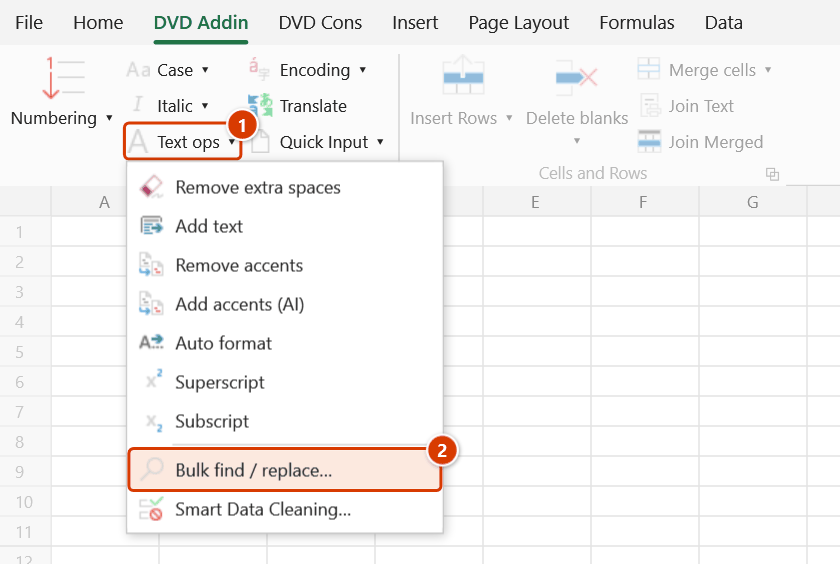
- Select a range if you want to work in a narrow scope, then go to tab DVD Addin → group Text and Number → menu Text ops → Bulk find / replace….
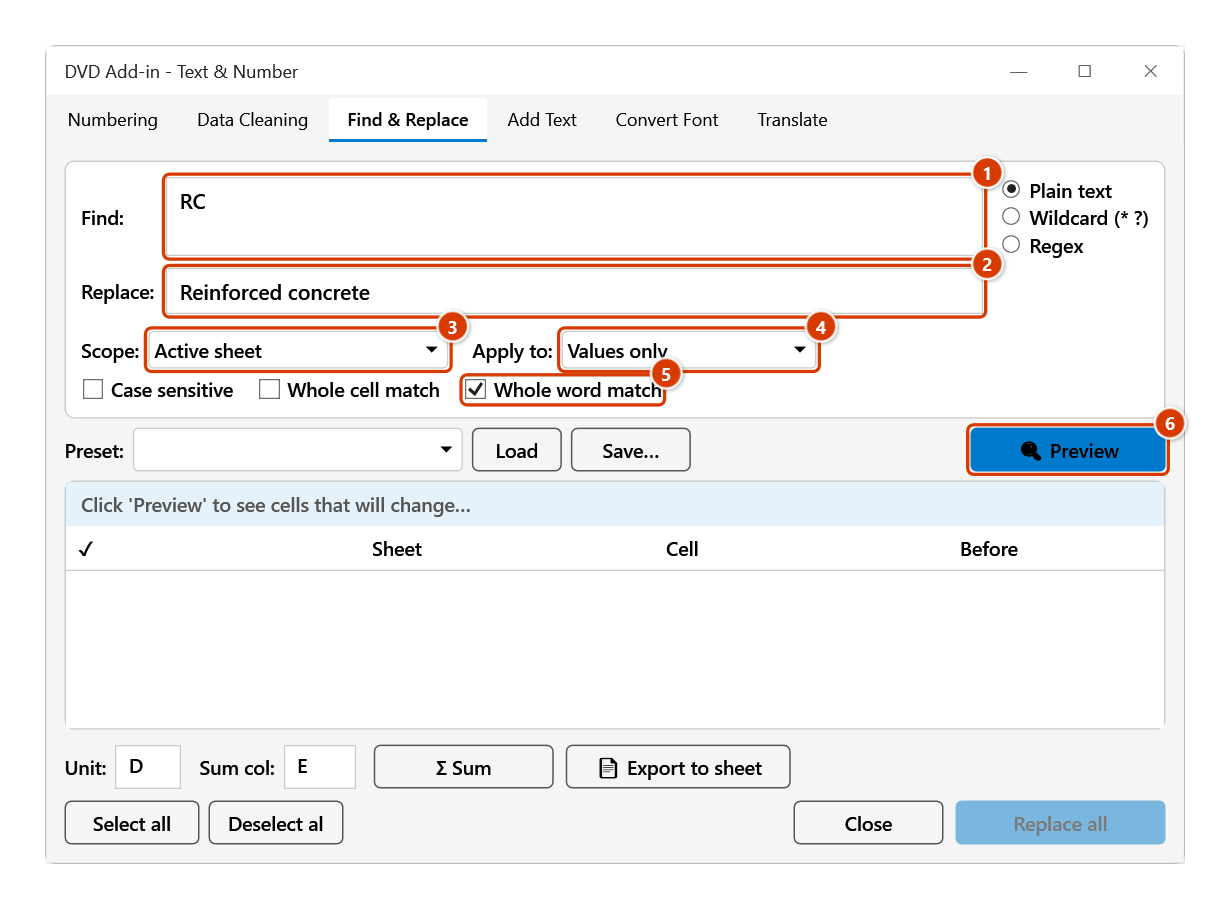
- Fill in Find: and Replace:, then pick the match mode: Plain text, Wildcard (* ?) or Regex.
- Choose the Scope: Selected range / Active sheet / Active workbook / All open workbooks, and Apply to: Values + formulas / Values only / Formulas only.
- Tick the options you need: Case sensitive, Whole cell match, Whole word match.
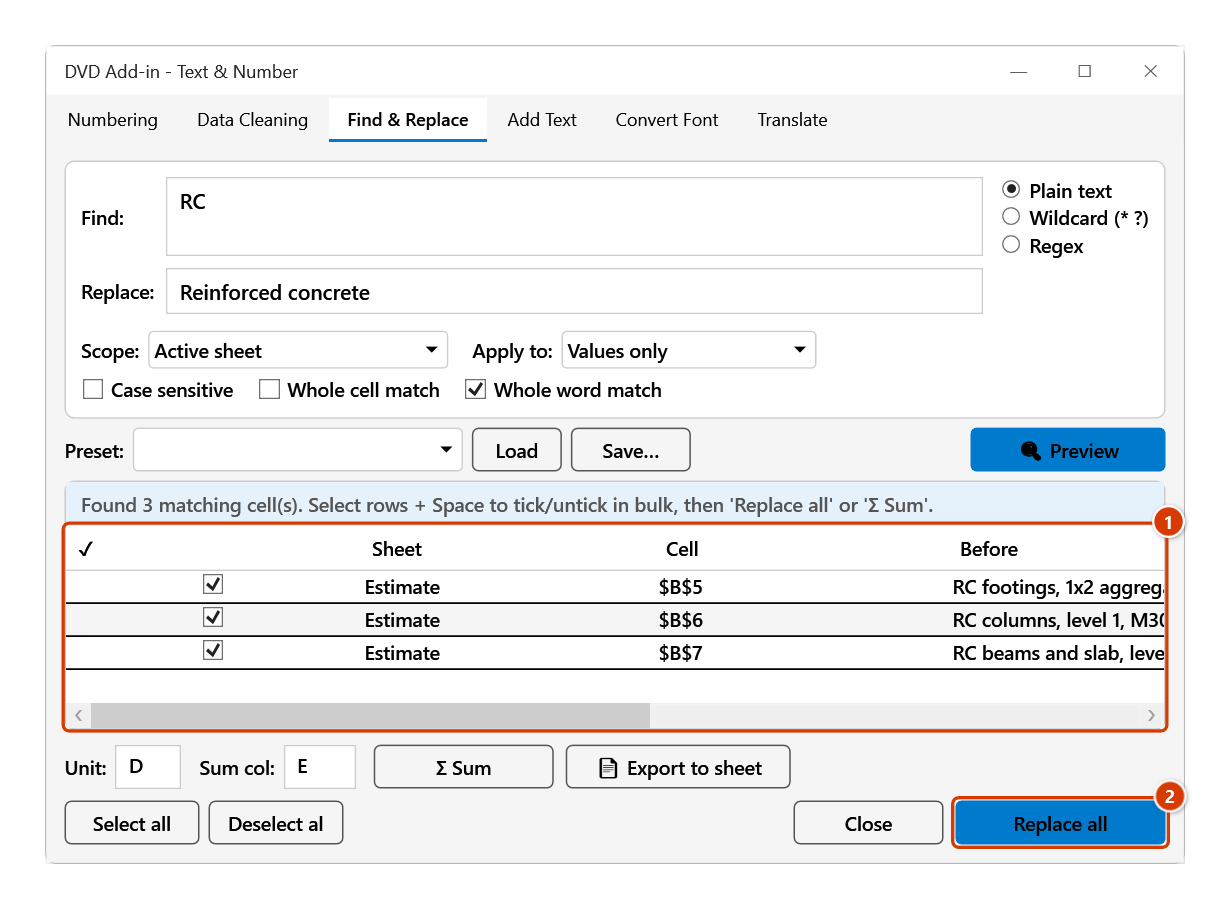
- Click 🔍 Preview. The result grid lists Sheet, Cell, Before, After, Unit and Value columns with a tick box on each row.
- Use Select all / Deselect all, or highlight several rows and press Space to tick or untick them in bulk.
- Click Replace all to apply the ticked rows. To keep the settings, click Save… next to Preset: and name it; next time pick the preset and click Load.
Video tutorial
Narrated in Vietnamese, with Vietnamese subtitles. Tìm - Thay hàng loạt · 5 min 23 s · 12 cases · Download the video · Practice workbook for the video
Chapters (17)
- Giới thiệu
- Mở lệnh
- Cửa sổ Tìm kiếm thay thế
- 1 · Xem trước rồi mới thay
- 2 · Khớp toàn bộ từ
- 3 · Toàn bộ ô và hoa thường
- 4 · Wildcard – dấu sao
- 5 · Regex – biểu thức chính quy
- 6 · Danh sách đang lọc
- 7 · Ô công thức
- 8 · Ô số và ô ngày
- 9 · Nhiều sheet một lúc
- 10 · Cộng khối lượng, xuất sheet
- 11 · Ghi đè và hoàn tác
- 12 · Khi nhập sai
- Mẹo
- Kết thúc
Illustrated walkthrough
Practice
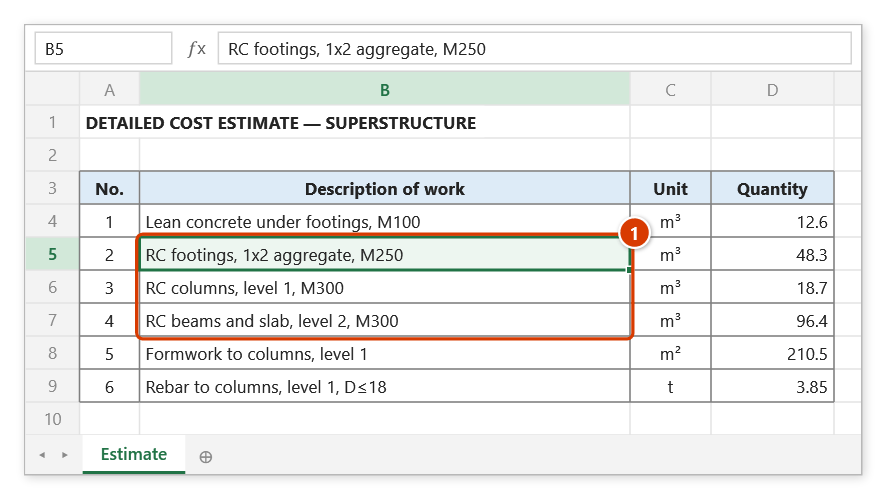
Download this command's sample workbook — the data matches the pictures below (sheet Estimate), so you can follow each step right away.
Step 1. Open the sheet to fix. In the estimate below several lines use the abbreviation RC (1), which must read "Reinforced concrete" in the printed submission.
Step 2. On the ribbon, open the DVD Addin tab → Text and Number group → open Text ops → choose Bulk find / replace….
Step 3. The Find & Replace tab opens. Type RC in Find: (1) and Reinforced concrete in Replace: (2); set Scope: to Active sheet (3) and Apply to: to Values only (4) so formulas stay intact, tick Whole word match (5), then click 🔍 Preview (6).
Step 4. The result grid lists every cell that will change — Sheet, Cell, Before, After (1); untick the rows to keep (select several rows and press Space to tick/untick them together). Click Replace all (2).
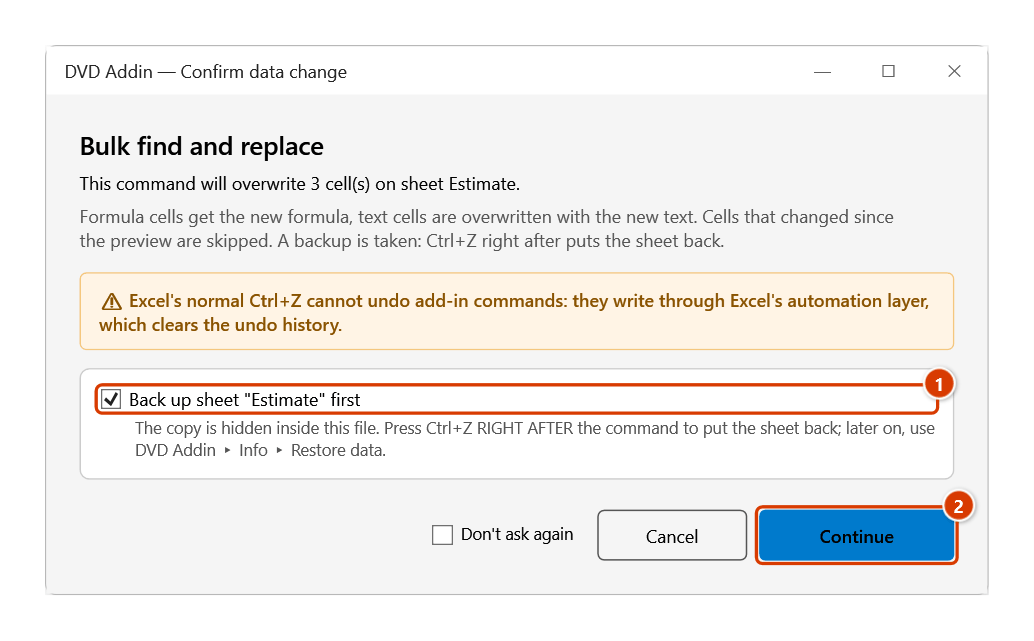
Step 5. The add-in asks before writing: keep the sheet backup ticked (1) and click Continue (2).
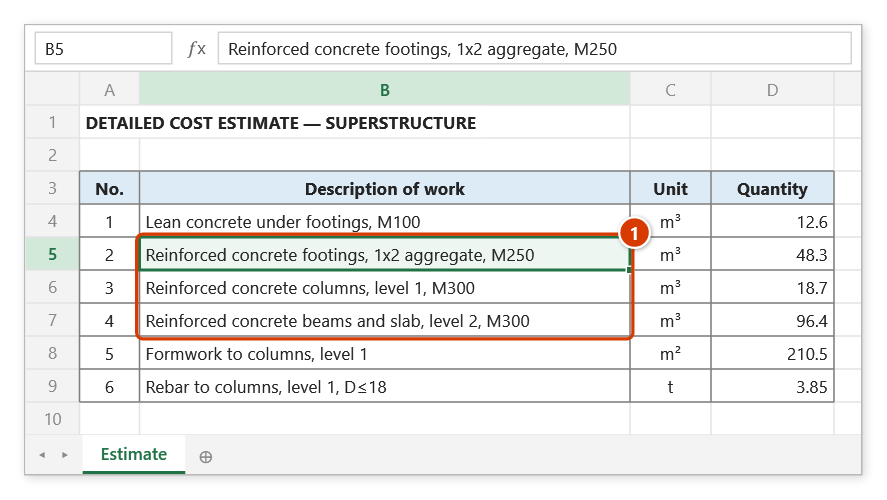
Step 6. The three cells are replaced (1); the window's status line reports ✓ Replaced 3/3 cell(s). Number and date cells, and lines without RC as a separate word, are left untouched.
Example
An estimate workbook with 12 sheets uses the abbreviation "BTCT" where the printed submission to the client needs "Bê tông cốt thép".
Open the command, set Find BTCT, Replace Bê tông cốt thép, Scope Active workbook, Apply to Values only (so formulas stay intact), tick Whole word match. Click Preview — the grid lists 87 cells across 9 sheets. Scan the Before/After columns, untick the 3 rows that belong to the internal notes sheet, then click Replace all.
To total the quantities of the matched rows, type the unit column into Unit: (say D) and the quantity column into Sum col: (say E), then click Σ Sum. Use Export if you need the match list saved to a new sheet as a record.
Notes
- Replace all is disabled until you have run Preview and it returned matches.
- Any change to the parameters (search text, scope, options) invalidates the previous preview — run Preview again.
- Values + formulas and Formulas only edit inside formulas and can break references. When you only mean to change displayed text, choose Values only.
- The All open workbooks scope also touches other files currently open on the machine, so check before running.
- Only text cells and formula cells are changed; number, date and TRUE/FALSE cells are skipped (searching "45" no longer hits every 2023–2025 date, whose serial numbers are 45xxx). When number/date cells matched but were skipped, the status line says how many.
- On Replace all each cell is read again: cells that changed since the Preview (edited, sorted, rows inserted or deleted) are skipped and counted — nothing is written into the wrong cell any more. Run Preview again to pick them up.
- The Selection scope covers every area of a multi-area selection (Ctrl+click), and a whole column / whole sheet (Ctrl+A) only scans the used part.
- When every change sits on one sheet a backup is taken: Ctrl+Z right after puts the sheet back. Changes across several sheets or workbooks cannot be backed up — save the files before clicking Replace all.
Related
- Smart Data Cleaning… — rule-based clean-up instead of manual find/replace.
- Add text — bulk prefixes and suffixes, which find/replace handles awkwardly.
- Remove extra spaces — normalise whitespace so search strings match exactly.
- Auto format — restore real number types after stripping stray characters from a number column.