
Create Title
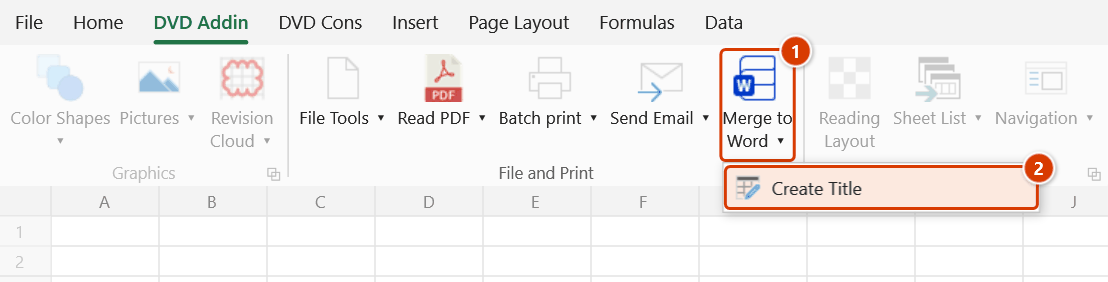
Location on ribbon: Tab DVD Addin → Group File and Print → the arrow next to Merge to Word
Command ID: btnCreateTitle
What it does
Wraps each header cell of a table in square brackets [...] so it becomes a mail-merge field. This is the preparation step for the Merge to Word command: DVDAddin matches placeholders in the Word template by the literal string [Column name].
Site engineers use it when a single Excel table has to produce a stack of documents — inspection request forms, concrete sampling records, work assignment slips — one document per data row.
How to use
- Open the sheet holding the data table with a proper header row (one name per column).
- Go to tab DVD Addin → group File and Print → the arrow next to Merge to Word → Create Title.
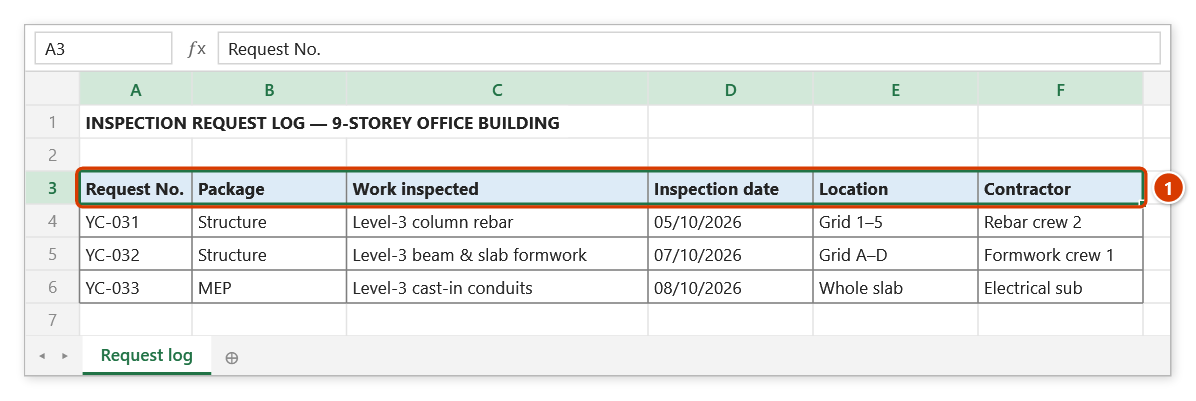
- The range picker appears, prompting you to select the title row to wrap with
[...]. - Drag-select the header row (for example
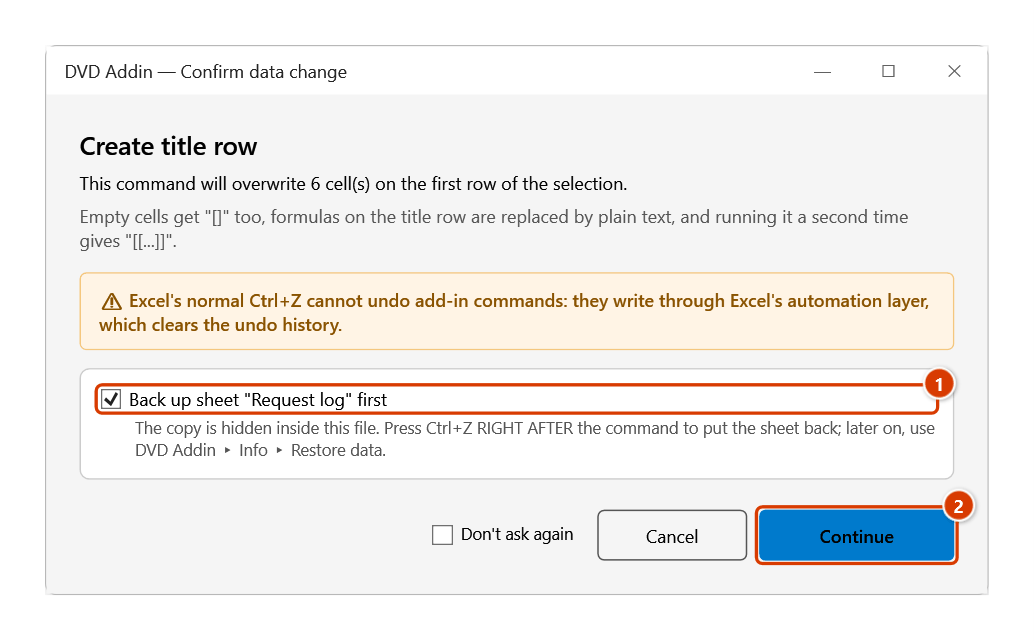
A3:H3) and click OK. Cancel exits without changing anything. - The Confirm data change window warns that empty cells become
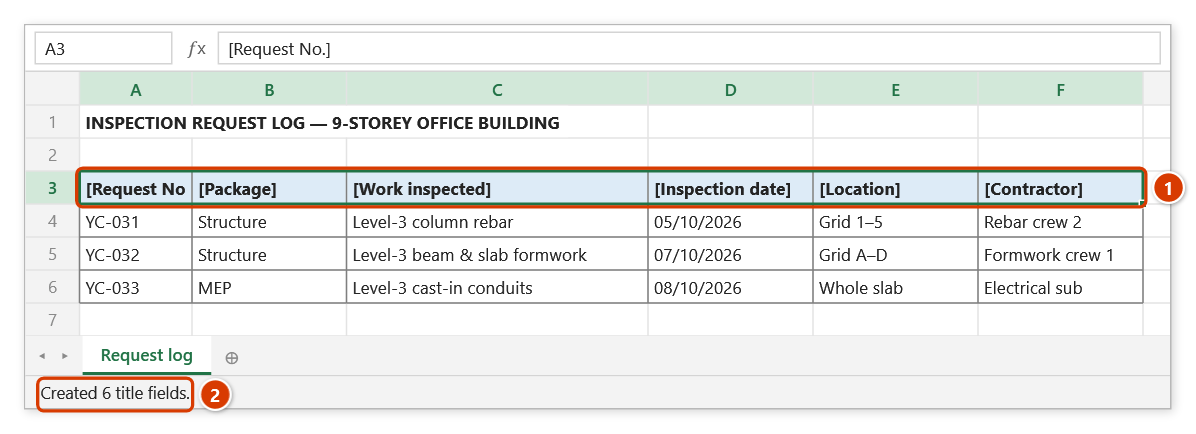
[], formulas are replaced by text and a second run gives[[...]]— keep Back up sheet ticked and click Continue. The add-in then rewrites every cell on the first row of the picked range as[old value], and the status bar reports "Created N title fields." - Use the prepared table as the data source for Merge to Word.
Video tutorial
Narrated in Vietnamese, with Vietnamese subtitles. Trộn sang Word · 6 min 00 s · 14 cases · Download the video · Practice workbook for the video
Commands in this video: Merge to Word · Create Title
Chapters (18)
- Giới thiệu
- Mở lệnh
- 1 · Mỗi dòng một file Word
- 2 · Trộn thử 1 dòng
- 3 · Số, ngày, tiền như trên sheet
- 4 · Ô nhiều dòng, chữ dài
- 5 · Trường gõ không khớp
- 6 · Đặt tên file theo cột
- 7 · Nhiều mẫu cùng lúc
- 8 · Xuất PDF, chạy lại ghi đè
- 9 · Dòng ẩn, ô gộp, dòng trống
- 10 · Chèn ảnh theo đường dẫn
- 11 · Chèn bảng từ Excel
- 12 · Tạo tiêu đề [ … ]
- 13 · Chạy Tạo tiêu đề hai lần
- 14 · Khi thiếu hoặc nhập sai
- Mẹo
- Kết thúc
Illustrated walkthrough
Practice
Download this command's sample workbook — the data matches the pictures below (sheet Request log), so you can follow each step right away.
Step 1. Open the sheet whose table already has a header row (one name per column), then start the command from the ribbon.
Step 2. The DVD Addin — Create title row box asks you to Select Title row to wrap with [...]: drag over the header row A3:F3 (1) and click OK (Cancel leaves everything unchanged).
Step 3. The add-in warns that empty cells become [], formulas on the title row are replaced by text and a second run gives [[...]]. Keep Back up sheet "Request log" first (1) and click Continue (2).
Step 4. Each header is wrapped into a merge field [Request No.], [Package]… (1) and the status bar reports how many fields were created (2). Type exactly these strings into the Word template, then use Merge to Word to fill in each row.
Example
A table tracking inspection request forms:
| Before | After |
|---|---|
Form No. | [Form No.] |
Work package | [Work package] |
Activity inspected | [Activity inspected] |
Inspection date | [Inspection date] |
Location | [Location] |
In the Word template for the inspection record you then type the exact strings [Form No.], [Inspection date] and so on where the values belong; Merge to Word substitutes them row by row.
Notes
- Only the first row of the selected range is processed — one cell per column. Selecting the whole table leaves the data rows untouched.
- Running the command twice on the same header row nests the brackets into
[[Column name]]; check before clicking again. Merge to Word accepts headers with or without brackets (Ticket noand[Ticket no]both look for[Ticket no]in the Word template). - An empty header cell becomes
[], so fill in every column name first. - The command overwrites cell values. Ctrl+Z right after the command puts the sheet back as it was (thanks to the backup); see Restore data.
- A header cell containing a formula is replaced by the plain text
[result]— the formula itself is lost. - The range picker does not lock Excel: while it is open you can scroll, switch sheets or switch workbooks to pick the range there. Click OK or press Enter on the sheet when done; Cancel or Esc to stop.
Related
- Merge to Word — the next step; it consumes the
[...]fields you just created. - Email Template — template documents that use the same field mechanism.
- Send Email — bulk sending driven by a table with normalised headers.