
Assign Level
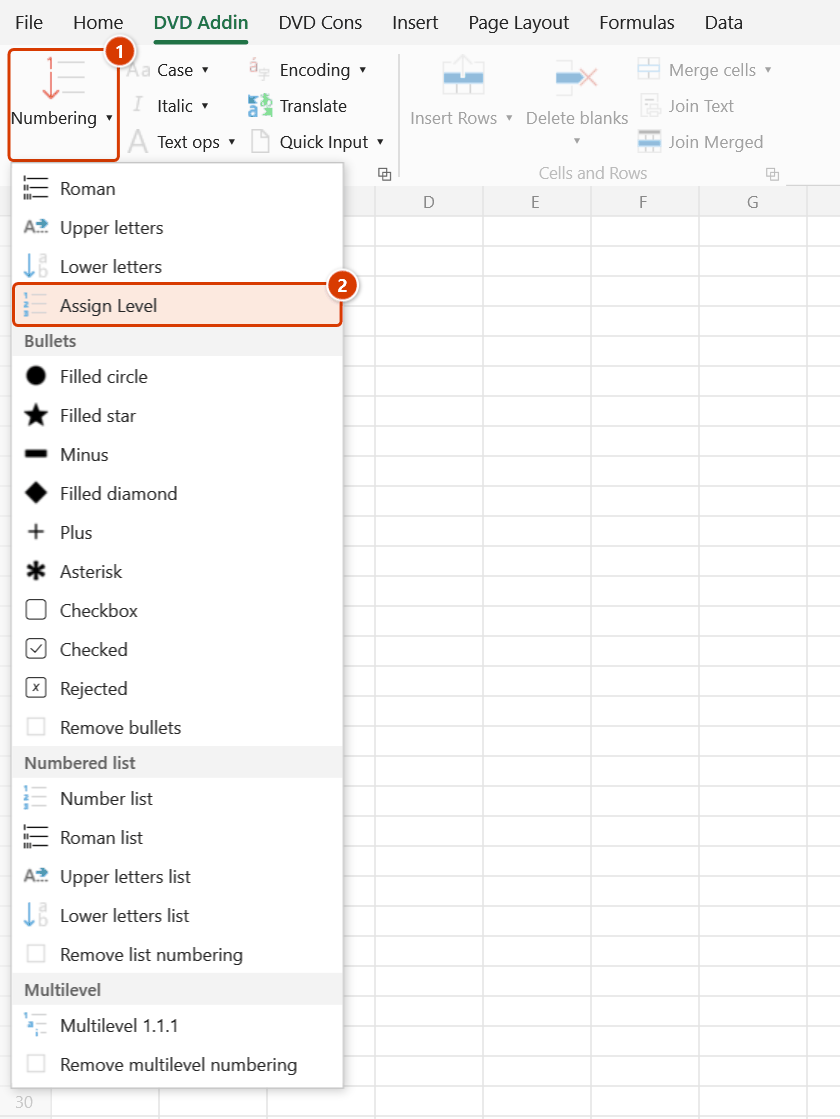
Ribbon location: Tab DVD Addin → Group Text and Number → Numbering menu
Command ID: btnAssignLevel
Short description
Assign each row's Level (outline level) either by description (AI) or by cell background colour.
Details
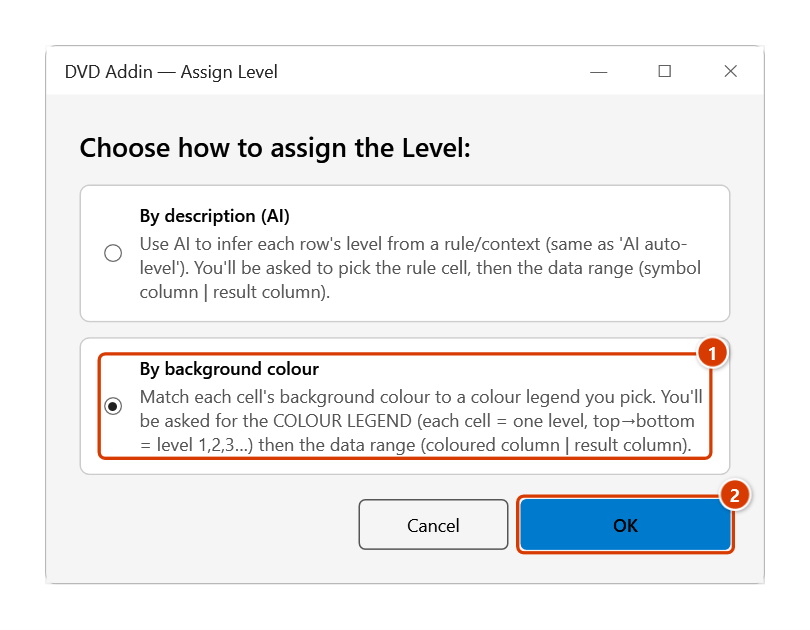
Opens a window to choose one of two ways to assign the Level:
- By description (AI): AI infers the Level from a rule/context (same as the old "AI auto-level"). You'll be asked to pick the rule cell, then the data range (symbol column | result column).
- By background colour: match each cell's fill to a colour legend you pick. You'll be asked for the COLOUR LEGEND (each cell = one level, top→bottom = level 1, 2, 3…), then the data range (coloured column | result column).
Result: the Level number is written to the rightmost column of the data range; an unmatched row gets an empty Level cell for you to review (the add-in only sets that empty cell's font to bold red, so nothing red is visible on the sheet).
Video tutorial
Narrated in Vietnamese, with Vietnamese subtitles. Đánh Level · 4 min 37 s · 7 cases · Download the video · Practice workbook for the video
Chapters (12)
- Giới thiệu
- Mở lệnh
- Cửa sổ Đánh Level
- 1 · Tô màu theo cấp
- 2 · Màu không khớp chú giải
- 3 · Sửa màu rồi chạy lại
- 4 · Dòng chi tiết không tô màu
- 5 · Theo mô tả (AI)
- 6 · Chọn thiếu cột và hoàn tác
- 7 · Khi chọn sai
- Mẹo
- Kết thúc
Illustrated walkthrough
Practice
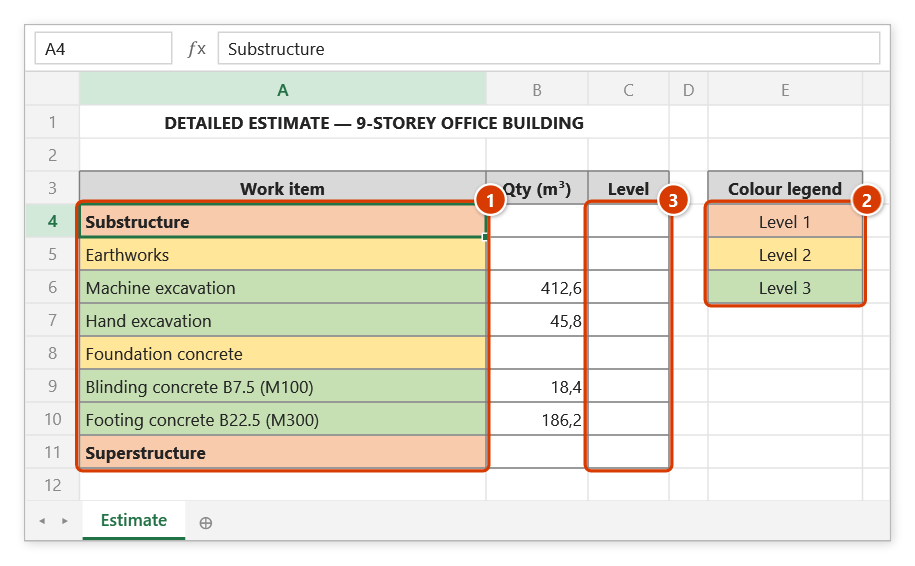
Download this command's sample workbook — the data matches the pictures below (sheet Estimate), so you can follow each step right away.
Step 1. Prepare the table: fill the description column with one colour per level (1); build a colour legend, one cell per level, top→bottom = level 1, 2, 3 (2); keep a Level column as the rightmost column for the result (3).
Step 2. On the ribbon, open the DVD Addin tab → Text and Number group → open Numbering → choose Assign Level.
Step 3. In the Assign Level box choose By background colour (1) and click OK (2). By description (AI) uses the AI assistant and asks for a rule cell instead of a colour legend.
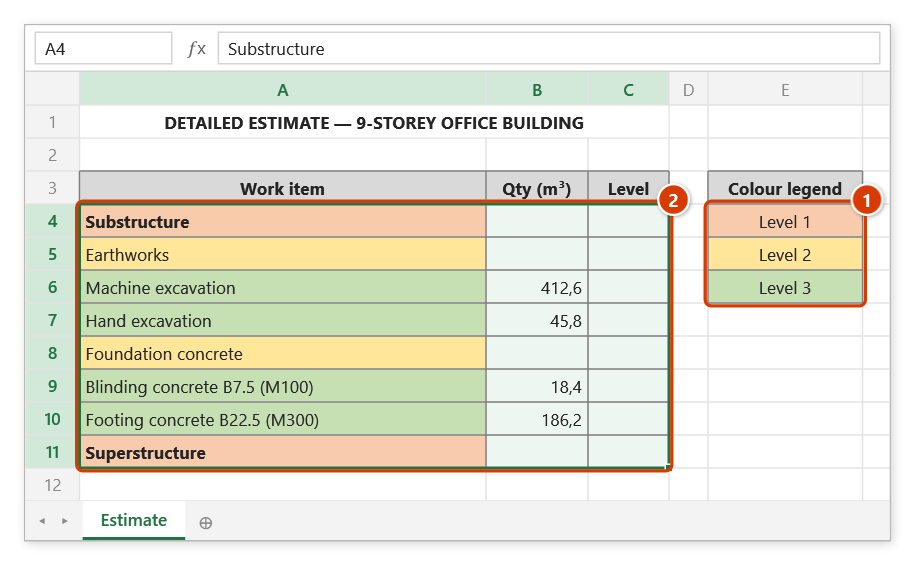
Step 4. Excel then asks for two ranges: in STEP 1: LEVEL COLOURS drag over the legend E4:E6 (1); in STEP 2: DATA RANGE drag over A4:C11 (2) — the left column holds the colours, the rightmost column receives the level (the column in between is not touched).
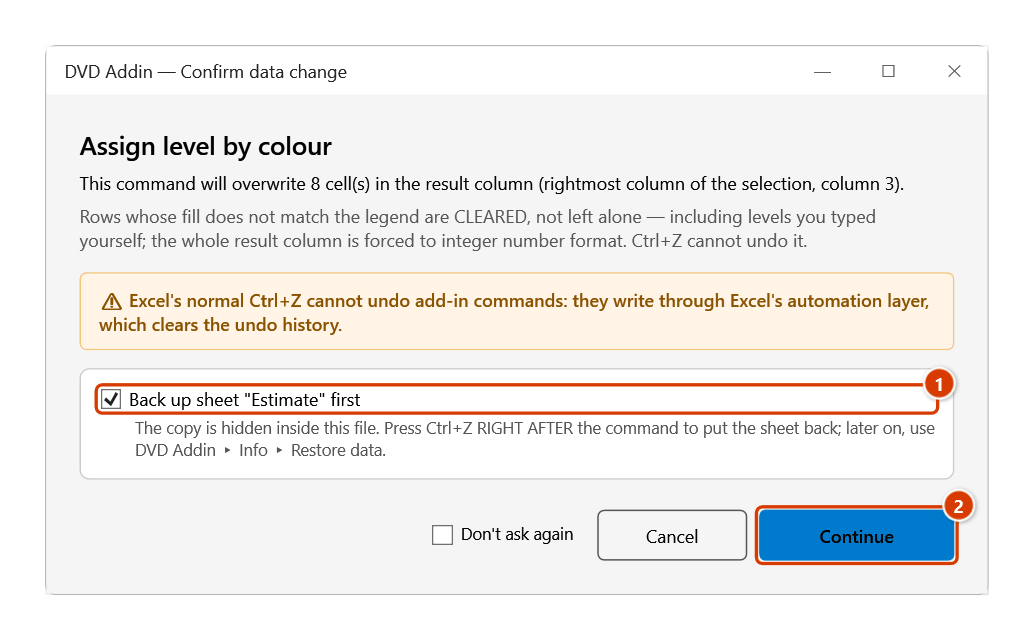
Step 5. The Confirm data change box says the result column (column 3) will be overwritten — rows whose colour matches no legend cell are cleared. Keep Back up sheet ticked (1) and click Continue (2).
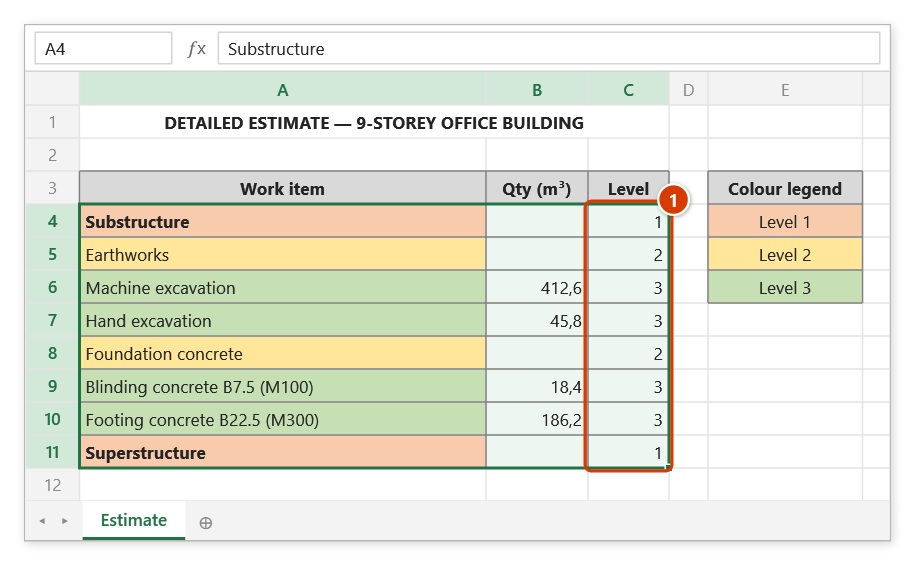
Step 6. The Level column is filled with 1, 2, 3 from each row's fill colour (1), then the add-in reports Levels assigned by colour!. A row whose colour matches no legend cell gets an empty Level cell for you to review.
Notes
- This command replaces the old "AI auto-level" button (removed) — the AI path lives under By description (AI).
- The By background colour path needs no AI and no API key.
- The range picker does not lock Excel: while it is open you can scroll, switch sheets or switch workbooks to pick the range there. Click OK or press Enter on the sheet when done; Cancel or Esc to stop.